Cloud Policies
Required License: Policies related to misconfigurations, network exposure, and exposed secrets are available only with Standard and Enterprise licenses, and not with CIEM or Cloud Vulnerability Management licenses See Licensing for more information.
This is a how-to guide for managing policies, which determines how findings are created.
- To create custom policies, see Cloud Policies: Custom.
- To view and manage cloud findings, see Cloud Findings.
- To learn about finding statuses and the finding lifecycle, see Finding Lifecycle.
- To learn about how finding severity works, see Finding Severity.
View a complete list of out-of-the-box and custom policies to understand how Tenable One Cloud Exposure monitors your environment and how findings are triggered by policies. For every policy, view the specific compliance standards that map to policy benchmarks, and the number of resources that failed to pass those benchmarks.
Manage Policies
To view and manage policies:
- In the Cloud Exposure Console, click on Policies > Cloud Policies.
- Select an account scope in the Organization drop-down to view and manage policies for a specific subset of cloud accounts, or IdPs. By default, the entire Organization (all accounts) is selected.
- Choose whether to view Built-In or Custom policies.
- Filter the table to narrow the scope of the visible data. Use the column picker on the top right of the table to choose which columns to display. See Policy Column Data for more information.
-
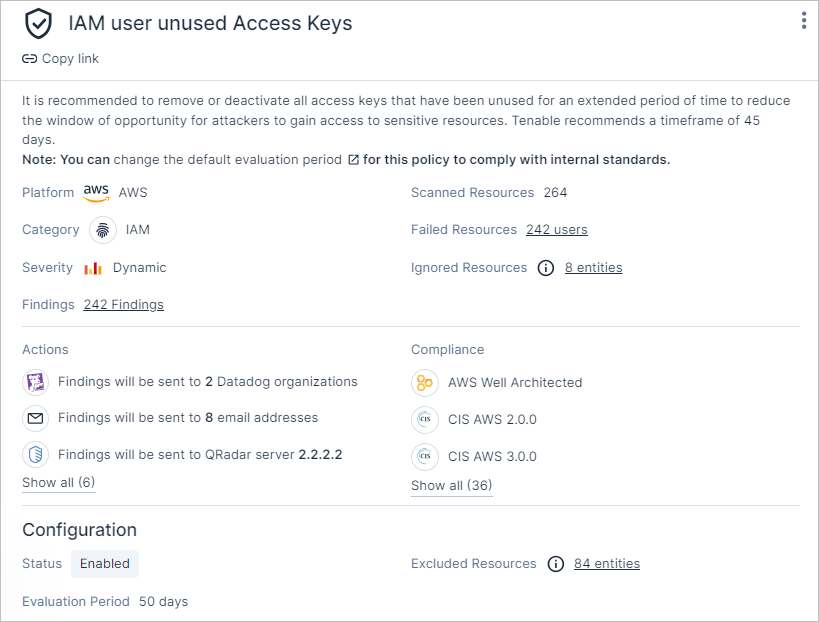
Click on a policy to open a slideout panel with more information. Review and manage the policy. See Policy Column Data for more information. The slideout contains, for example, the following additional policy details:
- Actions — A list of push notifications, created by automation rules, that are sent to integrated third party tools when this policy triggers findings.
- Configuration — Any settings configured for the policy, including whether the policy is enabled, and how many associated resources were scanned, ignored, and failed.
- Exclusions — All the Exclusions that are associated with the policy.
- Edit configuration for a policy. You can perform the following policy management activities. Some of these settings are only available for specific policies.
- Enable and Disable Policies
- Delay Finding Creation
- Change Evaluation Period and Password Requirements
- Create Findings for Disabled Identities
- Create Findings for Microsoft Entra ID Guest Users with Pending Invitations
- Change permission usage learning period
- Recommend Removing Inactive Principals from Groups
- Create Findings for Member Account Root Users
- Exclude Resources from Policies
- Exclude Secrets from Policies
- Exclude API Gateway Paths from Public Lambda Function Policy
- Export Policy Data
 See image of slideout panel
Policy Column Data
The following columns appear in the table on the Policies page, and most of them can also be used to filter data in the table.
| Filter | Description |
|---|---|
| Platform | For example, the cloud service provider or IdP. Possible values: AWS, Azure, Microsoft Entra ID, GCP, or OCI. |
| Category | The logical category that the policy belongs to. See Policy Categories. |
| Name | The name of the policy. |
| Severity | The severity level of the policy, which determines the severity level of any findings triggered by the policy. See Dynamic vs. Static Severity for more information. |
| Compliance | Compliance standards and security best practices that map to policy benchmarks. |
| Status | Whether the policy is enabled or disabled. You can Enable and Disable Policies so that the policies don’t trigger findings for resources in those accounts. |
| Scanned Resources | The total number of resources checked by the policy. |
| Failed Resources | The number of resources that failed to pass the policy benchmarks. For policies with separate findings per resource, the number of failed resources is identical to the number of findings. Click on the link to see a list of the findings. |
Policy Settings  |
|
Enable and Disable Policies
By default, out-of-the-box policies are enabled (except for Monitoring policies) and apply to all accounts in your organization. You can choose to fine-tune this by either disabling a policy across your entire organization, or just for a specific subset of accounts or folders. See Account Hierarchy and Folders for more information about grouping accounts together using folders. For example, you may want to disable a policy if there's a low severity misconfiguration that your organization decides that they don't want to fix, such as an issue with VPC Flow Logs.
To enable or disable a policy:
- In the Cloud Exposure Console, click on Policies > Cloud Policies.
- Select an account scope in the Organization dropdown to enable/disable a policy on a specific subset of cloud accounts. By default, the entire Organization (all accounts) is selected.
- Navigate to the relevant policy.
-
Click the three dots menu
and click Edit. -
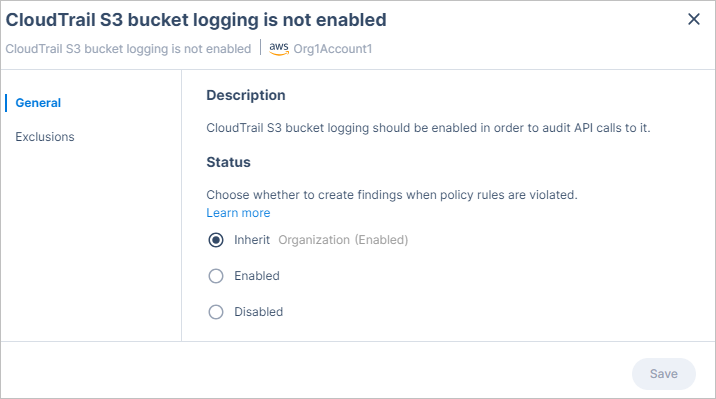
In the Status section, choose a relevant option:
- Inherit — Inherit the configuration of the parent-level account scope (default). The inherited configuration is shown in parentheses, next to the name of the parent-level scope. If you selected the entire Organization as the scope, this option does not appear.
- Enabled (overrides parent-level configuration). Findings are created when policy rules are violated.
- Disabled (overrides parent-level configuration). Findings are not created when policy rules are violated.
Note: If you override the parent-level configuration, the unique configuration will remain, regardless of any changes made in the parent-level scope. - Click Save.
Delay Finding Creation
Postpone the creation of findings by a specified amount of time, after policy rules are violated. Any configured delay will only apply to new resources, created after the setting is configured (based on the creation time of the resource). This setting is configured per-policy, on a specific account scope. This setting is not available for all policies.
Although in general, Cloud Exposure recommends not to delay finding creation, there are several reasons why you might want to do so. For example, if you are creating/deleting lots of resources during maintenance in your environment, or to reduce the noise associated with ephemeral resources.
- Unencrypted EBS snapshot
- Unencrypted EBS volume
To delay finding creation:
- In the Cloud Exposure Console, click on Policies > Cloud Policies.
- Select an account scope in the Organization dropdown to enable/disable a policy on a specific subset of cloud accounts. By default, the entire Organization (all accounts) is selected.
- Navigate to the relevant policy.
-
Click the three dots menu
, and then click Edit. -
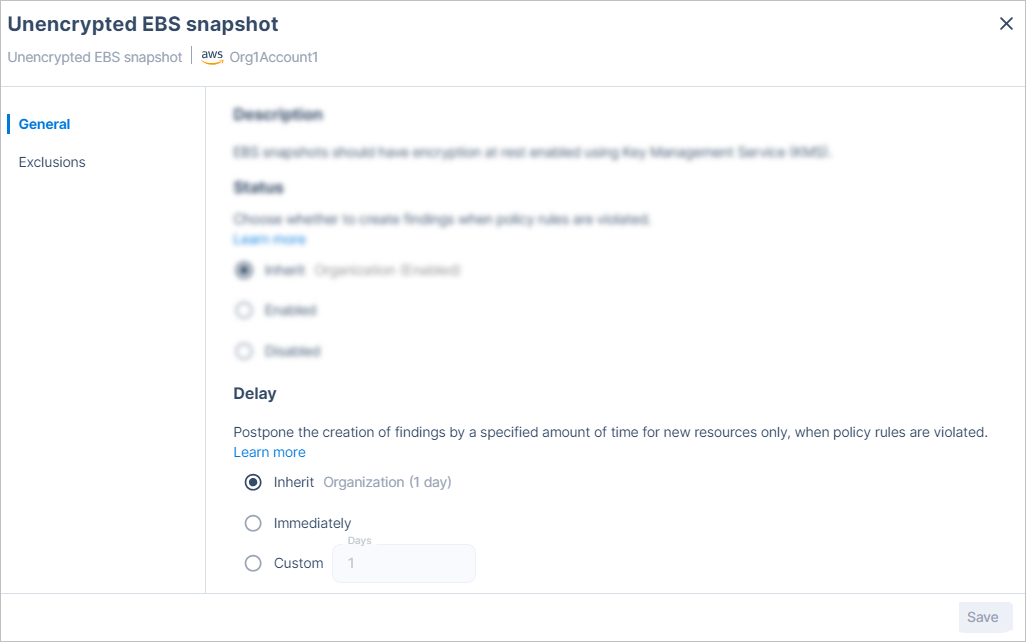
In the Delay section, choose a relevant option:
- Inherit — Inherit the configuration of the parent-level account scope (default). The inherited configuration is shown in parentheses, next to the name of the parent-level scope. If you selected the entire Organization as the scope, this option does not appear.
- Immediately (overrides parent-level configuration). Don't delay finding creation. The finding will be created immediately after policy rules are violated.
- Custom (overrides parent-level configuration). Choose a custom number of days by which to delay finding creation.
Note: If you override the parent-level configuration, the unique configuration will remain, regardless of any changes made in the parent-level scope. - Click Save.
Change Evaluation Period and Password Requirements
Cloud Exposure uses default evaluation periods and password requirements for certain policies. You can customize these policies to define internal policy standards. For example, you can require that the key rotation be every 6 months instead of the default 12 months.
- The evaluation period refers to the time settings used to evaluate policies before triggering findings. This includes the rotation period, retention period, and inactivity period, each defining a specific duration for policy enforcement. This ensures that resources are analyzed for a significant amount of time before findings are opened.
- The password requirements refer to password settings, such as character length, which ensure that the passwords meet the requirements of the password policy when creating passwords for their accounts. For example, you can require the password length to be 20 characters instead of default 14 characters.
To change the evaluation period or password requirements:
- In the Cloud Exposure Console, click on Policies > Cloud Policies.
- Navigate to one of the Supported Policies.
- Click the three dots menu and then click Edit.
- Click Advanced.
-
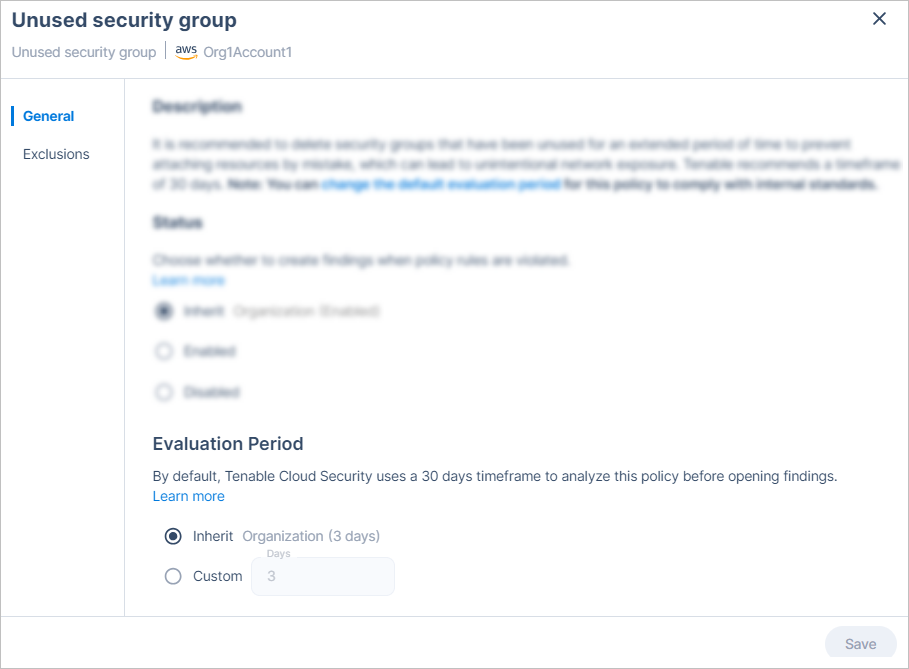
The section title varies based on the policy setting type:
- Rotation Period: Choose a custom number of days for the rotation period.
- Retention Period: Choose a custom number of days for the retention period.
- Inactivity Period: Choose a custom number of days for the inactivity period.
- Password Requirements: Update the default value.
-
If the account scope isn't on Organization, choose the relevant option:
- Inherit — Inherit the configuration of the parent-level account scope (default). The inherited configuration is shown in parentheses, next to the name of the parent-level scope. If you selected the entire Organization as the scope, this option does not appear.
- Custom (overrides parent-level configuration). Choose a custom number of days (1-365) for the evaluation period.
Note: If you override the parent-level configuration, the unique configuration will remain, regardless of any changes made in the parent-level scope. - Click Save.
Supported Policies
You can change the default evaluation period and password requirements for the following policies to comply with internal standards:
| Platform | Policy Setting Type | Policy Name | Default Value |
|---|---|---|---|
| AWS | Inactivity Period | IAM User unused access keys | 45 days |
| AWS | Inactivity Period | IAM user unused password | 45 days |
| AWS | Inactivity Period | Unused security group | 30 days |
| AWS | Password Requirements | Password length does not meet minimum requirements | 14 characters |
| AWS | Password Requirements | Password reuse policy does not meet minimum requirements | 24 passwords |
| AWS | Retention Period | DocumentDB Cluster backup automatic retention period does not meet minimum requirements | 7 days |
| AWS | Retention Period | Elastic Beanstalk Environment does not publish logs to CloudWatch Logs | 7 days |
| AWS | Retention Period | ElastiCache Redis OSS Cluster Cache automatic backup retention period does not meet minimum requirements | 1 day |
| AWS | Retention Period | Neptune Cluster backup automatic retention period does not meet minimum requirements | 7 days |
| AWS | Retention Period | RDS Cluster backup automatic retention period does not meet minimum requirements | 7 days |
| AWS | Retention Period | RDS Instance backup automatic retention period does not meet minimum requirements | 7 days |
| AWS | Retention Period | Redshift Cluster backup automatic retention period does not meet minimum requirements | 7 days |
| AWS | Rotation Period | IAM User active access keys are not rotated | 90 days |
| AWS | Rotation Period | KMS Key automatic key rotation is not enabled | 365 days |
| AWS | Rotation Period | KMS Key is not rotated | 365 days |
| Azure | Retention Period | SQL Server audit retention for storage account is not set | 90 days |
| Azure | Rotation Period | Key Vault Certificate automatic rotation is not enabled | 730 days |
| Azure | Rotation Period | Key Vault Certificate is not rotated | 365 days |
| Azure | Rotation Period | Key Vault Key automatic rotation is not enabled | 730 days |
| Azure | Rotation Period | Key Vault Key is not rotated | 730 days |
| Azure | Rotation Period | Key Vault Secret is not rotated | 365 days |
| GCP | Inactivity Period | Unused GCP project | 30 days |
| GCP | Rotation Period | Cloud KMS key rotation is not set | 90 days |
| GCP | Rotation Period | Project API key is not rotated | 90 days |
| GCP | Rotation Period | Secret Manager Secret rotation is not set | 90 days |
| GCP | Rotation Period | Service account user managed keys are not rotated | 90 days |
| Microsoft Entra ID | Rotation Period | App registration certificate is not rotated | 365 days |
| Microsoft Entra ID | Rotation Period | App registration secret is not rotated | 180 days |
| OCI | Password Requirements | Password expiration policy does not meet minimum requirements | 365 days |
| OCI | Password Requirements | Password length policy does not meet minimum requirements | 14 characters |
| OCI | Password Requirements | Password reuse policy does not meet minimum requirements | 24 passwords |
| OCI | Rotation Period | User API key is not rotated | 90 days |
| OCI | Rotation Period | User auth token is not rotated | 90 days |
| OCI | Rotation Period | User Customer Secret Key is not rotated | 90 days |
| OCI | Rotation Period | User Database Password is not rotated | 90 days |
| OCI | Rotation Period | Vault master encryption key is not rotated | 365 days |
Create Findings for Disabled Identities
Choose to apply inactive IAM policies to disabled identities. You may want to apply policies to disabled identities if you don't disable inactive users by default.
- If you enable this option for a policy, findings are also created for disabled identities, and remediation steps for all policy findings recommend deleting identities.
- If you disable this option for a policy (default behavior), findings aren't created for disabled identities, and remediation steps for all policy findings recommend either deleting or disabling identities.
To create findings for disabled identities:
- In the Cloud Exposure Console, click on Policies > Cloud Policies.
- Select an account scope in the Organization dropdown to enable/disable a policy on a specific subset of cloud accounts. By default, the entire Organization (all accounts) is selected.
- Navigate to one of the Supported Policies.
-
Click the three dots menu
icon, and then click Edit. -
In the Disabled Identities section, choose a relevant option:
- Inherit — Inherit the configuration of the parent-level account scope (default). The inherited configuration is shown in parentheses, next to the name of the parent-level scope. If you selected the entire Organization as the scope, this option does not appear.
- Enabled (overrides parent-level configuration). Findings are created when the identity is disabled.
- Disabled (overrides parent-level configuration). Findings are not created when identity is disabled.
Note: If you override the parent-level configuration, the unique configuration will remain, regardless of any changes made in the parent-level scope. - Click Save.
Supported Policies
You can enable/disable finding creation for disabled identities, for the following policies:
-
GCP:
- Inactive service account
-
Google Workspace:
- Inactive Google Workspace user
-
Microsoft Entra ID:
- Inactive Microsoft Entra ID application
- Inactive Microsoft Entra ID user
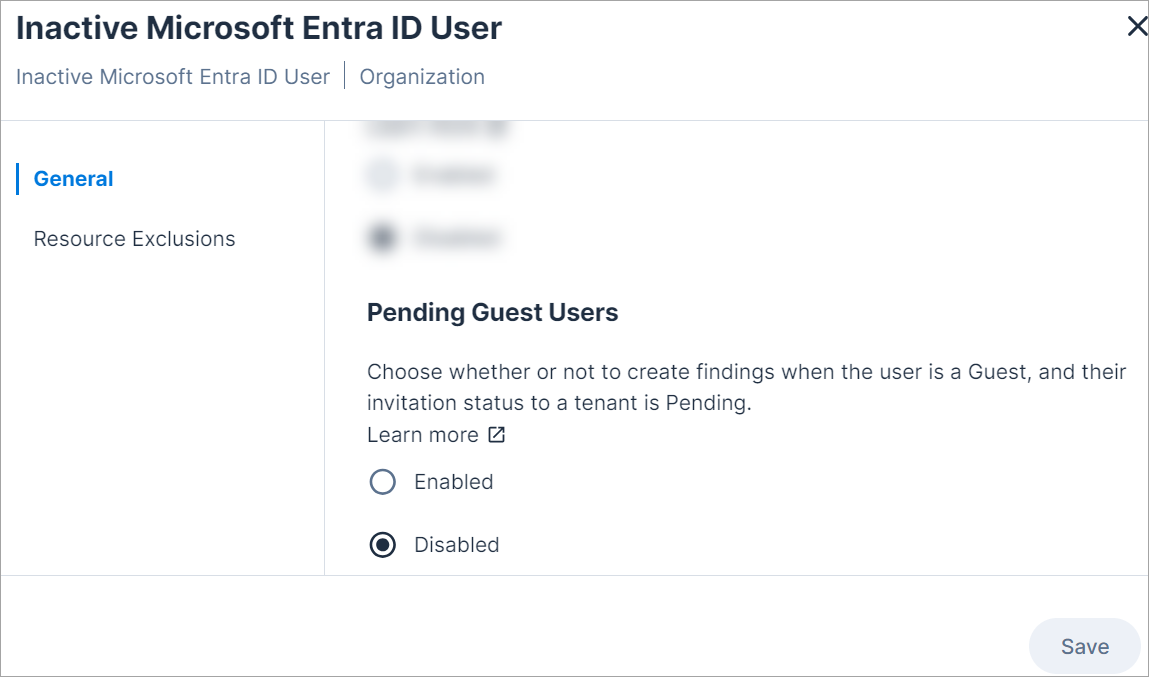
Create Findings for Microsoft Entra ID Guest Users with Pending Invitations
Choose whether or not to create findings when the user is a guest, and his invitation status to a tenant is pending. This allows you to exclude any Microsoft Entra ID guest user that didn't yet accept an invitation to join the tenant from an inactive Microsoft Entra ID user.
To create findings for guest users with pending invitations:
- In the Cloud Exposure Console, click on Policies > Cloud Policies.
- Select an account scope in the Organization dropdown to enable/disable a policy on a specific subset of cloud accounts. By default, the entire Organization (all accounts) is selected.
- Navigate to the Inactive Microsoft Entra ID User policy.
-
Click the three dots menu
icon, and then click Edit. -
Under Choose whether or not to create findings when the user is a guest, and his invitation status to a tenant is pending, choose a relevant option:
- Inherit — Inherit the configuration of the parent-level account scope (default). The inherited configuration is shown in parentheses, next to the name of the parent-level scope. If you selected the entire Organization as the scope, this option does not appear.
- Enabled (overrides parent-level configuration). Findings are created for guest users with pending invitations.
- Disabled (overrides parent-level configuration). Findings are not created for guest users with pending invitations.
Note: If you override the parent-level configuration, the unique configuration will remain, regardless of any changes made in the parent-level scope. - Click Save.
Change Permission Usage Learning Period
See Permission Usage Learning Period in the article about excessive permissions and inactive identities.
Recommend Removing Inactive Principals from Groups
Choose whether Tenable should recommend removing principals from groups in overprivileged finding remediation steps when the principal is inactive. You can disable this option if IdP groups in your organization are used for more than just managing cloud permissions (for example, for managing SaaS applications or your organizational structure).
- For customers who started using Cloud Exposure before August 11, 2024, this option is enabled by default (except for the Overprivileged Microsoft Entra ID group in subscription policy).
- For customers who started using Cloud Exposure after August 11, 2024, this option is disabled by default.
To recommend removing inactive principals from groups:
- In the Cloud Exposure Console, click on Policies > Cloud Policies.
- Select an account scope in the Organization dropdown to enable/disable a policy on a specific subset of cloud accounts. By default, the entire Organization (all accounts) is selected.
- Navigate to one of the Supported Policies.
-
Click the three dots menu
icon, and then click Edit. -
In the Remove Inactive Principals from Groups section, choose a relevant option:
- Inherit — Inherit the configuration of the parent-level account scope (default). The inherited configuration is shown in parentheses, next to the name of the parent-level scope. If you selected the entire Organization as the scope, this option does not appear.
- Enabled (overrides parent-level configuration). Cloud Exposure will recommend removing users from groups in finding remediation steps when the user is inactive.
- Disabled (overrides parent-level configuration). Cloud Exposure will not recommend removing users from groups in finding remediation steps when the user is inactive.
Note: If you override the parent-level configuration, the unique configuration will remain, regardless of any changes made in the parent-level scope. - Click Save.
Supported Policies
You can configure whether to recommend removing inactive principals from groups for the following policies:
-
Azure:
- Overprivileged managed identity in subscription
- Overprivileged Microsoft Entra ID application in subscription
- Overprivileged Microsoft Entra ID group in subscription
- Overprivileged Microsoft Entra ID user in subscription
-
GCP:
- Overprivileged service account in project
- Overprivileged user in project
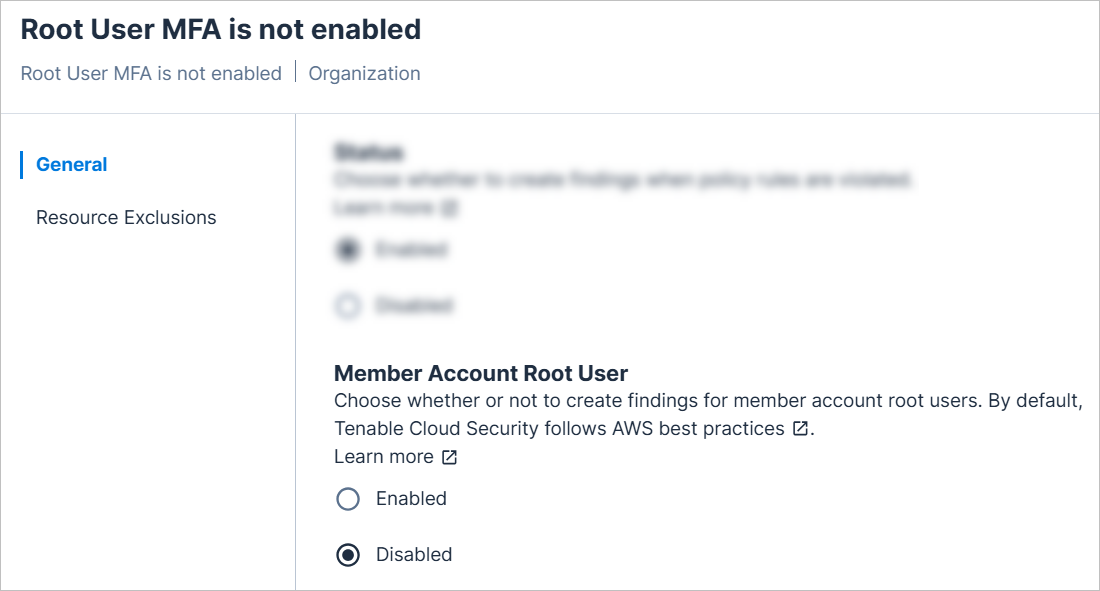
Create Findings for Member Account Root Users
For the Root User MFA is not enabled policy, choose whether or not to create findings for member account root users. By default, this option is disabled, following AWS best practices.
- In the Cloud Exposure Console, click on Policies > Cloud Policies.
- Select an account scope in the Organization dropdown to enable/disable a policy on a specific subset of cloud accounts. By default, the entire Organization (all accounts) is selected.
- Navigate to the Root User MFA is not enabled policy.
-
Click the three dots menu
icon, and then click Edit. -
In the Member Account Root User section, choose a relevant option:
- Inherit — Inherit the configuration of the parent-level account scope (default). The inherited configuration is shown in parentheses, next to the name of the parent-level scope. If you selected the entire Organization as the scope, this option does not appear.
- Enabled (overrides parent-level configuration). Cloud Exposure will create findings for member account root users.
- Disabled (overrides parent-level configuration). Cloud Exposure will not create findings for member account root users.
Note: If you override the parent-level configuration, the unique configuration will remain, regardless of any changes made in the parent-level scope. - Click Save.
Exclude Resources from Policies
Exclusions allow you to exclude resources from policies or change the severity of associated findings. You can create them per-finding or based on patterns from ignored findings, and ensure they stay accurate by auditing them periodically.
Exclude Secrets from Policies
Exclude secrets from policies to address detected false-positives. Secrets consist of a key/value pair, either one of which may contain the secret. Enter a pattern you would like to exclude. If the pattern matches the secret, Cloud Exposure will exclude the secret. For example, use the value pattern https://* to exclude any URLs that were falsely detected as secrets.
This option is available for policies that related to exposing secrets. For example, CloudFormation stack is exposing secrets.
- Excluding secrets from policies is available to users with either the Collaborator or Administrator role.
When you exclude a secret via the Policies page:
- The exclusion is updated on the next system data sync.
- The exclusion is permanent (unless you manually remove it).
To make exclusion changes that are implemented immediately, you can exclude secrets via the Findings page.
To exclude secrets from a policy:
- In the Cloud Exposure Console, click on Policies > Cloud Policies.
- Select an account scope in the Organization dropdown to exclude resources for a specific subset of cloud accounts. By default, the entire Organization (all accounts) is selected.
- Navigate to the relevant policy.
- Click the three dots menu icon, and then click Edit.
- In the configuration dialog, navigate to Secret Exclusions.
-
Enter a Key Pattern and Value Pattern. You can use the following wildcard characters in the pattern:
- Asterisk * - Matches zero or more characters
- Question mark ? - Matches a single character
- (Optional) Add a Comment.
- Choose whether or not to Ignore case (treat upper- and lower-case letters the same).
- Click Save.
Exclude API Gateway Paths from Public Lambda Function Policy
Define API Gateway resource paths and methods as public by design to reflect intended configurations. Enter a resource path pattern and HTTP method (e.g., Get). If a detected path and method match, Tenable classifies them as public by design and closes related findings. For example, enter "/health" with Get to mark this combination as intentionally public.
The exclusion is updated on the next system data sync.
To exclude API Gateway paths:
- In the Cloud Exposure Console, click on Policies > Cloud Policies.
- Select an account scope in the Organization dropdown to exclude resources for a specific subset of cloud accounts. By default, the entire Organization (all accounts) is selected.
- Navigate to the Public Lambda Function policy.
- Click the three dots menu icon, and then click Edit.
- In the configuration dialog, navigate to API Gateway Path Exclusions.
-
Enter a Path Pattern. You can use the following wildcard characters in the pattern:
- Asterisk * - Matches zero or more characters
- Question mark ? - Matches a single character
- Choose an HTTP method.
- (Optional) Add a Comment.
- Choose whether or not to Ignore case (treat upper- and lower-case letters the same).
- Click Save.
Export Policy Data
Export policy data to a CSV file. The data is exported according to the current filters applied to the table, and contains all relevant policy data, including a URL for the Findings page filtered with the specific findings triggered by the policy.
To export policy data:
- (Optional) Select an account scope in the Organization drop-down to view policies that are relevant to a specific subset of cloud accounts. By default, the entire Organization (all accounts) is selected.
- Filter the table to narrow the scope of the visible data. See Policy Column Data for more information.
- From the top-right corner of the Policies table, click the Export
 button.
Create Findings for Inactive System-Managed Identities in Azure
In Azure, some system-managed identities cannot be deleted, even when they are inactive. In these cases, Tenable still creates findings for these identities, with the severity level of Informational and no remediation steps.
For system-managed identities that can be deleted, there may be remediation steps and higher severity levels.
System-Managed Identities That Can Be Deleted
These are the system-managed identities that can be deleted in Azure when they are inactive:
- AI Service
- API Management Service
- App Configuration
- App Service
- Automation Account
- Azure Database for MySQL flexible server
- Backup Vault
- CDN Profile
- Container App
- Container Instance
- Container Registry
- CosmosDB Account
- Data Collection Rule
- Data Explorer Cluster
- Data Factory V2
- Digital Twins Instance
- Grafana
- IoT Hub
- Logic App
- Maps Account
- PostgreSQL Database Flexible Server
- Recovery Service Vault
- Redis Cache
- Search Service
- SignalR Service
- SQL Managed Instance
- SQL Server
- Static Site
- Virtual Machine
- Virtual Machine Scale Set
- Web Pub Sub
Policy Categories
Cloud Exposure has a large number of out-of-the-box policies, divided logically into the following categories:
- AI — Contains policies that detect security, governance, and configuration risks related to the use of AI services and AI-powered resources in your cloud environment.
- Compute — Contains, for example, the “EC2 instance metadata service supports insecure version” policy, which identifies EC2 instances that obtain their IAM role credentials through Instance Metadata Service Version 1 (IMDSv1) instead of IMDSv2. While both IMDSv1 and IMDSv2 are available and enabled by default, IMDSv2 should be used exclusively.
- Data — Contains, for example, policies that detect resources that are publicly accessible and data resources that aren't encrypted.
- IAM — Contains, for example, policies that detect overprivileged IAM identities.
- Kubernetes — Contains policies that detect misconfigurations in your Kubernetes containers.
- Logging — Contains policies that detect misconfigurations related to cloud logging.
- Management — Contains policies that detect when new accounts are added to your cloud environment.
- Monitoring — Contains policies that detect missing AWS CloudWatch alarms, which are used to notify you when various changes are made to your environment.
- Network — Contains, for example, policies that detect public network exposure and insecure network configurations.
- Secrets — Contains policies that detect resources that expose secrets.
- Workload Protection — Contains policies that identify, evaluate, treat, and report on vulnerabilities in your workloads.
- Anomaly Detection — Contains policies that detect unusual behaviors performed by identities.
- Custom Policies — Contains any custom policies that you create. See Cloud Policies: Custom.