IAM
Configure the following settings on the IAM settings page.
Settings > Cloud Exposure > IAM
This is a how-to guide for configuring IAM settings in Tenable One Cloud Exposure.
- For a conceptual overview of IAM capabilities, see IAM.
- For a how-to guide about exploring identity risk in your environment, see Identity Intelligence.
- For a how-to guide about handling overprivileged identities in your environment, see Excessive Permissions.
Permission Usage Learning Period
You can configure the learning period used to evaluate policies related to excessive permissions and inactive identities. This period determines the amount of time that must pass before triggering findings. Changing the time frame impacts findings, labels, and other system behavior. For example, if you increase the learning period, some previously opened findings may be closed. Configuration changes are applied in the Console the next time data is synchronized in your environment.
By default, Cloud Exposure uses the time periods described in the following sections:
You can configure different learning periods for different account scopes. When you configure a learning period for a specific scope, be aware of the following:
- By default, children scopes inherit the configuration value of the parent-level account scope.
- If you configure an independent learning period for a child scope, the inherited value is overridden for that scope.
- For AWS, you can configure unique learning periods for individual accounts. For Azure and GCP, you can configure a single learning period for all accounts in the cloud provider, respectively. Values configured for Azure and GCP impact Microsoft Entra ID and Google Workspace policies, respectively. See Affected Policies for more information.
-
Within a given scope, use the Effective filter to see the actual learning periods applied to the scope. For example, within the AWS scope, you may have configured a different value for the Service identity permission usage learning period than that of the root Organization. In this case, you'll see two separate entries, with identical names, but with different scopes/values. When you click Effective, you will see only the entry that applies to the scope you selected in the dropdown.
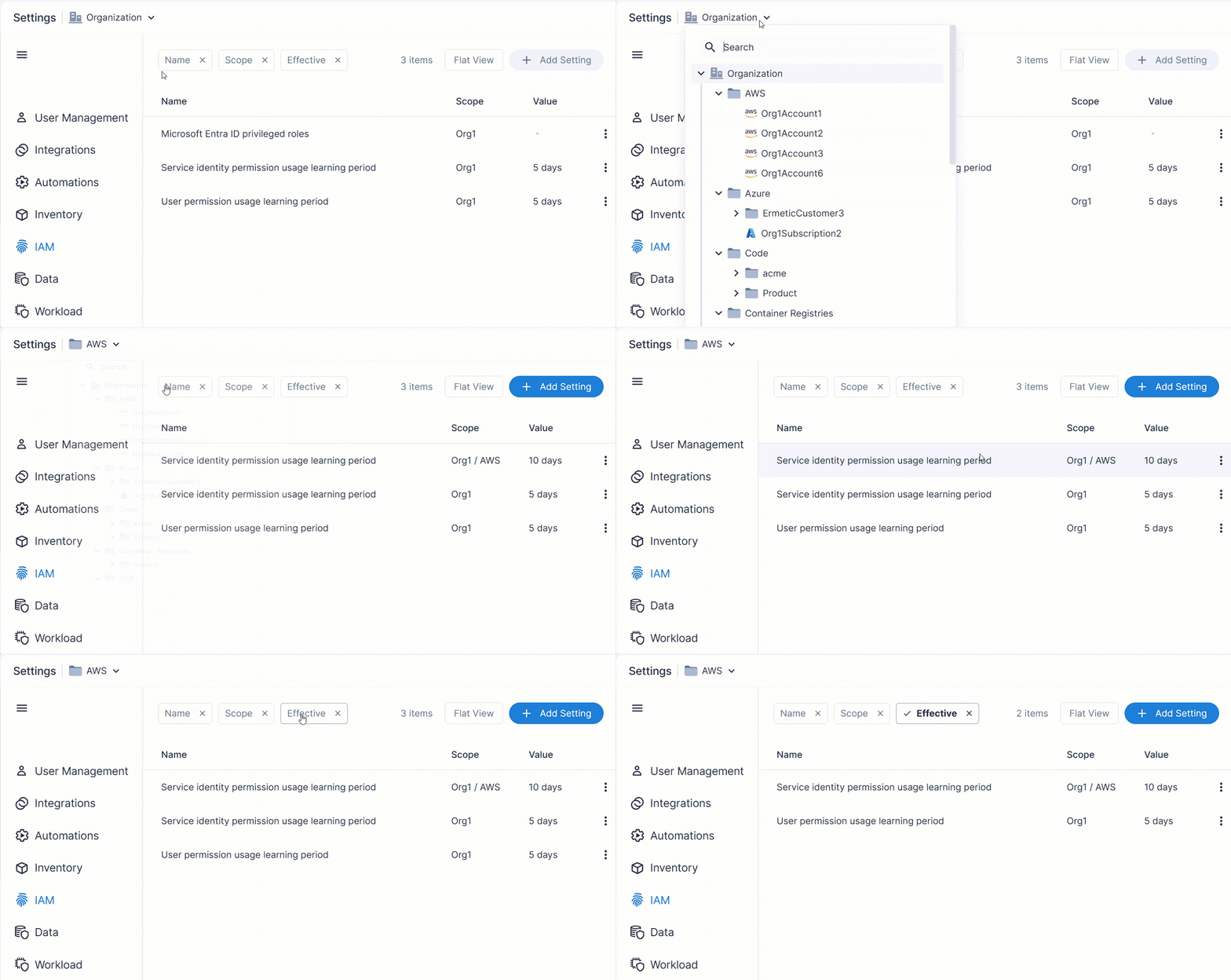
To change the learning period:
- In the Cloud Exposure Console, navigate to Settings > Cloud Exposure > IAM.
-
Select an account scope in the Organization drop-down to change the period for a specific subset of accounts. By default, the entire Organization (all accounts) is selected.
- AWS — You can configure unique periods for individual accounts.
- Azure/GCP — You can configure a learning period on the cloud provider level only.
-
Perform one of the following:
- To add a new configuration for a scope, click Add Setting.
To edit an existing configuration, click the three dots icon next to either the Service identity or User permission usage, as relevant, and then click Edit.
Note: Editing a configuration applies to the Scope indicated in the entry's Scope column, and not to the scope you selected in the Scope dropdown.
- In the Add/Edit Setting dialog, change the number of Days (1-365) and then click Done.
Affected Policies
The following table shows which resources and policies are affected by the learning period defined for each cloud/IdP.
| Cloud/IdP | User/Service Identity | Relevant Identities | Affected Policies |
|---|---|---|---|
| AWS | User |
|
|
| Service Identity |
|
|
|
| Azure/Microsoft Entra ID | User |
|
|
| Service Identity |
|
|
|
| GCP/Google Workspace | User |
|
|
| Service Identity |
|
|
Microsoft Entra ID Privileged Roles
Microsoft assigns a Privileged label to a sub-set of Microsoft Entra built-in roles. These roles are considered privileged within Cloud Exposure. If you work with other Microsoft Entra administrative roles that you also want to be considered privileged, you can define them as such in Tenable.
Microsoft Entra identities with roles defined as privileged (either by Microsoft, or that you define via the Cloud Exposure Console):
- are monitored and detected as such via relevant policies.
- are assigned a Microsoft Entra ID Privileged label.
To add a Microsoft Entra administrative role as privileged:
- In the Cloud Exposure Console, navigate to Settings > Cloud Exposure > IAM. This configuration is only available on the global, Organization scope, and not on any children scope.
-
Click Add Role, and then enter the following:
- Name — The name of the role, as it will be displayed in Cloud Exposure.
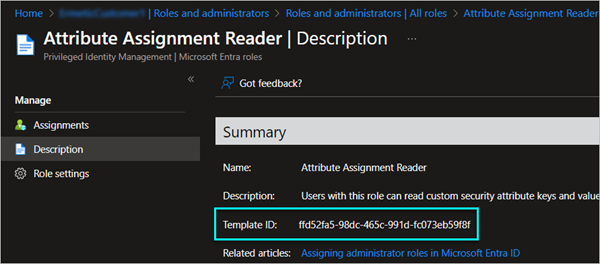
Template ID — To find the ID in the Azure portal, navigate to Microsoft Entra ID > Roles and administrators, click on the role, and then, under Manage, click on Description.
- Click Add.
- You can Edit or Delete previously added roles.