Excessive Permissions
You can use the Excessive Permissions page to learn important information about overprivileged identities in your environment. For example, you can see all overprivileged, inactive users that don’t have multi-factor authentication enabled.
This is a how-to guide for managing excessive permissions.
- For a conceptual overview, see Excessive Permissions and Inactive Identities.
- For frequently asked questions, see FAQ: IAM Governance.
View Identities with Excessive Permissions
- In the Tenable One Cloud Exposure Console, click on Risk > Excessive Permissions.
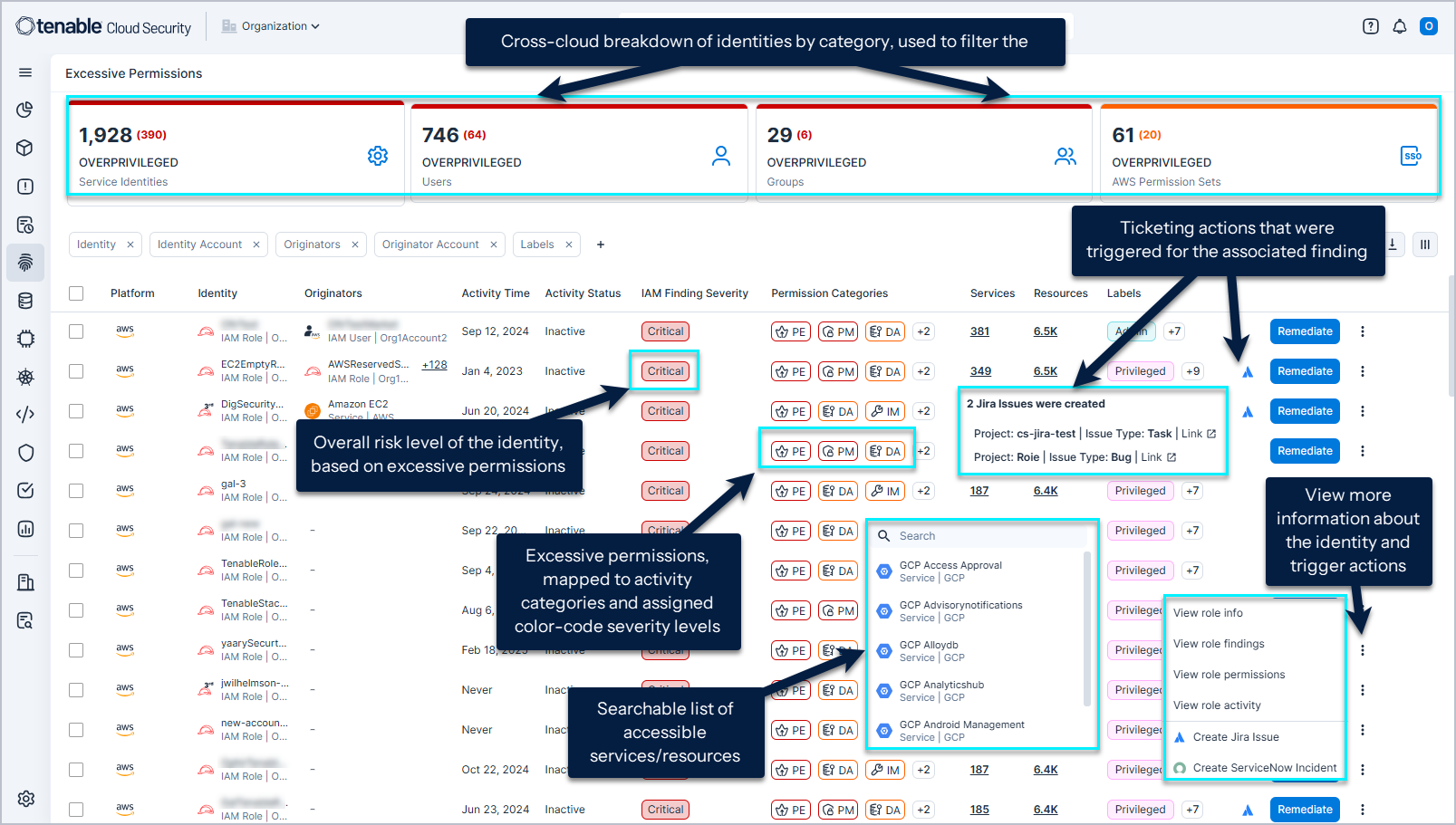
- Scan the widgets at the top of the page to see a breakdown of identities with excessive permissions by identity category. These categories are cross-cloud, and map to specific policies, depending on the cloud service provider (CSP). The overall number of identities is listed first, followed by the number with a risk level of critical in red.
- Click a widget to filter the table by that identity category. By default, the table is dynamically filtered by the category with the most risky excessive permissions (usually the category with the largest number of critical permissions).
- Filter Data in the table to modify the scope of the visible data. For example, under Labels, you can select No MFA to filter for identities with excessive permissions that do not have multi-factor authentication enabled. See Excessive Permissions and Inactive Identities for information about the data available in the table.
- Analyze the risk that the identity poses to your environment. See Excessive Permissions and Inactive Identities.
- Drill down into an identity to view granular information about it.
- Click the Remediate button next to an identity to automatically remediate the excessive permission finding/s associated with it.
- Click the three dots next to an identity to view more information about the identity (for example, view all findings associated with the identity) or to manually trigger an action.
Identity Column Data
The following columns appear in the table on the Excessive Permissions page.
| Column | Description |
|---|---|
| Platform | The cloud service provider that the identity belongs to. |
| Name | The name of the identity. Underneath the name is the resource type and the account name. |
| Originators | The cloud identities (IAM user/role, IdP user, or compute resource) which, as opposed to being granted permissions directly, can assume the identity in question, and act using the assumed identity’s permissions. For example, an Azure Virtual Machine that uses a managed identity to perform activities. Or an Azure AD user that assumes an IAM role in AWS to perform an action. |
| Last Activity | The last activity performed by the identity. |
| Activity Status | Whether the identity is active or inactive. |
| IAM Finding Severity | The risk severity of the overprivileged findings associated with the identity. If the finding exists in multiple accounts, the highest severity is displayed. |
| Permission Categories | See Permission Analysis and Risk Levels for more information. |
| Services | The number of services that the identity has access to that are considered excessive. Click on the number to view a searchable list of the services. |
| Resources | The number of resources that the identity has access to that are considered excessive. Click on the number to view a searchable list of the resources. |
| Labels | Displays all labels applied to the identity, whether applied manually, automatically based on tags, or by the system. Hover over a label tag for more information. If a resource has more than one label, click on the icon to see any additional labels. See Apply Labels to Resources for more information. |
| Remediate | Automatically remediate the excessive permission. |
View more info / Manually Trigger Actions (Vertical ellipsis  ) |
|