Malicious Files
Use Tenable One Cloud Exposure to detect potentially malicious files in your workloads.
This is a how-to guide for monitoring malicious files in Cloud Exposure.
- For a conceptual overview of vulnerability management capabilities in Cloud Exposure, see Vulnerability Management.
- For a how-to guide about configuring workload settings, including for malicious files, see Workload.
- For frequently asked questions, see FAQ: Vulnerability Management.
Supported File Types
Cloud Exposure malware scanning inspects the following files.
| Category | File Types | Where Scanned |
|---|---|---|
| Binary (detected by content) | Linux ELF binaries, Windows PE binaries, and shebang scripts (files that begin with #!) | Anywhere |
| Scripts (by extension) | .bash, .bat, .cmd, .csh, .hta, .jse, .ksh, .lua, .pl, .ps1, .psd1, .psm1, .r, .sh, .vbe, .vbs, .wsc, .wsf, .wsh, .zsh | Anywhere |
| Code dependencies | .js, .cjs, .mjs | node_modules/ or Chrome Extensions/ directories |
| Code dependencies | .py, .pyw | site-packages/ directories |
| Code dependencies | .rb | vendor/bundle/ directories |
Cloud Exposure also applies these rules:
- A file that has the executable permission is scanned even without a matching extension.
- On Linux, Cloud Exposure scans all files under /tmp, regardless of type.
- Cloud Exposure does not scan files larger than 100 MB.
The Type column on the Malicious Files page reports the detected format for each file: ELF, PE, Script, or Other Executable.
Paths Excluded From Scanning
To keep scans fast and relevant, Cloud Exposure skips paths that rarely contain relevant executables, such as caches, package and artifact stores, CI/CD working directories, container runtime data, and monitoring agent data. Examples by category:
- General: .cache, .git, dev, proc, sys
- Linux — container and orchestration paths (for example, var/lib/kubelet/pods), CI/CD workspaces (for example, var/lib/jenkins/workspace), and package or artifact stores (for example, ostree/repo/objects)
- Windows — system directories (for example, Windows/assembly), container runtimes (for example, ProgramData/docker), and software distribution stores (for example, SCCMContentLib)
This list is not exhaustive.
View Malicious Files
To view scan results:
- In the Cloud Exposure Console, click Risk > Malicious Files. The Malicious Files page displays all potentially malicious files identified by Tenable. See Malicious Files Column Data for more information.
- Filter the table to narrow the scope of the visible data. Use the column picker on the top right of the table to choose which columns to display.
- To mark a file as trusted, click on the three dots next to the entry and then click Mark as trusted.
- (Optional) Export all visible data (according to any applied filters) to a CSV file.
-
Click on a SHA-256 entry to see more information about the file. The results open in a slideout panel.
Note: To mark the file as trusted, click on the three dots next to the entry and then click Mark as trusted.
Malicious Files Column Data
The following columns/filters appear in the table on the Malicious Files page, and can also be used to filter data in the table.
| Column | Description |
|---|---|
| SHA-256 | The SHA-256 hash for the file. |
| First sScan Time | Indicates when the file was first seen in your environment. |
| Paths | (Libraries only) The file path of the package. This information can be useful when trying to determine where the package came from, and how to remediate any potential issues. For example, you may be able to identify if the package was installed as part of the base image, or if it was added to it. |
| Accounts | The cloud accounts where the scanned resource is located. For a container image, this includes every account that runs the image. Images from unsynced or public registries appear under the Container Registries account. |
| Scanned Resources | The scanned cloud resource where the file was found. |
| Executable Type | The file format type of the executable. Possible values: ELF, PE, Script, Other Executable. |
| Operating System Type | The specific operating system flavor. |
Malicious File Details
When you click a SHA-256 entry on the Malicious Files page, a slideout opens with detailed information about the file. This information helps you understand what the file is and how widely it is recognized as malicious.
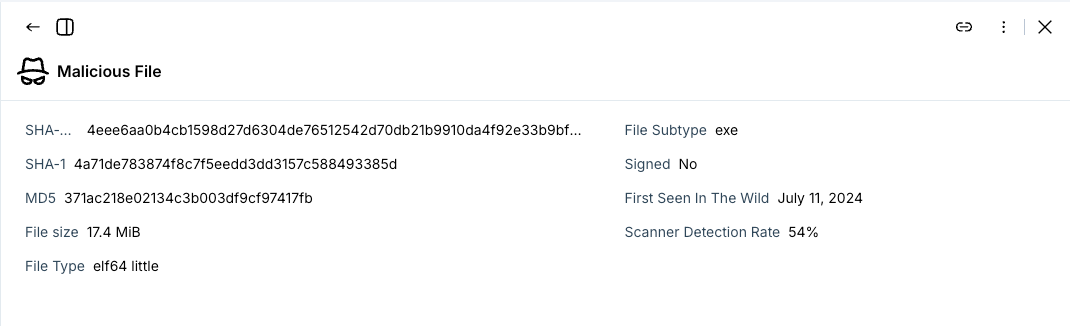
The slideout includes the following information:
| Field | Description |
|---|---|
| SHA-256 | The SHA-256 hash of the file. |
| SHA-1 | The SHA-1 hash of the file. |
| MD5 | The MD5 hash of the file. |
| File size | The size of the file. |
| File Type | The detailed format of the file, for example elf64 little. |
| File Subtype | The subtype of the file, for example exe. |
| Signed | Indicates whether the file has a digital signature. |
| First Seen In The Wild | The earliest date this hash was documented by threat intelligence providers. |
| Scanner Detection Rate | The percentage of third-party antivirus scanners that detected the file as malicious. A higher percentage means more scanners flagged the file. |