FAQ: Vulnerability Management
Virtual Machine Scanning
This section contains a list of frequently asked questions related to virtual machine scanning.
Finding Severity for Stopped VMs
 Why do findings for stopped virtual machines sometimes have a status of Critical?
The severity of a virtual machine finding is only reduced after it has been continuously shut down for 30 days. Prior to this 30-day threshold, findings will retain their original severity level, including Critical, even if the VM is stopped.
Scanned VM Volumes
Which virtual machine volumes does Tenable scan?
By default, Tenable scans the root volume and all eligible non-root volumes attached to a virtual machine. A volume is eligible if its size does not exceed 600 GB.
What is the maximum disk size and number of volumes supported?
The following limits apply:
- Maximum disk size: 600 GB per individual disk
- Maximum volumes per virtual machine: four, including the root volume
How does non-root volume scan logic work, and what does a Partial scan status indicate?
Tenable uses an all-or-nothing approach for non-root volumes. For each virtual machine, Tenable either:
- Scans the root volume only, or
- Scans the root volume together with all eligible non-root volumes
Tenable does not scan a subset of non-root volumes.
If the root volume is scanned but one or more non-root volumes are skipped — for example, because a disk exceeds 600 GB — the virtual machine scan status displays as Partial.
How can I view the scan status for disks attached to a specific virtual machine?
Navigate to the virtual machine profile page. On the Overview tab, view the Disks/Volumes table.
Can I disable non-root volume scanning?
Yes. Navigate to Settings > Security > Workload and toggle Extended Disk Scanning off.
How is non-root volume scanning billed?
Non-root disks are billed under the Data Disks category on the Licensing page. This category is specific to each cloud provider (AWS, Azure, GCP, and OCI).
Supported OS Versions
Scan Frequency
How often does Tenable scan virtual machines?
Tenable attempts to scan every virtual machine as soon as 24 hours have elapsed from the previous scan.
Scan Duration
How long does each scan take?
The average scan time is approximately 15 minutes per instance. Several factors can affect this time:
- AWS snapshot limit — AWS allows a maximum of 20 concurrent snapshots per account. To prevent interference with customer-initiated snapshots, Tenable caps snapshot creation at 15.
- Number of scanned instances — The more instances scanned per account, the longer snapshot creation can take, as each instance's volume requires its own snapshot. This can lead to delays, especially when approaching the AWS concurent snapshot limit.
- Instance volume size — Larger volumes take longer to snapshot. Combined with the number of instances and AWS limits, this can greatly affect total snapshot time.
Faster Scan Results
The scan status for workloads is now updated immediately after a scan finishes, giving you faster access to vulnerability, malware, and software detection results. Tenable decoupled the workload scan status from the main resource syncing process, so you no longer have to wait for the entire system to sync before seeing your results. You can see both the scan status/time and sync time in the resource profile page.
What is the benefit of the independent workload protection scan?
It allows the system to surface technical data - like newly discovered vulnerabilities - more quickly and independently of the data synchronization's completion.
Does this affect when risk findings are created or closed?
Yes. Findings are still created or closed after the orchestration process finishes, even if the underlying vulnerabilities were already detected or resolved in the scan data.
Could this cause temporary discrepancies?
Potentially. You might see vulnerabilities in the scan data before the associated findings are reflected in the risk view, as they depend on data synchronization completion.
Data Transfer Policy
Does any of my data leave the account?
Tenable scans both root volumes and eligible non-root volumes. The scan reads file system metadata, software packages, and file signatures to identify vulnerabilities and malware. Tenable does not extract application data or user content from scanned volumes.
Impact on Workloads
Can scanning negatively impact a running workload in any way?
Because the scanning is agentless, it is relatively transparent to a running workload. The mechanisms used to take a snapshot of the volume are as non-disruptive as possible. Once the snapshot is created, it is shared with Tenable's environment (or, in the case of Azure, copied to the environment), converted to a volume, and then scanned by Tenable machines. These latter steps have no impact on the workload whatsoever.
Snapshot Deletion
Are the snapshots that Tenable creates in my account deleted?
Yes. Snapshots are deleted as soon as the scan is complete, and the scanning process is optimized to minimize the amount of time that any given snapshot exists. In AWS, if you created retention rules to restore accidentally deleted snapshots via the Recycle Bin, you may incur additional costs. Refer to AWS documentation{target=_blank} for more information about pricing.
Monthly Scanning Costs
How to Select the Vulnerability Severity Metric for Plugins and CVEs
How do you select which vulnerability severity metric to use for plugins and CVEs?
You can select a severity metric in the Tenable One Cloud Exposure Console by navigating to Workload > Vulnerabilities > Vulnerability Severity Metric. Tenable dynamically updates the Severity value for both CVEs and Plugins based on the selected metric.
For example, if you select VPR, all CVEs and Plugins will consistently display their VPR severity as the primary severity level.
For more details, see the documentation.
Resolved Vulnerability Info
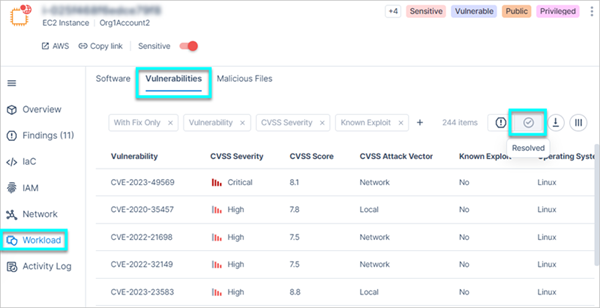
Can I see information about resolved vulnerabilities for a virtual machine?
Yes. Within the profile view of a virtual machine, navigate to Workload > Vulnerabilities, and then click on the Resolved filter. This information is retained for 30 days.
OS End-of-Life for Findings
When is an operating system considered to be nearing end-of-life for the purpose of creating a finding?
An operating system is considered to be nearing end-of-life 30 days before its official end-of-life date.
Unpatched OS Findings Criteria
When does Tenable create findings for unpatched operating systems on Windows and Linux workloads?
The criteria for identifying unpatched operating systems vary by operating system:
- Windows workloads — A finding is created if there is at least one outstanding operating system KB update.
- Linux workloads. Tenable has mapped most known Linux distributions to identify which packages are part of the base OS image (using Amazon base images as a guide).
- For mapped Linux distributions, a finding is created when there are at least 10 OS-related packages with critical or high vulnerabilities.
- For unmapped Linux distributions, a finding is created when there are at least 20 OS-related packages with critical or high vulnerabilities.
Remediation Data
How can I pull remediation data?
For general remediation information, you can query the Cloud Exposure list vulnerability-related findings API endpoint. For additional information on the plugin, you can also query the Tenable One get plugin details API endpoint.
Virtual Machine Image Scanning (AMI)
This section provides answers to frequently asked questions regarding Amazon Machine Image (AMI) scanning.
AMI Scanning Scope and Coverage
Which types of Amazon Machine Images (AMIs) does Tenable scan, and how does the scanning coverage differ between Customer-managed and Cloud-managed machine images?
Tenable scans both Cloud-managed and Customer-managed AMIs, though the scan inclusion criteria differ by image type:
- Customer-managed (private) AMIs — All images are scanned, regardless of their usage.
- Cloud-managed (public) AMIs — Only images that are currently in-use (active) are scanned.
Container Image CI/CD Scanning
This section contains a list of frequently asked questions related to container image CI/CD scanning.
CI/CD Scanning Mode
Is CI/CD scanning asynchronous, or does it hold up the build of the container?
The scan is synchronous, but it is usually quite fast. It generally takes less than a minute.
CI/CD Data Retention
What is the data retention policy for CI/CD Scanning:
Tenable retains at minimum one month's worth of scanning history, and, depending on scan volumes, potentially up to two months. To change this period, Contact Support.
Docker-in-Docker (DinD)
Does container image scanning within CI/CD pipelines require Docker-in-Docker (DinD)?
No, scanning container images within CI/CD pipelines generally does not require Docker-in-Docker (DinD). There are several flexible methods to perform these scans without DinD:
- Mapping container runtime socket — You can map the container runtime socket (e.g., Docker socket) into your pipeline container, allowing the scanner to interact with the host's container daemon.
- Passing image as archive — The container image can be passed to the scanner as a tar archive or similar format.
- Pulling image from remote — The scanner can directly pull the container image from a remote registry for analysis.
Container Image Size Limitations
Is the CI/CD image size limit the same as in the agentless scanning (for example, 2GB)?
No. There is no image size limit imposed for CI/CD scanning.
3rd Party Vulnerability Discrepancy
Why does a container image show "no vulnerabilities" in the Console even though its source repository contains findings?
Findings are automatically removed to prevent the display of outdated information if a scan is not successfully refreshed within seven days. This lack of data in the Console may occur when 3rd party (external) registry credentials expire, causing automated scans to stop. Updating the credentials will restart the scanning process and restore the vulnerability data to the inventory.
Expired Registry Credentials Causing Data Discrepancy
Why do container images show a Container Image Repository has vulnerabilities finding when the repository finding shows no vulnerabilities?
This discrepancy occurs when expired credentials interrupt the connection between Tenable and your registry. When authentication fails, the following happens:
- Registry disablement — The registry status changes to Disabled, and the vulnerability analysis process stops.
- Scan suspension — Tenable stops scanning images in that repository.
- Data retention — Tenable removes container image scan results from the database if they are not refreshed within seven days.
Windows Image Support
Does Tenable support Windows-based container image scanning within CI/CD pipelines?
Yes, Tenable supports Windows-based container image scanning within CI/CD pipelines.
Container Image Usage Logic
What is the technical difference between Used and Unused images?
Tenable categorizes container image usage based on active environment monitoring:
- Used: Tenable has detected a live runtime workload (e.g., a pod, task, or service) actively running or deployed in your environment that references this specific image.
- Unused — The image exists in your container registry, but Tenable found no active cloud workloads referencing it during the latest inventory scan.
What data sources are used to calculate usage?
Tenable pulls inventory data from both your registries (e.g., AWS ECR, Azure ACR) and your runtime environments (Kubernetes, EKS, AKS, AWS ECS) via cloud connectors and sensors.
Is there a Last Seen timestamp for images?
Yes, a Last Seen / First Seen timestamp is tracked and can be viewed in the Console resource side panel or exported via the Tenable API.
Why might an active or deployed image show as Unused?
An image can be flagged as unused due to known environmental limitations:
- Ephemeral workloads — Short-lived CronJobs, serverless functions, or batch jobs that completed and terminated between Tenable’s scheduled inventory scans.
- Unconnected environments — The image is deployed in a staging cluster, region, or cloud account that hasn't been connected to Tenable via a cloud connector.
- Pre-deployment stages — The image is built and referenced in an Infrastructure as Code (IaC) template or CI/CD pipeline, but it has not yet been deployed to a live environment.
Does Tenable automatically delete unused images?
No. Tenable does not delete your registry resources. Image cleanup and lifecycle expiration must be configured within your container registries.
Container Image Registry Scanning
This section contains a list of frequently asked questions related to Container Image Registry Scanning.
Scan Frequency
How often does Tenable scan container registries?
Tenable attempts to scan every virtual machine as soon as 24 hours have elapsed from the previous scan.
Docker-in-Docker (DinD)
Does container registry scanning require Docker-in-Docker (DinD)?
No, container registry scanning does not require Docker-in-Docker (DinD). The agentless scanning process directly pulls the container images and reads their layer archives for analysis.
Vulnerability Update Frequency for Registry Images
How often are vulnerability lists updated for older container images residing in a registry that have not been recently updated?
The scanning process differentiates between images under a Virtual Machine (VM) and those within a repository.
Container images found under a VM: All container images under a VM are scanned, regardless of their last update time. Their vulnerability lists are regularly refreshed, once the scan is completed.
Container images found under a repository: Scanning is focused on recent usage, targeting the latest 10 images per interval. However, any image currently used will be included in the scan, regardless of the 10-image limit.
Supported Container Image Architectures
What container image architectures are supported for scanning (e.g., x86, x86-64, ARM)?
Tenable supports scanning for amd64 (x86-64) and arm64 architectures. If a multi-architecture image contains both, only the first supported architecture found will be scanned.
AWS Fargate Support for Amazon ECS
How does Tenable identify vulnerabilities in AWS Fargate containers?
Tenable identifies vulnerabilities in AWS Fargate containers by scanning the images in your container image registry (such as Amazon ECR). Tenable then correlates these scan results with the Amazon ECS Task Definition used to deploy your Fargate tasks to identify risks in your production environment.
Why does my license count include ECS Service (on Fargate)?
Resources running on AWS Fargate consume license counts because Tenable provides security visibility beyond image scanning. Even when images are scanned at the registry level, Tenable continuously monitors the live service for:
- Misconfigurations — Automated checks for security best practices.
- Identity (IAM) — Analysis of permissions assigned to the Fargate task.
- Network activity — Monitoring of network reachability.
For more information about license counts, see Address License Count Increases or Overages.
Windows Image Support
Does Tenable support Windows-based container image scanning within container registries?
Yes, Tenable supports Windows-based container image scanning within container registries.
Container Image Account Assignment
How can I tell which container images an account owns versus which it uses?
Use the two filters differently:
- To see what an account uses — set the global scope filter (the Organization dropdown at the top of the page) to the account. This returns a mixed view of every container image the account runs, including shared images owned by other accounts.
- To see only the images an account owns — apply the Account filter within the table on the Vulnerabilities, Software, Malicious Files, or Container Images page.
You can export this data from the table. In a scheduled vulnerability report, the scope filter works the same way: when you select a scope, the report returns the vulnerabilities for workloads in that scope that use a container image, even when the image belongs to a different scope.
How can I query vulnerabilities for only the container images my account owns?
In Explore > Explorer, build this query:
- Find — Vulnerability Instance
- Where:
- Resolution Status is Open
-
associated with a Resource that is:
- of type Container Image
- contained in a Container Repository
Which container images move to the Container Registries account?
Only container images that are not in any registry known to Cloud Exposure. This includes any image not synced through a cloud-based registry (such as Amazon ECR or Azure ACR) and not synced through a container registry integration (such as JFrog or a generic Docker registry). Images from synced registries keep their existing account association.
What information does a scheduled vulnerability report return per scope for container images?
The report returns all vulnerabilities for the container images used in the selected scope. For example, for the scope filter Org1Account1, the report includes container images owned by Org1Account1 and container images owned by other accounts but used in Org1Account1.
[Image placeholder: example scheduled vulnerability report for the Org1Account1 scope]
Does this change affect the GraphQL/Entities API?
The number of container images returned does not change. The account associated with an unsynced or public image may change, because such images now consolidate under the Container Registries account. If your integration reads account-level fields on container images, review whether that change affects your workflow. Per-account visibility is derived from the accounts of the workloads that run each image.
On-Premises Kubernetes Workload Scanning
This section contains a list of frequently asked questions related to on-premises Kubernetes workload scanning.
Sensor Permissions
What permissions does the sensor require to run?
The sensor requires a ClusterRole{target=_blank} with privileged permissions{target=_blank}. These permissions enable the sensor to access necessary cluster resources and collect comprehensive security data from across your Kubernetes environment.
Sensor Scan Frequency
How often does Tenable scan on-premises Kubernetes workloads for vulnerabilities?
Tenable attempts to scan every workload once per hour. The console updates with scan result data during the next data is synchronized in your environment.
Scanning AKS Clusters with Ephemeral Disks
Can the sensor scan AKS clusters with ephemeral disks?
Yes, agent-based (sensor) scanning supports this use case. Ephemeral disks do not support snapshots, which are required for the agentless scanning process.
CoreOS Support
Does Tenable scan workloads running CoreOS?
Yes, Tenable scans workloads running Red Hat Enterprise Linux CoreOS (RHCOS), the operating system designed for deployment on OpenShift Container Platform clusters.
Disk Storage Requirements
What are the disk storage requirements for the /var/lib/tenable directory?
Tenable recommends that you allocate disk storage equal to 1.5 times the size of your largest image.
Scanning Logic and Triggers
How does the sensor perform scans and how are they triggered?
The sensor initiates scans at the container level. The process identifies container images and virtual machines (VMs), including container images residing within VMs. The sensor then analyzes the file system to generate a Software Bill of Materials (SBOM) for vulnerability detection.
Scan Results Visibility
Does the sensor instantly scan a new container?
The sensor automatically scans new containers as part of its regular 1 to 2 hour cycle. The orchestration cycle ensures that your updated findings appear in the Console every 4 hours.
In-Account Workload Scanning
This section contains a list of frequently asked questions related to In-account scanning for workload protection.
In-Account Onboarding: Customer-Managed Key (CMK)
Can you use your own managed key (CMK) for in-account scanning?
Yes. Tenable supports CMKs for the following scenarios:
- Re-encrypting image snapshots
- Encrypting Outpost nodes (scanner service)
In-Account Onboarding: Customer-Managed Image
Can you use your own network architecture for in-account scanning?
Yes. Cloud Exposure supports customer-managed images for Amazon Web Services (AWS) and Oracle Cloud Infrastructure (OCI) for the following scenario:
- Custom images selected for use as the Kubernetes node base image
For more information regarding supported scenarios, required permissions, and onboarding, please contact Technical Support.
In-Account Onboarding: Customer-Managed Network
Can you use your own network architecture (VPC) for in-account scanning?
Yes. Tenable supports customer-managed networks for AWS, GCP, OCI for the following scenario:
- Custom network architecture — You can configure in-account scanning to use your specific Virtual Private Cloud (VPC) or Virtual Cloud Network (VCN) settings. This ensures that all scanning traffic adheres to your organization’s internal networking and security policies.
For more information regarding supported scenarios, required permissions, and onboarding, please contact Technical Support.
Regional Resource Provisioning
How does Cloud Exposure deploy multiple clusters in multiple datacenters?
Tenable will provision the necessary compute resources for each region in which you have virtual machines. See Resources Provisioned per Region and Sample AWS Architecture for more information.
On-Premises and AWS Outpost Compatibility
Can I use the AWS outpost to deploy this on an on-premises virtualized data center?
No. The outpost is only available for scanning cloud-hosted virtual machines.