Agentless Workload Scanning
Cloud workload protection can be achieved through agent-based or agentless scanning, each offering distinct benefits depending on your security needs, compliance requirements, and operational constraints. This article covers agentless scanning. For information on agent-based workload scanning, see Agent-Based Kubernetes Workload Scanning. For a comparison of the two methods, see Agentless vs Agent-Based Scanning.
This article provides details on a specific scanning method used by Tenable One Cloud Exposure. For a broader overview of all scanning and synchronization methods employed across various resource types and operational stages (including agentless, agent-based, and pipeline techniques used for different targets like code, data, and workloads), see Scanning Methods.
About Agentless Workload Scanning
- Agentless scanning does not support Azure VMs that use ephemeral disks, as this disk type does not support snapshotting. This limitation impacts AKS clusters, which use ephemeral disks by default.
- By default, Tenable scans the root volume and all eligible non-root volumes attached to a virtual machine. A volume is eligible if its size does not exceed 600 GB. Tenable scans up to four volumes per virtual machine, including the root volume. If one or more non-root volumes are ineligible, Tenable scans the root volume only and the virtual machine scan status displays as Partial. To manage this setting, see Workload.
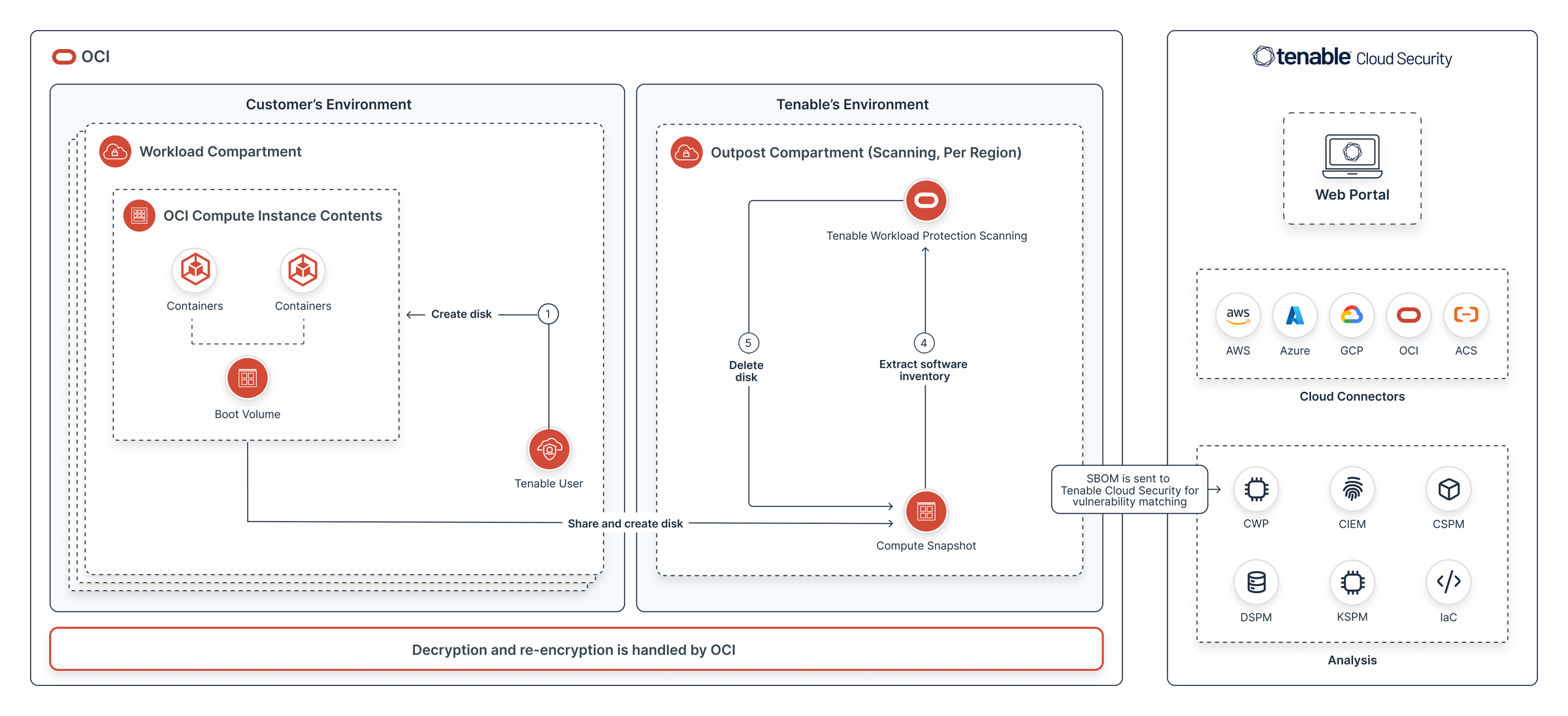
Tenable One Cloud Exposure leverages APIs to connect to your cloud workload and extract a snapshot of the machines’ storage volumes. These volumes are then mounted to a machine that runs the scanning, extracting:
- Inventory information (software packages, file signatures, etc.).
- A set of found Vulnerabilities, helping to expose any potential risks.
- potentially malicious files.
If a volume is encrypted, Tenable decrypts it. The extracted volume snapshot is encrypted with a KMS key (created in the customer account) before it is mounted for scanning by Tenable. The key policy only grants the Tenable account and the customer account access to decrypt the content of the volume. This secures the volume, ensuring that only the Tenable scanner can access and use the volume. This extracted data is then displayed in the Cloud Exposure Console, where you can analyze and remediate as needed.
- During connection, Tenable generates a dedicated KMS key exclusively for its application. This key is required to create a virtual machine and attach a volume from the snapshot. The Tenable outpost uses only this key, and no customer-managed keys are shared. Access to the KMS key is restricted to the application, preventing human intervention in snapshot creation. Snapshot creation is fully automated, minimizing the risk of malicious activity.
-
During snapshot creation, Tenable automatically applies the following tags to each snapshot:
- ErmeticContext: WorkloadAnalysis
- ErmeticNamespace: Prd<Region><Deployment> e.g. PrdUse2Dep2, PrdAps1Dep1
Data Outputs:
This scanning process results in the following data outputs, exposed in the Workload Protection area of the Cloud Exposure Console:
- Software packages
- Vulnerabilities
- Malware
Unsupported Regions
Scanning is outpost-based and region-specific: the Tenable outpost that runs the scan resides in the same region as the machine being scanned. Tenable provisions outposts in most regions. Because of cloud provider limitations, Tenable cannot currently provision outposts in these regions.
When a resource resides in an unsupported region, Tenable does not scan it and the scan status displays as Unsupported. For more information, see Vulnerability Scan Status.
| Cloud Provider | Region Name | Region Identifier |
|---|---|---|
| AWS | China (Beijing) | cn-north-1 |
| AWS | China (Ningxia) | cn-northwest-1 |
| Azure | Disaster Recovery (DR) | All regions |
| Azure | West India | westindia |
| Azure | Jio India West | jioindiawest |
| Azure | Sweden South | swedensouth |
| Azure | Taiwan North | taiwannorth |
| GCP | US Central2 | us-central2 |
| OCI | EU Dedicated Cloud (DCC) regions | eu-dcc-* |
| OCI | Crissier, Switzerland | eu-crissier-1 |
| OCI | EU Sovereign South (Madrid) | eu-madrid-2 |
| OCI | EU Sovereign Central (Frankfurt) | eu-frankfurt-2 |
| OCI | US Gov East (Ashburn) | us-langley-1 |
| OCI | US Gov West (Phoenix) | us-luke-1 |
Encrypted Resources Support
Cloud Exposure supports scanning encrypted virtual machine volumes in AWS, Azure, and GCP. When a volume is encrypted, Tenable decrypts the extracted snapshot and re-encrypts it with a dedicated KMS key generated in your cloud account. Tenable does not require access to your customer-managed keys.
The requirements for scanning encrypted resources vary by cloud provider.
| Cloud Provider | Supported Encryption | Additional Permissions Required |
|---|---|---|
| AWS | Amazon Elastic Block Store (Amazon EBS) volumes encrypted with AWS managed keys or customer managed keys | None (beyond the standard onboarding permissions) |
| Azure | Managed virtual machines encrypted via Azure Disk Encryption (ADE). See Supported Azure Disk Encryption Methods. | Azure Key Vault roles. See Azure Required Permissions. |
| GCP | Disks encrypted with customer-managed encryption keys (CMEK) | None beyond the standard onboarding permissions¹ |
¹ No additional Cloud Key Management Service (Cloud KMS) permission is required, including the cloudkms.cryptoKeyVersions.useToDecrypt permission that the Cloud KMS CryptoKey Decrypter role grants.
Supported Azure Disk Encryption Methods
Azure Disk Encryption (ADE) is performed using a secret encryption key or by encrypting the disk encryption secret with a key from the key vault. The supported configurations include:
- Windows (via BitLocker) — Both the secret encryption key and the encryption secret with a key from the key vault are supported.
- Linux (via DM-Crypt) — The secret encryption key is supported on Ubuntu.
For more information about the operating systems that Microsoft supports with Azure Disk Encryption (ADE), see the official Microsoft documentation.
Azure Required Permissions
To analyze encrypted resource data, Tenable requires that you grant the necessary permissions. You can assign these permissions using:
- The Key Vault Secrets User built-in role: Required for the secret encryption key
- The Key Vault Crypto User built-in role: Required for encrypting the secret with a key from the key vault (Key Encryption Key)
- A custom role with the appropriate permissions
For a detailed procedure about how to add these permissions, see Azure: Grant Virtual Machine Scanning Permissions.
Security and Compliance
Tenable analyzes encrypted VM volumes using industry-standard encryption methods and secure access protocols, maintaining full data protection throughout. This capability supports organizations that must comply with security frameworks where encryption is a core requirement.
Data Access Authentication for BitLocker Disks
BitLocker-encrypted disks require a Shared Access Signature (SAS) blob copy path for vulnerability scanning. When you enable data access authentication on virtual machines (VMs) with these disk types, scanning may fail.
To ensure successful scans, Tenable overrides the DataAccessAuthMode and sets it to None during the snapshot creation process for BitLocker-encrypted disks.
Azure Policy Configuration
The Azure policy Protect your data with authentication requirements when exporting or uploading to a disk or snapshot prevents setting the DataAccessAuthMode to None. This restriction causes snapshot creation to fail.
To resolve this and allow vulnerability scanning:
- Configure a dedicated Disk Snapshot Resource Group.
- Exclude the required Disk Snapshot Resource Group from the Azure policy.
Non-Root Volume Scanning
By default, Tenable scans the root volume and all eligible non-root volumes attached to a virtual machine. Applications and databases installed on separate disks are included in the vulnerability assessment.
The following limits apply to non-root volume scanning:
- Maximum disk size — 600 GB per individual disk
- Maximum volumes per virtual machine — four, including the root volume
Partial Scan Status
Tenable uses an all-or-nothing approach for non-root volumes. If one or more non-root volumes are ineligible (for example, a disk exceeds the 600 GB size limit) Tenable skips all non-root volumes and scans the root volume only. The virtual machine scan status displays as Partial.
To view the scan status for each disk attached to a virtual machine, navigate to the virtual machine profile page and open the Overview tab. The Disks/Volumes table shows the status per volume.
Disable Non-Root Volume Scanning
Non-root volume scanning is enabled by default. To disable it:
- Navigate to Settings > Security > Workload and toggle Extended Disk Scanning off.
For information about how non-root volumes are billed, see Virtual Machine Scanning.
Scanning Workflow Diagrams
The following diagrams describe the scanning workflow for each cloud provider.
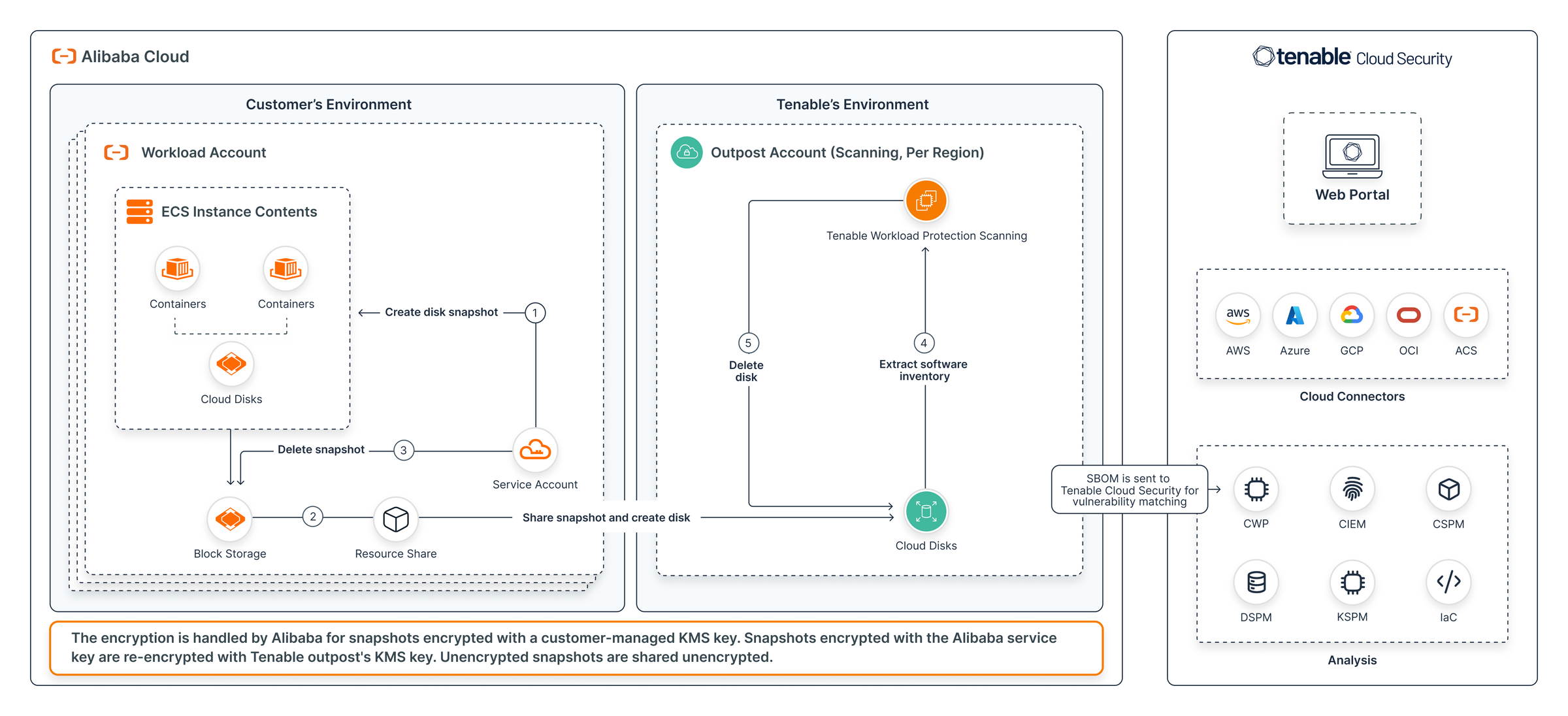
Alibaba Cloud
The following diagram describes the scanning workflow for Alibaba Cloud.
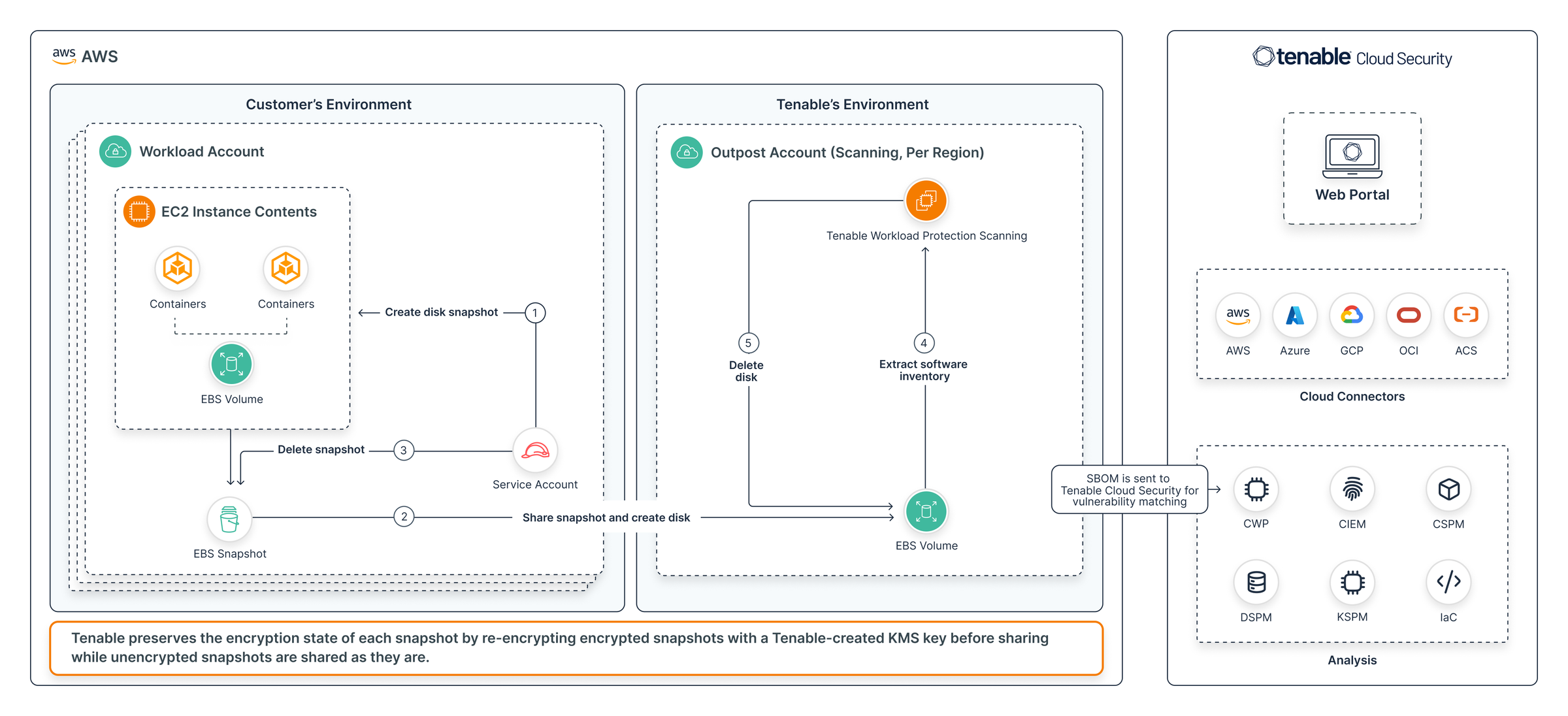
AWS
The following diagram describes the scanning workflow for AWS.
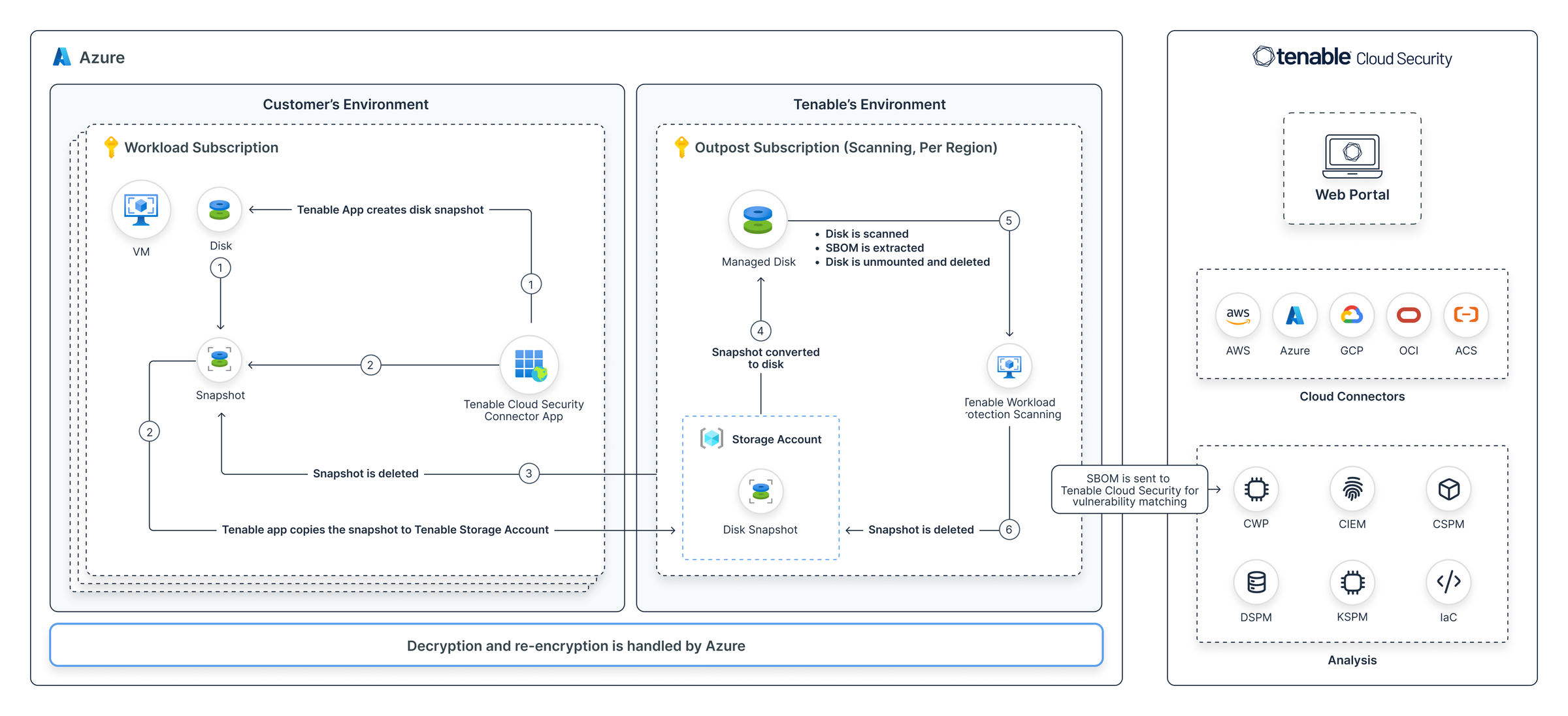
Azure
The following diagram describes the scanning workflow for Azure.
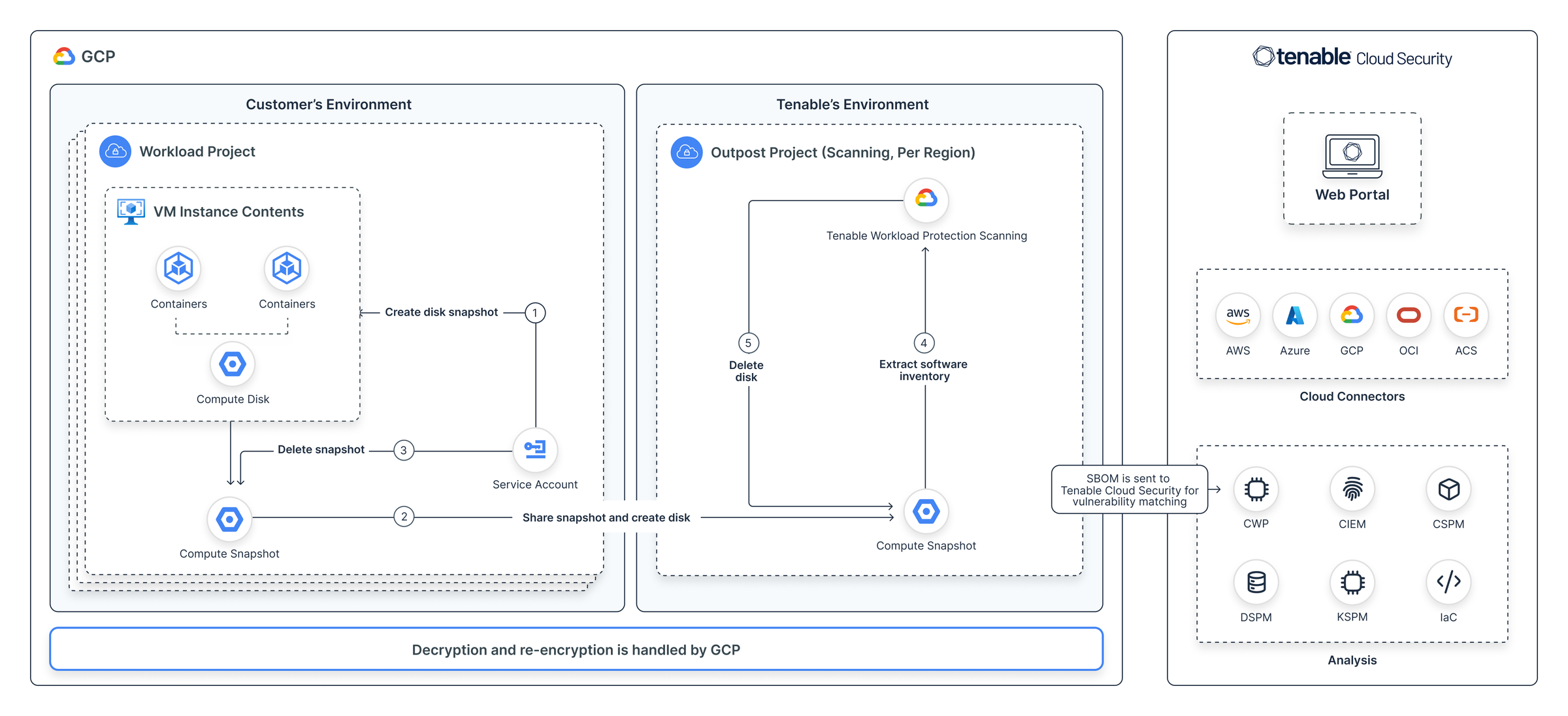
GCP
The following diagram describes the scanning workflow for GCP.
OCI
What Tenable Detects
Tenable currently scans the following cloud workload components:
| Component | What Tenable Scans |
|---|---|
| Workloads |
|
| Operating systems | Linux, Windows |
| Cloud provider | AWS, Azure, GCP, OCI |
- Tenable scans virtual machines with a disk size up to 600 GIB. If you are interested in changing this value, contact Support.
-
Tenable also scans virtual machine instances for containers:
- Any containers found on these instances are displayed as workloads in Tenable, with associated packages and Vulnerabilities.
- If the container is hosted on a cloud-based container registry (for example, Amazon ECR, Azure ACR) that Tenable monitors, a link to the repository is shown.
Tenable doesn't currently scan containers running on serverless infrastructure (for example, AKS Virtual Nodes, GKE Autopilot, OKE Virtual Nodes, or EKS Fargate).
- Azure — If Tenable detects a resource lock in your environment, scanning will be temporarily disabled for the affected virtual machines. To restore normal operations, it is recommended to remove the lock, allowing scanning to automatically resume.
- OCI — Container registries scanning is not supported.
For each of these components, Tenable detects:
- General information (for example, OS type/version)
- What software is installed
- Is the software/OS kernel vulnerable to attack
- If so, which vulnerabilities apply
- Is the OS out-of-date or EOL (and therefore needs to be upgraded)
These capabilities are updated on an ongoing basis. If there are specific workloads/components that you work with and would like to, see Contact Support.
Policies Used in Scans
The following built-in Cloud Exposure policies, belonging to the Workload Protection category, are used to scan your environment. For more information about how to work with policies in Cloud Exposure, see Cloud Policies.
- Container Image has an operating system which is at or nearing End-of-Life
- Container Image has an unpatched operating system
- Container Image has vulnerabilities that should be addressed
- Virtual Machine has an operating system which is at or nearing End-of-Life
- Virtual Machine has an unpatched operating system
- Virtual Machine has vulnerabilities that should be addressed
How Tenable Identifies Software and Vulnerabilities
Tenable extracts known vulnerability information from a wide range of public data sources (specifically MSRC for Windows and, for example, NVD for Linux) and compiles a complete database of vulnerabilities, including:
- Vulnerable operating systems/software versions
- The KBs or upgrade versions (where possible) which address these vulnerabilities
In parallel, Tenable extracts the following information from the registry/package manager of your virtual machines (including all Windows user accounts/profiles):
- OS information (CPU architecture, version, etc.)
- List of installed KBs (Windows only)
- List of installed software (see, 1st and 3rd Party Apps on Windows Workloads)
Tenable then compares the OS version and installed software on your machines to the list of known vulnerabilities, and highlights the list of vulnerabilities relevant for the specific VM, as well as the recommended remediation.
Data Source Selection
Tenable uses the advisory database from the appropriate OS vendor. For example, for a Python package installed from yum (Amazon Linux), Tenable will only get advisories from ALAS. For packages installed from OS package managers (for example, dpkg, yum, and apk), this helps prevent false positives because OS vendors usually backport fixes from newer, upstream versions to previous versions, meaning that the fixed version can be different from the upstream fixed version.
For products installed outside of the package manager, this allows us to provide the fastest coverage possible as the advisories are typically the first place that vulnerabilities are publicly disclosed.
CVSS Severity Base Score
The severity is determined based on the CVSS score as follows:
| Base Score Range | Severity |
|---|---|
| 0.1-3.9 | Low |
| 4.0-6.9 | Medium |
| 7.0-8.9 | High |
| 9.0-10.0 | Critical |
- If the CVSS score also isn't provided, the NVD severity is used.
Linux
Linux OS Versions
Cloud Exposure identifies and detects vulnerabilities for the following versions of Linux:
| OS | Supported Versions | Package Managers |
|---|---|---|
| Alpine Linux | 2.2 - 2.7, 3.0 - 3.18, edge | apk |
| Wolfi Linux | (N/A) | apk |
| Chainguard | (N/A) | apk |
| Red Hat Enterprise Linux | 6, 7, 8, 9 | dnf/yum/rpm |
| Red Hat Enterprise Linux CoreOS | 4.x | (N/A) |
| CentOS | 6, 7, 8 | dnf/yum/rpm |
| AlmaLinux | 8, 9 | dnf/yum/rpm |
| Rocky Linux | 8, 9 | dnf/yum/rpm |
| Oracle Linux | 5, 6, 7, 8, 9 | dnf/yum/rpm |
| CBL-Mariner | 1.0, 2.0, 3.0 | dnf/yum/rpm |
| Amazon Linux | 1, 2, 2023 | dnf/yum/rpm |
| openSUSE Leap | 42, 15 | zypper/rpm |
| SUSE Enterprise Linux | 11, 12, 15 | zypper/rpm |
| Photon OS | 1.0, 2.0, 3.0, 4.0 | tndf/yum/rpm |
| Debian GNU/Linux | 7, 8, 9, 10, 11, 12, 13 | apt/dpkg |
| Ubuntu |
|
apt/dpkg |
| Bottlerocket | Note: This OS is scanned when extended disk scanning is enabled (default). Navigate to Settings > Security > Workload and toggle Extended Disk Scanning on. | (N/A) |
| Google Container-Optimized OS (COS) | Note: Support is limited to Software Inventory Visibility. While Tenable One Cloud Exposure accurately detects and reports all installed packages and components on Google COS hosts, advisory-based vulnerability scanning for this operating system is under development. Vulnerability detection results for Google COS are intentionally restricted at this time to eliminate false positives. Full vulnerability detection will be available in an upcoming release. | (N/A) |
| Echo OS | (N/A) | TBC |
| Chainguard OS | (N/A) | apk |
Linux Supported Languages
Cloud Exposure supports the following languages for software and vulnerabilities on Linux machines:
| Language | CI/CD Scanning | Registry Scanning | Workload Scanning |
|---|---|---|---|
| DotNet | ✔ | ✔ | ✔ |
| Go | ✔ | ✔ | ✔ |
| Java | ✔ | ✔ | ✔ |
| JavaScript | ✔ | ✔ | ✔ |
| Php | ✔ | ✔ | ✔ |
| Python | ✔ | ✔ | ✔ |
| Ruby | ✔ | ✔ | ✔ |
| Rust | ✔ | ✔ | ✔ |
Linux Supported File Systems
Cloud Exposure supports scanning cloud workloads using XFS and ext4 file systems, in both standard (non-LVM) and LVM configurations.
For more information, see Logical Volume Manager (Linux).
Windows
Windows OS Versions
Tenable identifies and detects vulnerabilities for the following versions of Windows
| Supported Windows Versions | |||
|---|---|---|---|
| Windows 10 Version 1507 | Windows 10 Version 1607 | Windows 10 Version 1809 | Windows 10 Version 21H2 |
| Windows 10 Version 22H2 | Windows 11 Version 21H2 | Windows 11 Version 23H2 | Windows 11 Version 25H2 |
| Windows Server 2016 | Windows Server 2019 | Windows Server 2022 | Windows Server Version 23H2 |
1st and 3rd Party Apps on Windows
Tenable scans and reports on 1st and 3rd party apps installed on Windows workloads. Scanning support is currently available for widely used apps that are commonly deployed on Windows servers (listed in the table below), with additional support planned in upcoming releases. You can see commonly seen apps in the Software page, by filtering for:
- Type = Package, library, operating system
- Operating System Type = Windows
| Top Supported Applications | |||||||
|---|---|---|---|---|---|---|---|
| Microsoft .NET Desktop Runtime | Microsoft .NET Runtime | Microsoft ASP.NET Core Runtime | Microsoft Azure CLI | Microsoft Edge | Microsoft FSLogix Apps | Microsoft Intune | Microsoft Office |
| Microsoft Visual Studio Code | 7-Zip | Adobe Acrobat Reader | Adobe Dreamweaver | Amazon CloudWatch Agent | Amazon SSM Agent | Apache Tomcat | Autodesk AutoCAD |
| Autodesk Revit | Dell Wyse Management Suite | DotNet | FileZilla Client | FortiClient VPN | Foxit Reader | FSlogix | Git |
| Go | Google Chrome | IBM InfoSphere | IBM MQ | IntelliJ IDEA | Java | JetBrains Rider | JetBrains Toolbox |
| KeePass Password Safe | MobaXterm | Mozilla Firefox | MySQL Server | Nessus Agent (x64) | Node.js | Nmap | Notepad++ |
| OpenEdge | OpenSSL | Opera | Opsview NSClient++ Windows Agent (x64) | Oracle VM VirtualBox | Powershell | PRTG Network Monitor | PuTTY |
| Python | Qualys Cloud Exposure Agent | Rapid7 Insight Agent | RARLAB WinRAR | SoapUI | SolarWinds SCP Server | SOLIDWORKS eDrawings | TeamViewer |
| Tenable Nessus (x64) | TightVNC | Veeam Agent | Veeam Backup | VLC media player | VMware Tools | VMware Workstation | Websphere MQ |
| WinMerge | WinSCP | WireShark | XAMPP | Xming |