IaC Findings
This is a how-to guide for viewing and managing IaC findings.
- For a conceptual overview of how finding severity works, see Finding Severity.
- To configure how findings are created, see IaC Policies.
Use the IaC Findings page to effectively and efficiently perform a triage of findings in your code. For example, you can discover and remediate findings that fail specific compliance standards. Tenable One Cloud Exposure identifies circumstances within your code repository that pose a calculated risk to the security of your infrastructure. These findings represent at-risk identities and resources, including hard-to-spot Toxic Combinations.
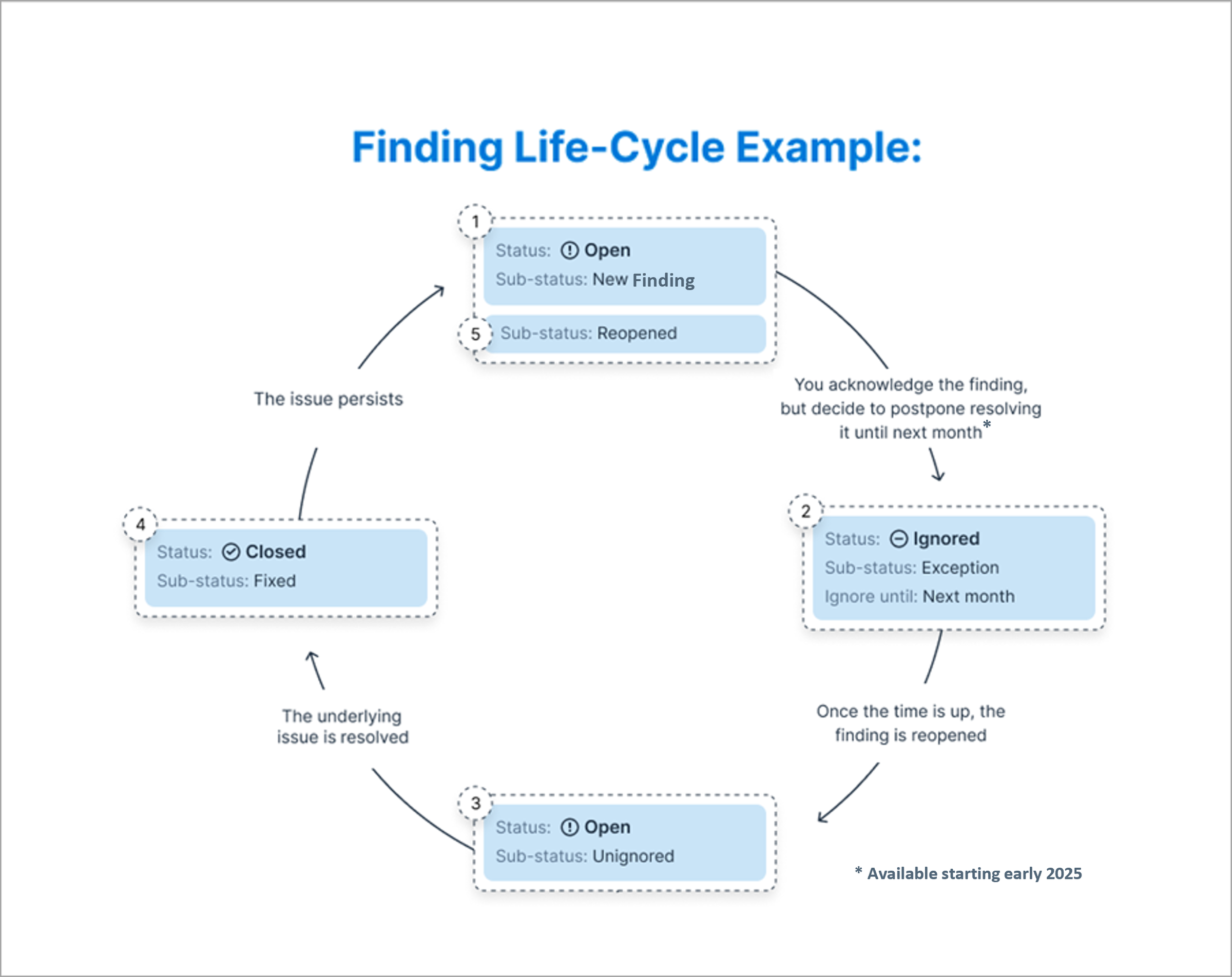
Finding Life-Cycle Example
This image shows an example of the flow and progress of a finding detected in your environment. See IaC Finding Status for more information about specific statuses and sub-statuses.
Navigate the IaC Findings Page
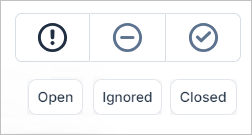
On the IaC Findings page, the findings are grouped according to their current status:
- Open — See all active findings in your environment.
- Ignored — See findings that you may not want to handle right away. The associated resources are being excluded, either permanently, or for a set period of time.
- Closed — See findings that were closed, either manually or automatically by Tenable.
These are the main navigational elements available on the IaC Findings page, which allow you to narrow down and organize the results to easily find what you’re looking for:
| Item | Description |
|---|---|
View by Status  |
View Open, Ignored, or Closed findings. |
| Severity | The color-coded risk severity of the finding, used to filter findings in the default view (when Group by is not applied). |
| Status / Sub-Status column/filter | See IaC Finding Status. |
| Select all | Select all findings (according to any applied filters), making it easier to perform bulk actions. For example, if you want to manually close a certain group of findings. Limited to 10,000 findings. |
| Filters |
Available filters differ slightly for each page, but include:
|
| Group by |
Group findings by:
For both filters, grouped findings are listed in order of the percentage of severe findings they contain. For example, a group of findings, of which 75% percent have critical severity, is listed before a group of findings, of which 100% have high severity. |
| Star | Star important or significant findings to help you remember to look at them later. |
| Actions |
|
| Bulk actions | Apply an action to multiple findings at once. |
| Column picker | Choose which columns to display in the table. |
IaC Finding Status
Finding statuses help you understand both:
- The overall state of risk in your organization (for example, via the Trends widget in the Dashboard).
- Why specific findings were open/closed, helping you track the work you do and the progress you make resolving and closing findings.
The status consists of the main Status (Open/Ignored/Closed), and a Sub-Status, which provides added granularity, and describes the reason why the finding has the current status. In this example, the Status is Open, and the Sub-Status is Reopened.

Open Findings
Open findings represent the active issues detected in your environment. This includes at-risk identities and resources, and hard-to-spot Toxic Combinations.
This table lists possible sub-statuses for Open findings. A sub-status provides added granularity, and describes the reason why the finding has the current status.
| Sub-Status | Definition |
|---|---|
| New finding | The policy was violated and triggered the finding. |
| Reopened |
The finding transitioned from Closed to Open:
|
| Unignored |
The finding transitioned from Ignored to Open:
|
Ignored Findings
Ignored findings represent issues that you may not want to handle right away. The associated resources are being excluded, either permanently, or for a set period of time.
This table lists possible sub-statuses for Ignored findings. A sub-status provides added granularity, and describes the reason why the finding has the current status.
To make exclusion changes that are implemented immediately, or exclude resources, you can ignore any opened findings via the IaC Findings page.
You can ignore findings from the Findings page or by creating an exclusion.
| Sub-Status | Definition |
|---|---|
| Exception | The finding was marked as an exception by the user, or the code file was excluded via the policy settings page. |
| False positive | The finding was marked as a false positive by the user. |
| By design | The finding was marked as "by design" by the user. |
Closed Findings
Closed findings represent issues that have been closed, either manually by a user, or automatically by Tenable.
This table lists possible sub-statuses for Closed findings. A sub-status provides added granularity, and describes the reason why the finding has the current status.
| Sub-Status | Definition |
|---|---|
| Fixed |
The finding was resolved:
|
| False positive | Finding was marked as a false positive by Tenable. |
| Manually closed | A user manually marked the finding as Closed. |
Manage IaC Findings
Use the following actions to manage and change the status of findings in your list:
- Close — Manually close a finding.
- Reopen — Reopen a finding that was manually closed.
- Star — Star important or significant findings to help you remember to look at them later.
- Share — Manually share findings via email, webhook, or ticketing integrations.
- Export finding data. Create a summary report of findings in your environment.
You can perform these actions from the Findings table or after you drill down into findings. Remediation is only available after you drill down into a finding.
View Finding Details
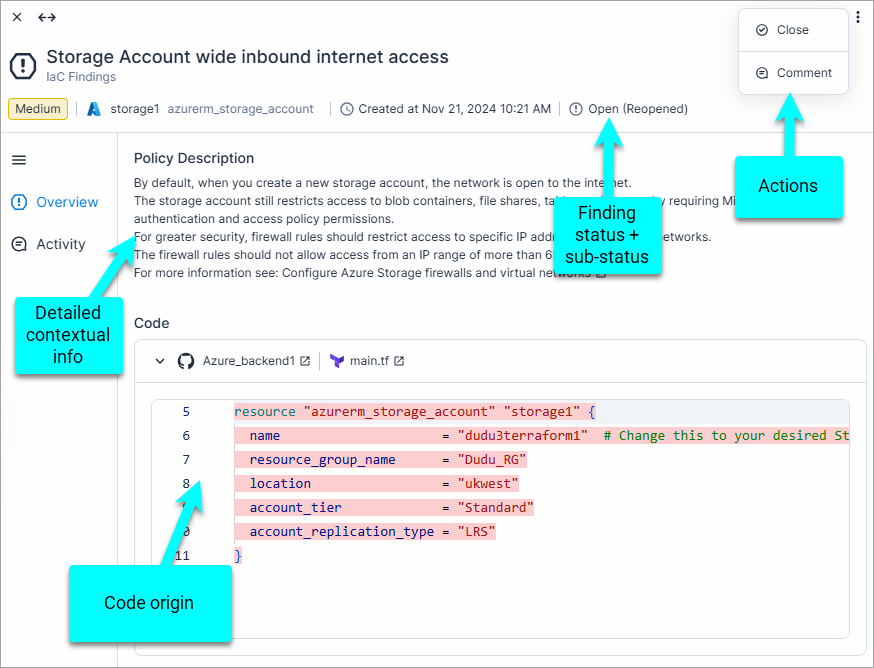
Click on a finding to view granular information about it and to remediate risk associated with it. View a detailed historical account of the event, an expanded rationale for the potential risk it imposes, and specific remediation instructions. Each finding displays different information depending on the finding type, and the specific circumstances that triggered its creation.
Review finding details and other relevant information to get a better understanding of, for example:
- What the root cause of the finding is.
- The scope of the finding.
- The potential risk it imposes on your environment.
Finding Example
Manually Close a Finding
When you solve the underlying security issue in your code, the finding is automatically marked as Closed (Fixed) in the Cloud Exposure Console. In some cases, however, you may want to manually close an open or ignored finding. For example, since it can take some time for a finding to be automatically marked as resolved, you can manually close it to remove it from the IaC Findings page sooner.
When you manually close a finding, the finding is marked as Closed (Manually closed). If you do this, but the issue has not actually been fixed, the finding status is reverted to Open (Reopened) the next time the system synchronizes.
To mark and see closed findings:
-
From the IaC Findings table:
- Single finding: Click on the three dots icon next to an individual finding, and then click Close.
- Multiple findings: Select multiple findings and then click Close at the bottom.
- In the Close Finding dialog, add a comment to indicate the reason for closing, which is added to the finding activity.
- Click Close.
- To see all closed findings, navigate to Risk > IaC Findings > Closed.
Reopen a Finding
You can reopen a finding that was manually closed. If you do so, the finding is marked as Open (Reopened)
To reopen a finding:
-
From the Findings table:
- Single finding: Click on the three dots icon next to an individual finding, and then click Open.
- Multiple findings: Select multiple findings and then click Open at the bottom.
- In the Open Finding dialog, add a comment to indicate the reason for reopening, which will be added to the finding activity.
- Click Open.
- To see all reopened findings, navigate to Risk > IaC Findings > Open, and then filter the Sub-Status by Reopened.
Export Finding Data
Export finding data to create a summary report of findings in your environment. The data is exported according to the current filters applied to the table. The output data is in CSV format, and contains all relevant finding data.
For example, you can:
- Create a report of all closed findings, containing sub-status information about the reason for closure (for example, Resource Deleted), to share with relevant stakeholders in your company.
- Create reports for open/starred/ignored findings, or any other subset of findings (using filters).
To create a report of findings:
- In the Cloud Exposure Console, navigate to the Risk > IaC Findings page (Open/Ignored/Closed).
- (Optional) Apply any additional filters to narrow down the list of findings according to your needs.
- Click
 Export. A CSV summary report is created.
-
To export data for specific policy types:
- Click the Group by dropdown, and then click Policy.
- Click on a relevant type to expand the section. For example Overprivileged IAM group.
- Click the Export button on the top right of the section.
Create a Scheduled Report
Create a scheduled report directly from the IaC Findings page, where the report contents are based on the specific filters you apply to the table. The output data is in CSV format, and contains all relevant resource data, including the URL of each resource page in the Cloud Exposure Console.
To create a scheduled report:
- In the Cloud Exposure Console, go to Risk > IaC Findings.
- Apply any relevant filters.
- From the top-right corner of the table, click the Create Scheduled Report button.
- Fill out report details. See Reports for more information.
- Click Schedule or Generate.
- You can see the report details in the Reports page.
View Finding Activity

View finding activity to see information about the life-cycle of the finding within Cloud Exposure. For example, see when:
- The finding was created.
- The status changed (either by the system, or manually by a user).
- Tickets were created for 3rd-party integrations.
To view finding activity:
- From the Findings table, click on a relevant finding.
- Click on Activity.
- (Optional) Write a comment and then click Save.
Deleted Findings
In general, findings remain accessible within Cloud Exposure indefinitely, even after they are resolved. Occasionally, however, findings are deleted from Cloud Exposure. The following is a list of some of the reasons why a finding may be deleted.
| Reason | Description | Example |
|---|---|---|
| False-positive | Tenable deleted a finding that was mistakenly created due to a false-positive. Note: Tenable is continuously improving its identification mechansims to avoid false-positives to the greatest extent possible. | Finding related to exposing secrets: A string was mistakenly identified as a secret. For example, the string rds_pass_reference_id was identified as a password, even though it is just a reference to a password. |
| Policy aggregation logic changed | Tenable modified the finding to create a separate finding per resource, as opposed to a single finding that aggregates all resources with the same issue. In doing so, the original, aggregated finding is deleted. | Public EC2 instance |
| Policy evaluation logic changed | Tenable modified the logic of a finding to improve the precision, adding additional detection criteria. In doing so, some previously created findings may be deleted. | Finding related to automatic rotation being disabled: Tenable improved the finding logic to only detect resources where more than one month has passed since creation time. |