How Projects Work
This is a conceptual overview about how projects work. For a how-to guide for configuring projects, see Projects.
Managing many cloud accounts or resources across multiple providers is challenging, especially with frequent account creation and deletion. Projects in Tenable One AI Exposure help simplify this by logically grouping accounts or resources, making it easier to manage access.
For example, projects let you view Console data based on your organization's distinct operational groupings of your cloud environment. By organizing accounts or resources into projects, you can align visibility and permissions with your existing organizational structure, ensuring a more intuitive and efficient management experience. Projects also streamline access control by allowing you to grant users permissions specific to the accounts and resources they need, reducing manual effort and improving cloud management.
To get started:
- Learn about How Projects Work, Supported Features, and common use cases.
- Add projects and project folders.
- Grant users Console access to a specific project scope by adding users/groups.
How Projects Work
A project is a logical grouping of resources within your cloud environment, enabling flexible organization and management, even across multiple cloud providers. A single account can belong to multiple projects, allowing you to structure access and visibility according to different operational needs. After creating a project, you can assign Console users permissions to view Console data within its scope. Additionally, depending on the project's configuration, users assigned to a project can also automatically gain access to the accounts within that project's scope.
A project consists of one or more scope group. Each scope group is made up of:
-
A group of cloud Accounts — This can be any combination of one or more of the following:
- Cloud accounts (for example, AWS).
- Identity provider tenants (for example, Google Workspace).
- Code repositories (for example, a GitHub organization).
For each of the above, you can select any scope - the entire root folder (for example, AWS), individual folders, or individual accounts. For example, a scope group can comprise all your AWS and Azure development accounts. Additionally, you can select the entire organization as a scope group.
-
(Optional) One or more logical Conditions.
- Limit the project scope by specifying a pattern that accounts must match to be included.
- The condition pattern can be based on account name, account tag, resource tag, or Azure resource group name. See Add a Project for details about how to configure these.
When to Use Projects
When deciding whether and how to create projects, consider whether you've chosen to Automatically Update Folder Structure for your cloud accounts.
- If you enabled this option, the folder structure of the onboarded organization is copied into the platform as is, and you can't move, edit, or create folders/accounts in the organization. As a result, you may find projects useful for additional flexibility in grouping accounts.
- If you disabled this option, you have more control over organizing accounts within each provider’s folder structure. In this case, Tenable recommends manually grouping accounts within provider-specific folders whenever possible and using projects only for specific cases where manual grouping doesn’t meet your needs.
Common Project Use Cases
This section highlights some common ways organizations can use projects and project folders to streamline cloud account management. For example, you can create projects to:
- Organize accounts by ownership and responsibility.
- Organize accounts by infrastructure and operations.
Create Projects for Product Groups
Large organizations often have multiple product teams (for example, Group A, Group B, Group C) that manage their own cloud accounts. Each group may use different account naming conventions or account tags to distinguish their accounts.
How to implement:
- Add a project for each product group (for example, "Group A Project," "Group B Project").
-
Add conditions to dynamically assign accounts to the correct project by using account tags or name conventions.
-
Example tag key/value patterns:
- key is product, value is GroupA
- key is team, value is GroupB
-
Example name patterns:
- group-a-prod-001
- group-b-dev-002
-
Example tag key/value patterns:
- Add project folders to organize the projects by region, or other relevant category.
-
Grant users Console access to a specific project scope by adding users/groups. For example:
- Grant regional administrators access at the project folder level to manage all child projects at once.
- Grant team-specific access to individual projects.
Create Projects for Business Functions
Many organizations categorize cloud resources based on business functions such as Finance, Compliance, or Operations. By leveraging resource tag patterns, you can dynamically assign accounts to projects based on predefined tag key-value pairs to create projects based on these functions.
How to implement:
- Add a project for each business function.
-
Add conditions to dynamically assign accounts to the correct project by using resource tag patterns.
-
Example tag key/value patterns:
- key is business_unit, value is finance
- key is compliance_level, value is high*
-
Example tag key/value patterns:
- (Optional) Add a project folder to group projects by broader categories.
-
Grant users Console access to a specific project scope by adding users/groups. For example:
- Grant access at the project folder level to allow broader access across all environments.
- Grant project-specific access.
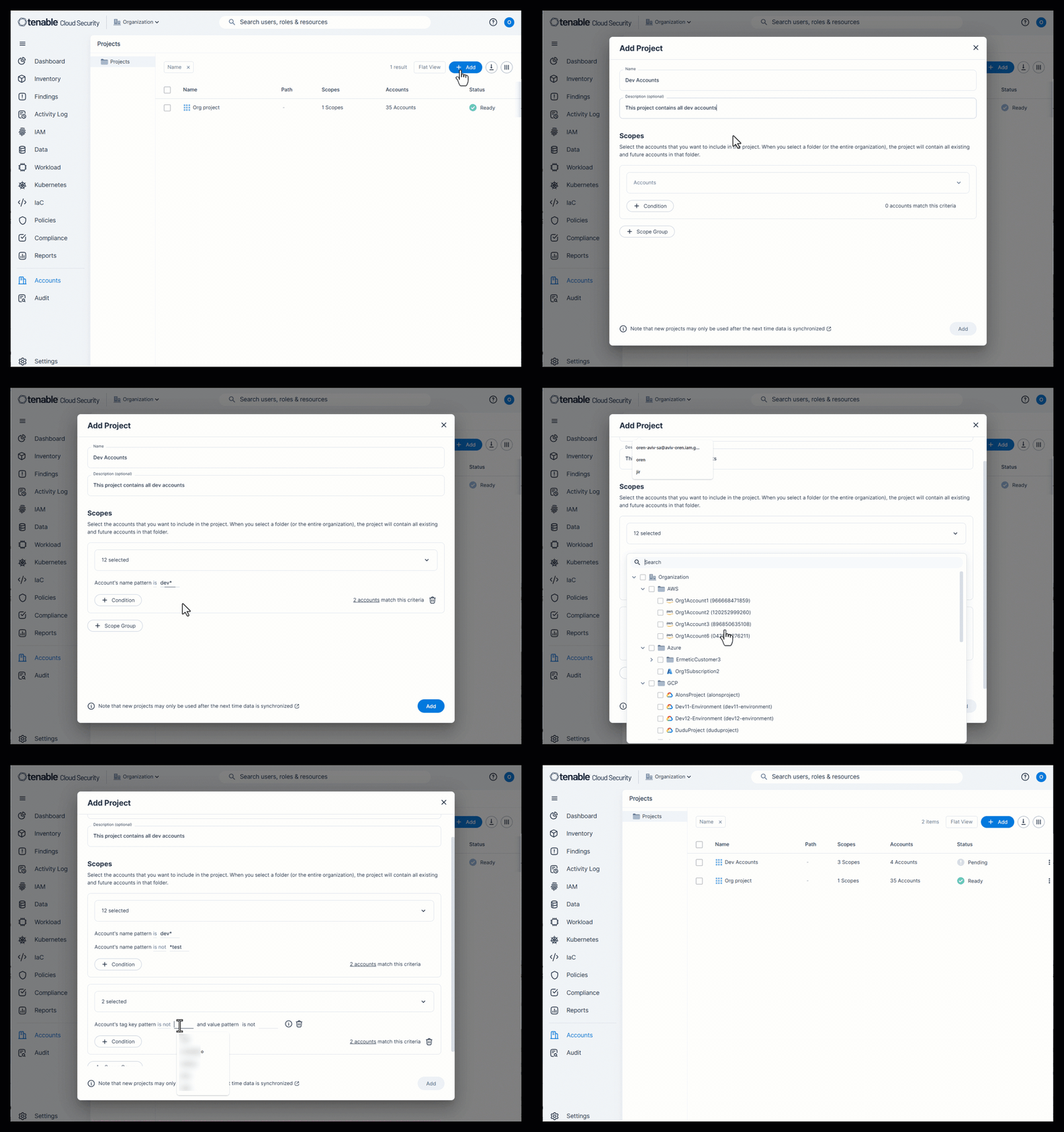
Create Projects for Development and Production Accounts
Many organizations maintain strict separation between development and production environments. To enforce this, you can create projects that group accounts based on their environment type while ensuring that production projects do not include test-related accounts.
How to implement:
- Add a project for your development accounts.
-
Add conditions to dynamically assign accounts to the correct project by using account tags or name patterns.
-
Example tag key/value patterns:
- key is environment, value is dev*
- key is stage, value is staging*
-
Example name pattern:
- dev*
-
Example tag key/value patterns:
-
Exclude test accounts from the project.
-
Example name pattern exclusion:
- Is not *test
-
Example name pattern exclusion:
-
Exclude production accounts from the project.
-
Example tag key/value pattern exclusion:
- key is not type, value is not prod*
-
Example tag key/value pattern exclusion:
- Add a project for your production accounts.
-
Add conditions to dynamically assign accounts to the correct project by using account tags or naming conventions.
-
Example production tag key/value patterns:
- key is environment, value is prod*
- Example name pattern:
- prod*
-
Example production tag key/value patterns:
- (Optional) Add a development project folder to organize all development projects.
- (Optional) Add a production project folder to organize all development projects.
-
Grant users Console access to a specific project scope by adding users/groups. For example:
- Grant access at the project folder level to allow broader access across all environments.
- Grant project-specific access.
Create Projects for Application and Service Boundaries (Azure)
For organizations using Azure, resource groups serve as a key organizational structure for managing cloud assets. By leveraging Azure resource group name patterns, you can create projects that align with operational boundaries, such as application ownership, workload types, or geographic regions.
How to implement:
- Add a project for each relevant Azure grouping (for example, "Customer-Facing Apps* or Internal IT Services).
-
Add conditions to dynamically assign accounts to the correct project by using Azure resource group name patterns.
-
Example resource group name patterns:
- cust-facing-apps-* (for externally facing applications)
- internal-it-* (for internal IT services)
-
Example resource group name patterns:
- (Optional) Add a project folder to group projects by broader categories.
-
Grant users Console access to a specific project scope by adding users/groups. For example:
- Grant access at the project folder level to allow broader access across all environments.
- Grant project-specific access. For example, grant developers access only to Customer-Facing Apps or IT administrators access to Internal IT Services projects.
Supported Features
Many AI Exposure features support projects, allowing you to perform actions within a specific project scope. Only users assigned a matching project scope can view/manage these features.
For example, you can perform the following for a project scope:
- User Management
- Create integrations and automations
- Create reports
- Create a custom compliance
- Create API tokens and query the AI Exposure API
- View licensing data
- Create custom policies
So, for example, only a user assigned to Project A can create an API token for that scope.
Project Permissions and Capabilities
Project permissions define what actions a user can perform on the resources logically grouped within a project. These permissions can be explicitly granted through direct role assignments or automatically extended via project scope propagation. This section explains how your total project-related permissions are determined and the specific actions they enable.
Project Permissions
Project permissions determine what you can do within a project. They are granted to you directly when an Administrator assigns you a specific role at a project or project folder scope. This role allows you to see and manage the project itself, but it does not automatically give you access to configure the individual scopes inside of it.
Project permissions:
- Primarily provide view-only access for organizing and filtering data.
-
Do not allow you to make most configuration changes to settings within the project scope. For example, you can't make configuration changes to built-in policies.
However, you can still mark resources as sensitive and change finding statuses.
A user's effective permissions for accounts within the project may be higher if they have other direct assignments to those accounts.
Propagation
Propagation is a feature that automatically extends user permissions from a project to also include scopes with the project. When a project is configured with propagation enabled, a project-level role is automatically applied to all eligible scopes inside that project.
How does it work?
- Without propagation — Your permissions apply only to the project itself.
- With propagation — Your permissions are extended. If you are an Admin on a project with propagation enabled, you will automatically become an Admin on all eligible scopes within that project. This streamlines access management and ensures you have consistent permissions across the resources you need to manage. This means you can perform configuration changes and other actions on the propagated accounts, based on the role assigned to you at the project level.
Effective Permissions
When you have multiple role assignments, your final permissions (your Effective Permission) are always the highest level of access granted to you. For example, if you are a Viewer on a scope but gain Administrator access to that same scope through project propagation, your effective permission for that account is Administrator. The higher-level permission always takes precedence.