Accounts
This is a how-to guide for managing accounts after you connect them to Tenable.
- For how-to guides on how to connect accounts, see Integrations for a list of supported providers.
- For a conceptual overview of account hierarchy, see Account Hierarchy and Folders.
The Accounts page is the central hub for managing all third-party accounts that Tenable One AI Exposure monitors. Centralizing these accounts allows you to monitor the health and connectivity of your entire scannable infrastructure in a single unified view.
- Cloud providers
- Identity providers
- Data platforms
- On-premises
- Container registries
- Code repositories
Manage Your Accounts
After you successfully connect an account to AI Exposure via onboarding, the account appears in the Accounts table (Settings > Organization > Accounts).
From the Accounts table, you can:
- View account details
- Monitor connectivity
- Troubleshoot issues
- Create projects and folder structures
The unified table displays all integrated accounts regardless of provider type. Use the navigation tree on the left to filter the table by specific categories.
Accounts Column Data
The unified Accounts table displays all integrated accounts regardless of provider type. Use the navigation tree on the left to filter the table by specific categories.
| Column | Description |
|---|---|
| Name | The account or repository name with its associated provider icon. |
| ID | The unique identifier for the account. |
| Scope | The parent folder or organizational level where the account resides. |
| Status | The standardized connection health status. See Troubleshoot Onboarding Issues. |
| Issues | Displays specific errors, such as missing permissions or connectivity failures. |
Manage Code Accounts
After you connect your repository, it appears in the table on the Accounts page (Settings > Organization > Accounts).
- If you used a code repository integration to connect your repository, the repository is added as a folder on this page.
-
If you used a CI/CD integration to connect your pipeline, Tenable attempts to identify information about the associated provider and organization:
- If successful, the repository is added as a folder on this page. If it was already added via code repository integration, the existing folder will remain, and wont be added again.
- If no information is available, the repository is added to the Other folder.
If your organization has a large number of repositories, it's important to maintain a structured hierarchy within AI Exposure, using folders. You can create this structure in the following ways:
- (Recommended) Automatically Update Folder Structure in AI Exposure based on the repository structure of the onboarded organization.
-
Manually create folders in Tenable to group your onboarded repositories together logically. For example, you may want to group your repositories by location.
Important: Repositories: To add or move repository folders, you need to disable the Automatically update folder structure option for the relevant source and destination organization. See Connect Your Repository for more information about this option. CI/CD pipelines: You can freely add or move pipeline folders.
View Account Details
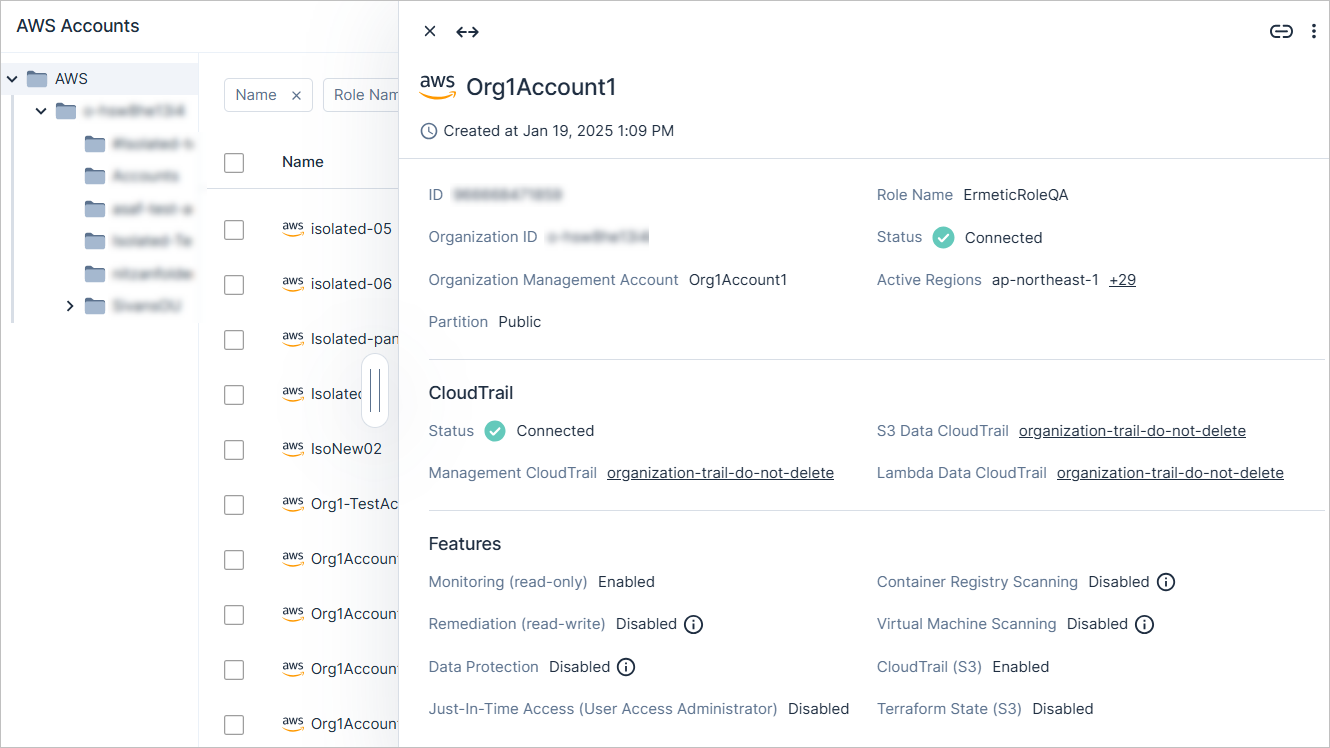
From the Accounts page, click on an account to see a detailed slideout panel. This panel lets you easily access all relevant account insights in one place for improved visibility and management.
The panel includes details such as:
- Account information.
- Information about the associated parent organization.
-
For Cloud providers only:
- CloudTrail (AWS). The connectivity status of the trail, and a list of Management/S3 Data/Lambda Data trails. See AWS Required Permissions for more information.
Features — The status of relevant platform features. For each feature, you can see:
- Whether it was enabled/disabled.
- Tooltips indicating whether the required permissions were actually granted.
For example:
- You may have enabled the feature, but the required permissions weren't actually granted, meaning that the feature isn't active.
- Conversely, you may have disabled the feature, but the required permissions are still granted, meaning that you may want to consider removing permissions if the feature is not needed.
Account Management Options
The following global actions are available in the Accounts table toolbar:
| Option | Description |
|---|---|
| Create Folder | Add a new folder to organize accounts logically. See Account Hierarchy and Folders for more information. |
| Add Account | Add a new integration to AI Exposure. |
| Create Project | Select one or more accounts and click this to initiate a new project scope. |
| Flat View |
By default, the table displays items defined in the selected scope and parent scopes. Click Flat View to also see any items defined in children scopes. |
| Move | Move an account to a different location within the AI Exposure folder hierarchy. If the target folder does not have the same configured integrations as the source folder, you wont be able to move the account. |
| Delete | Delete either a folder or account from AI Exposure. It may take up to an hour to delete an account. For cloud providers, you may need to delete an account as part of offboarding. |
Troubleshoot Onboarding Issues
AI Exposure provides monitoring and status indicators within the Console to help you troubleshoot issues that may arise during the account onboarding process. The status displayed for your accounts can offer immediate insights into potential problems.
After attempting to onboard an account, you can typically view its status on the Accounts page within the Console. This status indicates whether Tenable has successfully connected to the account and can help identify areas needing attention.
Account Status
| Status | Description |
|---|---|
| Connected | The integration is in a healthy state and communicating as expected. |
| Connected with Issues | The account is currently operational, but non-critical issues have been detected that may require attention. |
| Failed | The connection is currently disconnected or has encountered a critical error preventing communication. |
| Deleted | The account or integration has been marked for removal and is currently pending deletion from the system. |
| Excluded | The account has been excluded from scanning or monitoring by a user. See Exclusions. |
| Not supported by current license | The account cannot be monitored due to limitations within your existing subscription tier. |
Common issues encountered during onboarding often relate to:
- Permissions — Incorrectly configured or missing IAM roles, policies, or service account permissions can prevent Tenable from accessing necessary data or making changes in your cloud environment.
- Connectivity — Issues with establishing a connection between AI Exposure and your cloud provider.
- Configuration — Errors in settings such as CloudTrail configuration, active regions, or naming conventions.
For detailed troubleshooting steps specific to each cloud provider, refer to the relevant article for each provider. See Integrations for a list of supported providers.
For step-by-step guidance on resolving permission and role errors, see Resolve Cloud Onboarding Permission and Role Errors (AWS, Azure, GCP).