Connect CI/CD
This is an integration guide for connecting CI/CD pipelines to Tenable.
- For an overview of CI/CD and code capabilities in Tenable, see Code.
- For a how-to guide about scanning your code, see Code CI/CD.
To get started with CI/CD scanning:
- Connect Your Pipeline. Connect your CI/CD pipeline to Tenable One Cloud Exposure.
- Configure Scan Settings. fine-tune how Tenable scans your environment.
Connect Your Pipeline
Connect your CI/CD pipeline to Cloud Exposure, and grant access to the relevant code repository.
- Add Azure Pipelines
- Add GitHub Actions
- Add a GitLab Pipeline
- Add a Jenkins Pipeline
- Add a Terraform Cloud Run Task
- Add a Different Pipeline
In addition to adding individual pipelines, you can also connect an entire code repository to Tenable.
See the IaC Compatibility Matrix to see which IaC features are supported for each pipeline.
About Connecting Your Pipeline
Required Cloud Exposure User Role: Administrator
Follow the steps in the relevant wizard in the Cloud Exposure Console to add an integration for the pipeline that you work with. The exact steps needed to connect a pipeline differ for each vendor, but broadly speaking, and for most vendors, involve:
- Creating an API token, to report scan results to Tenable.
- Adding environment variables, to customize the scan and to provide basic reporting functionality.
-
Adding a step to your pipeline, to run the scan itself, and/or to sync the code associated with your cloud resources to trace those resources back to their origins (Cloud to Code).
Before you add the step to your pipeline:
- Use the latest version of the CI/CD scanner image. Older versions fail with an invalid version error when they connect to Tenable. If you run the image directly, use the latest tag and add --pull=always.
- If you want to include commit information related to the scan in the scan results, the scanner should be running from the context of the repository (git) root. See Configure Scan Settings for more information about configuring this setting. For example, in GitHub Action parameters, this is controlled by the skip-code-commit-history parameter.
After you connect a pipeline to Tenable, you can see the integrated pipeline by clicking on the relevant tile in the Settings > Integrations page. For each pipeline, you can see the Name of the API token parameter, the date/time when it was Created in Tenable, and the date/time when it was Last Used (to monitor API key usage).
After you connect a pipeline to Tenable, you can see the integrated pipeline by clicking on the relevant tile in the Settings > Integrations page. For each pipeline, you can see the Name of the API token parameter, the date/time when it was Created in Tenable, and the date/time when it was Last Used (to monitor API key usage).
Support for Scoped CI/CD Pipelines
Tenable supports CI/CD pipelines integrations at levels below the root “organization” scope. This update allows sub-units to manage their CI/CD scanning processes independently, with clearly defined scopes that do not impact the broader organization.
To scan a CI/CD pipeline at a level below the root “organization” scope:
- Within Cloud Exposure Console, Navigate to Settings > Integrations
- (Optional) Select a Code scope in the Organization drop-down.
- Add the relevant CI/CD integration.
Feature Behavior:
- Git organization — Scans are authorized only if the repository belongs to the specified organization or subgroup in the Git provider.
- Manual folder scope — Scans are authorized only if the repository is nested under the defined folder in the Git provider.
- Repository scope — Scans are authorized only for the specific repository already connected to the tenant.
Using this capability, teams can configure and run CI/CD scans within their specific scope, such as a folder or business unit, without impacting or requiring access to the wider organizational environment.
Add Azure Pipelines
Add a pipeline to:
- Scan your infrastructure-as-code (IaC) pipeline for security issues.
- Sync the code associated with your cloud resources to trace those resources back to their origins (Cloud to Code).
After you add a pipeline with Azure pipelines, you can use the Azure Pipelines Parameters to configure scan/sync settings and fine-tune how Cloud Exposure scans your environment.
Requirements:
-
Node.js and npm must be installed on the build agent.
Note: Although these are included by default on Microsoft-hosted agents, if you are using a self-hosted build agent, you may need to explicitly install/activate them in your environment's PATH variable. You can do this by adding Microsoft's NodeTool task. Failure to do so may result in the following error: Parameter 'toolPath' cannot be null or empty - Docker must be installed. For more information, refer to the relevant Azure documentation.
To add a pipeline with Azure Pipelines:
- In the Cloud Exposure Console, navigate to Settings > Integrations and click Add Integration.
2.In the Integrations Library, click Add Azure pipeline. The Add Azure pipeline wizard opens. - Create an API token (Step 1 in wizard):
- To report scan results to Tenable, the scanner requires an API token parameter.
- To create the token, enter a Token Name and then click Next.
- Store the API token (Step 2 in wizard). Copy and store the generated Token in a secure location and then click Next. You will need it for the next step in the wizard. The generated token allows API access to Tenable, and should be treated as a secret.
- Install the Tenable Azure DevOps extension (Step 3 in wizard):
- Click this link to access the extension from the Visual Studio marketplace.
- Click Get it free. There is no added cost for using the extension.
- Select the relevant Azure DevOps organization, and then click Install.
- The extension is now installed, and you can click Proceed to organization to go to your Azure DevOps site.
-
(Recommended) Add a secret variable (Step 4 in wizard). To set a secret variable using the UI, follow these steps:
Note: To protect Tenable's API token, it is recommended to use either secret variables, or an alternative secret store, if you're currently using one. Be aware that Azure Pipelines variables can be stored on different scopes, depending on how you plan to use Tenable's scanning. It is recommended, but not mandatory, to only associate Tenable's token with workflows linked to repositories with IaC code.- Log into Azure DevOps and click Pipelines.
- Select the relevant pipeline, and then click Edit.
- Click Variables.
- Click on the plus sign (+) or on New variable.
-
Fill in the following details, and then click OK:
- Set Name to TENABLE_API_TOKEN.
- Paste the token created in the previous step as the Value.
- Check Keep this value secret.
When finished, click Next in the Cloud Exposure Console wizard to continue.
- Add tasks. Add the relevant tasks to your Azure Pipelines (Step 5 in wizard):
- IaC Scan — To scan your IaC and analyze scan results, add the following task to your Azure pipeline:
- Log into Azure DevOps and click Pipelines.
- Click on the three dots next to the relevant pipeline, and then click Edit.
- In your code, select the stage where you want to add Tenable’s task.
- In the task assistant, search for and click the Cloud Exposure IaC Scan task.
-
To add the task, type these values and then click Add:
- API Token: $(TENABLE_API_TOKEN)
- API URL: https://app.tenable.com/
- Use any Advanced settings as needed (see Azure Pipelines Parameters for more details).
- Save the updated pipeline YAML. Once the scan is triggered, you should start seeing scan results under CI/CD.
- Click Next in the Cloud Exposure Console wizard.
- IaC Sync — To sync the code associated with your cloud resources and trace those resources back to their origins (Cloud to Code), add the following task to your Azure pipeline:
- Log into Azure DevOps and click Pipelines.
- Click on the three dots next to the relevant pipeline, and then click Edit.
- In your code, select the stage where you want to add Tenables task. This task should be added within the 'terraform apply' stage, after the 'apply' command.
- In the task assistant, search for and click the Cloud Exposure IaC Sync Terraform task.
-
To add the task, type these values and then click Add:
- API Token: $(TENABLE_API_TOKEN)
- API URL: https://app.tenable.com/
- Use any Advanced settings as needed (see Azure Pipelines Parameters for more details).
- Save the updated pipeline YAML. Once the sync is triggered, you should start seeing resources/findings tagged with the IaC label in Cloud Exposure. Relevant resources will have an IaC tab in the Inventory view, showing the relevant code snippet.
- IaC Scan — To scan your IaC and analyze scan results, add the following task to your Azure pipeline:
- In the Cloud Exposure Console wizard, click Finish.
Tenable Step for Azure Pipelines
The following step is used to report scan results to Cloud Exposure. This step is automatically added when you add Tenable's task to your pipeline (See Add Azure Pipelines).
YAML
jobs:
  - job: ermetic_scan
    pool:
      vmImage: ubuntu-latest
    steps:
        - task: ErmeticIacScan@1
          inputs:
            apiToken: '$(TENABLE_API_TOKEN)'
            apiUrl: 'https://app.tenable.com/'
Add GitHub Actions
You can use Cloud Exposure GitHub actions to:
- Scan your infrastructure-as-code (IaC) pipeline for security issues
- Sync the code associated with your cloud resources to trace those resources back to their origins (Cloud to Code).
After you add an action, you can use the GitHub Action parameters to configure scan/sync settings and fine-tune how Tenable scans your environment.
- In the Cloud Exposure Console, navigate to Settings > Integrations and click Add Integration.
- In the Integrations Library, click GitHub Actions. The Add GitHub Actions wizard opens.
- Create an API token (Step 1 in wizard):
- To report scan results to Tenable, the GitHub action requires an API token parameter.
- To create the token, enter a Token Name and then click Next.
- Store the API token (Step 2 in wizard). Copy and store the generated Token in a secure location and then click Next. You will need it for the next step in the wizard. The generated token allows API access to Tenable, and should be treated as a secret.
-
(Recommended) Add a GitHub secret (Step 3 in wizard). To create a new secret in your GitHub repository, follow these steps:
Note: To protectTenable's API token, it is recommended to use either GitHub Actions Secrets, or some other secret store, if you're currently using one. Be aware that GitHub secrets can be stored on multiple levels, depending on how you plan to use Tenable's scanning. It is recommended, but not mandatory, to only associate Tenable's token with workflows linked to repositories with IaC code.- On GitHub.com, navigate to the main page of the repository.
- Under your repository name, click Settings.
- In the Security section of the sidebar, select Secrets, then click Actions.
- Click New repository secret.
- Type TENABLE_API_TOKEN in the Name input box.
- Enter the value of the token that you created in the previous step.
- Click Add secret.
When finished, click Next in the Cloud Exposure Console wizard.
- Add actions (Step 4 in wizard). To generate scan results, add the relevant action/s to your GitHub workflow:
IaC Scan — To scan your IaC, add the following action to your GitHub workflow (adjust as needed):
CopyYAML
steps:
- uses: actions/checkout@v3
- name: Scan IaC with Tenable One Cloud Exposure
  uses: tenable/cloud-security-actions/iac/scan@v1
  with:
    api-token: ${{ secrets.TENABLE_API_TOKEN }}
    api-url: https://app.tenable.com/
After the action is triggered, you should start seeing scan results in Cloud Exposure under CI/CD.
IaC Sync — To sync the code associated with your cloud resources and trace those resources back to their origins (Cloud to Code), add the following action to your GitHub workflow (YAML file):
Important: This action should be added after executing the 'terraform apply' step.CopyYAML
steps:
- uses: actions/checkout@v3
- name: Pull remote terraform state
  run: terraform state pull > terraform.tfstate
  shell: bash
- name: Sync IaC with Tenable One Cloud Exposure
  uses: tenable/cloud-security-actions/iac/sync/terraform@v1
  with:
    api-token: ${{ secrets.TENABLE_API_TOKEN }}
    api-url: https://app.tenable.com/
If you are using the 'Setup Terraform' GitHub action in your workflow, Tenable strongly recommends that you disable the stdout Terraform wrapper to prevent issues when running the pipeline. See the suggested code below marked with an arrow:
Once the sync is triggered, you should start seeing resources/findings tagged with the IaC label in Cloud Exposure. Relevant resources will have an IaC tab in the Inventory view, showing the relevant code snippet.
- Container Image Scan — See Container Image Scanning for more information.
- When done, click Finish.
Add a GitLab Pipeline
After you add a GitLab pipeline, you can use the CLI in the Docker Image to configure scan settings and fine-tune how Cloud Exposure scans your environment.
For more information about configuration options for GitLab's CI/CD YAML configuration, refer to GitLab documentation.
To add a GitLab pipeline:
- In the Cloud Exposure Console, navigate to Settings > Integrations and click Add Integration.
- In the Integrations Library, click GitLab CI/CD. The Add GitLab CI/CD wizard opens
- Create an API token (Step 1 in wizard):
- To report scan results to Tenable, the scanner requires an API token parameter.
- To create the token, enter a Token Name and then click Next.
- Store the API token (Step 2 in wizard). Copy and store the generated Token in a secure location and then click Next. You will need it for the next step in the wizard. The generated token allows API access to Tenable, and should be treated as a secret.
-
(Recommended) Add a variable (Step 3 in wizard). To define a CI/CD variable on a project, follow these steps:
Note: To protect Tenable's API token, it is recommended to use either masked variables, or some other secret store, if you're currently using one. Be aware that GitLab CI/CD variables can be stored on multiple levels, depending on how you plan to use Tenable's scanning. It is recommended, but not mandatory, to only associate Tenable's token with pipelines linked to repositories with IaC code.- Log in to GitLab.
- Go to your project’s Settings > CI/CD.
- Under Variables, click Expand.
- Click Add variable.
-
Fill in the following details:
- Set Key to TENABLE_API_TOKEN.
- Paste the token created in the previous step as the Value.
- Select an Environment scope, if applicable.
- Under Flags, check the box that says Mask variable.
Click Add variable.
CopyYAML
include:
- component: $CI_SERVER_FQDN/tenb/cloud-security/components/iac-scan@1
  inputs:
    api-token: $TENABLE_API_TOKEN
    api-url: https://app.tenable.com/
    stage: tenable-cloud-security

stages:
- tenable-cloud-security
After the scan is triggered, you should start seeing scan results in Cloud Exposure under CI/CD.
- Click Finish in the Cloud Exposure Console wizard.
When finished, click Next in the Cloud Exposure Console wizard.
- Add stages (Step 4 in wizard). Add the following step to your .gitlab-ci.yml file:
Set Up IaC Scanning and View SAST-Formatted Results in GitLab
You can configure CI/CD scans to run on GitLab merge requests and display results in the SAST format that GitLab natively parses.
-
Add the following properties to your .gitlab-ci.yml file:
- output-file-formats
- artifacts
- rules
Note: output-file-formats and artifacts are the only properties required to view scan results in SAST format. To set up CI/CD scanning on GitLab merge requests, add the rules property.CopyYAML
include:
  - component: $CI_SERVER_FQDN/tenb/cloud-security/components/iac-scan@1
inputs:
  api-token: $TENABLE_API_TOKEN
  api-url: https://app.dev.t.io/
  stage: tenable-cloud-security
  output-file-formats: GitLabSast

stages:
  - tenable-cloud-security

tenable-iac-scan:
  rules:
- if: '$CI_PIPELINE_SOURCE == "merge_request_event"'
- if: '$CI_COMMIT_BRANCH == $CI_DEFAULT_BRANCH'
  artifacts:
when: always
paths:
  - results.json
reports:
sast: results.json - Log in to GitLab.
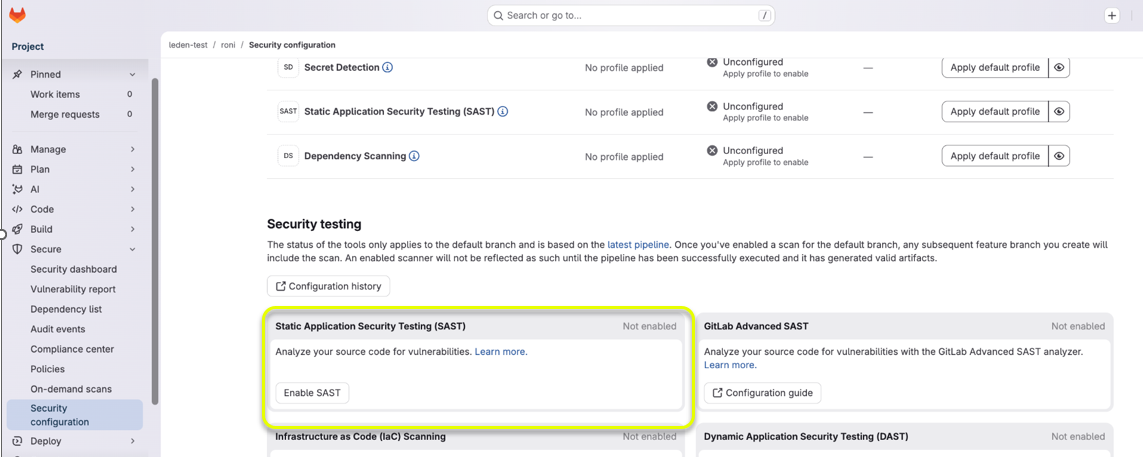
- In the left navigation bar, go to Secure > Security configuration. The Security configuration page appears.
- In the Security testing section, click Enable SAST to enable Static Application Security Testing (SAST). Cloud Exposure scans the GitLab merge request and displays detected findings.
Add a Jenkins Pipeline
Add a Jenkins pipeline to:
- Scan your infrastructure-as-code (IaC) pipeline for security issues.
- Sync the code associated with your cloud resources to trace those resources back to their origins (Cloud to Code).
After you add a Jenkins pipeline, you can use the CLI in the Docker Image to configure scan/sync settings and fine-tune how Cloud Exposure scans your environment.
Requirements:
- Docker must be installed on the host
- Docker plugin must be installed in Jenkins
- In the Cloud Exposure Console, navigate to Settings > Integrations and click Add Integration.
- In the Integrations Library, click Jenkins Pipeline. The Add Jenkins Pipeline wizard opens.
- Create an API token (Step 1 in wizard):
- To report scan results to Tenable, the scanner requires an API token parameter.
- To create the token, enter a Token Name and then click NEXT.
- Store API token (Step 2 in wizard). Copy and store the generated Token in a secure location and then click Next. You will need it for the next step in the wizard. The generated token allows API access to Tenable, and should be treated as a secret.
-
(Recommended) Add Jenkins credential (Step 3 in wizard). To add new global credentials to Jenkins, follow these steps:
Note: To protect Tenable's API token, it is recommended to use either Jenkins credentials, or some other secret store, if you're currently using one. Be aware that Jenkins credentials can be stored on multiple levels, depending on how you plan to use Tenable's scanning. It is recommended, but not mandatory, to only associate Tenable's token with pipelines linked to repositories with IaC code.- Log into Jenkins (as a user with the Credentials > Create permission).
- From the home page, click Manage Jenkins > Manage Credentials.
- Under Stores scoped to Jenkins on the right, click on Jenkins.
- Under System, click the Global credentials (unrestricted) link to access the default domain.
-
Click Add Credentials on the left (or add some credentials if none exist).
- From the Kind field, choose Secret text.
- From the Scope field, choose Global.
- Copy the API token created earlier in the wizard, and paste it in the Secret field.
- In the ID field, specify tenable-api-token.
- Add an optional Description for the token.
- Click OK to save the credentials.
When finished, click Next in the Cloud Exposure Console wizard.
-
Add stages (Step 4 in wizard). To generate scan results, add the relevant step/s to your Jenkins pipeline:
Note: It's recommended to run the scan/sync within a Git repository. If for some reason this isn't possible, see Additional Variable for Non-Git Repositories.-
IaC Scan — To scan your IaC, add the following step to your pipeline (adjust as needed):
CopyGroovy
pipeline {
    agent any
    stages {
        stage('Checkout') {
            steps {
                git '<PLACE YOUR REPOSITORY URL HERE>'
            }
        }
        stage('Scan IaC with Tenable One Cloud Exposure') {
            environment {
                TENABLE_API_TOKEN = credentials('ermetic-api-token')
                TENABLE_API_URL = 'https://app.tenable.com'
                TENABLE_CODE_BRANCH = "${env.CHANGE_BRANCH ?: env.GIT_BRANCH}"
                TENABLE_CODE_COMMIT_HASH = "${env.GIT_COMMIT}"
                TENABLE_CODE_COMMIT_USER = "${env.CHANGE_AUTHOR}"
                TENABLE_PIPELINE_RUN_ID = "${env.BUILD_ID}"
                TENABLE_PIPELINE_RUN_TRIGGER = "${currentBuild.getBuildCauses()[0].shortDescription}"
                TENABLE_PIPELINE_RUN_URL = "${env.BUILD_URL}"
            }
            steps {
                script {
                    docker.image('tenable/cloud-security-scanner:latest').inside("--entrypoint='' --pull=always") {
                        sh 'tenable iac scan \
                            --no-color \
                            --output-file-formats JUnit \
                            --output-path .'
                        junit skipPublishingChecks: true, testResults: 'results.junit.xml'
                    }
                }
            }
        }
    }
}
Once the action is triggered, you should start seeing scan results in Cloud Exposure under CI/CD.
-
IaC Sync — To trace resources and issues back to their code origins, add the following step to your Jenkins pipeline, adjusting it as necessary for your environment.
Note: This step should be added within the terraform apply step, after the 'apply' command. To generate sync results, ensure that you have added environment variables, as mentioned earlier. The TENABLE_API_TOKEN field is sensitive, and should be treated as a secret.CopyGroovy
pipeline {
    agent any
    stages {
        stage('Checkout') {
            steps {
                git '<PLACE YOUR REPOSITORY URL HERE>'
            }
        }
        stage('Terraform Apply') {
            steps {
                script {
                    // This step is required if your state file is stored remotely.
                    // Add 'state pull' after the 'terraform apply' script.
                    sh 'terraform state pull > terraform.tfstate'
                }
            }
        }
        stage('Sync IaC with Tenable One Cloud Exposure') {
            environment {
                TENABLE_API_TOKEN = credentials('tenable-api-token')
                TENABLE_API_URL = 'https://app.tenable.com'
                TENABLE_CODE_BRANCH = "${env.CHANGE_BRANCH ?: env.GIT_BRANCH}"
                TENABLE_CODE_COMMIT_HASH = "${env.GIT_COMMIT}"
                TENABLE_CODE_COMMIT_USER = "${env.CHANGE_AUTHOR}"
                TENABLE_PIPELINE_RUN_ID = "${env.BUILD_ID}"
                TENABLE_PIPELINE_RUN_TRIGGER = "${currentBuild.getBuildCauses()[0].shortDescription}"
                TENABLE_PIPELINE_RUN_URL = "${env.BUILD_URL}"
            }
            steps {
                script {
                    docker.image('tenable/cloud-security-scanner:latest').inside("--entrypoint='' --pull=always") {
                        sh 'tenable iac sync terraform \
                            --no-color'
                        junit skipPublishingChecks: true, testResults: 'results.junit.xml'
                    }
                }
            }
        }
    }
}
Note: The above example assumes that you are using the Docker Pipelines plugin.Once the sync is triggered, you should start seeing resources/findings tagged with the IaC label in Cloud Exposure. Relevant resources will have an IaC tab in the Inventory view, showing the relevant code snippet.
- Container Image Scan — See Container Image Scanning for more information.
-
- When done, click Finish.
Additional Variable for Non-Git Repositories
It's recommended to run the scan/sync within a Git repository. If for some reason this isn't possible, it's required to add the following variable, in addition to those listed in the Add Jenkins Pipeline wizard (see Add a Jenkins Pipeline).
TENABLE_CODE_REPOSITORY_URL=https://github.com/acme/repo1 Replace the sample value above, as follows:
TENABLE_CODE_REPOSITORY_URL: Replace with the URL of your code repository
Add a Terraform Cloud Run Task
Terraform Cloud run tasks let you integrate third-party tools and services at specific stages in the run lifecycle. Cloud Exposure scans your Terraform plan during the post-plan stage. Ensure that you have any necessary Terraform Cloud permissions, including the Manage Workspace Run Tasks permission, which allows you to associate the run task with the workspace.
During run task configuration, you can amend the Endpoint URL value with additional parameters to fine-tune how Tenable scans your environment (See step 3.4 below).
- In the Cloud Exposure Console, navigate to Settings > Integrations and click Add Integration.
- In the Integrations Library, click Terraform Cloud. The Add Terraform Cloud wizard opens.
-
Create an API token (Step 1 in wizard):
- To report scan results to Tenable, the scanner requires an API token parameter.
- To create the token, enter a Token Name and then click NEXT.
-
Create a run task in Terraform Cloud (Step 2 in wizard):
- Sign in to Terraform Cloud with a user that has permissions to manage run tasks.
- Open the Settings menu.
- Click Run tasks.
-
Click Create run task, and then configure the run task as follows:
- Select the Enabled checkbox.
- Enter a Name for the run task (for example, Tenable)
- Copy and paste the Endpoint URL value displayed in the Tenable wizard. To fine-tune how Tenable scans your environment, you can amend this URL with additional parameters. See Configure the Terraform Cloud Endpoint URL for more information.
- (Optional) Enter a Description.
- Copy and paste the HMAC Key value displayed in the Tenable wizard.
- Click Create run task.
-
Associate the run task with a workspace:
- Click Workspaces, and then click the workspace you want to protect.
- On the left-hand menu, click Settings.
- Under Workspace Settings, click Run Tasks.
- Under Available Run Tasks, click on the plus (+) sign next to the run task you created for Tenable to add it to the workspace.
-
Associate the run task by following these steps:
- Under Run stage, select Post-plan.
-
Under Enforcement Level, select one of the following:
- Advisory — If the task fails, the run will proceed with a warning, but will not prevent the run from completing.
- Mandatory — If the task fails (including a timeout or unexpected remote error condition), the run will display a warning, and the run will stop.
- Click Create.
After the action is triggered, you should start seeing scan results in Cloud Exposure under CI/CD.
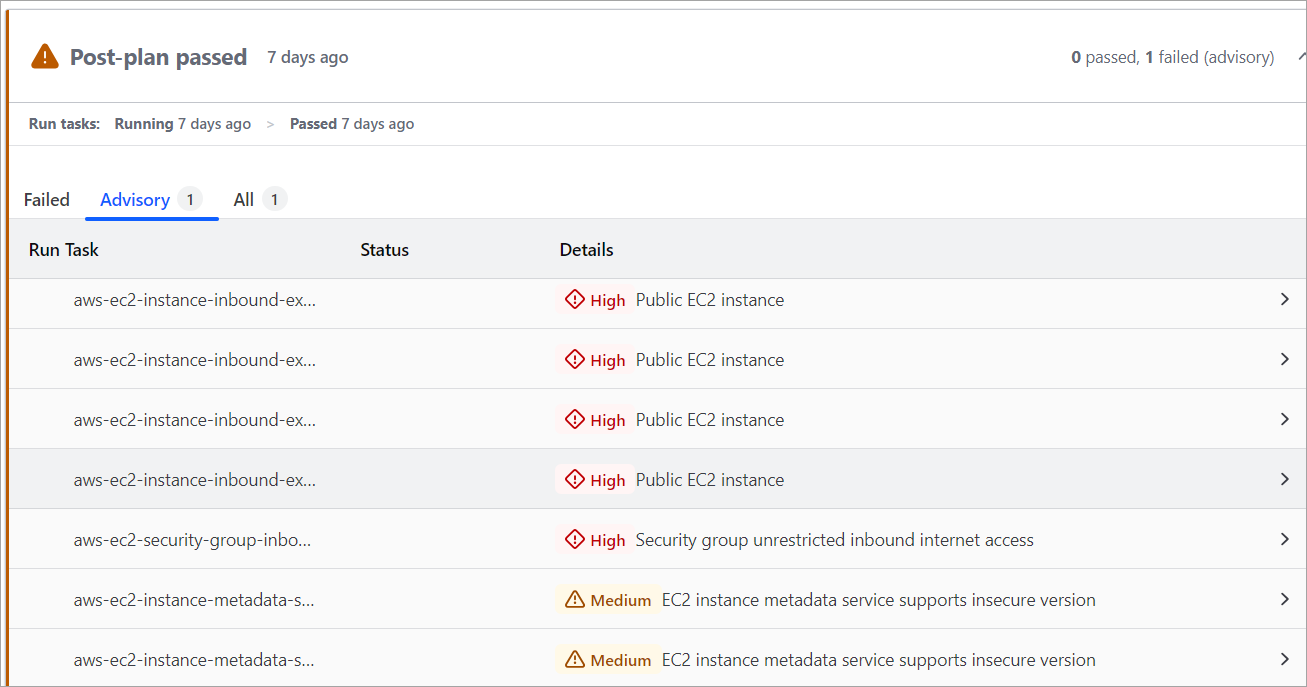
See Detailed Results via Streamlined Run Task Reviews
You can see enhanced, detailed scan results within Terraform Cloud. These results include a complete list of the detected issues (see Tenable Policies Used in Scans for more information), as well as detailed information about each issue. This allows you to stay in-context while viewing scan results, without the need to access the Cloud Exposure Console.
Add a Different Pipeline
In addition to the pipelines listed above, Cloud Exposure supports connecting other CI/CD pipelines via a generic workflow. The procedure below gives general instructions for connecting docker-based pipelines, but the actual syntax used when adding environment variables and running the docker scan depend on the specific pipeline, and will need to be adjusted accordingly.
You can use this workflow to:
- Scan your infrastructure-as-code (IaC) pipeline for security issues
- Sync the code associated with your cloud resources to trace those resources back to their origins (Cloud to Code).
To add a generic pipeline:
- In the Cloud Exposure Console, navigate to Settings > Integrations and click Add Integration.
- In the Integrations Library, click Generic (Docker). The Add Generic (Docker) wizard opens.
- Create an API token (Step 1 in wizard):
- To report scan results to Tenable, the scanner requires an API token parameter.
- To create the token, enter a Token Name and then click NEXT.
- Store the API token (Step 2 in wizard). Copy and store the generated Token in a secure location and then click Next. You will need it for the next step in the wizard. The generated token allows API access to Tenable, and should be treated as a secret.
-
Add environment variables (Step 3 in wizard). Create a file named environment.variables with the code below (adjust as needed):
Note: In addition to the environment variables listed here, which are needed to provide basic reporting functionality within Tenable, you can configure all flags included in the Tenable docker image, including Global Flags, as environment variables to further fine-tune scan/sync settings. See Use Flags as Environment Variables for more information, including how to convert a flag for use as a variable.CopyTENABLE_API_TOKEN=<api-token here>
TENABLE_API_URL=https://app.tenable.com
TENABLE_PIPELINE_RUN_ID=134235
TENABLE_PIPELINE_RUN_TRIGGER=pull_request
TENABLE_PIPELINE_RUN_URL=https://github.com/acme/repo1/actions/runs/134235Note: Replace the sample values above, as follows: TENABLE_API_TOKEN: Replace with the value displayed in the add-pipeline wizard TENABLE_PIPELINE_RUN_ID: Replace with the run ID of the pipeline TENABLE_PIPELINE_RUN_TRIGGER: Replace with the name of the event that triggered the workflow run TENABLE_PIPELINE_RUN_URL: Replace with the URL where the results of this run can be foundWhen finished, click Next in the Cloud Exposure Console wizard to continue.
-
Run docker commands (Step 4 in wizard). Add the relevant commands to your CI/CD pipeline, adjusting as necessary for your environment:
Note: It's recommended to run the scan/sync within a Git repository. If for some reason this isn't possible, see Additional Variables for Non-Git Repositories.-
IaC Scan — To scan your IaC, add the following step to your pipeline (adjust as needed):
Copydocker run --workdir /tmp/tenable --volume /home/user/code:/tmp/tenable --env-file environment.variables --pull=always tenable/cloud-security-scanner:latest iac scanImportant: In the above step, /home/user/code should be replaced with the actual location of the code you're scanning.Where:
- --env-file is the path in which the environment.variables file you created in the previous step is located.
- --volume Change the left side (before the ":") to the path in which the code is located. Keep the right side as is.
Be aware that the example step above assumes the following:
- You're using docker run to run Tenable’s scanner in a container.
- The code you are scanning is located in /home/user/code.
- You have created a Docker env file named environment.variables.
- You're running a scan with the default flags.
Once the scan is triggered, you should start seeing scan results under CI/CD.
-
IaC Sync — To sync the code associated with your cloud resources and trace those resources back to their origins (Cloud to Code), add the following step to your pipeline (adjust as needed):
CopyDockerfile
terraform state pull > terraform.tfstate
docker run --workdir /tmp/tenable --volume /home/user/code:/tmp/tenable --env-file environment.variables --pull=always tenable/cloud-security-scanner:latest iac sync terraform
Important: In the above step, /home/user/code should be replaced with the actual location of the code you're scanning.Where:
- --env-file is the path in which the environment.variables file you created in the previous step is located.
- --volume Change the left side (before the ":") to the path in which the code is located. Keep the right side as is.
Be aware that the example step above assumes the following:
- You're using docker run to run Tenable’s scanner in a container.
- The code you are syncing is located in /home/user/code
- You have created a Docker env file named environment.variables.
- You're running a scan with the default flags.
Once the sync is triggered, you should start seeing resources/findings tagged with the IaC label in Cloud Exposure. Relevant resources will have an IaC tab in the Inventory view, showing the relevant code snippet.
- Container Image Scan — See Container Image Scanning for more information.
-
- When done, in the Cloud Exposure Console wizard, click Finish.
Additional Variables for Non-Git Repositories
It's recommended to run the scan/sync within a Git repository. If for some reason this isn't possible, it's required to add the following variables, in addition to those listed in the Add Generic (Docker) wizard (see Add a Different Pipeline).
TENABLE_CODE_BRANCH=main
TENABLE_CODE_COMMIT_HASH=fa4e0ef3e25b89e1f6c348afd51b073f2bbcf1bb
TENABLE_CODE_COMMIT_USER=john-doe
TENABLE_CODE_REPOSITORY_URL=https://github.com/acme/repo1
Replace the sample values above, as follows:
- TENABLE_CODE_BRANCH: Replace with the branch name
- TENABLE_CODE_COMMIT_HASH: Replace with the commit hash of the code
- TENABLE_CODE_COMMIT_USER: Replace with the username of the user that triggered the initial workflow run
- TENABLE_CODE_REPOSITORY_URL: Replace with the URL of your code repository
Manage Secrets
After you add an integration, use Manage Secrets to change the secrets it authenticates with, without deleting the integration. You might replace a secret to follow your organization's rotation policy or because the secret was exposed, or disable one temporarily.
An integration holds a maximum of two secrets. Create the new secret before you delete the old one so your pipeline or connector keeps working during the switch. Each secret appears only once, when you create it.
To manage the secrets of an integration:
- In the left navigation bar, click Settings > Integrations.
- In the table, click the actions menu for the integration, and then click Manage Secrets.
-
Do one of the following:
- To create a secret, click Create Secret, and then copy the secret to a secure location.
- To rotate a secret, create a new secret, update everything that uses the old secret and confirm that it works, and then delete the old secret. If the integration already holds two secrets, delete one before you create the new one.
- To enable or disable a secret, click the Status toggle for the secret. A disabled secret cannot authenticate, so anything that uses it stops working until you enable it again. The other secrets of the integration are not affected.
- To delete a secret, click the delete icon next to the secret, and then confirm the deletion in the Delete Secret window.
Secret deletion is permanent. Any code that uses a deleted secret stops working immediately. Deleting a secret does not delete the integration or its scan results.
Configure Scan Settings
Configure scan settings to fine-tune how Cloud Exposure scans your environment. For example, you can configure:
- Which Tenable Policies Used in Scans.
- Whether or not to fail the build workflow based on scan results, and the minimum policy severity that should trigger a fail.
- The path/s that will be scanned by Tenable.
Use the relevant method for your CI/CD pipeline:
- GitHub Actions.
- Scan — Use the native GitHub Actions Scan Parameters.
- Sync — Use the native GitHub Actions Sync Parameters.
- GitLab CI/CD.
- Scan — Use the GitLab CI/CD Scan Parameters.
- Jenkins/Generic Docker — Use the CLI in the Tenable Docker Image.
- Terraform Cloud. Configure the Endpoint URL.
- Azure Pipelines.
- Scan — Use the Azure Pipelines Scan Parameters.
- Sync — Use the Azure Pipelines Sync Parameters.
Scan Settings vs Policy Settings
In addition to the various scan settings (parameters) outlined in this article, you can manage IaC policies from the Policies page in the Console, where you can perform the following basic activities on specific IaC scopes:
- Enable/disable policies
- Set exclusions in IaC scans
See IaC Policies for more information.
Policies can be disabled/excluded both via scan setting parameters and via the Policies page. It's important to note that any exclusions you configure always override any inclusions, as follows:
- If you excluded a policy via scan setting parameters, but the policy is enabled in the Policies page, the policy is excluded from the scan.
- If you disabled a policy in the Policies page (or defined a relevant exclusion), but the policy is included (either explicitly or implicitly) via scan settings, the policy is excluded from the scan.
Azure Pipelines Parameters
Configure the following task input parameters in the YAML schema of the relevant pipeline in Azure Pipelines to fine-tune how Cloud Exposure scans/syncs your environment. For more information about configuring the YAML schema, refer to the relevant Microsoft documentation . See Sample Configuration for an example.
Azure Pipelines Scan Parameters
Configure the following task input parameters in the YAML schema of the relevant pipeline in Azure Pipelines to fine-tune how Cloud Exposure scans your environment.
| Parameter | Description | Default | Example |
|---|---|---|---|
| apiToken | (Required) The API token used to communicate with Tenable. Generated in the Cloud Exposure Console during initial Azure Pipelines setup. | ||
| apiUrl | (Required) The URL of the Tenable API. | https://app.tenable.com/ | |
| excludePaths | Exclude specific paths from the scan. | dev/ | |
| excludePolicies | The IDs of any Tenable policies to exclude from the scan. This parameter is mutually exclusive with `policies` such that a value can only be entered for one of the two. You can use glob patterns as wildcards to define a range of policies. For example, excludePolicies aws-s3-* would exclude all policies related to AWS S3 buckets from the scan. | aws-iam-role-public-access-exists | |
| failOnMinSeverity |
The minimum policy severity that should return an exit code different from 0, and fail the build workflow. Possible values:
|
none | critical |
| gitTokens | Access tokens for private code repositories that Cloud Exposure requires during a scan. For example, you may need these tokens to access private Terraform modules. If you have multiple tokens, separate them with commas. Format: ORGANIZATION_URL=YOUR_TOKEN | https://dev.azure.com/org=YOUR_TOKEN | |
| logs | Whether to print log messages to the standard workflow output. Log messages include information about the run process of the scanner and debug information, such as the number of files/lines scanned. Possible values: true false | false | true |
| minSeverity |
The minimum severity of Tenable policies that you want to include in the scan. Possible values:
|
information | medium |
| outputFileFormats |
The format/s of the report output file/s which will be exported. You can enter more than one format value to output the report in multiple formats. Possible values:
|
json | json,csv |
| outputFileName | The name of the report output file/s which will be exported. If multiple formats are selected, all files will have the same name. | results | results |
| outputJunitTestNamePrefix | Prefix for JUnit test output name. Used to create a first-level hierarchy in test results. Can be used when junit is defined as an output file format. | Scan1 | |
| outputPath | The export path for the report output file/s. | results/ | |
| path | The repository path that will be scanned by Tenable. If left blank, Tenable will scan the entire repository. | prod/,stg/ | |
| policies | The IDs of the Tenable policies that will be used to scan the repository, entered as a comma separated list. If no values are entered, all policies will be scanned. This parameter is mutually exclusive with `excludePolicies` such that a value can only be entered for one of the two. You can use glob patterns as wildcards to define a range of policies to include. For example, policies aws-s3-* would include all policies related to AWS S3 buckets in the scan. You can use glob patterns as wildcards to define a range of policies to include. For example, policies aws-s3-* would include all policies related to AWS S3 buckets in the scan. | aws-iam-role-public-access-exists-terraform,aws-sqs-queue-encryption-disabled | |
| silent | Whether to print scan result content to the standard workflow output. Scan result output contains detailed information about issues found during scanning. Independent from logs. Possible values: true false | false | false |
| types | The IaC frameworks that Tenable scans. If no value is entered, Tenable scans all frameworks. Possible values: terraform terraform-plan cloudformation | terraform |
Azure Pipelines Sync Parameters
| Parameter | Description | Default | Example |
|---|---|---|---|
| apiToken | (Required) The API token used to communicate with Tenable. Generated in the Cloud Exposure Console during initial Azure Pipelines setup. | - | - |
| apiUrl | (Required) The URL of the Cloud Exposure API. | - | https://app.tenable.com/ |
| gitTokens | Access tokens for private code repositories that Cloud Exposure requires during a sync. For example, you may need these tokens to access private Terraform modules. If you have multiple tokens, separate them with commas. Format: ORGANIZATION_URL=YOUR_TOKEN | - | https://dev.azure.com/org=YOUR_TOKEN |
| path | The Terraform root module path that will be synced by Tenable, entered as a comma-separated list. If left blank, Tenable will sync the working directory. | - | prod/,stg/ |
| stateFilePath | The Terraform state file path. | terraform.tfstate | terraform.tfstate |
| logs | Whether to print log messages to the standard workflow output. Log messages include information about the run process and debug information. Possible values: true, false | true | true |
| silent | Whether to print sync result content to the standard workflow output. Sync result output contains information about files that have been traced back to their origins. Independent from logs. Possible values: true, false | false | false |
GitHub Actions Parameters
Configure input parameters to fine-tune how Cloud Exposure scans your environment:
GitHub Actions Scan Parameters
Configure the following input parameters in GitHub Actions to fine-tune how Cloud Exposure scans your environment.
| Parameter | Description | Default | Example |
|---|---|---|---|
| api-token (Required) | The API token used to communicate with Cloud Exposure. Generated in the Cloud Exposure Console during initial GitHub Actions setup. | ||
| api-url (Required) | The URL of the Cloud Exposure API. | https://app.tenable.com/ | |
| exclude-paths | Exclude specific paths from the scan. | dev/ | |
| exclude-policies | The IDs of any Tenable policies to exclude from the scan. This parameter is mutually exclusive with `policies` such that a value can only be entered for one of the two. You can use glob patterns as wildcards to define a range of policies. For example, exclude-policies aws-s3-* would exclude all policies related to AWS S3 buckets from the scan. | aws-iam-role-public-access-exists | |
| fail-on-min-severity |
The minimum policy severity that should return an exit code different from 0, and fail the build workflow. If no value is defined, the workflow will not fail. Possible values:
|
critical | |
| gitTokens | Access tokens for private code repositories that Cloud Exposure requires during a scan. For example, you may need these tokens to access private Terraform modules. If you have multiple tokens, separate them with commas. Format: ORGANIZATION_URL=YOUR_TOKEN | https://github.com/org=YOUR_TOKEN | |
| logs | Whether to print log messages to the standard workflow output. Log messages include information about the run process of the scanner and debug information, such as the number of files/lines scanned. Possible values: true false | false | true |
| min-severity |
The minimum severity of Tenable policies that you want to include in the scan. Possible values:
|
information | medium |
| output-file-formats |
The format/s of the report output file/s which will be exported. You can enter more than one format value to output the report in multiple formats. Possible values:
|
json | json,csv |
| output-file-name | The name of the report output file/s which will be exported. If multiple formats are selected, all files will have the same name. | results | results |
| output-junit-test-name-prefix | Prefix for JUnit test output name. Used to create a first-level hierarchy in test results. Can be used when junit is defined as an output file format. | Scan1 | |
| output-path | The export path for the report output file/s. | results/ | |
| path | The repository path that will be scanned by Tenable. If left blank, Tenable will scan the entire repository. | prod/ | |
| policies | The IDs of the Tenable policies that will be used to scan the repository, entered as a comma separated list. If no values are entered, all policies will be scanned. This parameter is mutually exclusive with `exclude-policies` such that a value can only be entered for one of the two. You can use glob patterns as wildcards to define a range of policies to include. For example, policies aws-s3-* would include all policies related to AWS S3 buckets in the scan. For information about how to retrieve policy ID information from the CLI, refer to Cloud Exposure documentation. | aws-iam-role-public-access-exists,aws-sqs-queue-encryption-disabled | |
| silent | Whether to print scan result content to the standard workflow output. Scan result output contains detailed information about issues found during scanning. Independent from logs. Possible values: true false | false | false |
| types |
The IaC frameworks that Tenable scans. If no value is entered, Tenable scans all frameworks. Possible values:
|
terraform |
- security
- tenable iac
- Category tags (for example, tenable iac iam or tenable iac compute)
GitHub Actions Sync Parameters
Configure the following input parameters in GitHub Actions to fine-tune how Cloud Exposure scans your environment.
| Parameter | Description | Default | Example |
|---|---|---|---|
| api-token (Required) | The API token used to communicate with Tenable. Generated in the Cloud Exposure Console during initial GitHub Actions setup. | - | |
| api-url (Required) | The URL of the Cloud Exposure API. | - | https://app.tenable.com/ |
| gitTokens | Access tokens for private code repositories that Cloud Exposure requires during a sync. For example, you may need these tokens to access private Terraform modules. If you have multiple tokens, separate them with commas. Format: ORGANIZATION_URL=YOUR_TOKEN | - | https://github.com/org=YOUR_TOKEN |
| logs | Whether to print log messages to the standard workflow output. Log messages include information about the run process of the scanner and debug information, such as the number of files/lines scanned. Possible values: true false | - | true |
| path | The Terraform root module path that will be synced by Tenable, entered as a comma separated list. If left blank, Tenable will sync the working directory. | - | prod/ |
| silent | Whether to print sync result content to the standard workflow output. Sync result output contains information about files that have been traced back to their origins. Independent from logs. Possible values: true false | false | false |
| state-file-path | The Terraform state file path. | terraform.tfstate | terraform.tfstate |
GitLab CI/CD Parameters
Configure input parameters to fine-tune how Cloud Exposure scans your environment:
GitLab CI/CD Scan Parameters
Configure the following input parameters in the GitLab CI/CD to fine-tune how Cloud Exposure scans your environment.
| Parameter | Description | Default | Example |
|---|---|---|---|
| api-token (Required) | The API token used to communicate with Cloud Exposure. Generated in the Cloud Exposure Console during initial GitLab CI/CD setup. | ||
| api-url (Required) | The URL of the Cloud Exposure API. | https://app.tenable.com/ | |
| stage (Required) | The GitLab CI/CD pipeline stage to run the job. | tenable-cloud-security | |
| exclude-paths | Exclude specific paths from the scan. | dev/ | |
| exclude-policies | The IDs of any Tenable policies to exclude from the scan. This parameter is mutually exclusive with 'policies' such that a value can only be entered for one of the two. You can use glob patterns as wildcards to define a range of policies. For example, exclude-policies aws-s3-* would exclude all policies related to AWS S3 buckets from the scan. | aws-iam-role-public-access-exists | |
| fail-on-min-severity |
The minimum policy severity that should return an exit code different from 0, and fail the build workflow. If no value is defined, the workflow will not fail. Possible values:
|
critical | |
| gitTokens | Access tokens for private code repositories that Cloud Exposure requires during a scan. For example, you may need these tokens to access private Terraform modules. If you have multiple tokens, separate them with commas. Format: ORGANIZATION_URL=YOUR_TOKEN | https://gitlab.com/org=YOUR_TOKEN | |
| logs | Whether to print log messages to the standard workflow output. Log messages include information about the run process of the scanner and debug information, such as the number of files/lines scanned. Possible values: true false | false | true |
| min-severity |
The minimum severity of Tenable policies that you want to include in the scan. Possible values:
|
information | medium |
| output-file-formats |
The format/s of the report output file/s which will be exported. You can enter more than one format value to output the report in multiple formats. Possible values:
|
json | json,csv |
| output-file-name | The name of the report output file/s which will be exported. If multiple formats are selected, all files will have the same name. | results | results |
| output-junit-test-name-prefix | Prefix for JUnit test output name. Used to create a first-level hierarchy in test results. Can be used when junit is defined as an output file format. | Scan1 | |
| output-path | The export path for the report output file/s. | results/ | |
| path | The repository path that will be scanned by Tenable. If left blank, Tenable will scan the entire repository. | prod/ | |
| policies | The IDs of the Cloud Exposure policies that will be used to scan the repository, entered as a comma separated list. If no values are entered, all policies will be scanned. This parameter is mutually exclusive with 'exclude-policies' such that a value can only be entered for one of the two. You can use glob patterns as wildcards to define a range of policies to include. For example, policies aws-s3-* would include all policies related to AWS S3 buckets in the scan. For information about how to retrieve policy ID information from the CLI, refer to Cloud Exposure documentation. | aws-iam-role-public-access-exists-terraform,aws-sqs-queue-encryption-disabled | |
| silent | Whether to print scan result content to the standard workflow output. Scan result output contains detailed information about issues found during scanning. Independent from logs. Possible values: true false | false | true |
| types |
The IaC frameworks that Tenable scans. If no value is entered, Tenable scans all frameworks. Possible values:
|
terraform |
- security
- tenable iac
- Scan category tags (for example, tenable iac iam or tenable iac compute)
CLI in Tenable Docker Image
Configure the following commands via the Tenable Docker image CLI to fine-tune how Tenable scans your environment.
List of Commands
Use the following commands to run scans, list Tenable IaC policies, and print the CLI version. Use the flags listed with each command (or any Global Flags) to fine-tune how the command is run.
Iac Scan
Perform the Tenable IaC scan.
Usage:
tenable iac scan [flags]Flags:
    --api-token string
    --api-url string
    --code-branch string                     (auto detected)
    --code-commit-hash string                (auto detected)
    --code-commit-user string                (auto detected)
    --code-repository-url string             (auto detected)
    --exclude-paths strings
    --exclude-policies strings
    --fail-on-min-severity string            minimum severity that should return an exit code different from 0
    --git-tokens stringToString               (default [])
-h, --help                                   help for scan
    --min-severity string                    Information,Low,Medium,High,Critical (default "information")
    --output-file-formats strings            Csv,Json,JUnit,Md,Sarif (default [json])
    --output-file-name string                 (default "results")
    --output-junit-test-name-prefix string
    --output-path string
    --path string                             (default ".")
    --pipeline-run-id string
    --pipeline-run-trigger string
    --pipeline-run-url string
    --policies strings
--types strings Arm,Bicep,CloudFormation,Helm,Kubernetes,Terraform,TerraformPlanIac Sync Terraform
Usage:
tenable iac sync terraform [flags]Flags:
--api-token string
--api-url string
--code-branch string            (auto detected)
--code-commit-hash string       (auto detected)
--code-commit-user string       (auto detected)
--code-repository-url string    (auto detected)
--git-tokens stringToString     (default [])
--help, -h                      help for terraform
--path string                   terraform root module path (default ".")
--pipeline-run-id string
--pipeline-run-trigger string
--pipeline-run-url string
--state-file-path string        (default "terraform.tfstate")
Iac List-Policies
List the Tenable policies used in scans.
Usage:
tenable iac list-policies [flags]Flags:
--clouds strings   list policies for specific clouds aws,azure,gcp
--help, -h         help for list-policies
--types strings    list policies for specific code types cloud-formation,kubernetes,terraform,terraform-plan
Version
Print the version of the Tenable CLI.
Usage:
tenable version [flags]Flags:
--help, -h help for versionGlobal Flags
Use the following global flags with any of the commands listed above.
--logs       print log messages to standard output
--no-color   print output without color
--silent     do not print output to standard output (edited)
Use Flags as Environment Variables
When you add a Jenkins pipeline or a generic docker pipeline to Cloud Exposure, you configure a set of environment variables. The variables listed, both in the Console wizard and the parallel documentation, are designed to provide basic reporting functionality within the Cloud Exposure Console. For more advanced configuration requirements, and to further fine-tune scan settings, you can also configure all flags included in the Tenable docker image, including Global Flags, as environment variables.
Flag vs Environment Variable Syntax
CLI flags and environment variables use different syntax. Use the following procedure to convert any given flag into an environment variable.
To convert flag syntax for use as an environment variable:
- Remove the dashes before the flag name.
- Replace any dashes with underscores.
- Type TENABLE_ (with an underscore) as a preface.
- Use ALL CAPS.
- Boolean flags (see Global Flags) should be set to TRUE to activate.
So, for example, the --code-repository-url flag becomes TENABLE_CODE_REPOSITORY_URL, when used as an environment variable.
Configure the Terraform Cloud Endpoint URL
For Terraform Cloud pipelines, you can configure the Endpoint URL of the run task to fine-tune how Cloud Exposure scans your environment. To do so, amend the Endpoint URL with one or more of the following parameters. See Sample URLs for examples of how to amend these parameters to the URL.
See Add a Terraform Cloud Run Task for full run task configuration, including configuring the Endpoint URL.
- failOnMinSeverity — The minimum policy severity that should fail the run workflow. Possible values:
- information
- low
- medium
- high
- critical
- excludePolicies — The IDs of any Tenable policies to exclude from the scan. This parameter is mutually exclusive with policies such that a value can only be entered for one of the two.
- policies — The IDs of the Tenable policies that will be used to scan the repository, entered as a comma separated list. If no values are entered, all policies will be scanned. This parameter is mutually exclusive with excludePolicies such that a value can only be entered for one of the two.
Sample URLs
- https://app.tenable.com/api/terraformcloud/runtasks/scan?apiToken={API token}&excludePolicies=52ffcfa6-6c70-4ea6-8376-d828d3961669&failOnMinSeverity=Critical
- https://app.tenable.com/api/terraformcloud/runtasks/scan?apiToken={API token}&policies=52ffcfa6-6c70-4ea6-8376-d828d3961669,586f29d7-e60e-4211-858c-b1c06d339fa2,5d9e3164-9265-470c-9a10-57ae454ac0c7&failOnMinSeverity=High
Additional Parameters Required When Using Classic Release Pipelines
| Parameter | Description | Default | Example |
|---|---|---|---|
| codeCommitUser | The username of the author who performed the commit. | ||
| codeRepositoryUrl | The repository URL. | https://github.com/orgName/repoName | |
| pipelineRunTrigger | The activity that triggered pipeline execution. | Manual, PullRequest, BuildCompletion |
Sample Configuration
The following sample configuration for Azure Pipelines instructs Tenable to scan the ./terraform_resources path for terraform scans, and to fail the build workflow on polcies with a severity of high or above.
YAML
-task: ErmeticIacScan@1
 inputs:
    apiToken: '$(TENABLE_API_TOKEN)`
    apiURL: `https://app.tenable.com`
    failOnMinSeverity: `high`
    path: `./terraform_resources`
    types: `terraform`
Output Examples
JSON
JSON
{
  "end_time": "2024-07-07T13:35:07.940626+03:00",
  "file_count": 22,
  "iac_findings": [
    {
      "cloud": "AWS",
      "description": "At least one stage of your API Gateway API should be associated with AWS WAF web ACL.\nDoing so protects web applications and APIs from threats, and enables you to control how traffic reaches your applications.\nThis policy is only applicable to REST APIs.",
      "name": "API Gateway API is not associated with WAF web ACL",
      "policy_category": "Network",
      "policy_id": "aws-api-gateway-api-web-acl-not-exists",
      "resources": [
        {
          "file_path": "1.json",
          "file_url": "https://example.com/foo/bar/blob/afasdfasdfasdfasdfasdf/api_web_acl_not_exists/1.json",
          "line": 5,
          "name": "positive1",
          "reference_url": "https://docs.aws.amazon.com/AWSCloudFormation/latest/UserGuide/aws-resource-apigateway-restapi.html",
          "type": "AWS::ApiGateway::RestApi"
        }
      ],
      "severity": "Low"
    }
  ],
  "iac_findings_by_severity": {
    "Critical": 0,
    "High": 0,
    "Information": 0,
    "Low": 1,
    "Medium": 0
  },
  "iac_findings_count": 8,
  "parsed_file_count": 14,
  "path": "api_web_acl_not_exists",
  "policies": [
    {
      "category": "Network",
      "codeTypes": [
        "TerraformPlan",
        "Terraform",
        "CloudFormation"
      ],
      "description": "At least one stage of your API Gateway API should be associated with AWS WAF web ACL.\nDoing so protects web applications and APIs from threats, and enables you to control how traffic reaches your applications.\nThis policy is only applicable to REST APIs.",
      "id": "aws-api-gateway-api-web-acl-not-exists",
      "infrastructureTenantType": "Aws",
      "name": "API Gateway API is not associated with WAF web ACL",
      "severity": "Low"
    }
  ],
  "resource_count": 58,
  "start_time": "2024-07-07T13:35:07.5278667+03:00",
  "success": true,
  "version": "1.124.1"
}
CSV
