Slack
Integrate your Slack workspace with Tenable One Cloud Exposure to support:
- Sending notifications to a Slack channel when specific findings are created in Tenable.
- Using Slack as part of the Self-Service Just-in-Time Access workflow, to allow users to easily request/approve access. See Integrate Slack with JIT for more information about how to set this up.
What to do next:
-
To start sending data for findings, you need to also configure automation rules or manually trigger an action after you add the integration. Successfully completing all integration steps doesn't trigger the sending of any data on its own.
Add a Workspace
To add your Slack workplace, you must have either the Owner or Admin role in Slack. Any user can add a Slack channel.
When you integrate a workspace, Tenable automatically identifies all channels within your workspace and makes them available for use, even though individual channels will not be listed on the Tenable integration page for Slack. When you add a new channel in Slack after integrating your workspace, it may take several minutes before the channel is available for use within Tenable.
- Due to a Slack requirement, only users who are part of the relevant workspace can see associated channels in the Cloud Exposure Console. This means that the email used in Slack must be identical to that of the email used to log in to the Console.
- If there are a large enough number of notifications to be sent in a given day for a single automation rule, they will be aggregated into a single Slack message or email, instead of being sent individually.
To add a Slack workspace and channel/s:
- In the Cloud Exposure Console, navigate to Settings > Integrations.
- (Optional) Select an account scope in the Organization dropdown.
- Click Add Integration.
-
In the Integrations Library, click Slack Workspace.
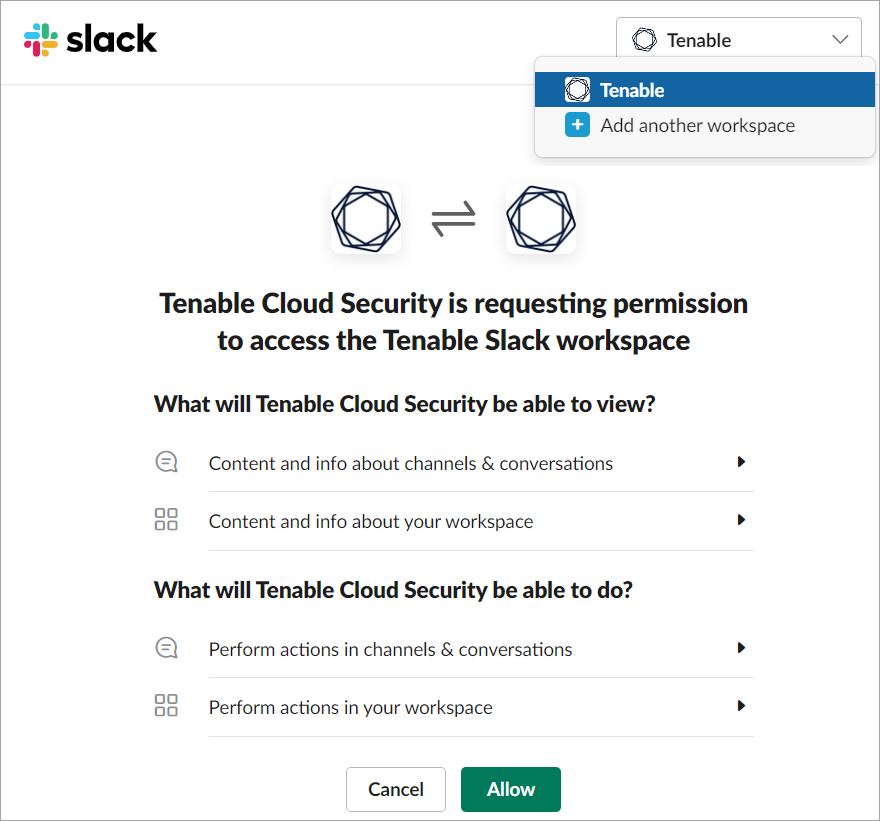
- If you have more than one workspace, you can select the relevant workspace from the dropdown on the top right of the page.
- Click Allow to grant Tenable access to your company workspace. After your workspace is added successfully, it appears in the table in Settings > Integrations > Slack.
-
To add a channel, type and send the following command in the relevant channel:
/invite @tenablecloudsecurity
In December 2023, the name of the app was changed from Ermetic to Cloud Exposure:
- If you added the app before the name change, continue using the previous command of /invite @ermetic to add channels.
- If you want, you can edit the bot name of the app in Slack to manually update the name to Cloud Exposure. The command used to add channels will change accordingly. You must have either the Owner or Admin role for your workspace to do this.
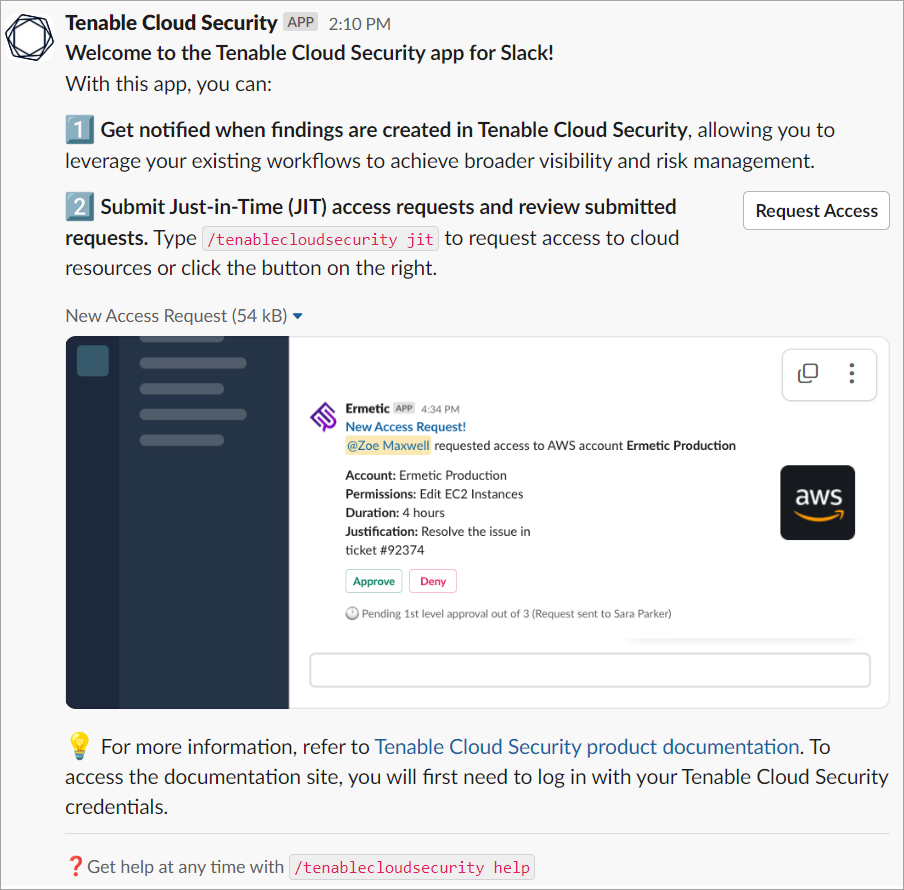
After the app is successfully installed, you will see a welcome message in Slack:
Reauthorize Workspaces for JIT
If you're using Slack as part of the JIT workflow, be aware of the following important information to ensure that your workspace/s is qualified to work with JIT:
- To support using Slack with JIT, you will need to reauthorize any workspace that you added before December 11, 2022 (version 1.51).
- Any new workspace/s that you add/added after this date will already have the necessary permissions, and no action is required.
To reauthorize a workspace:
Required Cloud Exposure User Role: You must have either the Owner or Admin role for your workspace to reauthorize the workspace.
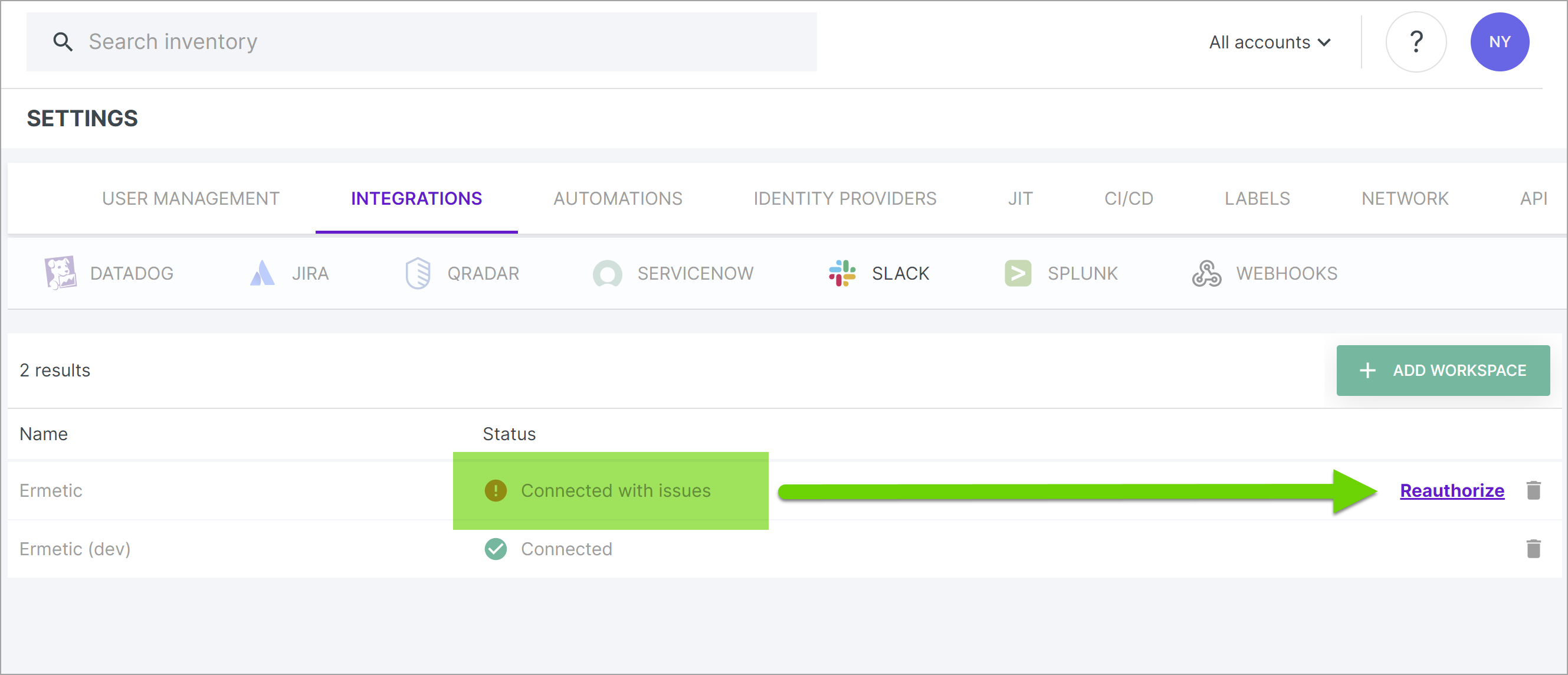
- Navigate to Settings > INTEGRATIONS > SLACK.
- Locate workspaces with a status of Connected with issues, and that have a Reauthorize button.
-
Click Reauthorize to update the workspace.
View Findings in Slack
To view Cloud Exposure findings in Slack:
- In your Slack Workspace, navigate to the channel where the findings were sent, depending on what was configured in the automation rule or manual action.
- In the channel, view messages sent by the Cloud Exposure App.