Connect Snowflake
Connect your Snowflake accounts in Tenable One Cloud Exposure to gain visibility into Snowflake resources and support data classification across your data platform environments. Tenable collects metadata and configuration details from the Snowflake API to enable scanning and monitoring.
After onboarding, Tenable displays a status for each Snowflake account, indicating whether Tenable can connect to the account and helping you troubleshoot potential onboarding issues.
- If network access is restricted, allow access from the Tenable platform after onboarding. See Grant Tenable Network Access.
- When you connect your first Snowflake account, the entire account is selected for scanning by default. You can adjust scan targets on the Configure Data Platform Scanning page.
- See Supported Resources for a searchable list of Snowflake resource types.
- See Billable Resources for a list of Snowflake resources that count toward licensing.
- Snowflake scanning is available with the Enterprise license.
Connect Snowflake Accounts
To connect a Snowflake account:
-
In the Cloud Exposure Console:
-
To connect your first or additional accounts, go to Settings > Integrations:
- Under Data Platforms, click Snowflake .
- Click Add Snowflake Account.
-
Alternatively, to connect additional accounts, you can go to Accounts > Snowflake:
- Click +Add and then Add account.
-
To connect your first or additional accounts, go to Settings > Integrations:
-
In the Add Snowflake Account window:
-
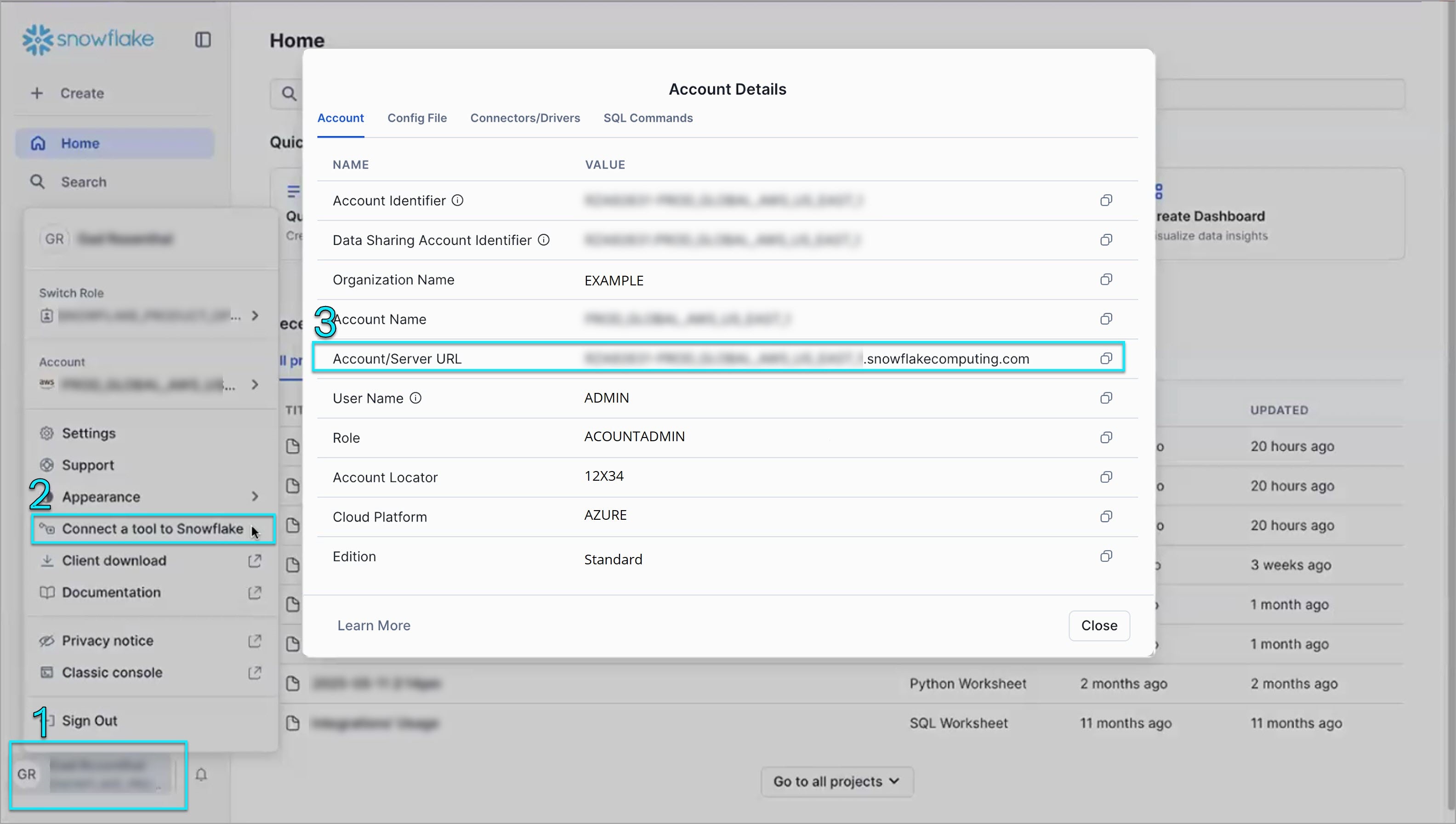
Enter the Snowflake Account/Server URL. This is the URL of your Snowflake account. To get the URL:
- Go to your Snowflake account.
- Click on the User menu.
- Click Connect a tool to Snowflake.
In the Account Details window, copy the Account/Server URL.
Customize Default Names (optional). The Snowflake objects Tenable creates have pre-filled names. You can use the defaults or rename them.
Object names:Field Description Role Name Role granted to the Tenable user. See granted permissions. User Name User assumed by Tenable and granted the Tenable role. Operates within the scope of the role's permissions. The user name must be unique at the Snowflake account level. Warehouse Name Dedicated Tenable compute warehouse assigned to the Tenable user. To keep compute costs low, the warehouse size is X-Small. Database Name Dedicated Tenable database used to host and run the Tenable task. Task Name Periodic job that grants the Tenable role read-only access to newly discovered databases. See granted permissions.
-
Enter the Snowflake Account/Server URL. This is the URL of your Snowflake account. To get the URL:
- Click Next.
- Copy the provided script.
-
Execute the provided script in Snowflake:
- Log in to your Snowflake account using the ACCOUNTADMIN role with an active Warehouse selected.
- Go to Worksheets and create a new SQL Worksheet.
- Paste and run the provided script from the Cloud Exposure Console.
- If your Snowflake account enforces network restrictions, allow access from Tenable IPs. See Grant Tenable Network Access for details.
- When the script completes successfully, go back to the Cloud Exposure Console and click Finish.
Grant Tenable Network Access
If network access is restricted in your Snowflake account, you must define network policies that allow access from the Tenable platform. This ensures that Tenable can connect to your environment and complete onboarding successfully.
Learn more about Snowflake network rules.
- Use individual IP addresses or CIDR ranges.
- Multiple IP addresses must be comma-separated.
- If you changed the default user name during onboarding, update the TENABLE_USER value in the provided script to match the user name shown in Accounts > Snowflake. Failing to do so will prevent the policy from being applied correctly.
To add a network policy:
- Log in to your Snowflake account using the ACCOUNTADMIN role.
- Go to Projects > Worksheets and create a new SQL Worksheet.
-
Paste the following script:
CopySQL
DECLARE
TENABLE_NETWORK_POLICY VARCHAR DEFAULT 'TENABLE_POLICY';
TENABLE_USER VARCHAR DEFAULT '"<paste_user_name_here>"';
BEGIN
EXECUTE IMMEDIATE 'ALTER USER ' || TENABLE_USER || ' SET NETWORK_POLICY=""';
CREATE OR REPLACE NETWORK POLICY IDENTIFIER(:TENABLE_NETWORK_POLICY)
  ALLOWED_IP_LIST=
  (
      '<ip1_core_service, ip2_core_service>',
      '<ip1_data_protection, ip2_data_protection>'
  );
EXECUTE IMMEDIATE 'ALTER USER ' || TENABLE_USER || ' SET NETWORK_POLICY=' || TENABLE_NETWORK_POLICY;
END; -
Replace the placeholders in the script:
- <paste_user_name_here>: Enter the actual Tenable user name (inside double quotes).
For example: TENABLE_USER varchar default '"Pete Mitchell"'; - <ip1_core_service, ip2_core_service>: Add all IP addresses from Cloud Exposure IP Addresses for Core Services.
<ip1_data_protection, ip2_data_protection>: From the Additional IP Addresses for Workload and Data Protection section, add only the IP addresses that match the region and provider of your Snowflake account.
You can find the Snowflake region in the Account Details window: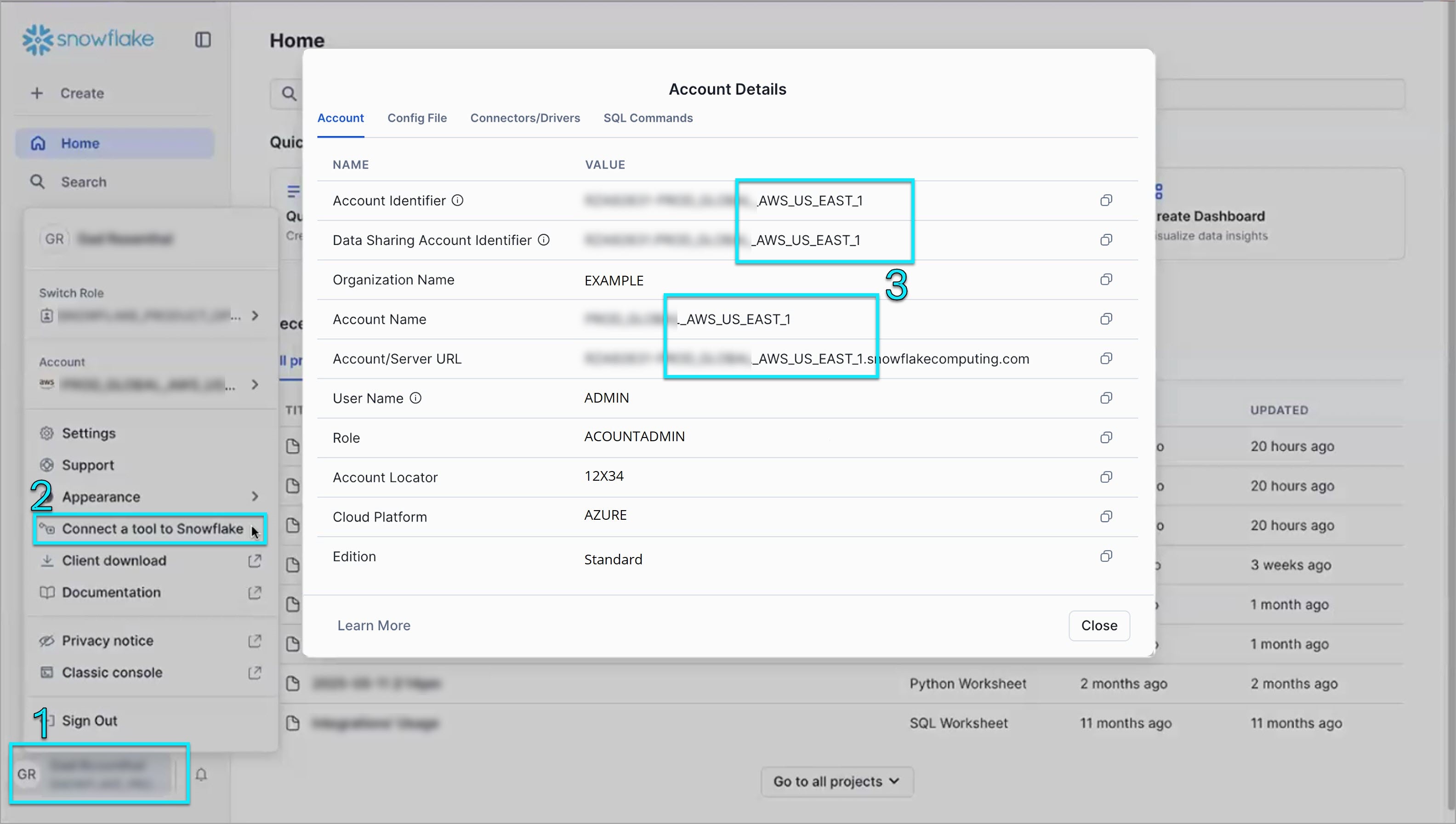
- <paste_user_name_here>: Enter the actual Tenable user name (inside double quotes).
- Execute the SQL code.
- Verify that network access is working. If issues persist, contact Support.