Common Inventory Use Cases
This section outlines some common use cases that the Inventory view can help you solve for.
Discover Public Resources
Use the Inventory view to discover resources that are publicly exposed to the internet, whether via:
- The network — For example:
- SQL servers in Azure (Data)
- EC2 instances in AWS (Compute)
- RDS instances in AWS (Data)
- VM instances in GCP (Compute)
- IAM policies — Resources that don’t have IP addresses, and which the only way to understand exposure is through permissions. For example:
- Storage buckets in GCP (Data)
- S3 buckets in AWS (Data)
To discover publicly exposed resources:
-
View your asset inventory:
- In the Tenable One Cloud Exposure Console, go to Explore > Inventory.
- From the Inventory view, select the relevant category and resource type that you want to view. For example, Data > Azure SQL Servers.
-
For resources that are exposed via the network, Filter the Asset Inventory by selecting the following filters:
In the Network Exposure filter, click Internet (direct) to filter for resources that are directly exposed to the internet.
Note: Internet (indirect) indicates indirect exposure to the internet, via, for example, load balancers.In the Network Exposure Scope filter, click Wide range of IPs to filter for resources that are exposed to a wide set of IP addresses.
Note: Wide in this context means that the resource is exposed to more than 255 IP addresses, implying that it isn't known who can access the resource.
-
For resources that are exposed via IAM policies, Filter the Asset Inventory by using the Access filter, as follows:
- Public. The resource is publicly exposed.
- External (GCP only). The resource is exposed to external Google groups and users that aren't defined locally in Workspace.
- Internal. The resource is only exposed to resources defined internally.
 Note: A Cross account option may also appear in the Access filter, and is used to filter for resources from one account that expose access to identities in different accounts.
- Drill down into the resource to visualize network exposure.
Find Encryption Keys Protecting Data
Use the Inventory view to:
- Find encryption keys that are used to protect your data, making sure that all sensitive data is encrypted.
- Make sure that each resource uses its own encryption key by monitoring which keys encrypt which data.
To find encryption keys:
- View Your Asset Inventory:
- In the Cloud Exposure Console, go to Explore > Inventory.
- From the Inventory view, select the relevant category and resource type that you want to view. For example, Data > AWS RDS Instances.
- Filter the Asset Inventory by adding the KMS Encryption Key filter to see a list of all keys used for the specified resource type.
-
Select a specific key or keys to see which resources are protected by the key/s.
- To view all resources that have a key, click Select all, and then uncheck the (Blanks) option.
- To view all resources that don't have a key, click the (Blanks) option only.

Discover Risk in Your Inventory
Use the Inventory view to discover risk among resources in your environment.
To find at-risk resources in your inventory:
- View Your Asset Inventory:
- In the Cloud Exposure Console, go to Explore > Inventory.
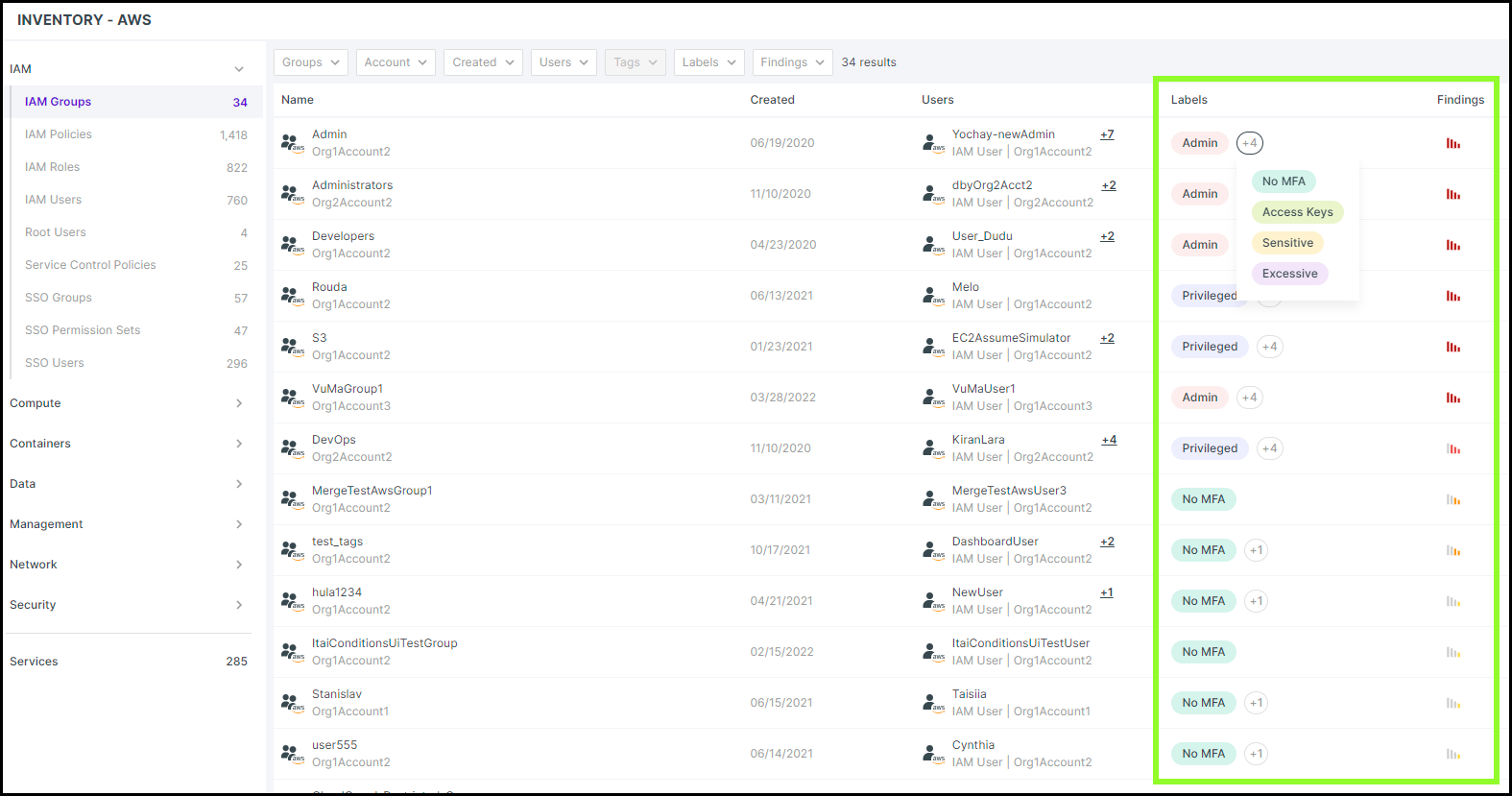
- From the Inventory view, select the relevant category and resource type that you want to view. For example, IAM > AWS IAM Groups.
- Filter the Asset Inventory by filtering or sorting by Labels and/or Findings:
- View resources with labels that indicate high risk, for example Admin or No MFA.
- View resources with associated findings, listed according to severity.