Data Resources
This is a how-to guide for viewing and managing data resources.
- For a conceptual overview of data protection capabilities, see Data Protection.
- To configure container registry settings, see Container Registry Settings.
- For frequently asked questions, see FAQ: Data Protection
Identify and then assess the data detected on your cloud resources to understand the data's sensitivity level and context, as well as to help ensure compliance with industry standards.
View All Data Resources
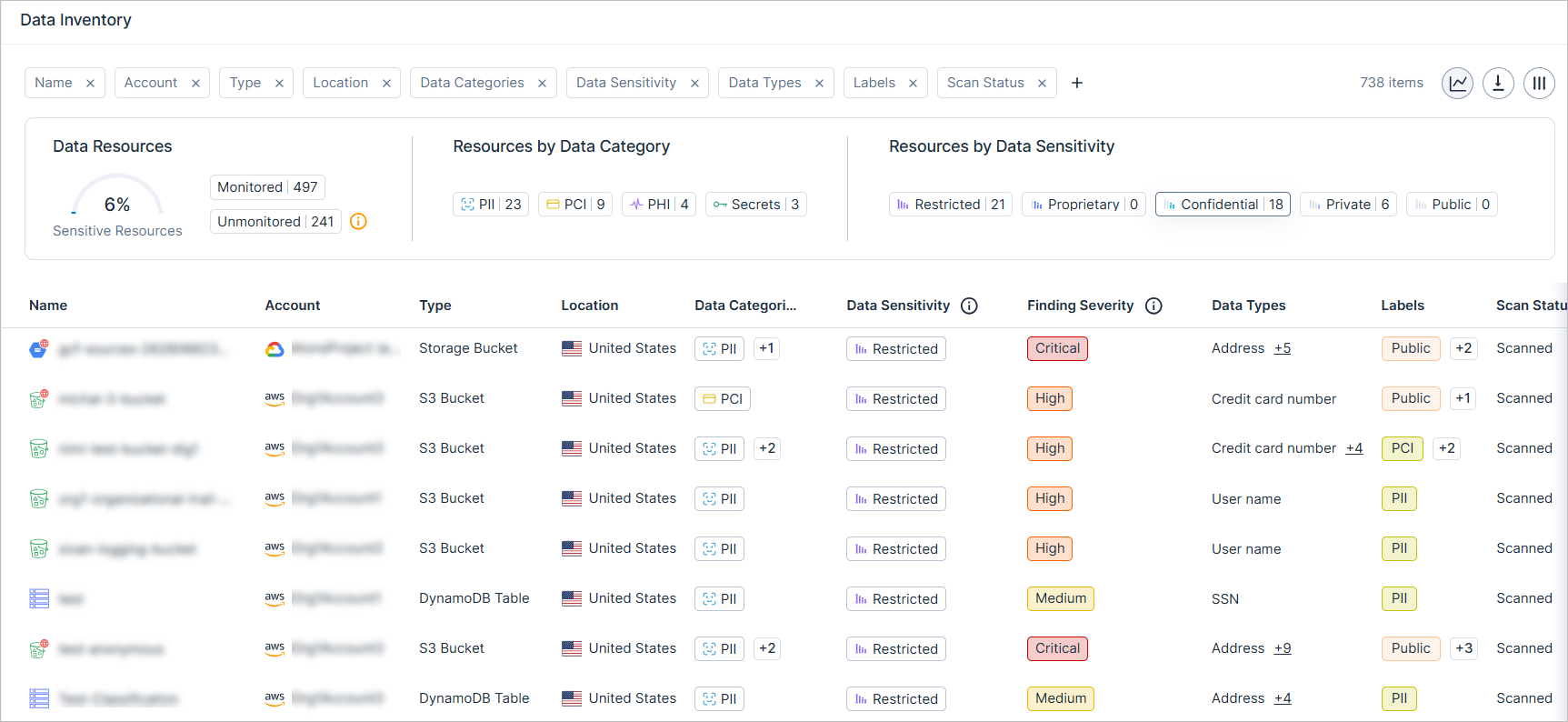
Use the Data Inventory page to easily see and manage all of your data resources in one place.
For example, you can see:
- Scanned resources that contain PII data.
- Scanned resources that contain data classified as Restricted.
- Resources that weren't scanned because you didn't grant Tenable the necessary permissions.
To view all data resources:
-
In the Tenable One Cloud Exposure Console, click on Explore > Data resources from the left-hand menu.
-
Use the quick filter widget to identify sensitive data resources in your environment. For example:
Filter by monitored resources.
Note: Monitored means that data analysis is available, and that the resources have already been scanned, or are waiting to be scanned. Unmonitored means that data analysis not available for the resources, either because scanning is disabled, or because the scan failed for some reason.- Use the Data Category filter to view resources that contain scanned Financial data.
- Use the Data Sensitivity filter to view resources with scanned data belonging to data categories that have Restricted / Confidential severity.
- Filter the Data Inventory Column Data to further modify the scope of the visible data. For example:
-
Click on a resource, and then click the Data tab
 .
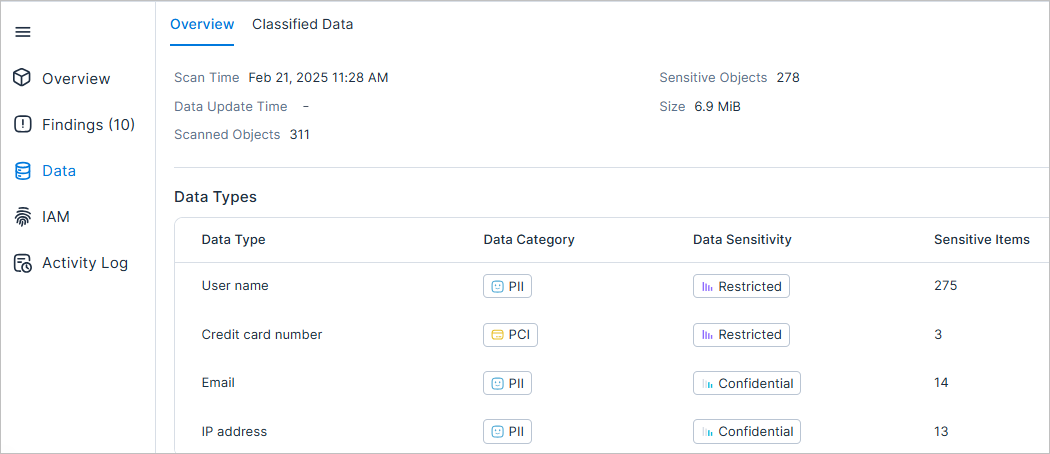
- Use the Overview tab to see an overview of detected objects for the resource, with a breakdown by data type. See Data Overview Column Data for more information.
-
Use the Classified Data tab to see a detailed list of detected objects for a specific data type. See Classified Data Column Data for more information.
- Filter the data to further modify the scope of the visible data.
- Export table data
- View Samples of sensitive data detected by hovering over the number.
Data Inventory Column Data
| Column | Description |
|---|---|
| Name | The resource name. |
| Account | The cloud account where the resource is located. |
| Type | The type of resource that was scanned. See How Tenable Scans Your Data for a complete list. |
| Location | The location where the scanned resource is located. |
| Data Types | The sensitive data types detected on the resource. See Scanned Data Types for a complete list. |
| Data Categories | The data categories that map to the sensitive data types detected on the resource. |
| Data Sensitivity | The highest sensitivity level detected out of all scanned data. See Sensitivity Levels for more information. |
| Data Scan Status | Indicates whether or not the resource was successfully scanned. Also indicates the reason why a resource may not have been scanned. See Scan Status for more information. |
| Data scan status reason | Provides the specific reason behind the Data Scan Status for the resource, such as missing permissions, or unsupported configurations. The column is hidden by default and can be enabled from the column selector. |
| Finding Severity | The highest severity level out of all findings associated with the resource. |
| Created | The date that the resource was created in the cloud provider environment. |
| Tags | Tags assigned to the resource in the cloud service provider platform. Each tag is a label consisting of a user-defined key and value. |
| Labels | Displays all labels applied to the resource, whether applied manually, automatically based on tags, or by the system. Hover over a label tag for more information. If a resource has more than one label, click on the icon to see any additional labels. |
| Data Scan Time | A timestamp indicating the last time that Cloud Exposure scanned the resource. If the resource has not yet been scanned, the value will be a dash (-). |
| Data Read Access Level | Represents the highest principal-to-resource access level (Internal to Public) across all access paths per Permission Category. For more information, see the documentation. |
| Data Write Access Level | Represents the highest principal-to-resource access level (Internal to Public) across all access paths per Permission Category. For more information, see the documentation. |
Data Scan Status
The Data Scan Status column indicates the current scanning status of the machine. The following table lists the various statuses, along with associated reasons for why the status might appear (many of these reasons appear as tooltips next to the status).
| Scan Status | Reasons |
|---|---|
| Disabled | Data analysis is disabled for this resource. See Data for more information. |
| Resource is excluded from data scan. See Use Data Scan Exclusions to define which cloud resources Cloud Exposure skips during data scans. for more information. | |
| Data analysis is disabled for private buckets. See Configure Scanning Scope for Buckets for more information. | |
| Data analysis is disabled for resources requiring private network access. See Configure Private Network Access for Azure Storage Accounts for more information. | |
| Failed | Data analysis scan could not be completed due to missing Data Protection permission. See Data for more information. |
| Data analysis scan could not be completed due to network restrictions. | |
| Data analysis scan failed due to an internal reason. | |
| Not supported | Data analysis is not supported for the resource’s service/storage tier. See Supported Configurations for GCP SQL instances and OCI object storage buckets. |
| Data analysis is not supported for this resource architecture. See Supported GCP BigQuery Datasets. | |
| Data analysis is not supported for this resource due to a resource configuration lock. See How Tenable Scans Your Data. | |
| Data analysis is not supported for this resource due to its configuration. See How Tenable Scans Your Data. | |
| Data analysis is not supported for this resource due to underlying configuration of persistent or permanent option. See Supported AWS RDS Instance Database Engine Versions. | |
| Data analysis is not supported for this resource engine and/or version. See How Tenable Scans Your Data. | |
| Resources in an RDS (Aurora) cluster can’t be scanned individually. You can scan the full RDS cluster or standalone RDS instances. | |
| Resources that utilize a customer-managed key (CMK) for data encryption cannot be scanned. | |
| Resources within an in-account environment cannot be scanned. | |
| Data analysis is not supported for large resources. | |
| Pending | The resource is waiting to be scanned. This could be because the resource was never scanned, or even if it was scanned, but is now once again marked for periodic scanning. |
| This realm is not supported for scanning. See Supported OCI Object Storage Buckets. | |
| Scanned | Data analysis is complete, supported file formats were scanned and classification details are available at the resource level. See Scanned File Formats. |
| The resource contains no data. |
Resource and Database Details
When you click a resource or database in the Data Inventory page, a slideout panel appears with detailed information about the selected item. This panel includes a Data section with two tabs: Overview and Classified Data. Each tab provides a different view of the detected data.
Data Overview
The Overview tab displays general scan details and summary statistics for the resource or database.
Displayed fields:
| Field | Description |
|---|---|
| Scan Time | The time the resource or database was scanned for sensitive data. |
| Data Update Time | The last time the data on the resource or database was updated. |
| Scanned Objects or Tables | The number of scanned files or objects (or tables, if viewing a database). |
| Sensitive Objects or Tables | The number of scanned files or tables that contain sensitive data. |
| Data Size | The total size of data scanned on the resource or database. |
Columns in the table:
| Column | Description |
|---|---|
| Data Type | The type of data found on the resource. See Scanned Data Types for more information. |
| Data Category | The category that the data type belongs to. See Scanned Data Types for more information. |
| Sensitive Objects | The number of sensitive objects/files found. See Scanned File Formats for more information. |
| Data Sensitivity | The sensitivity level that is mapped to the detected data type. See Sensitivity Levels for more information. |
Classified Data
The Classified Data tab displays a table of individual files, objects, or tables where sensitive data was detected:
| Column | Description |
|---|---|
| Path | The name or path of the detected object. |
| Data Types | A list of all data types that the detected object contains. See Scanned Data Types for more information. |
| Data Categories | A list of all data categories that the detected object contains. See Scanned Data Types for more information. |
| Data Sensitivity | The sensitivity level that is mapped to the detected data type with the highest sensitivity level. For example, if Email, IP Address, and Credit Cards were detected, the level is Restricted, even though the other two types only have a level of Confidential. See Sensitivity Levels for more information. |
| Samples | One or more samples of the sensitive data detected. Hover over the number to see a sample. |
Run an On-Demand Scan
If you want to initiate an on-demand scan for a specific data resource, you can request one manually. When you initiate a scan, it pushes the resource to the top of the queue. Scan results will appear in the Cloud Exposure Console after the next periodic data synchronization performed by Tenable.
If you have excluded the relevant account from data protection scanning in your Data Scanning Settings, on-demand scanning is not available.
To run an on-demand scan:
- Navigate to the relevant data resource. You can find data resources in Explore > Data > Data Resources.
- Click on the three dots icon (actions menu) and then click Scan Now. If you see the grayed-out button Scan Requested, it means that a scan has already been requested for that resource.
- A dialog appears, indicating that the scan was successfully requested. Once completed, click OK.
Sensitivity Levels
This table describes the sensitivity level of scanned data mapped to Scanned Data Types.
The severity of findings associated with resources (or identities with access to the resource) scanned for data is influenced by the sensitivity of the data found. If the sensitivity level is Confidential, Proprietary, or Restricted, the severity level of the finding is increased by one level. For example, an Unencrypted S3 bucket traffic finding is elevated from High to Critical severity if an IP Address (which has a sensitivity level of Confidential) is detected on the relevant S3 bucket.
| Sensitivity Level | Summary | Description |
|---|---|---|
|
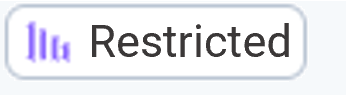
Sensitive regulated data | Restricted data is highly sensitive and typically involves personally identifiable information (PII), classified government information, or other critical data. Unauthorized access or exposure of this data can lead to significant legal, financial, or reputational consequences. |
|
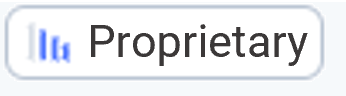
Sensitive Intellectual property | Proprietary data refers to information owned and protected by a specific organization. This level is reserved for custom data types used to identify intellectual property, trade secrets, or product designs unique to your business. It does not include built-in data types. |
|
Business sensitive (need to know) | Confidential data should be protected from unauthorized access. This category typically includes information like financial data, employee records, and business strategies. Access to confidential data is restricted to authorized personnel. |
|
Company internal | Internal data is meant for use within an organization. It may include information that, while not suitable for public consumption, is not highly confidential. Unauthorized access to this data can still pose some risk, but it's not as critical as highly sensitive data. |
|
Can be shared publicly | Public data is information that can be freely shared with the public. It doesn't contain any confidential or private details, and its exposure typically doesn't have any adverse consequences. |