Automated Pull from Cloud Storage (S3) in Tenable One Open Connector
The following is not supported in Tenable FedRAMP Moderate environments. For more information, see the Tenable FedRAMP Product Offering.
You can use the Tenable One Open Connector to automate the discovery and import of assets and vulnerability data into Tenable Exposure Management. This capability replaces manual file uploads with continuous, scheduled syncs from remote storage environments.
By connecting directly to cloud providers, the Tenable One Open Connector ensures your data reflects the current state of your environment without manual intervention.
Configure Automated Pull from Cloud Storage (S3)
To configure the automated S3 ingestion:
- In the Data pulling configuration section, select Automated Pull from Cloud Storage (S3).
- In the Authentication method section, select the relevant authentication method: ARN & External ID or Access Key & Secret Key.
- If you select the ARN & External ID method, complete the following configurations in your S3 console:
Navigate to IAM > Policies > Create Policy > Visual Editor.
From the Service drop-down, select S3.
From the Actions allowed drop-down, select the following permissions:
ListBucket
GetObject
In the Resources section:
For ListBucket, add ARN for the bucket: arn:aws:s3:::YOUR_BUCKET_NAME
For GetObject, add ARN for the objects: arn:aws:s3:::YOUR_BUCKET_NAME/*
Click Next.
On the Review policy page, type a Name (e.g., S3ConnectorReadAccess) and Description for the policy.
Review the Summary.
Click Create Policy.
Navigate to IAM > Roles > Create Role > AWS account.
In the Account ID field, paste the following Tenable account ID:
012615275169Select the Require External ID check box.
In the text box, type the value of your external ID.
Important: External ID must follow AWS AssumeRole API constraints:
Length: 2–1224 characters
Allowed characters: alphanumeric (A-Z, a-z, 0-9) and the following: = , . @ : / - _
Using unsupported characters may cause the AssumeRole call to fail.
Paste this value into the Connector text box.
Ensure the Require MFA check box is deselected.
Click Next: Permissions.
Attach the policy you created (e.g., S3ConnectorReadAccess).
Continue through the wizard and review the settings.
Create the role.
Copy the ARN and External ID to a safe location. You need them to configure the connector.
- If you select the Access Key & Secret Key method, complete the following configurations in your S3 console:
Login with the target account credentials to the AWS platform.
Navigate to IAM > Users.
Select the user with the appropriate permissions.

Navigate to the Security Credentials tab.
In the Access Keys section, click Create access key.
The Create access key wizard appears.
In the Use case section, select the Third-party service radio button.
Click Next.
In the Description tag value text box, type a descriptive tag for the key.
Click Create access key.
Copy the Access Key and Secret Key to a safe location. You need them to configure the connector.
- If you select the ARN & External ID method, complete the following configurations in your S3 console:
- After generating the required authentication values, complete the configuration of the connector in Tenable Exposure Management.
- For the ARN & External ID method: Fill in the External ID, Role ARN, Region, and S3 URI path (e.g., s3://bucket-name/folder/).
- (Optional): Fill in the File Pattern (e.g., *.csv or assets_*.xls).
- For the Access Key & Secret Key method: Fill in the Access Key, Secret Key, Region, and S3 URI path (e.g., s3://bucket-name/folder/).
- (Optional): Fill in the File Pattern (e.g., *.csv or assets_*.xls).
- For the ARN & External ID method: Fill in the External ID, Role ARN, Region, and S3 URI path (e.g., s3://bucket-name/folder/).
-
In the Asset Retention box, type the number of days after which Tenable Exposure Management removes assets. The default is 460 days. Exposure Management determines the removal date based on the data available in your uploaded file.
Tip: To learn more, see How Asset Retention works for the Tenable One Open Connector.
-
In the Data Update Mode section, select how the connector should process future data syncs:
- Override data (Full Fetch): Every new file sync fully overrides the data ingested from the previous sync.
Note: If you select this option, a Confirm Data Override window appears. Click Override to acknowledge that replacing records may reset historical trends and metrics.
-
Update data (Incremental Fetch): Every new file sync updates the existing set of data in the platform after an initial full sync.
- Override data (Full Fetch): Every new file sync fully overrides the data ingested from the previous sync.
-
In the Test connectivity section, click Test Connectivity. Tenable Exposure Management validates the credentials and accessibility of the file path. You must pass this test before you can create the connector.
If successful, the system displays the name of the file pulled by auto-discovery (for example, Recent File: abc.csv 2026-01-27).
Important: If you change the credentials or remap a file, you must test the connectivity before you can save the connector.
-
In the Connector scheduling section, configure the time and day(s) on which you want connector syncs to occur.
Tip: For more information, see Connector Scheduling. - Click File Preview to view the first 100 rows of the file.
- Click Next to proceed to asset type selection and field mapping.
-
From the Asset type drop-down box, select the category that matches your data (e.g., Devices).
-
Click Next.
Note: This selection defines the tenable mapping attributes available in the next step.
The mapping page appears.
-
Define how the connector interprets and aligns your source data with Tenable Exposure Management standardized data model:
Note: This mapping process ensures that Tenable Exposure Management normalizes and utilizes the asset and vulnerability data you import.
-
Review the auto-suggested mappings and consider to manually adjust the mapping as needed. You must map the mandatory fields (like Asset Name or Finding ID) to continue.
-
(Optional) Use the + button to add new mappings.
TIP: To learn about the expected behavior and logic rules of how Tenable Exposure Management maps the source file columns, see Tenable One Open Connector Mapping . -
Click Save and continue.
The Data Aggregation and Uniqueness page appears.
Note: Tenable One Open Connector lets you define custom uniqueness criteria. You can tailor the Data Aggregation and Uniqueness settings to ensure Tenable Exposure Management correctly identifies your specific assets and findings as new records or updates.
-
-
On the Data Aggregation and Uniqueness page, fill in the answers for the required questions:
Question Description Which fields uniquely identify a single asset? Define what constitutes a unique device or resource in your file (e.g., using Asset ID alone, or a composite key like Asset Name + IP Address). This ensures that Tenable Exposure Management consolidates multiple rows referencing the same device into a single asset record for deduplication.
Which fields uniquely define a weakness? Define which fields determines a unique security issue (the 'vulnerability'). This ensures a correct aggregation of all instances of that weakness across your entire asset inventory.
Which fields uniquely define a finding? A finding is the combination of a unique asset and a unique weakness, plus any extra context. This key defines the single instance of a detection (e.g., CVE-123 on Server-A, Port 80).This field is automatically pre-populated with the unique key fields selected in Question 1 (Asset) and Question 2 (Weakness). You can then add fields like Port or Protocol to make the Finding more granular. If you want to change the foundational keys, you must change your answers to Question 1 or 2 first.
Which Tenable Exposure Category best describes the data in this file? Tenable Exposure Management
calculates the Asset Exposure Score (AES) using specialized risk models designed for Vulnerability Management (VM), Cloud Security Posture (CSP), Web Applications or Operational Technologies (OT). Select the category that best fits your data to ensure Tenable Exposure Management calculates risk accurately according to the established scoring methodology.
Note: If your data does not align with one of the available categories,Tenable Exposure Management cannot calculate the specific AES for those assets. -
Click Save.
The main setup page appears.
-
Click Create & Sync .
-
If you selected Incremental Fetch and mapped findings, the Incremental Sync Mode Selection window appears. Select a mode for handling missing data:
- Stable Inventory Mode: Used for asset-only files. Keeps existing assets active if missing from the new file to prevent data flickering. [cite: 66, 364-368, 396]
- Additive Only Mode: Keeps all existing assets and findings active; only adds new data.
- Strict Inventory Mode: Archives assets missing from the file while keeping their findings until decommissioning.
- Dynamic Remediation Mode: Marks findings missing from the file as Resolved for detected assets.
Note: If an asset-only file is used, the platform defaults to Stable Inventory Mode and the pop-up does not appear.
-
(Optional) On the main connector setup page, view the Connector Logs to review any changes.

Remap a File
The Remap Columns option lets you revise mappings without changing the file.
-
Click the connector name.
The existing file appears in the Data Pulling Configuration section, along with the connector name, description, and retention settings.
-
Click Remap columns.

The Mapping page opens.

-
Take the following actions as needed:
-
Update your mappings to align with any changes in the file structure or data format.
-
Map mandatory columns. You cannot save the configuration without mapping mandatory fields.
-
Update uniqueness criteria if needed. Tenable Exposure Management prompts you to confirm these new criteria on the next screen.
-
-
Click Update & Sync.
The sync process begins.
Tenable One Open Connector Data in Tenable Exposure Management
Locate Connector Assets in Tenable Exposure Management
As the connector discovers assets, Tenable Exposure Management ingests those devices for reporting.
To view assets by connector:
-
In Tenable Exposure Management, navigate to the Assets page.
-
In the Filters section, under Custom, click the connector name for which you want to view assets.

The asset list updates to show only assets from the selected connector.
-
Click on any asset to view Asset Details.
Locate Connector Weaknesses in Tenable Exposure Management
As the connector discovers weaknesses, Tenable Exposure Management ingests those weaknesses for reporting.
To view weaknesses by connector:
-
In Tenable Exposure Management, navigate to the Weaknesses page.
-
In the Filters section, under Custom, click the connector name for which you want to view weaknesses.
The weaknesses list updates to show only weaknesses from the selected connector.
-
Click on any weakness to view Weakness Details.
Locate Connector Findings in Tenable Exposure Management
As the connector discovers individual findings, Tenable Exposure Management ingests those findings for reporting.
To view findings by connector:
-
In Tenable Exposure Management, navigate to the Findings page.
-
In the Filters section, under Custom, click the connector name for which you want to view findings
The findings list updates to show only assets from the selected connector.
-
Click on any asset to view Finding Details.
Expected Post-Sync Behavior
Tenable Exposure Management:
-
Processes the data and update it in the relevant interfaces.
-
Disregards previous values from removed non-mandatory fields.
-
Replaces previous uniqueness criteria with the new configuration.
-
Does not retroactively modify data already ingested with previous uniqueness logic.
-
Applies updated uniqueness criteria only to new uploads.
Manual vs. Automated Data Validation and Synchronization
Tenable Exposure Management uses a combination of scheduled tasks and real-time triggers to ensure your ingested data remains current. The platform applies the following logic to manage your S3 data pipeline:
-
Automated daily synchronization: Tenable Exposure Management performs an automated synchronization according to the Connector Scheduling setup.
-
Manual validation: To bypass the daily schedule and identify changes immediately, use the Test Connectivity feature.
Validate Data Manually
If you update a file in your S3 bucket and require an immediate synchronization, perform the following steps:
-
Navigate to the Connectors page and click the specific Tenable One Open Connector instance.
-
On the Connector Details page, click Test Connectivity.
Tenable Exposure Management runs a validation check against the source file in your S3 bucket. The system identifies any structural or content changes made on the vendor side.
-
Click Next.
If the Tenable One Open Connector detects a change, a notification appears in the interface to alert you that the file has changed.
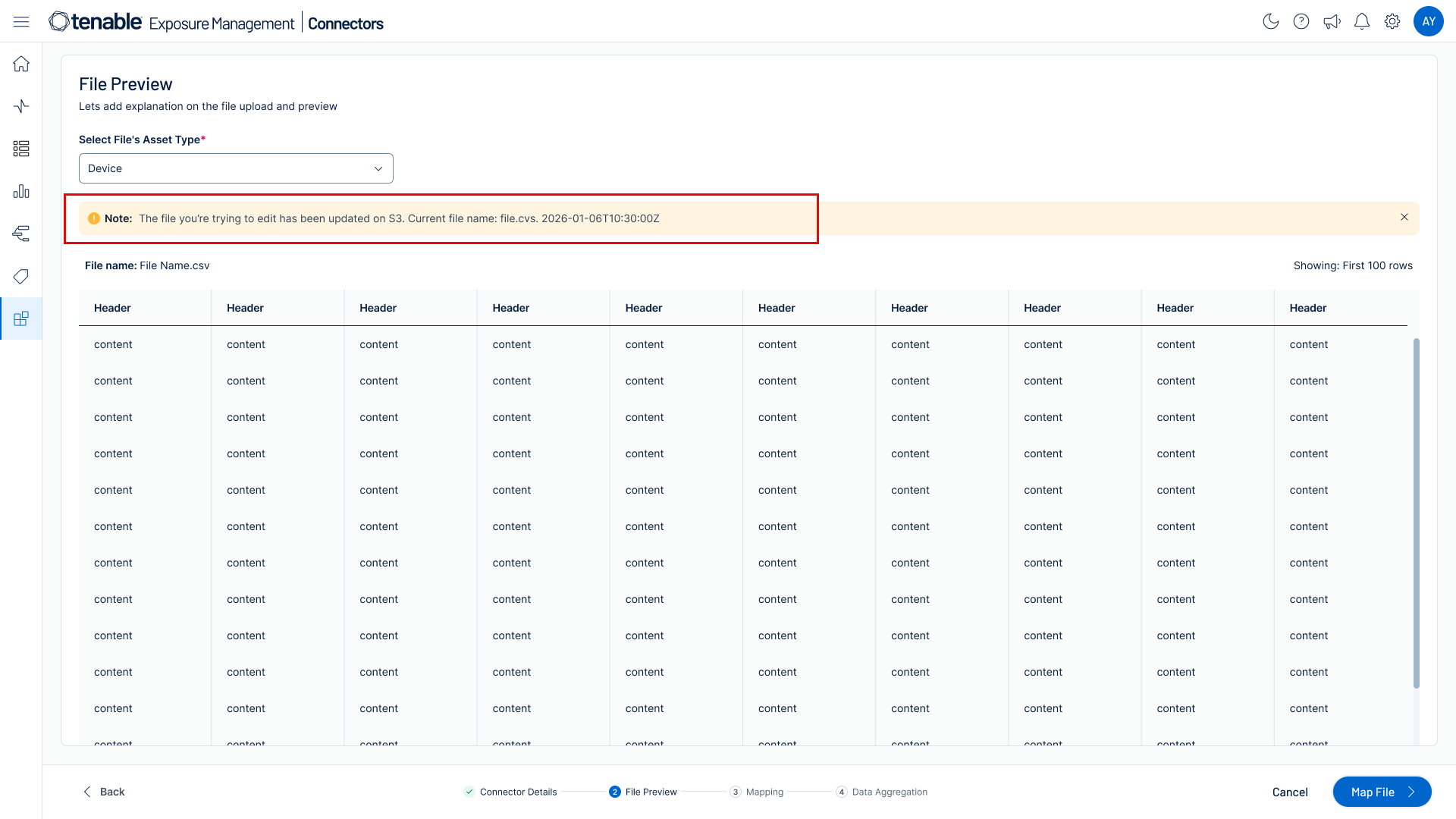
-
Proceed with the process as usual. Tenable Exposure Management automatically ingests the updated file with the most recent data.
Support Limitations and Expected Behavior
This section outlines any irregularities, expected behaviors, or limitations related to integration of the connector and Exposure Management. It also highlights details about ingested and non-ingested data to clarify data handling and functionality within this integration.
-
Tenable Exposure Management does not support API-based integrations in this version. Data ingestion is currently limited to file uploads.
-
Tenable Exposure Management supports only English-language column names and values. Tenable Exposure Management does not support nor map files containing other languages.
-
Tenable Exposure Management does not support Identity Exposure category at this time.
-
Tenable Exposure Management supports only one active file at a time. Uploading a new file replaces the existing dataset.
Detailed Data Flow Logic
If the file in your S3 bucket changes between auto-discovery and the final synchronization, Tenable Exposure Management applies the following logic:
-
New file detected: If a newer file exists, Tenable Exposure Management continues the current sync with the original file. The log alerts you that the system will pull the new file during the next sync.
-
File updated with non-mandatory columns changes: If the file is updated with new or removed non-mandatory columns, Tenable Exposure Management continues the sync and alerts you in the log.
-
File updated with mandatory columns removed: If the update removes mandatory columns, the sync fails. You must update the mapping to proceed.
-
File deleted: If the file is removed from S3, the sync fails with a "File not found" message.
Synchronization Logic
The Tenable One Open Connector applies the following logic during automated cloud syncs:
-
File selection: If multiple files match the file pattern, Tenable Exposure Management selects the single file with the latest time stamp.
-
File override: In every successful pull, Tenable Exposure Management replaces the previous file for the specific connector ID.
-
No new file detected: Tenable Exposure Management compares the timestamp of available files against the last processed file. If no new file is found, Tenable Exposure Management skips the synchronization and displays the message "No new file detected".
-
Finding status: Tenable Exposure Management moves findings not included in the new file to the Fixed state.
-
Credentials or setup modification: If you change the credentials or remap a file, you must test the connectivity before you can save and sync the connector.
- Full sync: In Full Fetch mode, Tenable Exposure Management archives assets and marks findings as Fixed if not present in the new file.
- Incremental sync: The platform reconciles missing data against the baseline based on your selected Delta mode.
- Baseline Sync: Switching from Full to Incremental mode requires the next synchronization to run as a Full Fetch.
File Size and Log Requirements
Tenable Exposure Management enforces a 2 GB file size limit. If a file exceeds this limit, the system behaves as follows:
-
Initial setup: The error message “The file size exceeds the 2 GB limit” appears on the setup page and in the connector logs.
-
Secondary syncs: The error message appears in the connector logs only.
Connector Log Display
The Connector Logs help you track the specific files processed during each sync:
- Manual Uploads: The File column displays the file name as a clickable link.
- Automated Pulls (S3): The File column displays the name of the file pulled from your S3 bucket.
Connectivity Errors
If a sync or connectivity test fails, review the error messages to troubleshoot configuration issues.
| Scenario | Message |
|---|---|
| Authentication failure | "Failed test 1 out of 2: the credentials are not correct." |
| Missing mandatory columns | "File is missing mandatory columns and the data cannot be synced." |
| Empty file detected | "Sync Failed: No Records Found." |
| File too large | "The file size exceeds the 2 GB limit." |