Prepare Report Artifacts for an Audit
Objective
Generate a snapshot of your security posture to demonstrate compliance or progress to auditors and executive leadership.
Prerequisites
-
Ensure you have the appropriate permissions to view the data.
-
Create and apply the appropriate asset tags to the assets included in the audit (for example, "PCI-DSS-Assets" or "Region-NorthAmerica").
-
Optionally, edit your remediation SLAs to better reflect your business needs. While these settings exist in the Exposure View section of the application, the SLA settings apply to the data on all dashboards and widgets.
Step 1: Define the Audit Scope
-
Log in to Tenable Exposure Management.
-
In the left navigation menu, click Analytics > Dashboards.
The Dashboards page appears.
-
Click
 Create new Dashboard.
 -
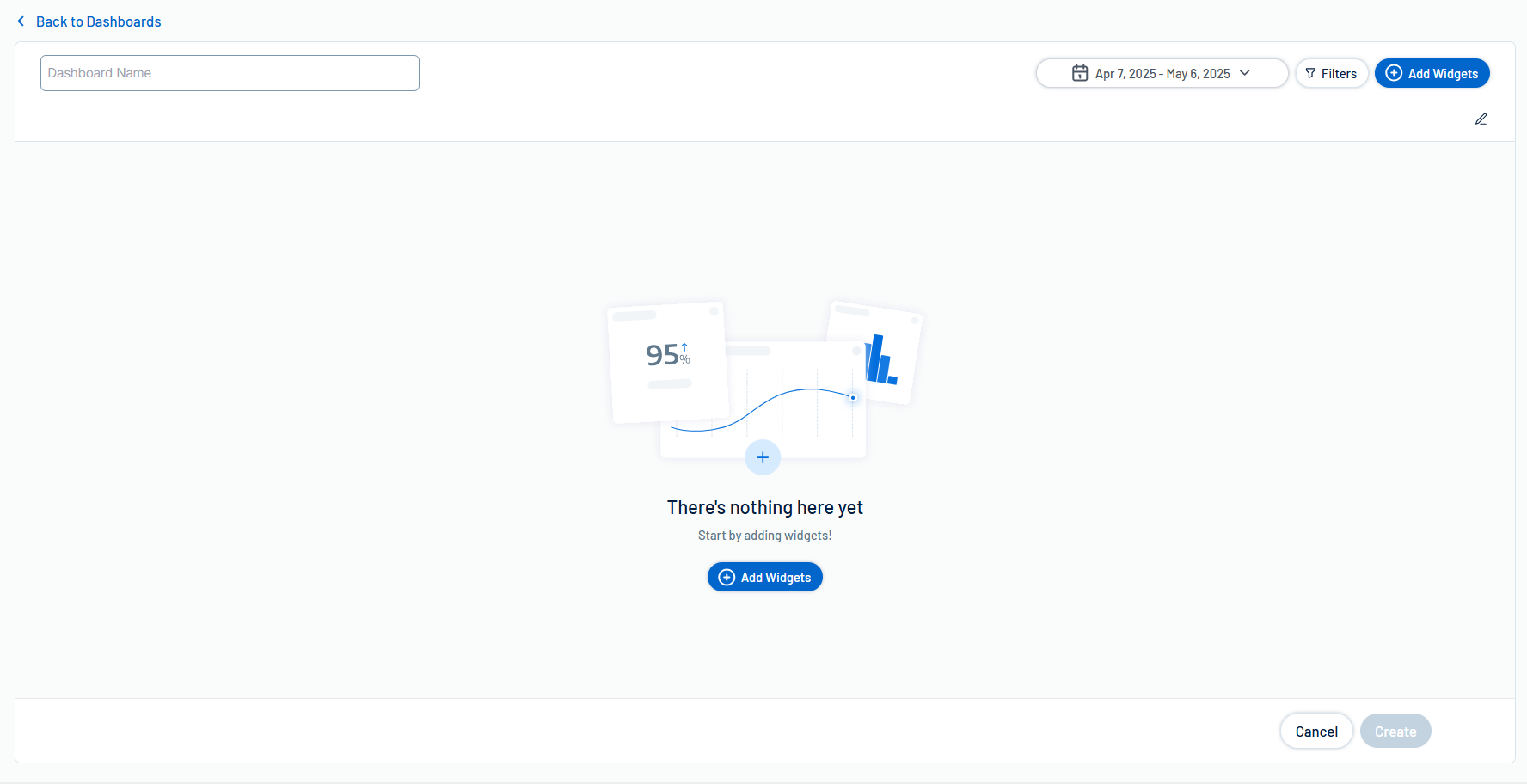
Follow the steps to create a new dashboard.
-
Include the SLA Compliant Assets widget.
Tip: Optionally, you may also choose to include the SLA Compliant Assets (Percentage) and/or SLA Compliant Assets Over Time widgets. -
In the Filters section, search for and apply the appropriate Tag Name filter for the asset tags to include in the audit.
All widgets on the dashboard recalculate to reflect only the assets within the audit scope.
-
Click Create.
-
Tenable Exposure Management creates the dashboard and you navigate directly to the dashboard’s landing page.
Step 2: Generate the Report Artifact
-
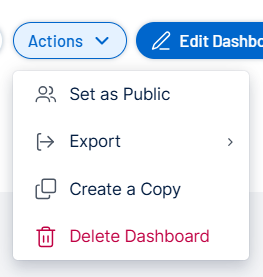
At the top of the page, click Actions > Export.
-
Select the format in which you want to export the dashboard data.
A confirmation message appears. When the export completes, you receive an email with the exported data in the selected format.
-
Share the exported content with the appropriate stakeholders.