Create the Log Analytics Workspace
Required User Role: Basic User
Note: The Tenable integration with Microsoft Sentinel works with a Basic User if that user is assigned Can View permissions on the assets they are to export, along with Can Use permissions on tags the assets are assigned. Without the Can Use tag permissions, the assets return undefined or the integration fails to export vulnerabilities if a tag filter is used. For more information on Tenable One Vulnerability Management permissions and user roles, refer to Permissions in the Tenable Developer Portal.
Before you begin:
To create the Log Analytics Workspace:
-
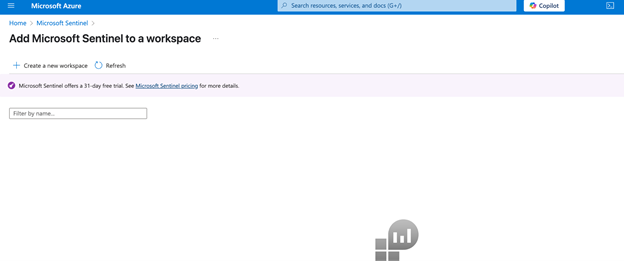
Navigate to Microsoft Sentinel within the Microsoft Azure Portal and click Create Microsoft Sentinel.
The workspace homepage appears:

-
Add a workspace for Microsoft Sentinel. Click Create a new workspace.
-
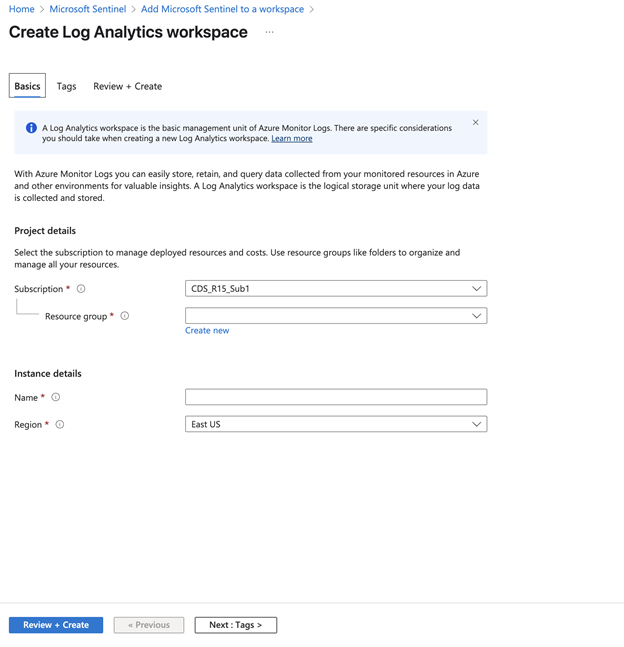
To create the Log Analytics workspace, you must first create a new Resource Group. Click Create new under Resource Group Connector.
-
Input a Name for the instance detail and select the appropriate Azure Region from the drop-down menu.
-
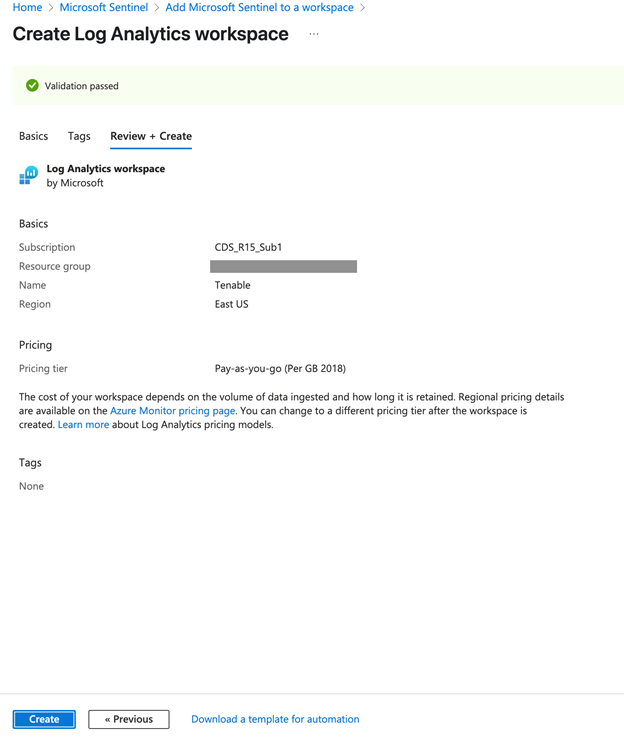
Click Review + Create.
The settings are finalized and the page updates:
-
Click Create.
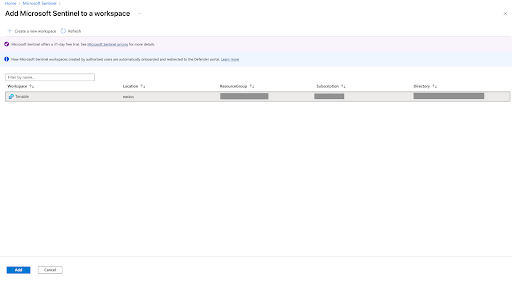
The workspace homepage appears with your new Microsoft Sentinel workspace:
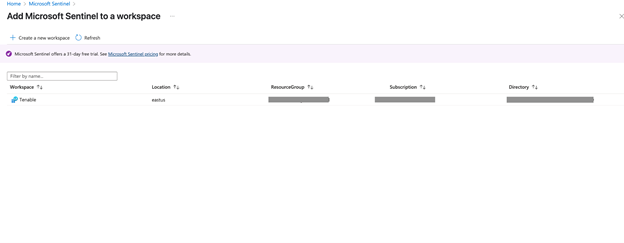
The Log Analytics Workplace for Microsoft Sentinel has been created.
-
In the workspace, click Add to add Microsoft Sentinel to a workspace.
Note: Navigate to Log Analytics workspace > Network Isolation and ensure that the two Virtual network access configuration settings (required to accept data ingestion and queries from public networks not connected through a Private Link Scope) are set to Yes.