Onboard Microsoft Sentinel to Defender
Required User Role: Basic User
Note: The Tenable integration with Microsoft Sentinel works with a Basic User if that user is assigned Can View permissions on the assets they are to export, along with Can Use permissions on tags the assets are assigned. Without the Can Use tag permissions, the assets return undefined or the integration fails to export vulnerabilities if a tag filter is used. For more information on Tenable One Vulnerability Management permissions and user roles, refer to Permissions in the Tenable Developer Portal.
Before you begin:
Note:If you have onboarded to Microsoft Sentinel for the first time after July 1, 2025, with permissions of a subscription Owner or a User access administrator, the workspace automatically onboards to the Defender portal. In such cases, you are required to use Microsoft Sentinel in the Defender portal only.
To onboard a Microsoft Sentinel-enabled workspace to the Defender portal:
-
Login to the Microsoft Azure portal and search for "Microsoft Sentinel" in the search box.
-
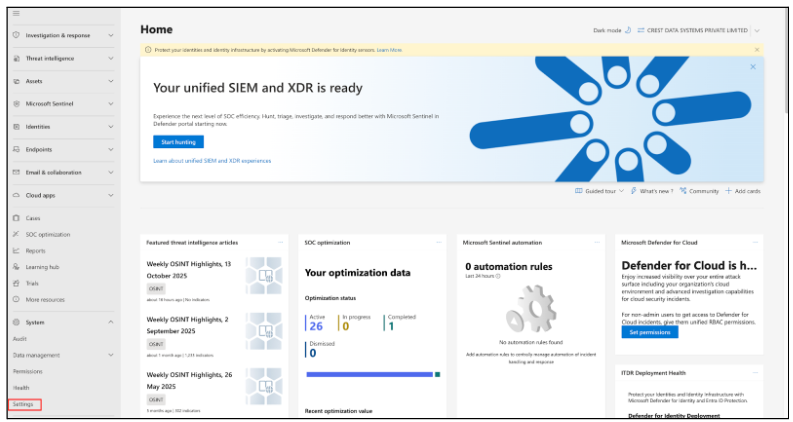
Select System > Settings > Microsoft Sentinel > Connect a workspace.
-
Select Microsoft Sentinel and choose the workspaces you want to connect.
-
Select the Primary workspace.

-
Read the product changes associated with connecting your workspace.
-
Click Connect.
After your workspace is connected, the banner on the Home page shows that your environment is ready. The Home page is updated with new sections that include metrics from Microsoft Sentinel, like the number of data connectors and automation rules. For more information, refer to the Microsoft documentation.