Add the Tenable App to Microsoft Sentinel
Required User Role: Basic User
Note: The Tenable integration with Microsoft Sentinel works with a Basic User if that user is assigned Can View permissions on the assets they are to export, along with Can Use permissions on tags the assets are assigned. Without the Can Use tag permissions, the assets return undefined or the integration fails to export vulnerabilities if a tag filter is used. For more information on Tenable One Vulnerability Management permissions and user roles, refer to Permissions in the Tenable Developer Portal.
Before you begin:
To add the Tenable App to Microsoft Sentinel:
Caution:Tenable recommends you deploy the latest version of the Tenable App (v3.1.0) in a new Microsoft Sentinel workspace rather than upgrading the existing one. Version 3.1.0 supports the Log Ingestion API, which requires the use of Data Collection Rules (DCR) and Data Collection Endpoints (DCE). Since table names are tied to specific DCRs, the tables used in the previous app version cannot be reused. Follow the steps in the Delete the existing Function App and associated resources section before proceeding.
-
Login to the Defender portal.
-
Select Microsoft Sentinel.
-
Under the Content Management tab, click Content Hub.
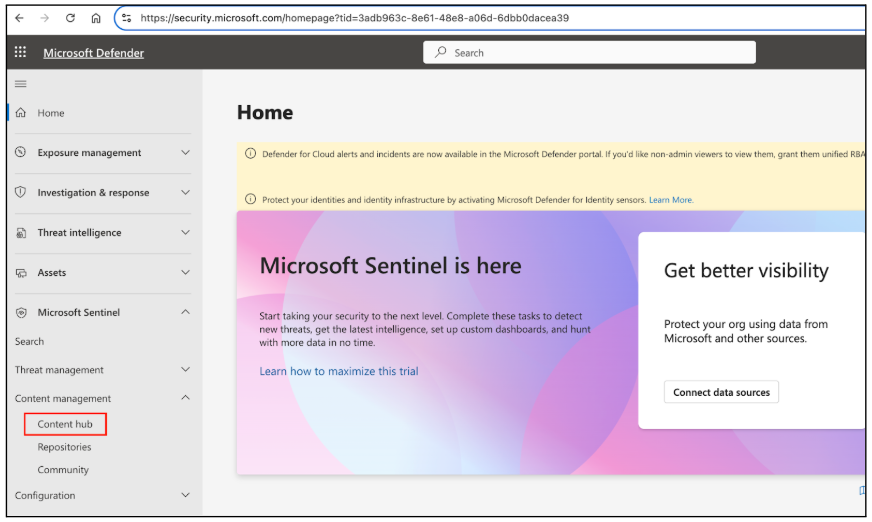
-
To change the workspace, from the right corner click on the workspace

-
Select the workspace you want to use and click Apply.
-
From the Content Hub, search for "Tenable."
-
Click Install.
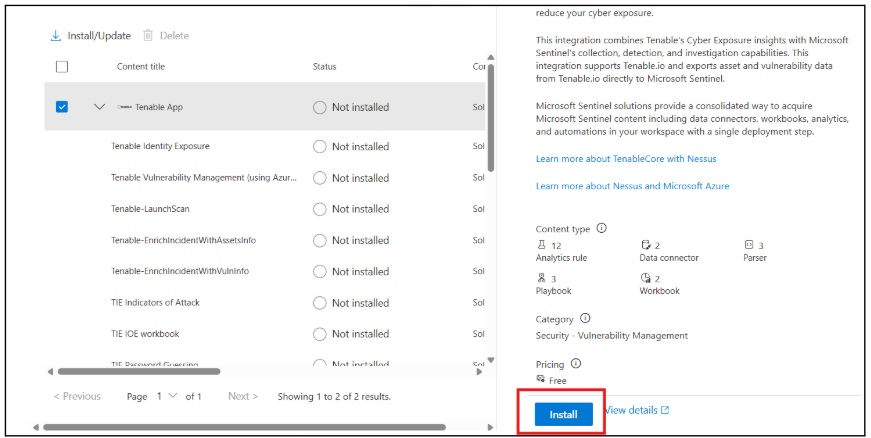
The app installs the solution into Microsoft Sentinel.
-
Once the installation is complete, click Manage.
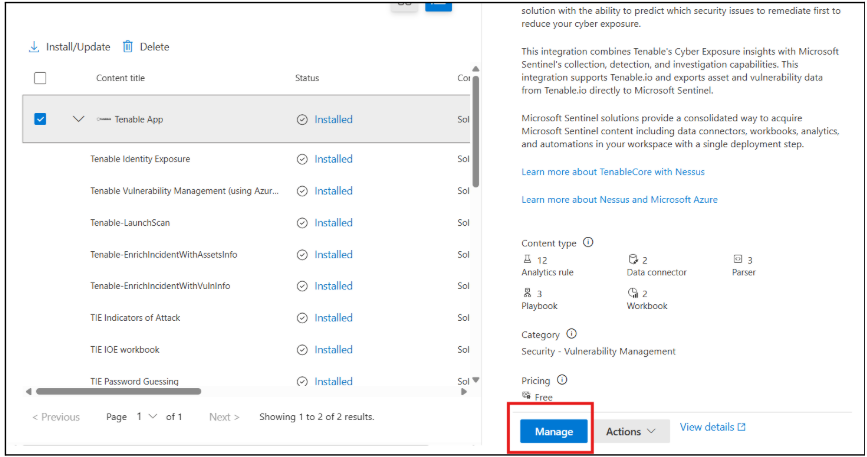
What to do next (do one of the following):