Advanced Patching Strategies Settings
A Patching Strategy Template contains specific fields that you can configure to make a unique patching strategy for your environment. Tenable recommends opening an existing strategy that contains most of the configuration items you want, and then saving it with a new name and description. The configuration options are the same whether you create a new strategy or modify an existing strategy.
Each advanced patching strategy has many customizable settings and many are created with building blocks that allow you to create and reuse objects across multiple strategies. Each building block can be created separately outside of the new strategy setup. The following table shows each setting and a link for more information regarding its related building block.
| Setting | Building Block |
|---|---|
|
General Settings |
None |
|
Products |
None |
|
Trigger Metadata Properties |
None |
|
Deployment Settings |
|
|
Approval Chains |
|
|
Notifications |
|
|
Customer Extension Data |
None |
|
Content Prestaging Settings |
None |
|
Business Unit Addition Settings |
General Settings
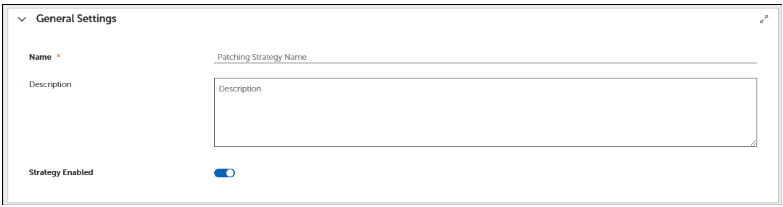
General settings allow you to create a unique name that reflects what the strategy does conceptually, an optional description to further describe what your patching strategy does, and the ability to enable the strategy for use.
Products
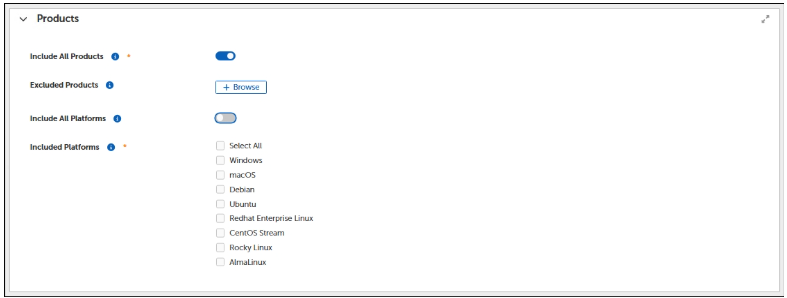
In Tenable Patch Management, configuration options provide several opportunities to select or exclude software products for a patching strategy. Options include making product sections when creating a strategy, exempting products from business units, and more. For more information about the products available with Tenable Patch Management, see Software Products.
-
Include All Products
If toggled ON includes all products in your patching strategy. This also changes Include Products to Excluded Products. This allows for an efficient way to select the products you want and excluding the ones you don't.
-
Included Products
Allows you to choose a small subset of products to your strategy.
-
Include All Platforms
Only available when Include All Products is toggled on. This allows you to specify which platforms you want to add to your strategy that only adds products that are applicable to that platform.
Note: When you add Business Units to a strategy, the Patching Exceptions set for the Business Unit take precedence over the product settings in the patching strategy.
Trigger Metadata Properties
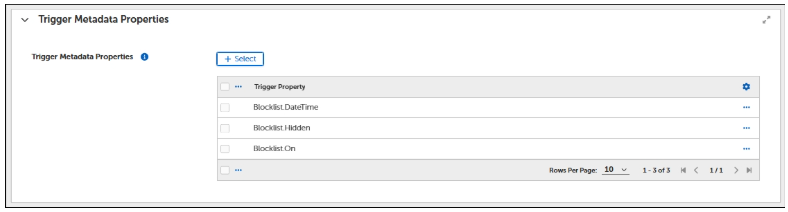
Tenable provides several Trigger Metadata Properties, including properties specific to Tenable and Windows Defender Antivirus.
If a trigger metadata property changes in a given patch, and the patch meets each of the following requirements, the patching process re-presents the patch to the patching strategy. For example, a patch that was originally marked not applicable would normally never download. However, if you have Falcon.KnownExploitExists selected as a Trigger Property, Tenable re-checks that value. If the Falcon.KnownExploitExists status changes, that patch may move from not applicable to applicable, causing it to be reconsidered by the patching strategy.
The changed patch must:
-
Belong to a product included in the strategy.
-
Be applicable on at least one device in the chosen business unit(s).
-
Have been presented previously.
Deployment Settings
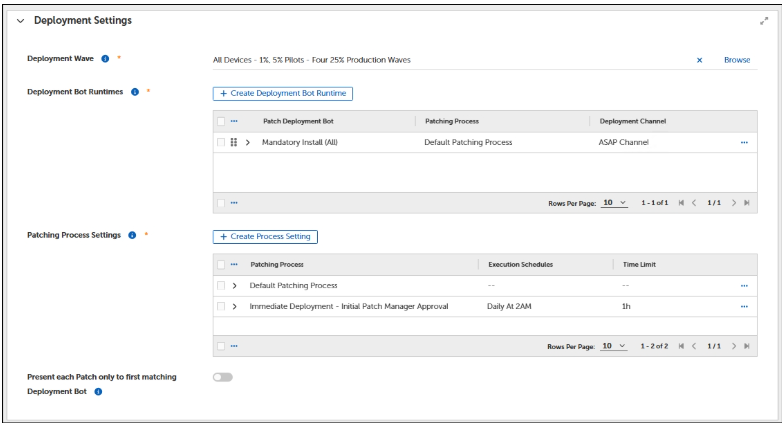
Deployment settings in a patching strategy include choosing a deployment wave, Creating a deployment bot runtime configuration, and choosing whether to present each patch to the first matching deployment bot only (defaults to disabled). When customizing an existing patching strategy (recommended), settings may include tables with configuration selections other than the default.
-
Deployment Wave
You can choose a deployment wave that targets selected business units in order to load balance the rollout of deployments. Tenable provides a Single Wave-All Clients deployment wave, which includes a business unit called All Clients Business Unit. For more information on the available templates for deployment waves, see Deployment Waves.
-
Deployment Bot Runtimes
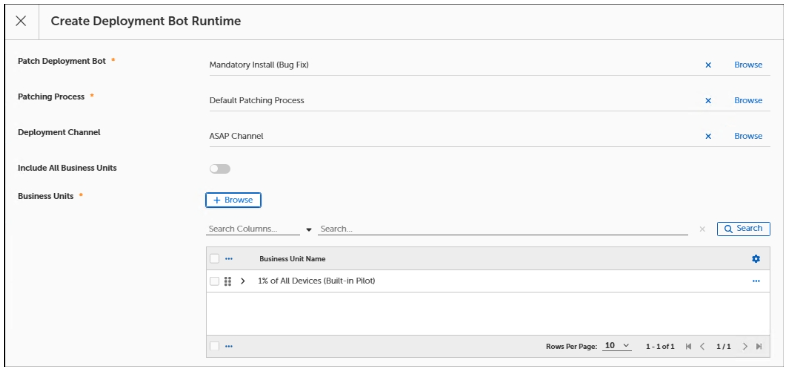
In patching strategy templates, the Create Deployment Bot Runtime dialog provides a single location to add processes to your patching strategy. Use these settings for more advanced operations. For example, when you have multiple business units that require the same patch deployment bot but use a different patching process and schedule, you can create multiple deployment bot runtime combinations to patch according to different requirements.
When creating the Deployment Bot Runtime, you can include the following:
-
Patch Deployment Bot - see Deployment Bots
-
Patching Process - see Patching Processes
-
(Optional) Deployment Channel - see Deployment Channels and Deployment Channel Processes
-
Business Units - see Business Units
Note: The business units you add here must be the same business units included in the patching strategy deployment wave. If you select other business units or All Business Units, the patching strategy takes no action on those that do not match the deployment wave settings.
-
Patching Process Settings
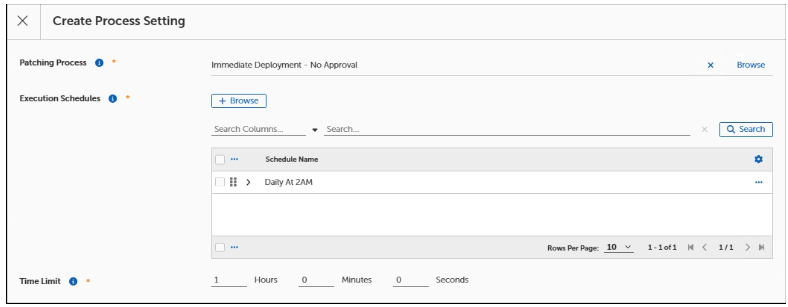
These patching processes execute to handle the approval and optional deployment of patches. Patching processes defined here must match patching processes defined in any patch deployment bots defined within this strategy.
-
Present each patch only to first matching deployment bot
This toggle switch enables or disables whether the patching strategy stops presenting patches to deployment bots as soon as it discovers the first matching deployment bot. If you choose to enable this behavior, be sure to order the bots in your deployment bot runtime from most important to least.
Approval Chains
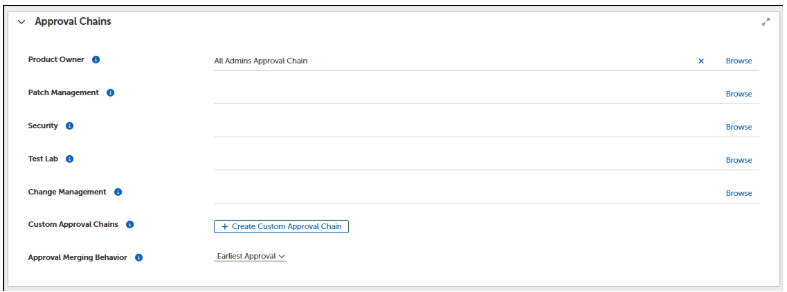
This setting allows you to add various approval chains to your patching strategy. For more information, see Approval Chains.
-
Product Owner
Approval chain for product owners. The patching process workflow can use this chain for obtaining patch manager approvals if desired.
-
Patch Management
The patching process workflow can use this chain for obtaining patch manager approvals if desired.
-
Security
The patching process workflow can use this chain for obtaining security team approvals if desired.
-
Test Lab
The patching process workflow can use this chain for obtaining test lab owner approvals if desired.
-
Change Management
The patching process workflow can use this chain for obtaining change manager approvals if desired.
-
Custom Approval Chains
Custom approval chains are used for specific business needs. These chains can be retrieved and used in the patching process workflow to extend and customize the product.
-
Approval Merging Behavior
This field determines how approvals are merged in patching cycles when multiple approvals target the same patch.
Notifications
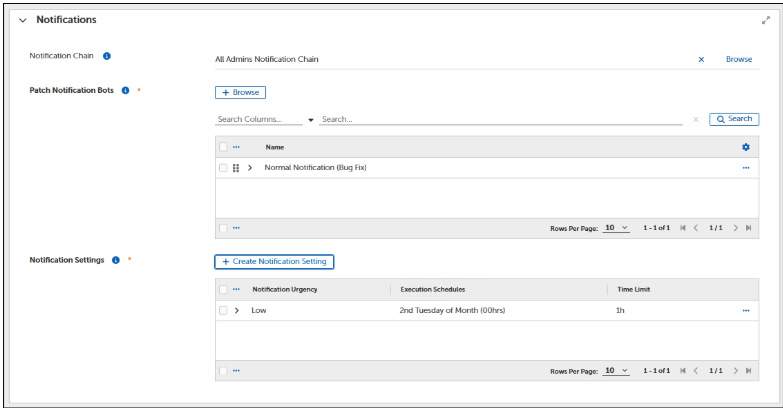
Patching Strategy, Deployment Channel, and Business Unit objects include a notifications dialog where you can configure notification details. The configuration choices differ slightly for each object.
-
Notification Chain
Notification chains send notifications to the administrator roles you specify, informing them about pending deployments. They exist in the object templates for Patching Strategies, Deployment Channels, and Business Units. For more information, see Notification Chains.
-
Patch Notification Bots
This setting allows you to choose or create a new Notification Bot.
-
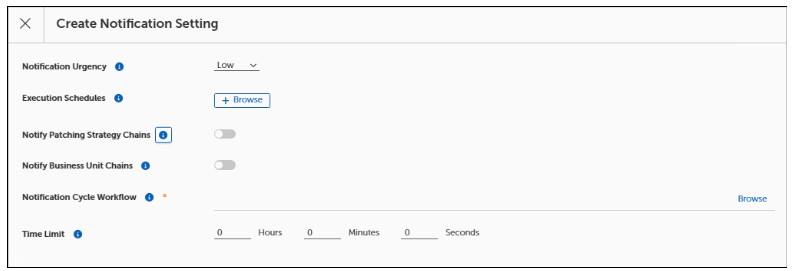
Notification Settings
The notification settings specify the notification urgencies supported by your patching strategy, its schedule(s), and a notification cycle workflow.
Customer Extension Data
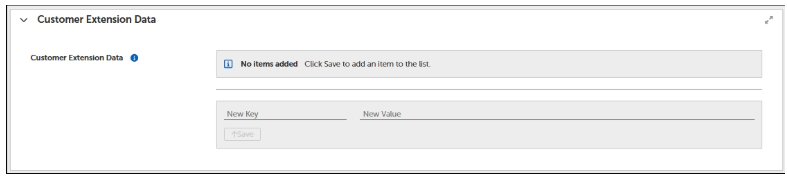
Customer extension data is an advanced feature of Tenable. The customer extension data fields allow advanced users to specify different key/value pairs for use in customized patching strategies, deployment chains, or business units when necessary to achieve different results. Customer extension data fields relate directly to fields in a customized template. If you do not have customized templates with key/value pairs you can modify, you do not need to configure or use this feature. If you want to create customized templates that use key/value pairs for some settings, contact Tenable customer support.
Content Prestaging Settings

The content prestaging feature deploys content to devices ahead of the scheduled deployment, either pushing content to a location or allowing a client to pull content. Prestaging content makes the content available on the device locally when the deployment time arrives. This reduces the deployment time and minimizes the chances of missing service windows or having devices going offline before a content download finishes. You can create content prestaging settings within the patching strategy, business unit, or deployment channel templates.
-
Server Content Push
The Tenable server pushes the content to the best-suited sources in all locations that require the content. Tenable recommends this type of prestaging when the deployment strategy targets only a subset of devices. High-availability machines receive the content and function as local sources during discovery and deployment.
-
Not Enabled - Disables any prestaging as part of the patching process workflow or patching srategy.
-
Handled by System - The Tenable system handles the prestaging automatically and pushes content to three automatically chosen devices within the office that require the content.
-
This push occurs at once when the metadata updates include the latest content that meets patching requirements.
-
Handled by Workflow - When enabled as part of a patching process, deployment channel, or business unit template, pushes the content upon deployment of the patching process.
-
Server Content Pull
This option enables any client that requires the content to download and cache it before deployment. Suitable when a deployment strategy targets all clients that need the updated content.
-
Not Enabled - Disables any prestaging as part of the patching process workflow or patching strategy.
-
Handled by System - The Tenable system handles the prestaging automatically. The client pulls content from the server and instructs all clients that require the content to download and cache it ahead of any deployment.
-
Handled by Workflow - When enabled as part of a patching process, deployment channel, or business unit template, the client pulls the content upon deployment.
Business Unit Addition Settings

When you have added a new business unit to an enabled patching strategy that has already completed the current patching cycle, you must use the Business Unit Addition Settings to add the parent business unit that contains the details, such as patches, patch approval settings, and any business unit added to the strategy inherits these details. The business unit you specify here includes the patch approvals the patching strategy uses for any business units you add to the strategy after the strategy has run. The patching process you select here is the same process you identified in the deployment bot runtime configuration of the patching strategy.