Create an Attestation
Required User Role: Administrator and Custom Role
After you submit a Tenable PCI ASV scan, you must create an attestation request draft.
Note: When you create an attestation request draft for a scan, you do not also submit the scan for ASV attestation. You must dispute all remaining failures and address all out of scope assets before you submit the attestation for ASV approval.
Caution: You cannot create an attestation for scans that are more than 90 days old.
To create an attestation request:
-
Access the Tenable PCI ASV Workbench.
-
In the scans table, in the New Scan Results tab, select the check box next to the scan or scans for which you want to create an attestation.
-
In the action bar, click Start Attestation.
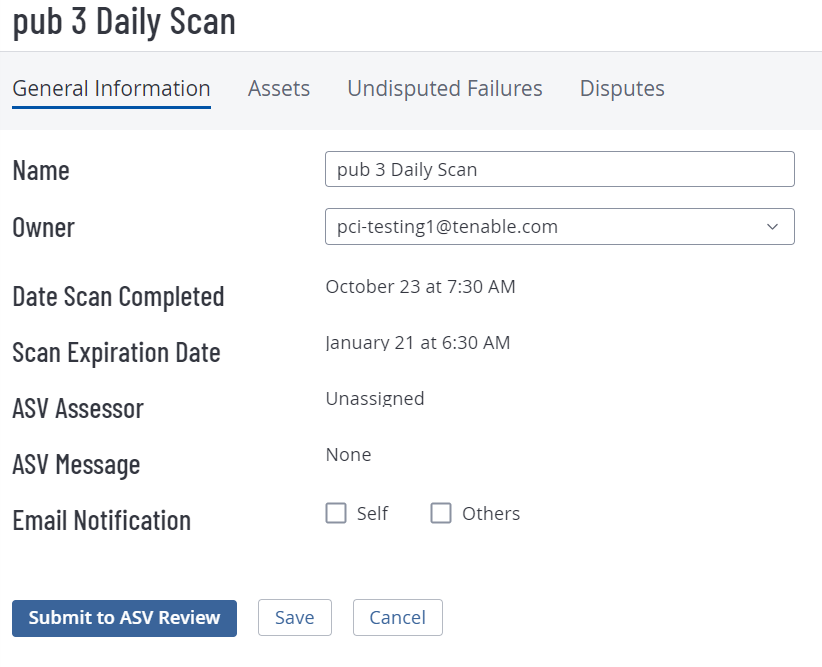
The Attestation Detail page appears.
Note: You cannot start an attestation for Tenable Web App Scanning unless you include a PCI Quarterly External scan as well. For more information, see the KB article: How To Combine multiple PCI ASV Scans.
-
In the Name box, type the name of the attestation as you want it to appear on the attestation request.
Note: Tenable recommends that you type a name you can easily identify. After you submit the attestation request, you cannot change the name on the attestation.
- (Optional) To assign the attestation to a different user, in the Owner drop-down box, select the user to whom you want to assign the attestation.
-
 (Optional) To enable email notifications for the attestation:
-
Select the check box(es) for the user(s) you want to notify about the attestation:
-
Self — Notify the owner about the attestation.
Tip: The notifications are sent to the user selected in the Owner drop-down box. -
Others — Notify other users about the attestation:
Email recipient options appear.
-
In the Email Recipient(s) box, type the email of the user you want to notify about the attestation.
-
On your keyboard, press Enter.
Tenable PCI ASV adds the email to the List Of Emails box.
-
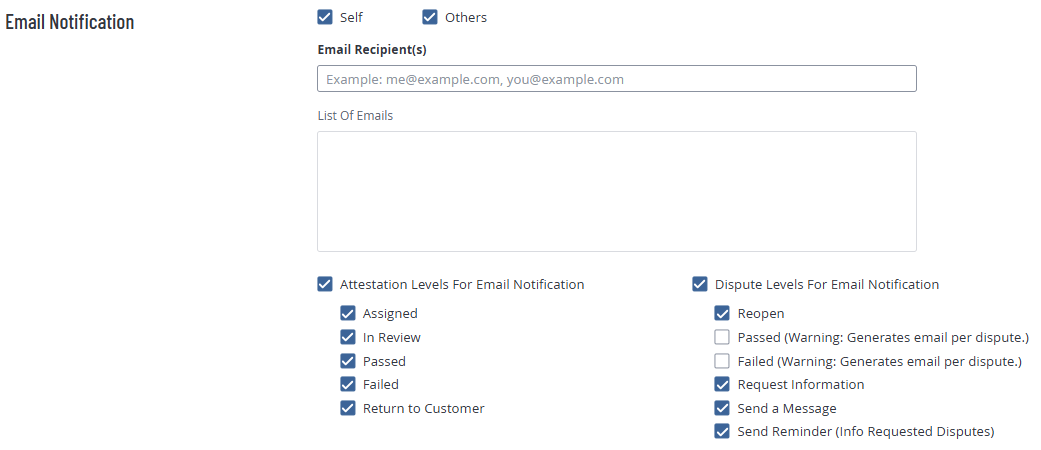
A list of notification types appears.
-
-
Select the check box next to each notification type for which you want to trigger an email notification.
Note: Because a Tenable PCI ASV generates a notification for every individual dispute, the Passed and Failed notification types are deselected by default.
-
-
Do one of the following:
-
Click Save.
Tenable PCI ASV saves the attestation draft in the In Remediation tab of the Tenable PCI ASV table.
Note: You can return to a saved, unsubmitted attestation and configure the options until you submit the attestation for review.
-
Click Submit to ASV Review. For more information, see Submit an Attestation for ASV Review.
-
What to do next:
- If the scan includes any assets that are irrelevant to the Tenable PCI ASV review, mark each irrelevant asset out of scope.
- If the new attestation displays any failures in the Undisputed Failures tab, create a dispute for each failure.