Tenable One Attack Surface Management Licensing
This topic breaks down the licensing process for Tenable One Attack Surface Management as a part of the Tenable One Platform, and also as a standalone product. It also explains how assets are counted and describes what happens during license overages or expirations.
Comparison: Standalone vs. Tenable One
The way licenses are handled for Tenable One Attack Surface Management depends on the version of Tenable One Attack Surface Management you've purchased. Current (legacy) Tenable One Attack Surface Management customers can use the Standalone version of the application, while all new customers must purchase Tenable One Attack Surface Management as part of Tenable One.
For more information about Tenable One platform licensing, see Tenable One Foundation / Advanced Licensing.
| Feature | Legacy / Standalone Tenable One Attack Surface Management | Tenable One Attack Surface Management as part of Tenable One |
|---|---|---|
| Asset Counts | ASM Inventory | TVM Assets created by ASM (Host and Web Application) |
| Asset Definition | Unique Quadruple (Name, Type, Value, IP) | TVM Asset ID |
| Counting Logic | Weighted Ratios (0.5 or 0.25 based on refresh frequency) | 1:1 Count (1 Asset = 1 License) |
| License Trigger | Discovery in ASM | Creation in TVM via integration |
The following documentation dives deeper into the different licensing styles for each type of Tenable One Attack Surface Management license:
Tenable One Attack Surface Management as part of Tenable One
For Tenable One customers, licensing is calculated solely based on assets created by Tenable One Attack Surface Management (ASM) connectors. When ASM discovers an asset and creates it via the ASM integration, it counts as one licensed Tenable One asset. These assets created by the ASM integration are billable immediately upon creation. Tenable does not wait for a Tenable Nessus scan to convert them to a "Licensed" status.
Billable vs. Non-Billable Records
Not every record in ASM results in a billable asset in Tenable One. As indicated in the User Guide documentation, ASM will create host assets for DNS records of type A and AAAA. ASM will create Web Application assets for records of type A, AAAA, CNAME, and PTR if a web application (running on ports 80 and/or 443) are detected.
Other DNS record types such as NS and MX will continue to be discovered and stored in the customer ASM inventory, but these won’t be directly translated into billable assets since the ASM integration does not create assets from these record types.
Mandatory Integration for Use with Tenable One
The ASM / TVM integration as documented is no longer optional for using Tenable One Attack Surface Management as part of Tenable One. The integration will be automatically enabled on newly provisioned containers. Users cannot disable the integration, nor can users configure filters to prevent asset creation in Tenable One. However, users will still be able to configure asset identification by Hostname or IP address as well as the Custom Network UUID. If users have assets they don’t want to manage, they must configure an exclusion rule in Tenable One Attack Surface Management. This prevents the assets matching the rule from existing in ASM and Tenable One.
Inventory Limits
For Tenable One, the ASM container inventory limit is provisioned at 2x of the total licenses purchased (e.g., if you buy 1,000 Tenable One licenses, your ASM inventory limit is 2,000). This accounts for discovered DNS record types that don’t translate into TVM assets.
Standalone Tenable One Attack Surface Management
Standalone Versions
You can purchase standalone Tenable One Attack Surface Management in two versions:
-
Tenable One Attack Surface Management Fortnightly Frequency
-
Tenable One Attack Surface Management Daily Frequency
Licensing Tenable One Attack Surface Management
To use any version of Tenable One Attack Surface Management, you purchase licenses based on your organizational needs and environmental details. Tenable One Attack Surface Management then assigns those licenses to your assets: observable objects, which include domain names, subdomains, or IP addresses for internet-connected or internal network devices.
How Assets are Counted
All assets in all inventories are counted towards your license, except archived assets.
Reclaiming Licenses
Tenable One Attack Surface Management's license count updates daily. The license count updates when you archive individual assets or remove asset sources—and it also updates when assets age out. Removed assets are only counted when restored.
Exceeding the License Limit
In Tenable One Attack Surface Management, when your asset count exceeds your license limit, Tenable clearly communicates the overage as follows.
| Scenario | Result |
|---|---|
| You add a source that is greater than your inventory limit. | A message appears in the Source column: “We could not add all of the subdomains for this domain because your inventory is full.” |
| You reach your inventory asset limit. | When you click the inventory, a message appears: “You have reached your limit of # assets. Please contact us to increase your limit.” |
| You reach your business limit, which is related to your licensed asset purchase. | A message appears in Tenable One Attack Surface Management: “Business Asset limit reached. Please contact support to increase the Business Asset limit.” |
Expired Licenses
The Tenable One Attack Surface Management licenses you purchase are valid for the length of your contract. 30 days before your license expires, a warning appears in the user interface. During this renewal period, work with your Tenable representative to add or remove products or change your license count.
After your license expires, you can no longer sign in to the Tenable platform.
Guidance for Existing Customers
Tenable One Attack Surface Management users who license Tenable One via the Foundation or Advanced Packaging will automatically have the ASM Tenable One Vulnerability Management and Tenable One Web App Scanning Integrations enabled. Tenable One Attack Surface Management users who previously enabled these integrations will no longer be able to configure ingestion filters. This change was made to accommodate the new licensing model for Tenable One. For more information, see Tenable One Foundation / Advanced Licensing.
I am an existing user of Tenable One Attack Surface Management. Will this change impact me?
This change will impact you if:
-
You have the Tenable One Vulnerability Management integration and/or the Tenable One Web App Scanning integration enabled in Tenable One Attack Surface Management.
-
You have integration filters configured within Tenable One Attack Surface Management.
I have Tenable One Vulnerability Management and/or Tenable One Web App Scanning enabled with filters. How will this change affect me?
This change means that your ingestion filters will be removed. These filters will be migrated as Saved Queries under the new Explore > Asset Inventory page (Subscriptions in the legacy user interface).
All eligible Tenable One Attack Surface Management assets will have corresponding assets in Tenable One Vulnerability Management and Tenable One Web App Scanning. These assets are licensed/managed assets. Without ingestion filters, you may notice more Tenable One Attack Surface Management created assets in your Tenable One Vulnerability Management interface.
Actions to Take
Consider the following options to help you adjust to the update:
Configure an Exclusion Rule
If you want to prevent specific external assets from being created in Tenable One Vulnerability Management, you can configure an Exclusion Rule in Tenable One Attack Surface Management to prevent the asset from being created in your ASM inventory. Exclusion rules are accessible via the configuration menu in the upper right corner of the user interface.
To configure an exclusion rule:
-
In the upper-right corner of the Tenable One Attack Surface Management interface, click the
 button.
A menu appears.
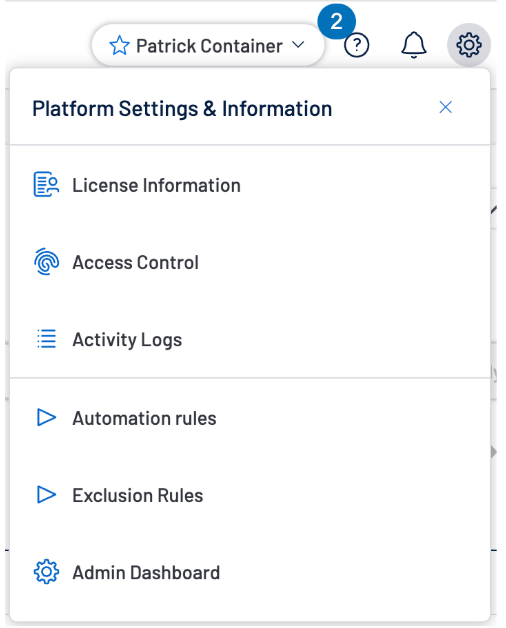
-
Click Exclusion rules.
-
Configure your exclusion rule as desired. You can configure exclusion rules for:
-
Hostnames
-
IP addresses
-
DNS record types
-
-
Click Save.
Configure Scanning by Tag
If you want to target Tenable One Vulnerability Management scanning to the Tenable One Attack Surface Management assets that matched your ingestion filter, you can reuse your ingestion filter to tag those ASM assets and configure Tenable One Vulnerability Management to scan VM assets with those tags. Tags applied to Tenable One Attack Surface Management assets will be automatically applied to Tenable One Vulnerability Management assets.
To configure scans by tag:
-
In the upper-right corner of the Tenable One Attack Surface Management interface, click the
button.A menu appears.
-
Click Automation rules.
A dialog appears.
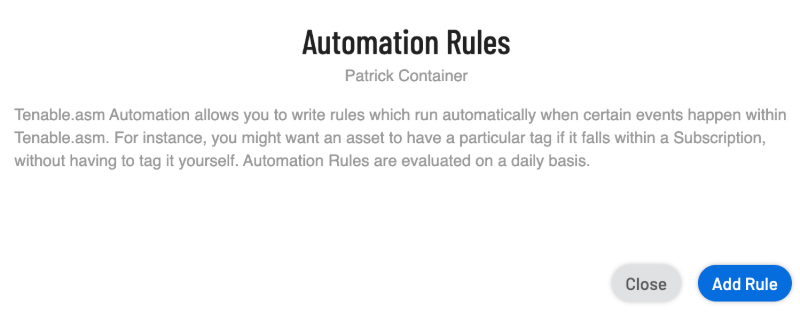
-
Click Add Rule.
-
In the Choose Action Type section, select Modify Tags.
The Add Automation Rule options appear.
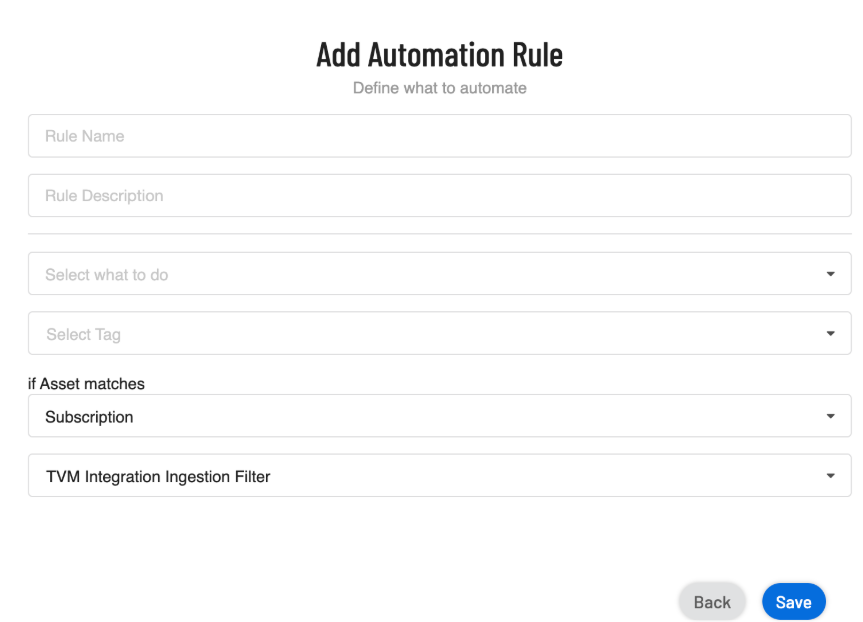
-
Configure your automation rule as desired. Be sure to select the following options:
-
From the If Asset matches drop-down menu, select Subscription.
-
From the subsequent drop-down menu, select one of the following options:
-
TVM Integration Ingestion Filter
-
WAS Integration Ingestion Filter
-
-
-
Click Save.
-
Create a scan in Tenable One Vulnerability Management based on the tag you created.