Checkmarx One Connector
The following is not supported in Tenable FedRAMP Moderate environments. For more information, see the Tenable FedRAMP Product Offering.
Checkmarx One is a cloud application security platform that scans proprietary source code, open-source dependencies, container images, infrastructure-as-code templates, and application programming interfaces (APIs) from a single project model.
The following steps allow you to configure this connector for use with Tenable Exposure Management from start to finish.
Connector Details
Tenable Exposure Management ingests Checkmarx One projects as code repository assets, together with the findings that Checkmarx One reports against them.
| Details | Description |
|---|---|
|
Supported products |
Checkmarx Static Application Security Testing (SAST) Checkmarx Software Composition Analysis (SCA) Checkmarx Infrastructure as Code (IaC) Security Checkmarx Container Security Checkmarx Supply Chain Security (SCS) Checkmarx API Security |
|
Category |
Static Application Security Testing (SAST), Software Composition Analysis (SCA), Infrastructure as Code (IaC) Security, and Supply Chain Security (SCS) |
| Ingested data | Assets and Findings |
|
Ingested Asset Classes |
Code Repository |
|
Integration type |
UNI directional (data is transferred from the connector to Tenable Exposure Management in one direction) |
|
Supported version and type |
Checkmarx One Application Security Platform (cloud) Checkmarx One Private Cloud deployments are not supported. |
Prerequisites and User Permissions
Before you begin configuring the connector, make sure to:
-
Confirm that you have a Checkmarx One user account with read access to the applications and projects that you want to sync.
Generate a Checkmarx One API key
A Checkmarx One API key inherits the roles and permissions of the account that generates it. Generate the key from an account that can read the applications and projects that you want to sync.
-
Log in to your Checkmarx One tenant.
-
Click the Settings menu, and then go to IAM (Identity and Access Management).
-
Go to Access Management > API Keys.
-
Click Create API Key.
-
Copy the generated key to a safe location. You need it to configure the connector.
-
Note your tenant account name. This value is the Checkmarx One realm name for your organization, and it appears under your Checkmarx One license.
Add a Connector
To add a new connector:
-
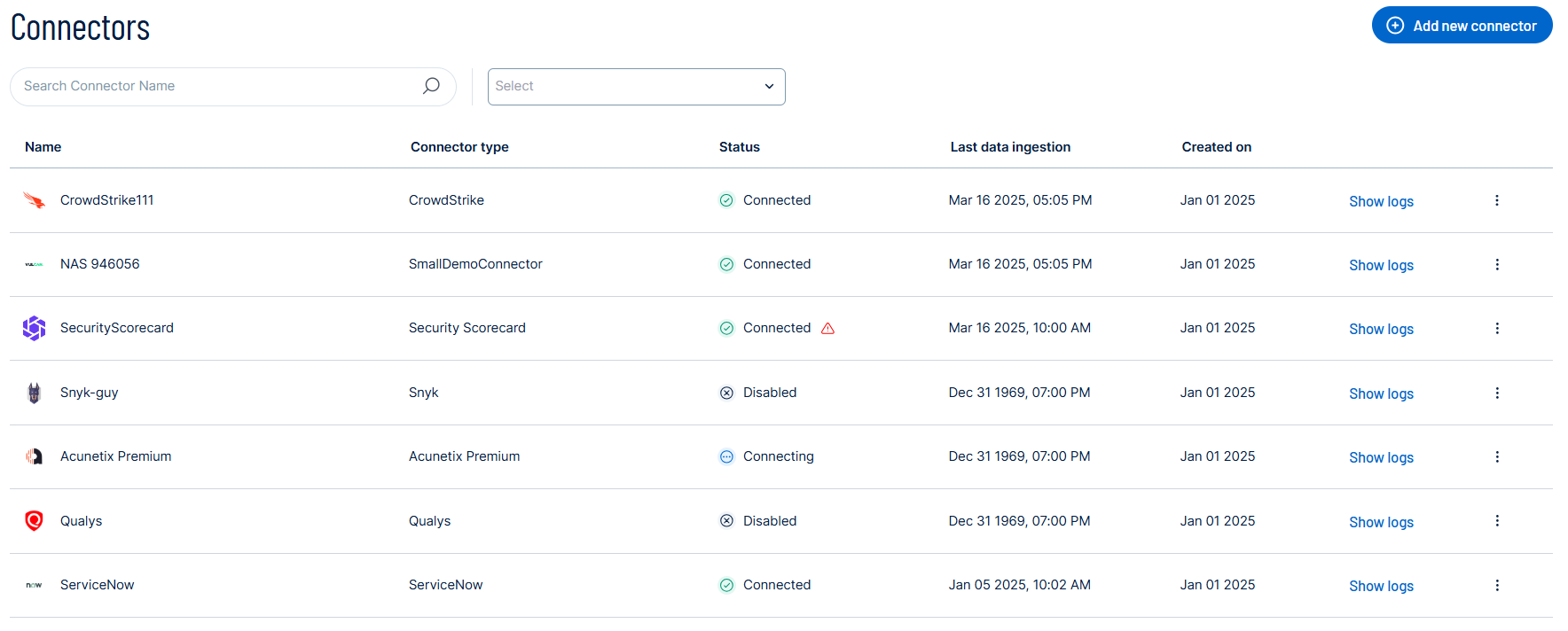
In the left navigation menu, click Connectors.
The Connectors page appears.
-
In the upper-right corner, click
 Add new connector.
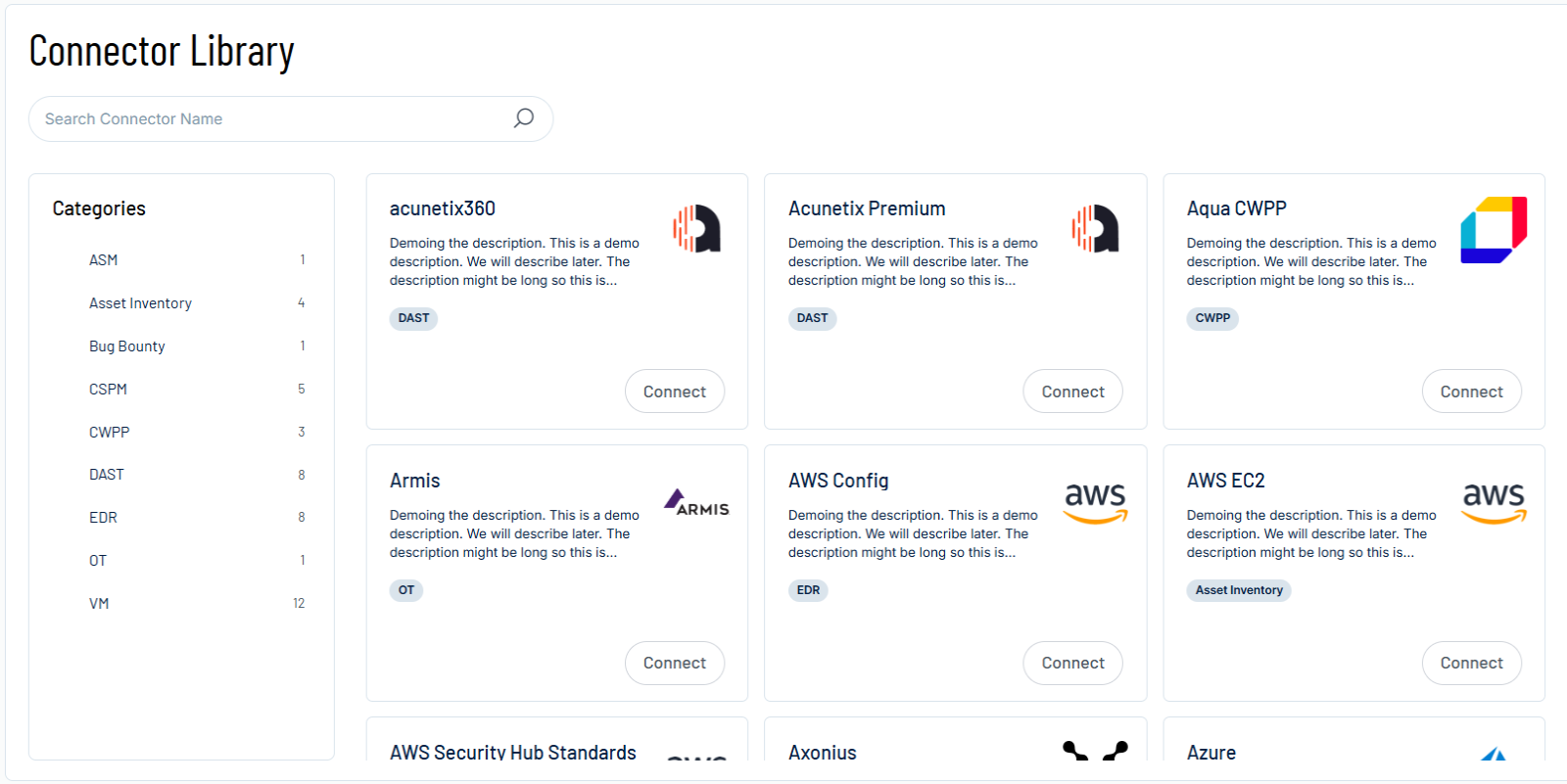
The Connector Library page appears.
-
In the search box, type the name of the connector.
-
On the tile for the connector, click Connect.
The connector configuration options appear.
Configure the Connector
To configure the connector:
-
(Optional) In the Connector's Name text box, type a descriptive name for the connector.
-
(Optional) To use a preconfigured on-prem connector to connect to this connector, from the Gateway drop-down, select the on-prem connector you want to use for the connector. Otherwise, select Don't use gateway.
Note: For information about configuring a gateway, see Tenable On-Prem Connector. -
From the Region drop-down, select the region that hosts your Checkmarx One tenant.
-
In the Tenant Account Name text box, type the realm name for your Checkmarx One organization.
-
In the API Key text box, type the Checkmarx One API key that you generated.
-
Data pulling configuration: This configuration has dynamic settings tailored to the specific connector and integration type. Below are the configurations relevant to this connector.
-
(Optional) In the Branches text box, type the branches that you want to pull data from, separated by commas, for example, master, frontend, backend. Leave the text box empty to pull data from all branches.
-
Select the Fetch all Applications checkbox to pull findings from every application in the tenant. Tenable Exposure Management refreshes the application list before every sync.
Clear the checkbox to select specific applications, and then, from the Applications drop-down, select the applications that you want to pull findings from.
-
From the Finding Types drop-down, select the finding types that you want to pull from Checkmarx One: SAST, SCA, IaC Security, Container Security, API Security, or SCS. You must select at least one finding type.
-
Select the Exclude Info severity findings checkbox to pull only Critical, High, Medium, and Low severity findings. Clear the checkbox to also pull Info severity findings.
-
Select the Mark Checkmarx 'Not Exploitable' findings as Fixed checkbox to set findings that are triaged as Not Exploitable in Checkmarx One to the Fixed state in Tenable Exposure Management.
-
In the Asset Retention text box, type the number of days after which you want assets to be removed from Tenable Exposure Management. If an asset has not been detected or updated within the specified number of days, it is automatically removed from the application, ensuring your asset inventory is current and relevant.
Tip: For more information, see Asset Retention.
-
-
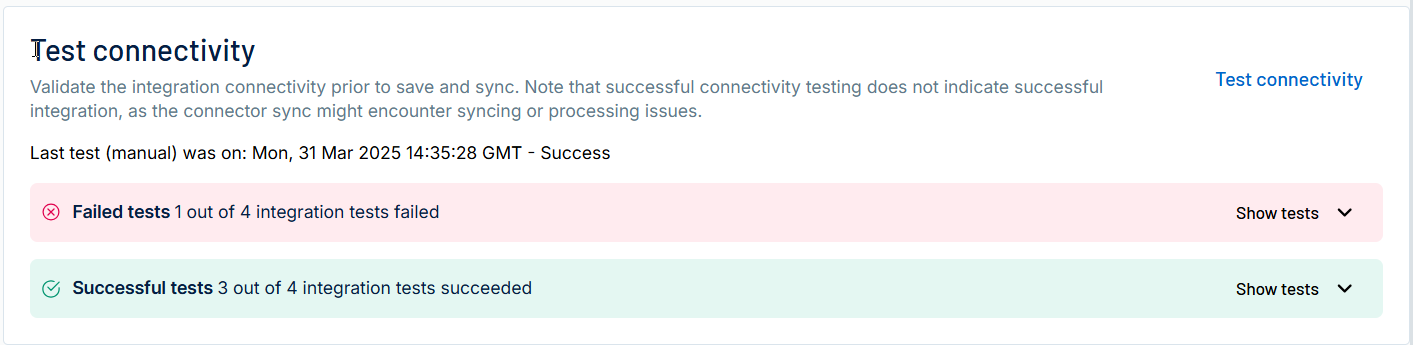
In the Test connectivity section, click the Test Connectivity button to verify that Tenable Exposure Management can connect to your connector instance.
-
A successful connectivity test confirms that the platform can connect to the connector instance. It does not, however, guarantee that the synchronization process will succeed, as additional syncing or processing issues may arise.
-
If the connectivity test fails, an error message with details about the issue appears. Click Show tests for more information about the exact error.
-
-
In the Connector scheduling section, configure the time and day(s) on which you want connector syncs to occur.
Tip: For more information, see Connector Scheduling. -
Click Create & Sync. Tenable Exposure Management begins syncing the connector. The sync can take some time to complete.
-
To confirm the sync is complete, do the following:
-
Navigate to the Connectors page and monitor the connector's status. Sync is complete once the connector status is Connected.
-
View the sync logs for the connector to monitor the logs for a successful connection.
-
Checkmarx One in Tenable Exposure Management
Locate Connector Assets in Tenable Exposure Management
As the connector discovers assets, Tenable Exposure Management ingests those devices for reporting.
To view assets by connector:
-
In Tenable Exposure Management, navigate to the Assets page.
-
In the Filters section, under 3rd Party Connectors, click the connector name for which you want to view assets.

The asset list updates to show only assets from the selected connector.
-
Click on any asset to view Asset Details.
Locate Connector Findings in Tenable Exposure Management
As the connector discovers individual findings, Tenable Exposure Management ingests those findings for reporting.
To view findings by connector:
-
In Tenable Exposure Management, navigate to the Findings page.
-
In the Filters section, under 3rd Party Connectors, click the connector name for which you want to view findings.
The findings list updates to show only assets from the selected connector.
-
Click on any asset to view Finding Details.
Data Mapping
Tenable Exposure Management integrates with the connector via API to retrieve relevant weakness and asset data, which is then mapped into the Tenable Exposure Management system. The following tables outline how fields and their values are mapped from the connector to Tenable Exposure Management.
Code Repository Mapping
| Tenable Exposure Management UI Field |
Checkmarx One Field |
|---|---|
| Asset Id | id |
| Asset Class | CODE_REPOSITORY |
| Asset Name | name |
| Code Repository URL |
repoUrl id |
| Asset Status | ACTIVE |
| External Tags |
groups tags application name application tags |
| Created Date | createdAt |
| First Seen | createdAt |
| Last Seen | updatedAt |
| Asset Custom Attributes |
Groups Repo Url Main Branch Private Package Imported Project Name Criticality Project ID |
Finding Mapping
| Tenable Exposure Management UI Field |
Checkmarx One Field |
|---|---|
| Vendor ID |
id risk_id |
| Finding Type | SOURCE_CODE_ANALYSIS |
| Finding Category | SOURCE_CODE |
| Finding Name |
queryName data.queryName data.ruleName name searchKey |
| Description |
description data.ruleDescription |
| CVEs | vulnerabilityDetails.cveName |
| CWEs |
cwe vulnerabilityDetails.cweId |
| Severity | severity |
| CVSS v3 Score | vulnerabilityDetails.cvssScore |
| Solution |
data.remediation data.remediationLink data.recommendedVersion data.expectedValue |
| Code File Path |
fileName data.fileName data.nodes.0.fileName |
| Code Line Number |
line data.line data.nodes.0.line |
| Source Code Package Name |
data.packageName data.packageIdentifier |
| Source Code Package Version |
data.packageVersion data.packageIdentifier |
| Branch | scan_branch |
| Origin Finding URL |
url data.commitUrl |
| Published Date | firstFoundAt |
| First Seen | firstFoundAt |
| Last seen (Observed) | foundAt |
| Last Fixed At | foundAt |
| State | state |
| Finding Custom Attributes |
Component Version EPSS Score Rule Name Snippet Source Node Sink Node Language Actual Value Expected Value API Endpoint HTTP Method API Origin Authenticated IaC Category Resource Name Resource Type Risk Score Cloud Provider SLSA Step Validity Image Name Base Image Image Tag |
Finding Status Mapping
|
Tenable Exposure Management Status |
Checkmarx One Status |
|---|---|
|
Active |
TO_VERIFY CONFIRMED URGENT PROPOSED_NOT_EXPLOITABLE |
|
Fixed |
NOT_EXPLOITABLE, when the Mark Checkmarx 'Not Exploitable' findings as Fixed checkbox is selected The finding is no longer returned in the latest scan results. |
Finding Severity Mapping
|
Tenable Exposure Management Severity |
Checkmarx One Score |
|---|---|
|
Critical |
CVSS: 9.0 - 10.0 Severity: Critical |
|
High |
CVSS: 7.0 - 8.9 Severity: High |
|
Medium |
CVSS: 4.0 - 6.9 Severity: Medium |
|
Low |
CVSS: 0.1 - 3.9 Severity: Low |
|
None |
CVSS: 0.0 Severity: Info |
Note: Tenable derives the finding severity from the Checkmarx One severity label. For Software Composition Analysis (SCA) and Container Security findings, the connector also ingests the vulnerabilityDetails.cvssScore value as the CVSS v3 base score. By default, Info severity findings are excluded. To ingest them, clear the Exclude Info severity findings checkbox when you configure the connector.
Status Update Mechanisms
Every day, Tenable Exposure Management syncs with the vendor's platform to receive updates on existing findings and assets and to retrieve new ones (if any were added).
The table below describes how the status update mechanism works in the connector for findings and assets ingested into Tenable Exposure Management.
|
Update Type in Tenable Exposure Management |
Mechanism (When?) |
|---|---|
|
Archiving Assets |
|
|
Change a Finding status from "Active" to "Fixed" |
|
Uniqueness Criteria
Tenable Exposure Management uses defined uniqueness criteria to determine whether an ingested asset or finding should be recognized as a distinct record. These criteria help define how assets and findings are identified and counted from each connector.
Tip: For more information, see Asset Deduplication in Tenable Exposure Management
The uniqueness criteria for this connector are as follows:
|
Data |
Uniqueness Criteria |
|---|---|
|
Asset |
id (uniquely identifies the Checkmarx One project) |
|
Vulnerability |
id (SAST, SCA, Container Security, and Supply Chain Security results) ID (Infrastructure as Code results) risk_id (API Security results) |
|
Finding |
scan_branch (SAST, Infrastructure as Code, Supply Chain Security, and API Security results) data.packageIdentifier + scan_branch (SCA results) data.imageName + data.packageName + data.packageVersion + scan_branch (Container Security results) |
|
Solution |
data.recommendations + data.recommendedVersion (SCA results) data.expectedValue (SAST and Infrastructure as Code results) |
API Endpoints in Use
API version: Checkmarx One API.
|
API |
Use in Tenable Exposure Management |
|---|---|
|
|
Exchanges the API key for a bearer access token used on all other calls. |
|
|
Fetches the project inventory as code repository assets. |
|
|
Retrieves the most recent scan metadata for each project. |
|
|
Retrieves the available project branches and validates the branches that you configured. |
|
|
Fetches the application inventory and populates the Applications drop-down in the connector configuration. |
|
|
Retrieves the scan list for each project. |
|
|
Fetches SAST, SCA, Container Security, and Supply Chain Security results as findings. |
|
|
Fetches Infrastructure as Code results as findings. |
|
|
Fetches API Security results as findings. |
|
|
Retrieves the severity classifications defined in your Checkmarx One environment and normalizes finding severity values. |
|
|
Retrieves the access-management groups used to enrich asset tags. |
Data Validation
This section shows how to validate and compare data between Tenable Exposure Management and Checkmarx One.
Asset Data Validation
Objective: Ensure the number of projects in Checkmarx One aligns with the number of code repository assets displayed in Tenable Exposure Management.
In Checkmarx One:
-
Go to Workspace > Projects.
Note the number of projects that appears next to Projects.
In Tenable Exposure Management:
-
Locate your connector assets, filtered by Source = Checkmarx One.
-
Compare the total number of assets between Checkmarx One and Tenable Exposure Management.
Expected outcome: The total numbers returned in Checkmarx One and Tenable Exposure Management should match.
If an asset is not visible in Tenable Exposure Management, check the following conditions:
-
The API key has read access to the project and to the application that contains it.
-
The project belongs to an application that the connector pulls from. If the Fetch all Applications checkbox is cleared, only the applications you selected are synced.
-
The project has a branch that matches the branches you configured in the Branches text box.
-
The asset was archived because it did not return in the connector's last sync.
Tip: To learn more on how assets are archived and findings change status, see Status Update Mechanisms.
Finding Data Validation
Objective: Ensure the number of vulnerabilities in Checkmarx One aligns with the number of findings in Tenable Exposure Management.
In Checkmarx One:
-
Go to Workspace > Projects.
-
Add the values in the Total Vulnerability column for the projects that the connector pulls from.
In Tenable Exposure Management:
-
Locate your connector findings, filtered by Source = Checkmarx One and State = Active.
-
Compare the total number of findings between Checkmarx One and Tenable Exposure Management.
Expected outcome: The total numbers returned in Checkmarx One and Tenable Exposure Management should match, after you account for the finding types and severities that the connector is configured to pull.
If a finding is missing from Tenable Exposure Management or no longer active, check the following conditions:
-
The finding type is selected in the Finding Types drop-down.
-
The finding is not an Info severity finding while the Exclude Info severity findings checkbox is selected.
-
The finding is not triaged as Not Exploitable in Checkmarx One while the Mark Checkmarx 'Not Exploitable' findings as Fixed checkbox is selected.
-
The finding belongs to a project and branch that the connector pulls from.
-
The finding is marked as Fixed and appears under the Fixed state on the Findings screen.
Tip: To learn more on how assets are archived and findings change status, see Status Update Mechanisms.