Veracode SAST Connector
The following is not supported in Tenable FedRAMP Moderate environments. For more information, see the Tenable FedRAMP Product Offering.
The following steps allow you to configure this connector for use with Tenable Exposure Management from start to finish.
Veracode is an application security testing platform. Veracode Static Analysis (SAST) scans application binaries for security flaws without requiring access to source code, and maps each flaw to a Common Weakness Enumeration (CWE) and a severity level.
Connector Details
Tenable Exposure Management ingests Veracode applications as Code Repository assets, along with their Static Analysis (SAST) flaws.
| Details | Description |
|---|---|
|
Supported products |
|
|
Category |
Static Application Security Testing (SAST) |
|
Ingested data |
Assets and Findings |
|
Ingested Asset Classes |
Code Repository |
|
Integration type |
UNI directional (the connector transfers data to Tenable Exposure Management in one direction) |
|
Supported version and type |
SaaS (latest) |
Prerequisites and User Permissions
Before you begin configuring the connector, make sure to:
-
Confirm that you have a Veracode account with the Static Analysis (SAST) module enabled.
-
Generate a Veracode API Key ID and API Key Secret in the Veracode Platform.
Generate a Veracode API Key ID and API Key Secret
Veracode displays the Secret Key only once. If you lose it, you must generate a new API Key ID and API Key Secret pair.
-
Sign in to the Veracode Platform.
-
In the top-right corner, open the account menu, and select API Credentials.
-
Click Generate API Credentials.
-
Select HMAC credentials, then click Generate.
-
Copy the API ID and Secret Key values to a secure location. You need both values to configure the connector.
Confirm that the API credentials belong to a Veracode user who has permission to view application and finding data for the applications you want the connector to ingest.
Add a Connector
To add a new connector:
-
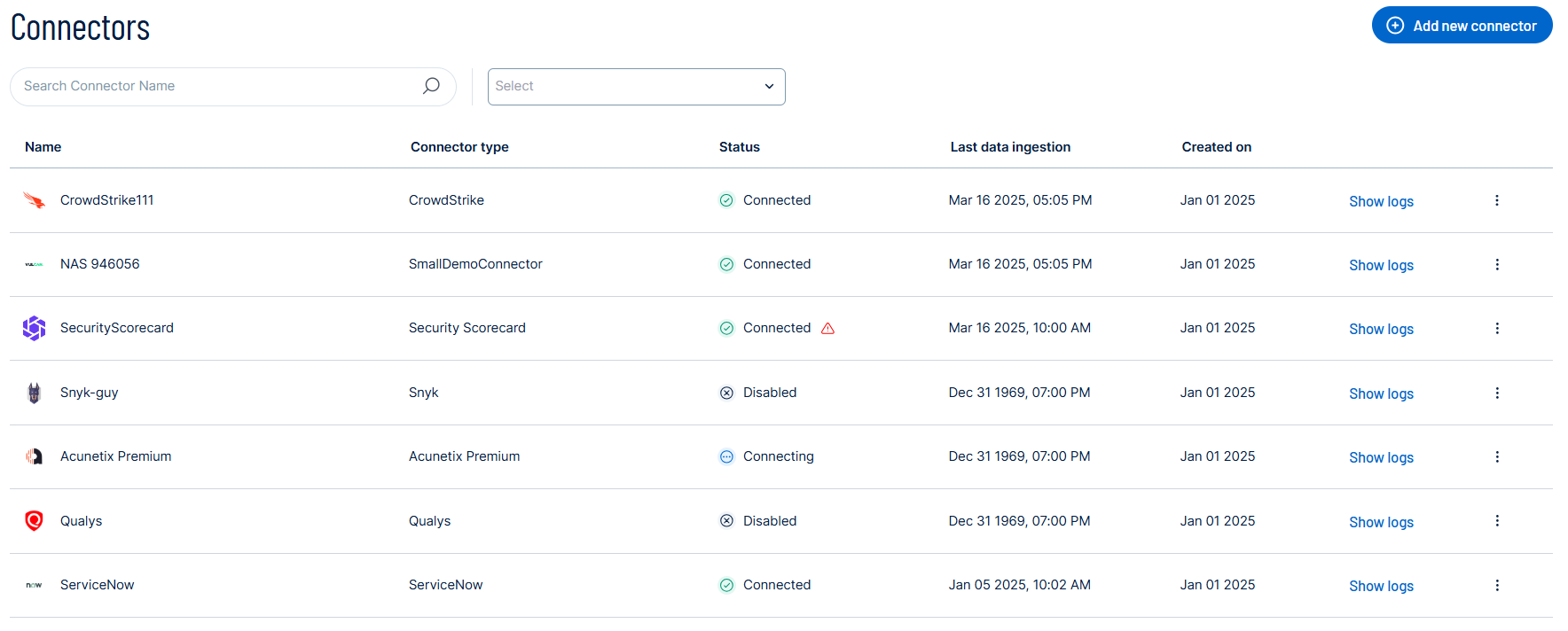
In the left navigation menu, click Connectors.
The Connectors page appears.
-
In the upper-right corner, click
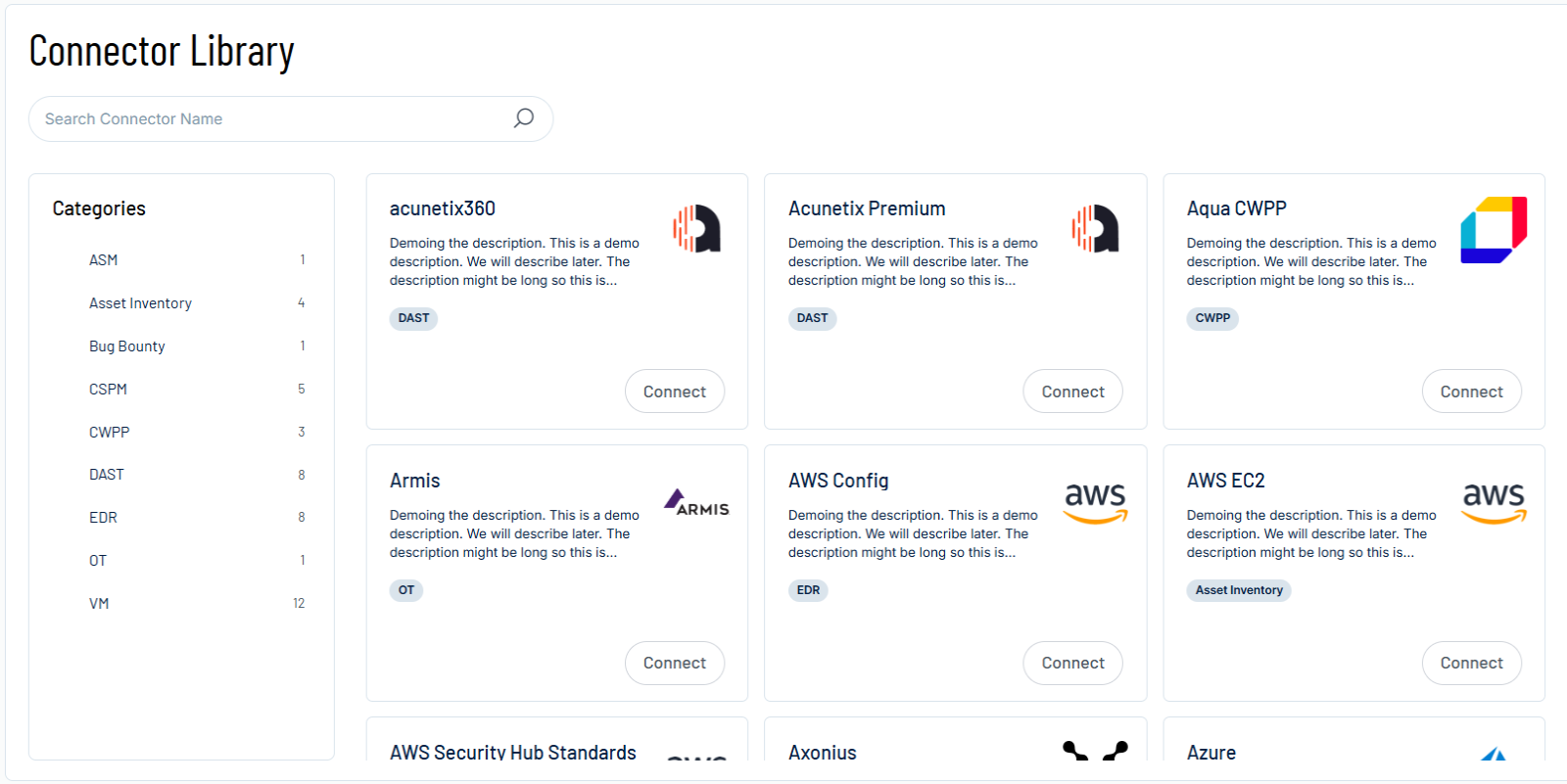
 Add new connector.
The Connector Library page appears.
-
In the search box, type the name of the connector.
-
On the tile for the connector, click Connect.
The connector configuration options appear.
Configure the Connector
To configure the connector:
-
(Optional) In the Connector's Name text box, type a descriptive name for the connector.
-
(Optional) To use a preconfigured on-prem connector to connect to this connector, from the Gateway drop-down, select the on-prem connector you want to use for the connector. Otherwise, select Don't use gateway.
Note: For information about configuring a gateway, see Tenable On-Prem Connector. -
From the Region drop-down, select the region of your Veracode account. Each option shows the API base URL for that region.
Region
API Base URL
Veracode Platform Console
US
https://api.veracode.com
analysiscenter.veracode.com
EU
https://api.veracode.eu
analysiscenter.veracode.eu
US Federal
Contact your Veracode representative to confirm the API base URL and console domain for your account.
In the API Key ID text box, type the API ID you generated in Veracode.
In the API Key Secret text box, type the Secret Key you generated in Veracode.
-
Data pulling configuration: This configuration has dynamic settings tailored to the specific connector and integration type. The following configurations apply to this connector.
-
In the Asset Retention text box, type the number of days after which you want assets to be removed from Tenable Exposure Management. If an asset has not been detected or updated within the specified number of days, it is automatically removed from the application, ensuring your asset inventory is current and relevant.
Tip: For more information, see Asset Retention.
-
-
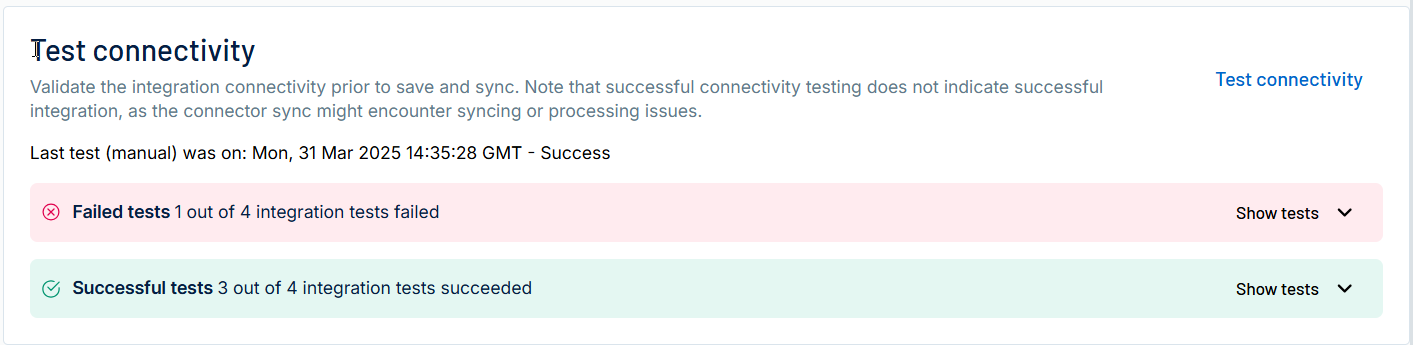
In the Test connectivity section, click the Test Connectivity button to verify that Tenable Exposure Management can connect to your connector instance.
-
A successful connectivity test confirms that the platform can connect to the connector instance. It does not, however, guarantee that the synchronization process will succeed, as additional syncing or processing issues may arise.
-
If the connectivity test fails, an error message with details about the issue appears. Click Show tests for more information about the exact error.
-
-
In the Connector scheduling section, configure the time and day(s) on which you want connector syncs to occur.
Tip: For more information, see Connector Scheduling. -
Click Create. Tenable Exposure Management begins syncing the connector. The sync can take some time to complete.
-
To confirm the sync is complete, do the following:
-
Navigate to the Connectors page and monitor the connector's status. Sync is complete once the connector status is Connected.
-
View the sync logs for the connector to monitor the logs for a successful connection.
-
Veracode SAST in Tenable Exposure Management
Locate Connector Assets in Tenable Exposure Management
As the connector discovers assets, Tenable Exposure Management ingests those devices for reporting.
To view assets by connector:
-
In Tenable Exposure Management, navigate to the Assets page.
-
In the Filters section, under 3rd Party Connectors, click the connector name for which you want to view assets.

The asset list updates to show only assets from the selected connector.
-
Click on any asset to view Asset Details.
Locate Connector Findings in Tenable Exposure Management
As the connector discovers individual findings, Tenable Exposure Management ingests those findings for reporting.
To view findings by connector:
-
In Tenable Exposure Management, navigate to the Findings page.
-
In the Filters section, under 3rd Party Connectors, click the connector name for which you want to view findings.
The findings list updates to show only assets from the selected connector.
-
Click on any asset to view Finding Details.
Data Mapping
Tenable Exposure Management integrates with the connector via API to retrieve relevant weakness and asset data, which is then mapped into the Tenable Exposure Management system. The following tables outline how fields and their values are mapped from the connector to Tenable Exposure Management.
Code Repository Mapping
| Tenable Exposure Management UI Field |
Veracode SAST Field |
|---|---|
| Unique Identifier | guid |
| Asset Name | profile.name |
| Code Repository URL | app_profile_url or profile.git_repo_url |
| Created At | created |
| First Observed At | created |
| Last Observed At | modified |
| Last Assessed At | last_completed_scan_date |
| Criticality Level | profile.business_criticality |
| External Tags |
profile.business_criticality profile.business_unit.name profile.tags profile.teams[].team_name |
| Asset Custom Attributes |
app_profile_url id policy_compliance_status profile.policies results_url |
Finding Mapping
| Tenable Exposure Management UI Field |
Veracode SAST Field |
|---|---|
| Unique Identifier | issue_id |
| Finding Name | finding_details.finding_category.name |
| Description | vulcan_enrichment.category_enrichment.0.data.description |
| Solution | vulcan_enrichment.category_enrichment.0.data.recommendation |
| CWEs | finding_details.cwe and finding_details.cwe.id |
| First Seen | finding_status.first_found_date |
| Last Seen (Observed) | finding_status.last_seen_date |
| Code File Path | finding_details.file_name and finding_details.file_path |
| Code Line Number | finding_details.file_line_number |
| Finding Custom Attributes |
build_id context_guid context_type count finding_details.mitigation_review_status finding_status.new finding_status.resolution finding_status.resolution_status violates_policy |
Finding Status Mapping
|
Tenable Exposure Management Status |
Veracode SAST Status |
|---|---|
|
Active |
OPEN |
|
Fixed |
CLOSED or FIXED An approved mitigation (false positive or accepted risk) |
Finding Severity Mapping
|
Tenable Exposure Management Severity |
Veracode SAST Severity |
|---|---|
|
Critical |
5 (Very High) |
|
High |
4 (High) |
|
Medium |
2 - 3 (Medium) |
|
Low |
1 (Low) |
|
None |
0 (Informational) |
Note: For Veracode SAST, Tenable uses the finding_details.severity field to determine severity. There is no fallback field for this connector.
Status Update Mechanisms
Every day, Tenable Exposure Management syncs with Veracode to receive updates on existing findings and assets and to retrieve new ones (if any exist).
The following table describes how the status update mechanism works in the connector for findings and assets that Tenable Exposure Management ingests.
|
Update Type in Tenable Exposure Management |
Mechanism (When?) |
|---|---|
|
Archiving Assets |
|
|
Change a Finding status from "Active" to "Fixed" |
|
Uniqueness Criteria
Tenable Exposure Management uses defined uniqueness criteria to determine whether to treat an ingested asset or finding as a distinct record. These criteria define how Tenable Exposure Management identifies and counts assets and findings from each connector.
Tip: To learn more about data deduplication and uniqueness criteria, see Third-Party Data Deduplication in Tenable Exposure Management.
The uniqueness criteria for this connector are as follows:
|
Data |
Uniqueness Criteria |
|---|---|
|
Asset |
guid (uniquely identifies the Veracode application) |
|
Vulnerability |
finding_details.finding_category.name (uniquely identifies the type of flaw) |
|
Finding |
issue_id (uniquely identifies the flaw instance on an application) |
Support and Expected Behavior
Support Limitations and Expected Behavior
This section outlines any irregularities, expected behaviors, or limitations related to integration of the connector and Tenable Exposure Management. It also highlights details about ingested and non-ingested data to clarify data handling and functionality within this integration.
-
This connector ingests Static Analysis (SAST) flaws only. To ingest Software Composition Analysis (SCA) findings, configure the Veracode SCA Connector.
-
SAST flaws map to CWEs, not CVEs. Findings from this connector do not include CVE data.
-
The connector retrieves findings for each application separately. For large application portfolios, a sync can take longer to complete.
API Endpoints in Use
|
API |
Use in Tenable Exposure Management |
|---|---|
|
|
Retrieves the total count of applications with a static analysis scan type, to size the asset sync. |
|
|
Retrieves the full list of Veracode applications and creates one Code Repository asset for each. |
|
|
Retrieves the finding count for each application, to size the findings sync. |
|
|
Retrieves the full list of static analysis flaws for each application and maps them to findings. |
|
|
Retrieves the total count of Veracode flaw categories, to size the recommendations sync. |
|
|
Retrieves remediation guidance for each flaw category. The connector uses this guidance to populate the Description and Solution fields on findings. |
Data Validation
This section shows how to validate and compare data between Tenable Exposure Management and the Veracode Platform.
Asset Data Validation
Objective: Ensure the number of applications in the Veracode Platform aligns with the number of assets displayed in Tenable Exposure Management.
In the Veracode Platform:
-
Navigate to Applications, and filter by Scan Type: Static Analysis.
Note the total application count.
In Tenable Exposure Management:
-
Compare the total number of assets between the Veracode Platform and Tenable Exposure Management.
Expected outcome: The application count in the Veracode Platform and the filtered asset count in Tenable Exposure Management match.
If an asset is not visible in Tenable Exposure Management, check the following conditions:
-
The application does not have a valid guid value, so the connector cannot uniquely identify it.
-
The application appeared in Veracode after the connector's last scheduled sync, and no sync has run since.
-
The connector's last scheduled sync failed. Check the connector's sync history for an error.
-
The Veracode user that owns the API credentials does not have permission to view the application.
-
Tenable Exposure Management archived the asset because the connector's last sync did not return it.
Tip: To learn more about how Tenable Exposure Management archives assets and changes finding status, see Status Update Mechanisms.
Finding Data Validation
Objective: Ensure the number of static analysis flaws for an application in the Veracode Platform aligns with the number of findings for the matching asset in Tenable Exposure Management.
Tenable recommends that you validate findings for one application at a time. This way, you can trace any difference to a single set of records.
In the Veracode Platform:
-
Click the name of the application you want to validate, and open its static analysis results.
Note the number of flaws.
In Tenable Exposure Management:
-
Locate your connector assets, and click the asset that matches the application.
-
On the Findings tab, count the findings from the Veracode SAST connector.
-
Compare the number of findings between the Veracode Platform and Tenable Exposure Management for that application.
Expected outcome: The total numbers returned in the Veracode Platform and Tenable Exposure Management match.
If a finding is missing from Tenable Exposure Management or no longer active, check the following conditions:
-
The finding has a Fixed status and appears under the Fixed state on the Findings page.
-
Tenable Exposure Management archived the related asset.
Tip: To learn more about how Tenable Exposure Management archives assets and changes finding status, see Status Update Mechanisms. -
The application has not completed a static analysis scan, so it has no flaws to report.