Cortex Cloud Connector
The following is not supported in Tenable FedRAMP Moderate environments. For more information, see the Tenable FedRAMP Product Offering.
The following steps allow you to configure this connector for use with Tenable Exposure Management from start to finish.
Connector Details
| Details | Description |
|---|---|
|
Supported products |
|
|
Category |
CSPM, CWPP |
|
Ingested data |
Assets and Findings |
|
Ingested Asset Classes |
Device Container Account Group Resource Code Repository |
|
Integration type |
UNI directional (data is transferred from the Connector to Tenable Exposure Management in one direction) |
|
Supported version and type |
SaaS (latest) |
Prerequisites and User Permissions
Before you begin configuring the connector, make sure to:
-
Identify your Cortex Cloud tenant's API Base URL. The Base URL is specific to your tenant and region, for example, https://api-<tenant>.xdr.<region>.paloaltonetworks.com.
-
Generate a Cortex Cloud API Key and API Key ID. The API key must have the Standard security level, and its role must include the following permissions:
-
Vulnerability Management: View
-
Asset Inventory: View
-
Query Center: View
Tip: The built-in Viewer role includes all three permissions.
-
Generate the Cortex Cloud API Key
-
In the Cortex Cloud console, navigate to Settings > Configurations > API Keys.
-
Click New Key.
-
For Security Level, select Standard.
-
Assign the Viewer role, or a custom role that includes Vulnerability Management: View, Asset Inventory: View, and Query Center: View.
-
Copy the generated API Key and its corresponding API Key ID.
-
Copy your tenant's API Base URL from the Cortex Cloud console.
Add a Connector
To add a new connector:
-
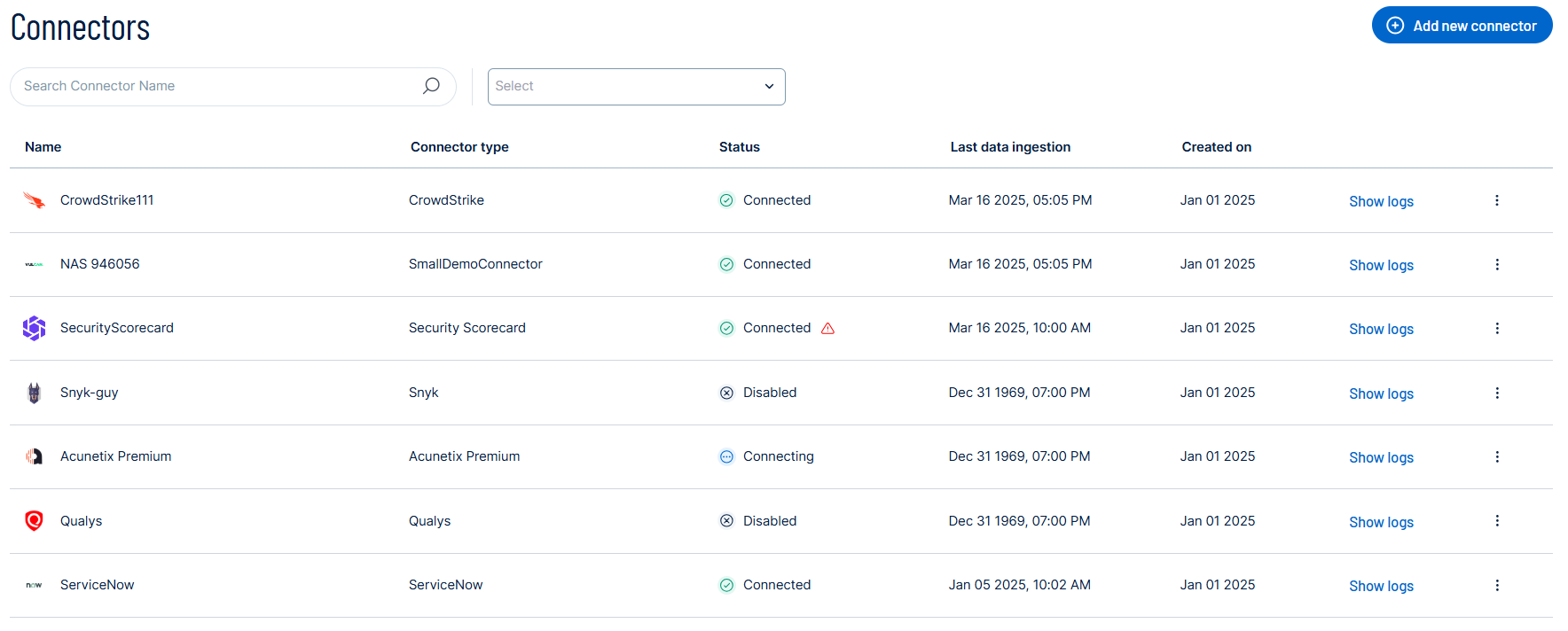
In the left navigation menu, click Connectors.
The Connectors page appears.
-
In the upper-right corner, click
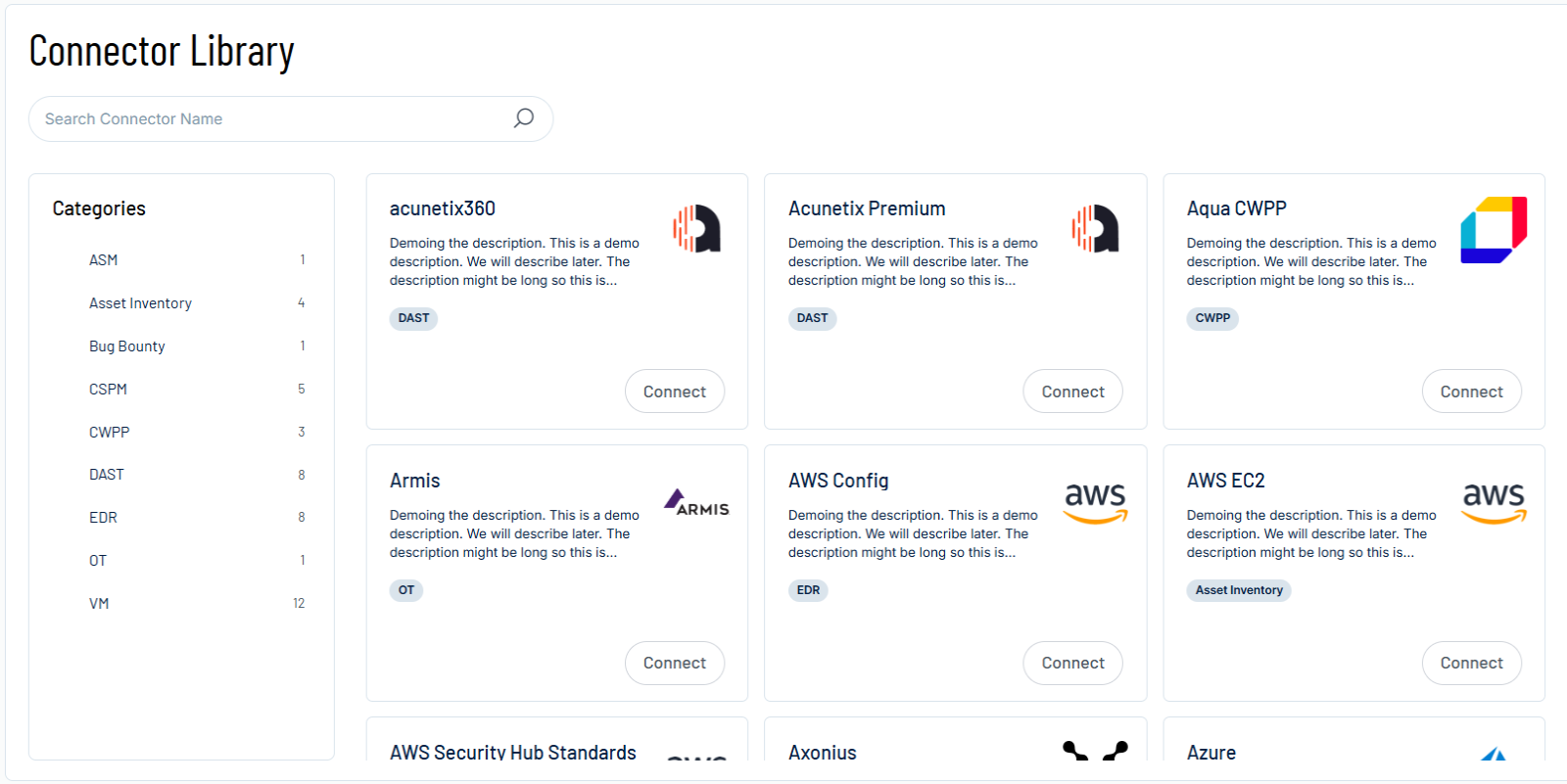
 Add new connector.
The Connector Library page appears.
-
In the search box, type the name of the connector.
-
On the tile for the connector, click Connect.
The connector configuration options appear.
Configure the Connector
To configure the connector:
-
(Optional) In the Connector's Name text box, type a descriptive name for the connector.
-
(Optional) To use a preconfigured on-prem connector to connect to this connector, from the Gateway drop-down, select the on-prem connector you want to use for the connector. Otherwise, select Don't use gateway.
Note: For information about configuring a gateway, see Tenable On-Prem Connector. -
In the Base URL text box, type the API Base URL of your Cortex Cloud tenant.
-
In the API Key and API Key ID text boxes, paste the credentials you generated in Cortex Cloud.
-
Data pulling configuration: This configuration has dynamic settings tailored to the specific connector and integration type. Below are the configurations relevant to this connector.
-
From the Asset Classes drop-down box, select each Cortex Cloud asset class you want to ingest into Tenable Exposure Management.
-
From the Cloud Providers drop-down box, select each cloud provider you want to ingest data from.
-
From the Severity Levels drop-down box, select each finding severity level you want to ingest.
-
Select or clear the Fetch Vulnerabilities (CWPP) check box to choose whether to ingest CVE-based vulnerability findings. This option is selected by default.
Note: Due to API limitations, up to 10 million findings can be fetched per connector.
-
Select or clear the Fetch Misconfigurations (CSPM) check box to choose whether to ingest cloud misconfiguration findings. This option is selected by default.
Note: Due to API limitations, up to 1 million findings can be fetched per connector.
-
In the Asset Retention text box, type the number of days after which you want assets to be removed from Tenable Exposure Management. If an asset has not been detected or updated within the specified number of days, it is automatically removed from the application, ensuring your asset inventory is current and relevant.
Tip: For more information, see Asset Retention.
-
-
Click the Test Connectivity button to verify that Tenable Exposure Management can connect to your Cortex Cloud instance.
-
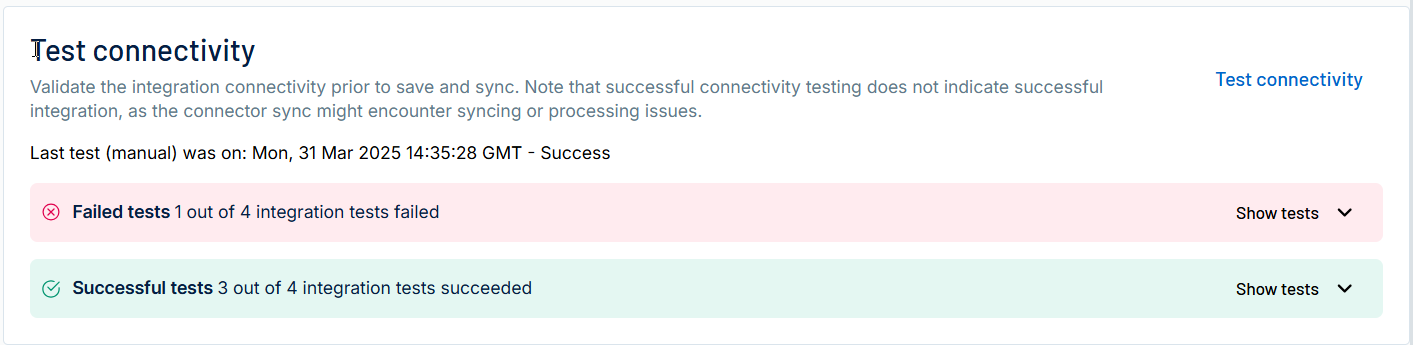
In the Test connectivity section, click the Test Connectivity button to verify that Tenable Exposure Management can connect to your connector instance.
-
A successful connectivity test confirms that the platform can connect to the connector instance. It does not, however, guarantee that the synchronization process will succeed, as additional syncing or processing issues may arise.
-
If the connectivity test fails, an error message with details about the issue appears. Click Show tests for more information about the exact error.
-
-
-
In the Connector scheduling section, configure the time and day(s) on which you want connector syncs to occur.
Tip: For more information, see Connector Scheduling. -
Click Create. Tenable Exposure Management begins syncing the connector. The sync can take some time to complete.
-
To confirm the sync is complete, do the following:
-
Navigate to the Connectors page and monitor the connector's status. Sync is complete once the connector status is Connected.
-
View the sync logs for the connector to monitor the logs for a successful connection.
-
Cortex Cloud in Tenable Exposure Management
Locate Connector Assets in Tenable Exposure Management
As the connector discovers assets, Tenable Exposure Management ingests those devices for reporting.
To view assets by connector:
-
In Tenable Exposure Management, navigate to the Assets page.
-
In the Filters section, under 3rd Party Connectors, click the connector name for which you want to view assets.

The asset list updates to show only assets from the selected connector.
-
Click on any asset to view Asset Details.
Locate Connector Weaknesses in Tenable Exposure Management
As the connector discovers weaknesses, Tenable Exposure Management ingests those weaknesses for reporting.
To view weaknesses by connector:
-
In Tenable Exposure Management, navigate to the Weaknesses page.
-
In the Filters section, under 3rd Party Connectors, click the connector name for which you want to view weaknesses.
The weaknesses list updates to show only weaknesses from the selected connector.
-
Click on any weakness to view Weakness Details.
Locate Connector Findings in Tenable Exposure Management
As the connector discovers individual findings, Tenable Exposure Management ingests those findings for reporting.
To view findings by connector:
-
In Tenable Exposure Management, navigate to the Findings page.
-
In the Filters section, under 3rd Party Connectors, click the connector name for which you want to view findings.
The findings list updates to show only assets from the selected connector.
-
Click on any asset to view Finding Details.
Data Mapping
Tenable Exposure Management integrates with the connector via API to retrieve relevant weakness and asset data, which is then mapped into the Tenable Exposure Management system. The following tables outline how fields and their values are mapped from the connector to Tenable Exposure Management.
Asset Class Mapping
The connector maps each Cortex Cloud asset class and category to a Asset Class in Tenable Exposure Management as shown below. The connector ingests only assets that have CSPM or CVE (CWPP) findings.
Note: Tenable Exposure Management ingests these assets only if they exist in your environment and the connector has access to them.
|
Cortex Cloud Asset Class |
Cortex Cloud Asset Categories |
Tenable Exposure Management Asset Class |
|---|---|---|
| Compute | VM Instance, VM Image, Container Instance, Serverless Function | Device |
| Compute | Container Image, Container Image Repository | Container |
| Compute | Kubernetes Cluster, CaaS Resource, Container Registry | Resource |
| Identity | Cloud Service Account, Human Identity, Unified Identity, External Identity Provider | Account |
| Identity | IAM Group | Group |
| Identity | IAM Policy, Secret | Resource |
| Network | Security Group, Network Security, Virtual Network, Network Interface, Subnet, Load Balancer, Internet Gateway | Resource |
| Data | Storage Bucket, Backup, Database, Disk, Dataset, Service, Other | Resource |
| AI | Model, Configuration Management, AI Pipeline Job, Agent | Resource |
| Organization | Account | Resource |
| Security Services | Vulnerability Management, Network Security, Key Management, Certificate Management, Configuration Management | Resource |
| Other | Other | Resource |
| API | API Gateway, API Specification | Resource |
| Application | Application | Resource |
| External Surface | Domain | Resource |
| Code | All categories | Code Repository |
| Device | All categories | Device |
The connector does not ingest the following Cortex Cloud asset classes and categories:
-
Identity: Other
-
Management: Configuration Management, Audit Logs, Logging And Monitoring, Event Management
-
Organization: Organization, Organizational Unit
Asset Mapping
| Tenable Exposure Management UI Field |
Cortex Cloud Field |
|---|---|
| Unique Identifier | xdm.asset.id |
|
Asset - External Identifier or Asset - Provider Identifier |
xdm.asset.id |
| Asset - Name | xdm.asset.name |
| Asset - Cloud Provider | xdm.asset.provider |
| Asset - Cloud Account ID | xdm.asset.cloud.account.id |
| Asset - Cloud Resource Type | xdm.asset.type.name |
| Asset - Cloud Region | xdm.asset.cloud.region |
| Asset - IPv4 Addresses | xdm.host.ipv4_addresses |
| Asset - Operating Systems | xdm.host.os_family |
| Asset - First Observation Date | xdm.asset.first_observed |
| Asset - Last Observed At | xdm.asset.last_observed |
Finding Mapping
| Tenable Exposure Management UI Field |
Cortex Cloud Field |
|---|---|
| Unique Identifier | cve_id, or if not present, platform_id, external_id, or xdm.finding.id |
| Finding Name | cve_id, name, or xdm.finding.name |
| CVEs | cve_id |
| Severity Driver | cvss_severity, severity, or xdm.severity |
| Description | cve_description, description, or xdm.finding.description |
| Solution | remediation or fix_versions |
| EPSS Score | epss_score |
Note: Tenable Exposure Management classifies a Cortex Cloud finding as a vulnerability if it includes a cve_id. Otherwise, it classifies the finding as a misconfiguration.
Finding Severity Mapping
|
Tenable Exposure Management Severity |
Cortex Cloud Severity |
|---|---|
|
Critical |
Severity: Critical |
|
High |
Severity: High |
|
Medium |
Severity: Medium |
|
Low |
Severity:Low |
|
None |
Severity:Informational |
Finding Status Mapping
|
Tenable Exposure Management Status |
Cortex Cloud Status |
|---|---|
|
Active |
All other statuses |
|
Fixed |
resolved dismissed |
Note: For Cortex Cloud, Tenable Exposure Management uses the status.progress field to determine finding status.
Status Update Mechanisms
Every day, Tenable Exposure Management syncs with the vendor's platform to receive updates on existing findings and assets and to retrieve new ones (if any were added).
The table below describes how the status update mechanism works in the connector for findings and assets ingested into Tenable Exposure Management.
|
Update Type in Tenable Exposure Management |
Mechanism (When?) |
|---|---|
|
Archiving Assets |
|
|
Change a Finding status from "Active" to "Fixed" |
|
Uniqueness Criteria
Tenable Exposure Management uses defined uniqueness criteria to determine whether an ingested asset or finding should be recognized as a distinct record. These criteria help define how assets and findings are identified and counted from each connector.
Tip: For more information, see Asset Deduplication in Tenable Exposure Management
The uniqueness criteria for this connector are as follows:
|
Data |
Uniqueness Criteria |
|---|---|
|
Asset |
xdm.asset.id |
| Finding | cve_id when present. Otherwise, platform_id, external_id, or xdm.finding.id. |
API Endpoints in Use
|
API |
Use in Tenable Exposure Management |
Required Permissions |
|---|---|---|
|
/public_api/v1/assets/ |
Assets |
|
|
/vulnerability-management/v1/vulnerability-finding/search/ |
Findings (vulnerabilities) |
|
|
/public_api/v1/xql/start_xql_query |
Findings (misconfigurations) |
|
|
/public_api/v1/xql/get_query_results |
Findings (misconfigurations) |
|
|
/public_api/v1/xql/get_query_results_stream |
Findings (misconfigurations) |
|
Support Limitations and Expected Behavior
This section outlines any irregularities, expected behaviors, or limitations related to integration of the connector and Tenable Exposure Management. It also highlights details about ingested and non-ingested data to clarify data handling and functionality within this integration.
 API Rate Limit
Cortex Cloud limits each tenant to 1,000 API calls per day. If the connector exhausts this quota, data may be missing from Tenable Exposure Management until the quota resets.
Finding Limits
Due to Cortex Cloud API limitations, the connector can fetch up to 10 million vulnerability findings and up to 1 million misconfiguration findings.
The misconfiguration limit applies to each combination of Cortex Cloud asset class and asset category, not to the connector as a whole. If a single combination exceeds 1 million records, the sync logs an error for that combination.
Multi-Cloud Support and Regional API URLs
A single Cortex Cloud tenant can manage accounts from multiple cloud providers. The connector supports Alibaba, AWS, Azure, GCP, and OCI. Use the Cloud Providers option to choose which providers the connector ingests.
Cortex Cloud uses region-specific API Base URLs. Make sure the Base URL you provide matches your tenant's region.
Data Validation
This section shows how to validate and compare data between Tenable Exposure Management and the Cortex Cloud platform.
Asset Data Validation
Objective: Ensure that the number of assets in Cortex Cloud matches the number of assets displayed in Tenable Exposure Management.
In Cortex Cloud:
-
Navigate to Inventory.
-
Filter the inventory by the asset classes and cloud providers you selected in the connector configuration.
-
Note the total number of assets.
In Tenable Exposure Management:
-
Compare the total number of assets between Cortex Cloud and Tenable Exposure Management.
Expected outcome: The total numbers returned in Cortex Cloud and Tenable Exposure Management should match for active, non-archived assets.
If an asset is not visible in Tenable Exposure Management, check the following conditions:
-
The asset's class is not included in the Asset Classes setting.
-
The asset's cloud provider is not included in the Cloud Providers setting.
-
The asset was archived because it did not return in the connector's most recent sync.
-
The asset was archived based on its Last Seen timestamp, according to the configured retention period.
Tip: To learn more on how assets and findings change status, see Status Update Mechanisms. -
The connector did not complete a successful sync, or it exhausted the daily API quota.
Finding Data Validation
Objective: Ensure that the number of active findings in Cortex Cloud matches the findings displayed in Tenable Exposure Management.
In Cortex Cloud:
-
To validate misconfigurations, navigate to Issues. To validate vulnerabilities, navigate to Vulnerability.
-
Filter the results by the severity levels you selected in the connector configuration.
-
Note the number of open findings.
In Tenable Exposure Management:
-
Compare the total number of active findings between Cortex Cloud and Tenable Exposure Management.
Expected outcome: The total number of active findings in Tenable Exposure Management should match the number of open findings in Cortex Cloud.
If a finding is missing from Tenable Exposure Management or no longer active, check the following conditions:
-
The finding's severity is not included in the Severity Levels setting.
-
The finding was resolved or dismissed in Cortex Cloud. The finding is marked as Fixed and appears under the Fixed state on the Findings screen.
-
The finding no longer appears because its related asset was archived.
Tip: To learn more on how assets and findings are archived or change status, see Status Update Mechanisms. -
For misconfigurations, the finding's asset class and category combination exceeded the 1 million record limit.
-
The connector exhausted the daily API quota.