Google SCC Connector
The following is not supported in Tenable FedRAMP Moderate environments. For more information, see the Tenable FedRAMP Product Offering.
The following steps allow you to configure this connector for use with Tenable Exposure Management from start to finish.
Google Security Command Center (SCC) is the security and risk management service of Google Cloud, which identifies vulnerabilities and misconfigurations in your Google Cloud projects.
Connector Details
Tenable Exposure Management ingests Google Cloud assets and Security Command Center vulnerability and misconfiguration findings through API.
| Details | Description |
|---|---|
|
Supported products |
Google Security Command Center — Standard tier and Premium tier |
|
Category |
CSPM, CWPP |
| Ingested data | Assets and Findings |
|
Ingested Asset Classes |
Device, Container Image, Container Repository, Account, Role, Resource |
|
Integration type |
UNI directional (data is transferred from the connector to Tenable Exposure Management in one direction) |
|
Supported version and type |
SaaS (latest) |
Prerequisites and User Permissions
Before you begin configuring the connector, make sure to:
-
Confirm that Security Command Center is activated on your Google Cloud organization, folder, or project, on either the Standard or the Premium tier.
-
Confirm that you can grant Identity and Access Management (IAM) roles at the level that you want to sync, and that you can create a service account and a JSON key in Google Cloud.
Create a Service Account
-
In the Google Cloud console, go to IAM & Admin > Service Accounts.
-
In the project picker at the top of the page, select the project or organization that hosts the service account. Any project works, and many organizations use a dedicated security or operations project.
Note: The project that holds the service account does not limit what the service account can read. The service account reads data only where you grant it the roles. -
Click Create Service Account.
-
In the Service account name text box, type a name, for example tenable-scc-connector.
-
In the Service account description text box, type a description, for example Service account used by Tenable to read Google SCC findings and assets.
-
Click Create and Continue.
-
Skip the optional role grants on this screen. You grant the roles in Grant the IAM Roles.
-
Click Done.
Grant the IAM Roles
Grant the following two read-only roles to the service account. These roles are the minimum that the connector needs to list projects, read assets, and read findings.
|
Role |
Role ID |
Purpose |
|---|---|---|
|
Security Center Findings Viewer |
roles/securitycenter.findingsViewer |
Read Security Command Center findings. |
|
Cloud Asset Viewer |
roles/cloudasset.viewer |
Read assets from Cloud Asset Inventory. |
The level where you grant the roles determines which projects Tenable can sync. Roles that you grant on an organization or a folder apply to every folder and project inside it.
|
Grant the roles on |
Projects that Tenable can sync |
|---|---|
|
Organization |
Every project in the organization, including projects that you add later. |
|
Folder |
Every project in the folder and its subfolders, including projects that you add later. |
|
Project |
Only that project. Grant the roles on each project that you want to sync. |
To grant the IAM roles:
-
In the Google Cloud console, go to IAM & Admin > IAM.
-
In the resource picker, select the organization, folder, or project that you want to sync.
-
Click Grant Access.
-
In the New principals text box, type the email address of the service account, for example [email protected].
-
Add the Security Center Findings Viewer role.
-
Add the Cloud Asset Viewer role.
-
Click Save.
-
Repeat these steps for each folder or project that you want to add.
Enable the Required APIs
Enable the following APIs on the project that holds the service account.
|
API |
Service name |
|---|---|
|
Security Command Center API |
securitycenter.googleapis.com |
|
Cloud Asset API |
cloudasset.googleapis.com |
|
Cloud Resource Manager API |
cloudresourcemanager.googleapis.com |
To enable the required APIs:
-
In the Google Cloud console, go to APIs & Services > Library.
-
Search for each API.
-
Click Enable. If the API already shows API Enabled, continue to the next API.
Create and Download the JSON Key
-
In the Google Cloud console, go to IAM & Admin > Service Accounts.
-
Click the service account that you created.
-
Select the Keys tab.
-
Click Add Key > Create new key.
-
Select JSON, and then click Create. The key file downloads to your computer.
-
Store the key file in a safe location. You need it to configure the connector.
Note: The key file is a credential. Tenable recommends that you treat it like a password. If the key is exposed, delete it on the Keys tab and create a new one.
Add a Connector
To add a new connector:
-
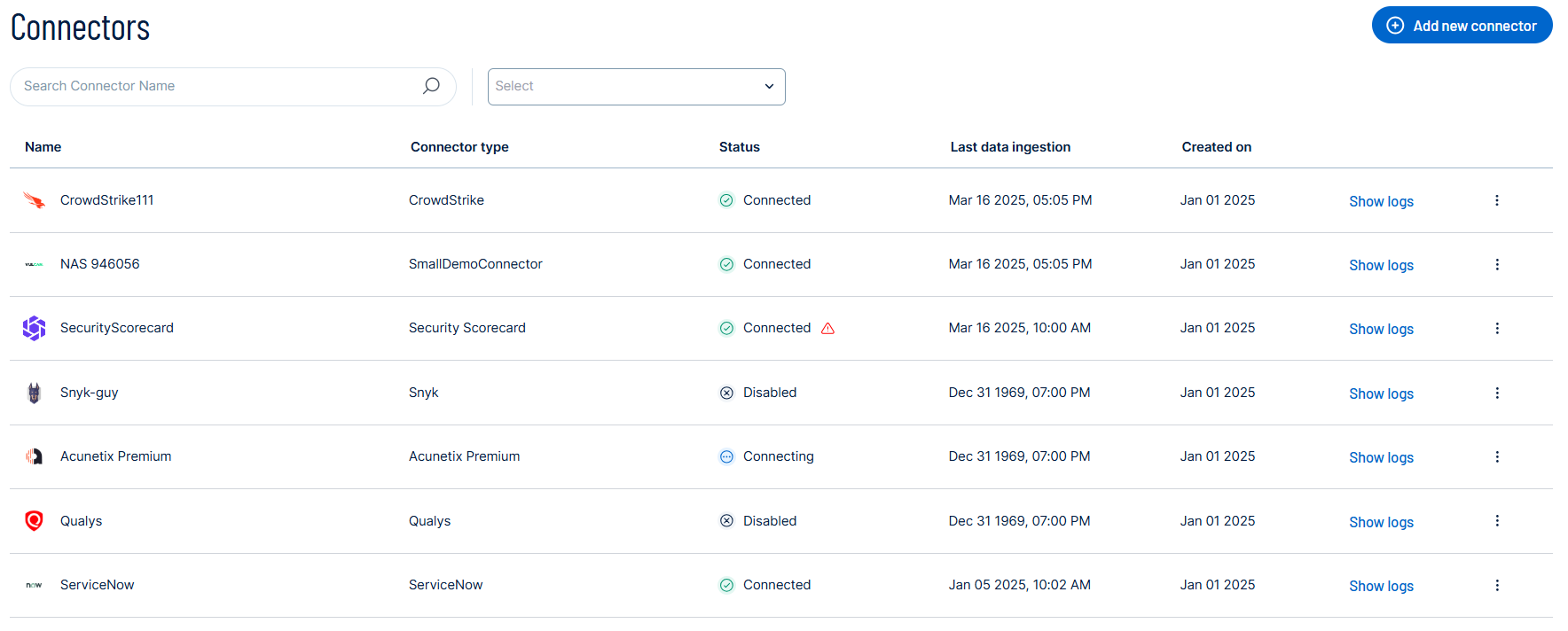
In the left navigation menu, click Connectors.
The Connectors page appears.
-
In the upper-right corner, click
 Add new connector.
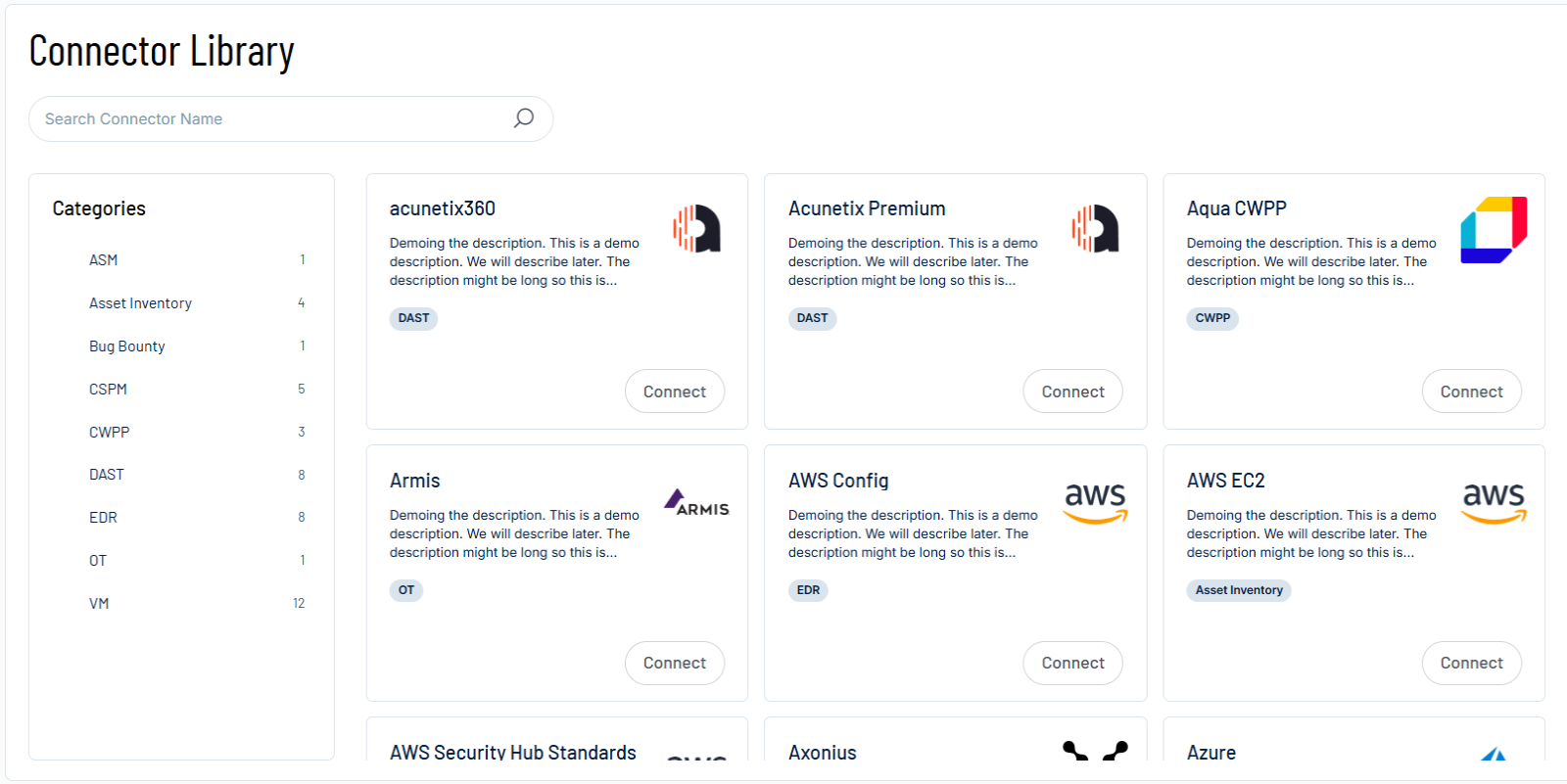
The Connector Library page appears.
-
In the search box, type the name of the connector.
-
On the tile for the connector, click Connect.
The connector configuration options appear.
Configure the Connector
To configure the connector:
-
(Optional) In the Connector's Name text box, type a descriptive name for the connector.
-
(Optional) To use a preconfigured on-prem connector to connect to this connector, from the Gateway drop-down, select the on-prem connector you want to use for the connector. Otherwise, select Don't use gateway.
Note: For information about configuring a gateway, see Tenable On-Prem Connector. -
In the Service Account Key File section, click Upload Service Account JSON File, and then select the JSON key that you downloaded in Create and Download the JSON Key.
-
Data pulling configuration: This configuration has dynamic settings tailored to the specific connector and integration type. Below are the configurations relevant to this connector.
-
Select the Pull all projects checkbox to sync every active project that the service account can access. Each sync lists the available projects, so Tenable Exposure Management picks up new projects automatically. This checkbox is selected by default.
-
If you clear Pull all projects, from the Projects drop-down, select one or more projects to sync. Each project appears as <project ID> (<parent>), where the parent is the organization or folder. The drop-down lists only the active projects that the service account can access.
-
From the Resource types to fetch drop-down, select the groups of Google Cloud resource types to sync. Each label shows the Tenable asset classes of the group in brackets. All eight groups are selected by default, and you must select at least one group.
Group
Asset classes
Examples
Compute
Device, Resource
VM instances, disks, snapshots, images, Cloud Run, Cloud Functions, App Engine, instance groups
Kubernetes & Containers
Container Image, Container Repository, Resource
Artifact Registry images and repositories, Container Registry images, GKE clusters and node pools
Identity & IAM
Account, Role, Resource
Service accounts, service account keys, custom roles, IAM policies, workload identity pools, API keys, secrets, KMS key rings and keys
Storage
Resource
Cloud Storage buckets, log buckets
Database
Resource
BigQuery datasets and tables, Cloud SQL instances and backups, Firestore, Spanner, Dataform, Dataplex
Networking
Resource
VPC networks, subnets, firewalls, firewall policies, routers, routes, addresses, forwarding rules, VPN, DNS zones, SSL policies
AI & ML
Resource
Vertex AI endpoints, models, datasets, and indexes, Dialogflow, Discovery Engine, notebooks
Org & Project settings
Resource
Compute project settings, Cloud Build triggers, billing information, log sinks, monitoring dashboards, Security Command Center service, organization policy settings
Note: Both assets and findings are fetched only for the asset classes of the selected groups. When you clear a group, Tenable Exposure Management no longer fetches its assets or its findings. The Project asset and project-level findings are always included when at least one group is selected. For the asset classes and the Google Cloud types in each group, see Asset Types per Group and Finding Resource Types per Group. -
Select the Mark muted findings as FIXED in Tenable checkbox to show findings that are muted in Google as Fixed in Tenable Exposure Management. This checkbox is selected by default. When you clear it, muted findings show as Active.
-
From the Archiving statuses drop-down, select the statuses for which you want Tenable Exposure Management to archive assets. DELETED is selected by default. One status list applies to all asset classes, so DEACTIVATED archives both disabled service accounts and disabled custom roles.
Status
Applies to
When Google reports
STOPPED
VM instances (Device)
The VM is not running, which includes the Google statuses TERMINATED, STOPPING, SUSPENDING, and SUSPENDED.
DEACTIVATED
Service accounts and service account keys (Account), custom roles (Role)
The service account or key is disabled, or the custom role is in the DISABLED stage.
DELETED
Custom roles (Role)
The custom role is deleted. Google retains deleted custom roles for a short time before it removes them.
Note: STOPPED archives VMs that still exist in Google, and a stopped VM can start again. If you select STOPPED, Tenable Exposure Management does not show stopped VMs or their findings. -
In the Asset Retention text box, type the number of days after which you want assets to be removed from Tenable Exposure Management. If an asset has not been detected or updated within the specified number of days, it is automatically removed from the application, ensuring your asset inventory is current and relevant.
Tip: For more information, see Asset Retention.
-
-
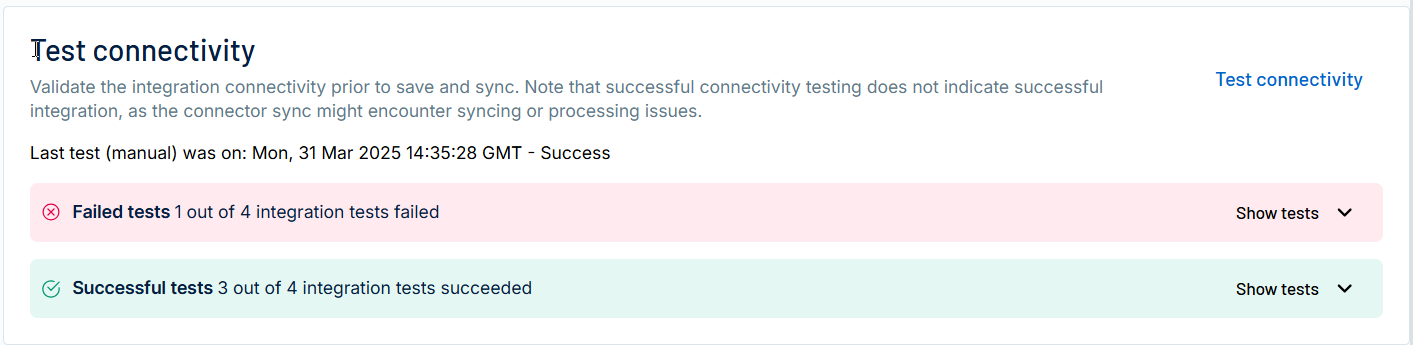
In the Test connectivity section, click the Test Connectivity button to verify that Tenable Exposure Management can connect to your connector instance.
-
A successful connectivity test confirms that the platform can connect to the connector instance. It does not, however, guarantee that the synchronization process will succeed, as additional syncing or processing issues may arise.
-
If the connectivity test fails, an error message with details about the issue appears. Click Show tests for more information about the exact error.
-
-
In the Connector scheduling section, configure the time and day(s) on which you want connector syncs to occur.
Tip: For more information, see Connector Scheduling. -
Click Create. Tenable Exposure Management begins syncing the connector. The sync can take some time to complete.
-
To confirm the sync is complete, do the following:
-
Navigate to the Connectors page and monitor the connector's status. Sync is complete once the connector status is Connected.
-
View the sync logs for the connector to monitor the logs for a successful connection.
-
Google SCC in Tenable Exposure Management
Locate Connector Assets in Tenable Exposure Management
As the connector discovers assets, Tenable Exposure Management ingests those devices for reporting.
To view assets by connector:
-
In Tenable Exposure Management, navigate to the Assets page.
-
In the Filters section, under 3rd Party Connectors, click the connector name for which you want to view assets.

The asset list updates to show only assets from the selected connector.
-
Click on any asset to view Asset Details.
Locate Connector Weaknesses in Tenable Exposure Management
As the connector discovers weaknesses, Tenable Exposure Management ingests those weaknesses for reporting.
To view weaknesses by connector:
-
In Tenable Exposure Management, navigate to the Weaknesses page.
-
In the Filters section, under 3rd Party Connectors, click the connector name for which you want to view weaknesses.
The weaknesses list updates to show only weaknesses from the selected connector.
-
Click on any weakness to view Weakness Details.
Locate Connector Findings in Tenable Exposure Management
As the connector discovers individual findings, Tenable Exposure Management ingests those findings for reporting.
To view findings by connector:
-
In Tenable Exposure Management, navigate to the Findings page.
-
In the Filters section, under 3rd Party Connectors, click the connector name for which you want to view findings.
The findings list updates to show only assets from the selected connector.
-
Click on any asset to view Finding Details.
Data Mapping
Tenable Exposure Management integrates with the connector via API to retrieve relevant weakness and asset data, which is then mapped into the Tenable Exposure Management system. The following tables outline how fields and their values are mapped from the connector to Tenable Exposure Management.
Asset Class Mapping
The Cloud Asset Inventory asset type determines the Tenable asset class.
| Tenable Exposure Management Asset Class |
Google SCC Asset Type |
|---|---|
| Device | compute.Instance |
| Account |
iam.ServiceAccount iam.ServiceAccountKey |
| Role | iam.Role |
| Container Image |
artifactregistry.DockerImage containerregistry.Image |
| Container Repository | artifactregistry.Repository |
| Resource |
All other asset types, with a resource category |
Asset Mapping
These fields apply to all asset classes.
| Tenable Exposure Management UI Field |
Google SCC Field |
|---|---|
| Asset Name | displayName |
| Asset Provider ID | name (full resource name without the service prefix) |
| Cloud Provider | GCP |
| Cloud Resource Type | assetType (short form) |
| Cloud Resource > Service | assetType (service part) |
| Cloud Resource > Billing ID | projectNumber |
| Cloud Region | location |
| First Observation Date | createTime |
| Last Observed At |
Set by Tenable at each sync |
| External Tags | labels |
| Tags |
labels location tags |
| Asset Custom Attributes |
name resourcePath state location id deletionProtection machineType disks[].architecture networkInterfaces[0].network networkInterfaces[].subnetwork assetType projectNumber |
Device Mapping
| Tenable Exposure Management UI Field |
Google SCC Field |
|---|---|
| Hostname | name |
| Device Status | status |
| IPv4 Addresses |
networkInterfaces[].networkIP networkInterfaces[].accessConfigs[].natIP |
| IPv6 Addresses |
networkInterfaces[].ipv6Address networkInterfaces[].externalIpv6 |
| Operating System Type | disks[].licenses (boot disk) |
| Operating Systems | disks[].licenses (boot disk) |
| OS Vendor | disks[].licenses (boot disk) |
| Instance ID | id |
| Started At | lastStartTimestamp |
| Terminated At | lastStopTimestamp |
Note: The Google statuses RUNNING, PROVISIONING, STAGING, and REPAIRING map to the Running device status. All other statuses map to Stopped.
Account, Role, and Container Mapping
|
Asset Class |
Tenable Exposure Management UI Field |
Google SCC Field |
|---|---|---|
|
Account |
Account Type |
Workload |
|
Account |
Account Status |
disabled |
|
Account |
Account Holder External ID |
uniqueId |
|
Role |
Role Status |
deleted stage |
|
Role |
Built-in Role |
name |
|
Container Image |
Image |
uri (last segment) |
|
Container Image |
Repository URL |
uri (without the image segment) |
|
Container Repository |
Repository Type |
Images |
|
Container Repository |
Repository URL |
name |
|
Resource |
Resource Category |
assetType |
Note: For an Account, a disabled service account or key maps to DEACTIVATED, and all others map to ACTIVE. For a Role, a deleted custom role maps to DELETED, the DISABLED stage maps to DEACTIVATED, and all others map to ACTIVE. For a service account key, Tenable Exposure Management uses the unique ID of the parent service account.
Resource Categories
|
Category |
Google SCC Asset Types |
|---|---|
|
Compute |
Disks, snapshots, images, instance settings, instance groups, instance group managers, node groups, Cloud Run, Cloud Functions, App Engine, notebooks |
|
Container |
GKE clusters and node pools |
|
Database |
BigQuery, Cloud SQL, Firestore, Spanner, Dataplex |
|
Networking |
Networks, subnets, firewalls, firewall policies, routers, routes, addresses, forwarding rules, health checks, network endpoint groups, target pools, VPN, Service Directory, service networking, SSL policies, DNS zones |
|
Security |
API keys, secrets, KMS key rings, keys, and key versions, IAM policies, workload identity pools and providers |
|
Storage |
Cloud Storage buckets, log buckets |
|
Repository |
Dataform repositories |
|
Other |
All other types, for example projects, compute project settings, Cloud Build triggers, billing information, log sinks, monitoring dashboards, Vertex AI, Dialogflow, and Discovery Engine resources |
Finding Mapping
| Tenable Exposure Management UI Field |
Google SCC Field |
|---|---|
| Finding Name |
vulnerability.cve.id category |
| Finding ID | name |
| Finding Class | findingClass |
| Description | description |
| Solution |
vulnerability.offendingPackage.packageVersion nextSteps |
| CVEs | vulnerability.cve.id |
| Severity | severity |
| CVSSv3 Base Score | vulnerability.cve.cvssv3.baseScore |
| CVSSv3 Severity | vulnerability.cve.cvssv3.baseScore |
| State |
state mute |
| First Seen | createTime |
| Last Seen | eventTime |
| Finding Custom Attributes |
category vulnerability.offendingPackage.packageVersion contacts.security contacts.technical severity state mute findingClass resource.type canonicalName vulnerability.offendingPackage.packageName |
Note: For a CVE finding, the finding name is the CVE ID, for example CVE-2024-23897. For all other findings, the finding name is the category label as Google displays it, for example Public bucket ACL. When a fixed package version exists, the solution is the fixed package and version. Otherwise, the solution is the next steps text from Google.
Finding Status Mapping
|
Tenable Exposure Management Status |
Google SCC Status |
|---|---|
|
Active |
state: ACTIVE and mute: UNMUTED or mute: UNDEFINED |
|
Active |
state: ACTIVE and mute: MUTED, when Mark muted findings as FIXED in Tenable is cleared |
|
Fixed |
state: ACTIVE and mute: MUTED, when Mark muted findings as FIXED in Tenable is selected |
|
Fixed |
state: INACTIVE, with any mute value |
Note: Google sets state to INACTIVE when the issue is resolved. Most findings have mute: UNDEFINED, which means that nobody muted or unmuted them.
Finding Severity Mapping
|
Tenable Exposure Management Severity |
Google SCC Score |
|---|---|
|
Critical |
CVSS: 9.0 - 10.0 Severity: CRITICAL |
|
High |
CVSS: 7.0 - 8.9 Severity: HIGH |
|
Medium |
CVSS: 4.0 - 6.9 Severity: MEDIUM |
|
Low |
CVSS: 0.1 - 3.9 Severity: LOW |
|
None |
CVSS: 0 Severity: SEVERITY_UNSPECIFIED |
Note: For Google SCC, Tenable uses the severity field to determine finding severity. For CVE findings, Tenable also uses the CVSS v3 base score from Google to set the CVSSv3 Base Score and CVSSv3 Severity fields.
Status Update Mechanisms
Every day, Tenable Exposure Management syncs with the vendor's platform to receive updates on existing findings and assets and to retrieve new ones (if any were added).
The table below describes how the status update mechanism works in the connector for findings and assets ingested into Tenable Exposure Management.
|
Update Type in Tenable Exposure Management |
Mechanism (When?) |
|---|---|
|
Archiving Assets |
|
|
Change a Finding status from "Active" to "Fixed" |
|
|
Removing a Finding |
|
Uniqueness Criteria
Tenable Exposure Management uses defined uniqueness criteria to determine whether an ingested asset or finding should be recognized as a distinct record. These criteria help define how assets and findings are identified and counted from each connector.
Tip: To learn more about data deduplication and uniqueness criteria, See Third-Party Data Deduplication in Tenable Exposure Management.
The uniqueness criteria for this connector are as follows:
|
Data |
Uniqueness Criteria |
|---|---|
|
Asset |
name (the full Google resource name, which uniquely identifies the resource) |
|
Vulnerability |
vulnerability.cve.id (CVE findings) findingClass + category (all other findings) |
|
Finding |
name (the Security Command Center finding name, which uniquely identifies a finding instance on a resource) |
Support and Expected Behavior
Support Limitations and Expected Behavior
This section outlines any irregularities, expected behaviors, or limitations related to integration of the connector and Tenable Exposure Management. It also highlights details about ingested and non-ingested data to clarify data handling and functionality within this integration.
 Ingested finding classes
Tenable Exposure Management ingests only findings of the Vulnerability and Misconfiguration classes. Other classes, such as Threat, Observation, Toxic combination, and Chokepoint, are not ingested.
Folder and organization data
The connector reads data one project at a time. Tenable Exposure Management does not ingest Folder and Organization assets, or findings that Security Command Center raises on a folder or on the organization, even when you grant the roles at the organization level.
Findings of archived assets
When Tenable Exposure Management archives an asset, it removes the findings of that asset instead of marking them as Fixed. The remediation history of those findings is not retained.
Asset last seen and deleted resources
Cloud Asset Inventory has no last seen field, so Tenable Exposure Management sets the last seen date of an asset at each sync where the asset is found. When a resource is deleted in Google, Google no longer returns it, Tenable Exposure Management stops updating it, and the asset ages out based on the inactive asset retention period of your tenant.
Muted findings
By default, findings that are muted in Google show as Fixed in Tenable Exposure Management. To show muted findings as Active, clear the Mark muted findings as FIXED in Tenable checkbox.
Findings on new Standard tier activations
Some Google detectors are not available on new Standard tier activations, so these projects can return few findings.
Shared API quota
Google applies API quotas per service account project. Connectors that use service accounts from the same project share that quota, so syncs can take longer. When the quota is reached, the connector waits and retries. To reduce the effect, use a service account from a different project for each connector.
Sync failures
The sync fails when Google returns a 403 Permission denied error for any selected project, and when Cloud Asset Inventory returns no assets in any project. Confirm that the service account has both required roles on each selected project, and that the three required APIs are enabled.
API Endpoints in Use
Security Command Center API v2, Cloud Asset Inventory API v1, and Cloud Resource Manager API v3. All three APIs use global endpoints, so you do not need to type a URL or select a region.
|
API |
Use in Tenable Exposure Management |
Permissions required |
|---|---|---|
|
|
Lists the active projects that the service account can access, and populates the Projects drop-down. |
None. The call returns the projects where the service account has a role. |
|
|
Reads the assets of each project. |
Cloud Asset Viewer |
|
|
Reads the Vulnerability and Misconfiguration findings of each project. |
Security Center Findings Viewer |
Data Validation
This section shows how to validate and compare data between Tenable Exposure Management and the Google SCC platform. Use the same projects and the same resource types on both sides.
Asset Data Validation
Objective: Ensure the number of resources in Google SCC aligns with the number of assets displayed in Tenable Exposure Management.
In Google SCC:
-
In the Google Cloud console, select the project in the resource picker.
-
Go to Security > Asset Inventory, and then select the Resource tab.
-
In the Resource type filter, select the asset types of the groups that you selected in Resource types to fetch, and also select cloudresourcemanager.Project. See Asset Types per Group.
-
Note the total number of resources.
-
Repeat these steps for each project that the connector syncs, and then add up the totals.
In Tenable Exposure Management:
-
Compare the total number of assets between Google SCC and Tenable Exposure Management.
Expected outcome: The total numbers returned in Google SCC and Tenable Exposure Management should match.
If an asset is not visible in Tenable Exposure Management, check the following conditions:
-
The resource type is not in a group that you selected in Resource types to fetch.
-
The resource is in a project that the connector does not sync.
-
The resource is a Folder or an Organization, which the connector does not fetch.
-
The asset was archived, either because it did not return in the connector's last sync or because its Google status matches a status that you selected in Archiving statuses.
Tip: To learn more on how assets are archived and findings change status, see Status Update Mechanisms. -
The resource was deleted in Google, and the asset aged out of Tenable Exposure Management.
Finding Data Validation
Objective: Ensure the number of findings in Google SCC aligns with the number of findings in Tenable Exposure Management.
In Google SCC:
-
In the Google Cloud console, select the project in the resource picker.
-
Go to Security > Findings.
-
Clear all filters, and remove any grouping.
-
In the Finding class filter, select Vulnerability and Misconfiguration.
-
In the Resource type filter, select the types of the groups that you selected in Resource types to fetch. See Finding Resource Types per Group.
-
In the State filter, select Active. If Mark muted findings as FIXED in Tenable is selected, also exclude muted findings.
-
Note the total number of findings.
-
Repeat these steps for each project that the connector syncs, and then add up the totals.
In Tenable Exposure Management:
-
Filter by the Active state.
-
Compare the total number of findings between Google SCC and Tenable Exposure Management.
Expected outcome: The total numbers returned in Google SCC and Tenable Exposure Management should match.
If a finding is missing from Tenable Exposure Management or no longer active, check the following conditions:
-
The finding class is not Vulnerability or Misconfiguration.
-
The resource type of the finding is not in a group that you selected in Resource types to fetch.
-
The finding is on a Folder or on the Organization, which the connector does not fetch.
-
The finding is on a deleted resource. Google marks the finding INACTIVE, and it has no asset in Tenable Exposure Management.
-
The asset of the finding was archived, so Tenable Exposure Management removed the finding instead of marking it as Fixed.
Tip: To learn more on how assets are archived and findings change status, see Status Update Mechanisms. -
The finding is marked as Fixed and appears under the Fixed state on the Findings screen, because the finding is muted in Google and Mark muted findings as FIXED in Tenable is selected.
Asset Types per Group
The following table lists the Cloud Asset Inventory asset types in each group, in the format that the Google Cloud console uses. The connector fetches only the types of the groups that you select. cloudresourcemanager.Project is always included.
|
Group |
Asset types |
|---|---|
|
Compute |
compute.Instance, compute.Disk, compute.Snapshot, compute.Image, compute.InstanceSettings, run.Service, cloudfunctions.Function, cloudfunctions.CloudFunction, appengine.Application, appengine.Service, compute.InstanceGroup, compute.InstanceGroupManager, compute.NodeGroup |
|
Kubernetes & Containers |
artifactregistry.DockerImage, artifactregistry.Repository, container.Cluster, container.NodePool, containerregistry.Image |
|
Identity & IAM |
iam.ServiceAccount, iam.ServiceAccountKey, iam.Role, iam.PolicyV2, iam.WorkloadIdentityPool, iam.WorkloadIdentityPoolProvider, apikeys.Key, secretmanager.Secret, secretmanager.SecretVersion, cloudkms.KeyRing, cloudkms.CryptoKey, cloudkms.CryptoKeyVersion |
|
Storage |
storage.Bucket, logging.LogBucket |
|
Database |
bigquery.Dataset, bigquery.Table, sqladmin.Instance, sqladmin.Backup, firestore.Database, spanner.Instance, dataform.Repository, dataplex.EntryGroup |
|
Networking |
compute.Network, compute.Subnetwork, compute.Firewall, compute.FirewallPolicy, compute.Router, compute.Route, compute.Address, compute.GlobalAddress, compute.ForwardingRule, compute.HttpHealthCheck, compute.NetworkEndpointGroup, compute.TargetPool, compute.TargetVpnGateway, compute.VpnTunnel, servicedirectory.Namespace, servicenetworking.Connection, compute.SslPolicy, dns.ManagedZone |
|
AI & ML |
aiplatform.Endpoint, aiplatform.ReasoningEngine, aiplatform.Dataset, aiplatform.Index, aiplatform.IndexEndpoint, aiplatform.MetadataStore, aiplatform.Model, dialogflow.Agent, dialogflow.ConversationProfile, dialogflow.LocationSettings, discoveryengine.Engine, discoveryengine.Collection, discoveryengine.DataStore, seclm.Workbench, notebooks.Instance |
|
Org & Project settings |
compute.Project, cloudbuild.BuildTrigger, cloudbilling.ProjectBillingInfo, logging.LogSink, monitoring.Dashboard, securitycentermanagement.SecurityCenterService, orgpolicy.Policy |
Finding Resource Types per Group
Security Command Center uses its own resource type names. The connector fetches findings only for the types of the groups that you select. google.cloud.resourcemanager.Project, which covers project-level findings, is always included.
|
Group |
Finding resource types |
|---|---|
|
Compute |
google.compute.Instance, google.compute.Image, google.compute.Disk, google.compute.Snapshot, google.run.Service, google.cloudfunctions.CloudFunction, google.cloud.functions.CloudFunction, google.appengine.Application, google.appengine.Service, google.compute.InstanceGroup, google.compute.InstanceGroupManager, google.compute.NodeGroup |
|
Kubernetes & Containers |
google.container.Cluster, google.container.NodePool, google.containerregistry.Image, google.artifactregistry.Repository, google.artifactregistry.DockerImage |
|
Identity & IAM |
google.iam.ServiceAccount, google.iam.ServiceAccountKey, google.iam.Role, google.cloud.kms.CryptoKey, google.cloud.kms.CryptoKeyVersion, google.cloud.kms.KeyRing, google.cloud.secretmanager.Secret |
|
Storage |
google.cloud.storage.Bucket, google.logging.LogBucket |
|
Database |
google.cloud.bigquery.Dataset, google.cloud.bigquery.Table, google.cloud.sql.Instance, google.spanner.Instance |
|
Networking |
google.compute.Firewall, google.compute.FirewallPolicy, google.compute.Network, google.compute.Subnetwork, google.compute.Router, google.compute.Route, google.compute.Address, google.compute.GlobalAddress, google.compute.ForwardingRule, google.compute.NetworkEndpointGroup, google.compute.TargetPool, google.compute.SslPolicy, google.compute.HttpHealthCheck, google.compute.TargetVpnGateway, google.compute.VpnTunnel, google.cloud.dns.ManagedZone |
|
AI & ML |
google.notebooks.Instance, google.aiplatform.Endpoint, google.aiplatform.Dataset, google.aiplatform.Model |
|
Org & Project settings |
google.compute.Project, google.logging.LogSink, google.orgpolicy.Policy |