Trend Micro EDR Connector
The following is not supported in Tenable FedRAMP Moderate environments. For more information, see the Tenable FedRAMP Product Offering.
Trend Vision One is Trend Micro's cloud security platform. The Trend Micro EDR connector ingests endpoint assets from Vision One Endpoint Security and CVE-based vulnerability findings from Attack Surface Risk Management (ASRM).
The following steps allow you to configure this connector for use with Tenable Exposure Management from start to finish.
Connector Details
Tenable Exposure Management ingests Trend Micro EDR devices and vulnerabilities through API.
| Details | Description |
|---|---|
|
Supported products |
Trend Vision One (SaaS) |
|
Category |
Endpoint Security |
| Ingested data | Assets and Findings |
|
Ingested Asset Classes |
Device |
|
Integration type |
UNI directional (data is transferred from the connector to Tenable Exposure Management in one direction) |
|
Supported version and type |
SaaS (latest) |
Prerequisites and User Permissions
Before you begin configuring the connector, make sure to:
-
Confirm you have a Trend Vision One Flex license with Cyber Risk Exposure Management (CREM) allocated. Without it, Tenable Exposure Management cannot ingest vulnerability findings and the connector sync fails.
-
Note the region of your Trend Vision One tenant. You select this region when you configure the connector.
Generate a Trend Vision One API Key
To generate a Trend Vision One API key:
-
Log in to Trend Vision One.
-
Click Administration (the gear icon) > API Keys.
-
Click Add API Key.
-
In the Add API Key window, configure the following:
-
In the Name text box, type a descriptive name for the API key.
-
From the Role drop-down, select a role that includes the Dashboards & Reports > Reports > Configure and download: View permission, for example the built-in Auditor role.
-
From the Expiration Time drop-down, select when the API key expires. The default is three months.
Note: When the API key expires, the connector stops syncing until you generate a new key and update the connector configuration. -
(Optional) In the Description text box, type a description for the API key.
-
Confirm that Status is enabled.
-
-
Click Add.
Trend Vision One generates the API key.
-
Copy the API Key to a safe location. You need it to configure the connector.
Note: Trend Vision One displays the API key only once. If you lose it, you must generate a new key.
Add a Connector
To add a new connector:
-
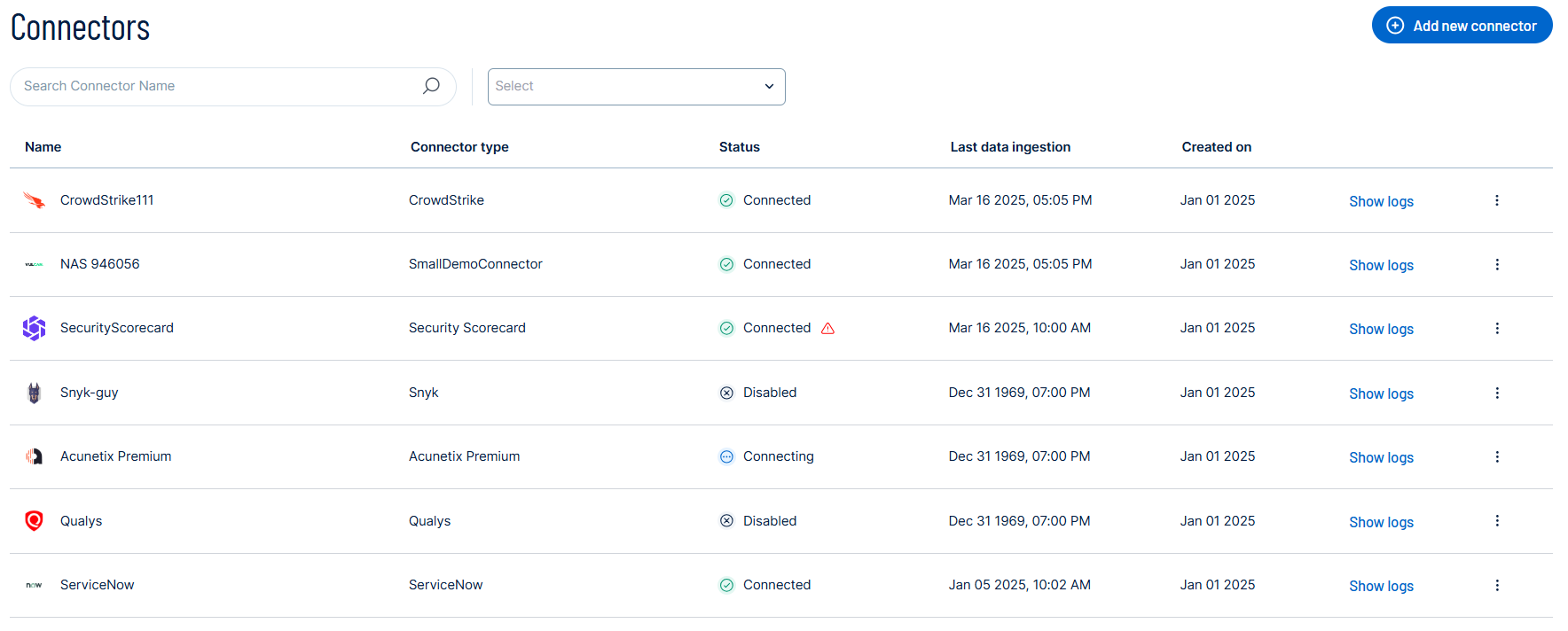
In the left navigation menu, click Connectors.
The Connectors page appears.
-
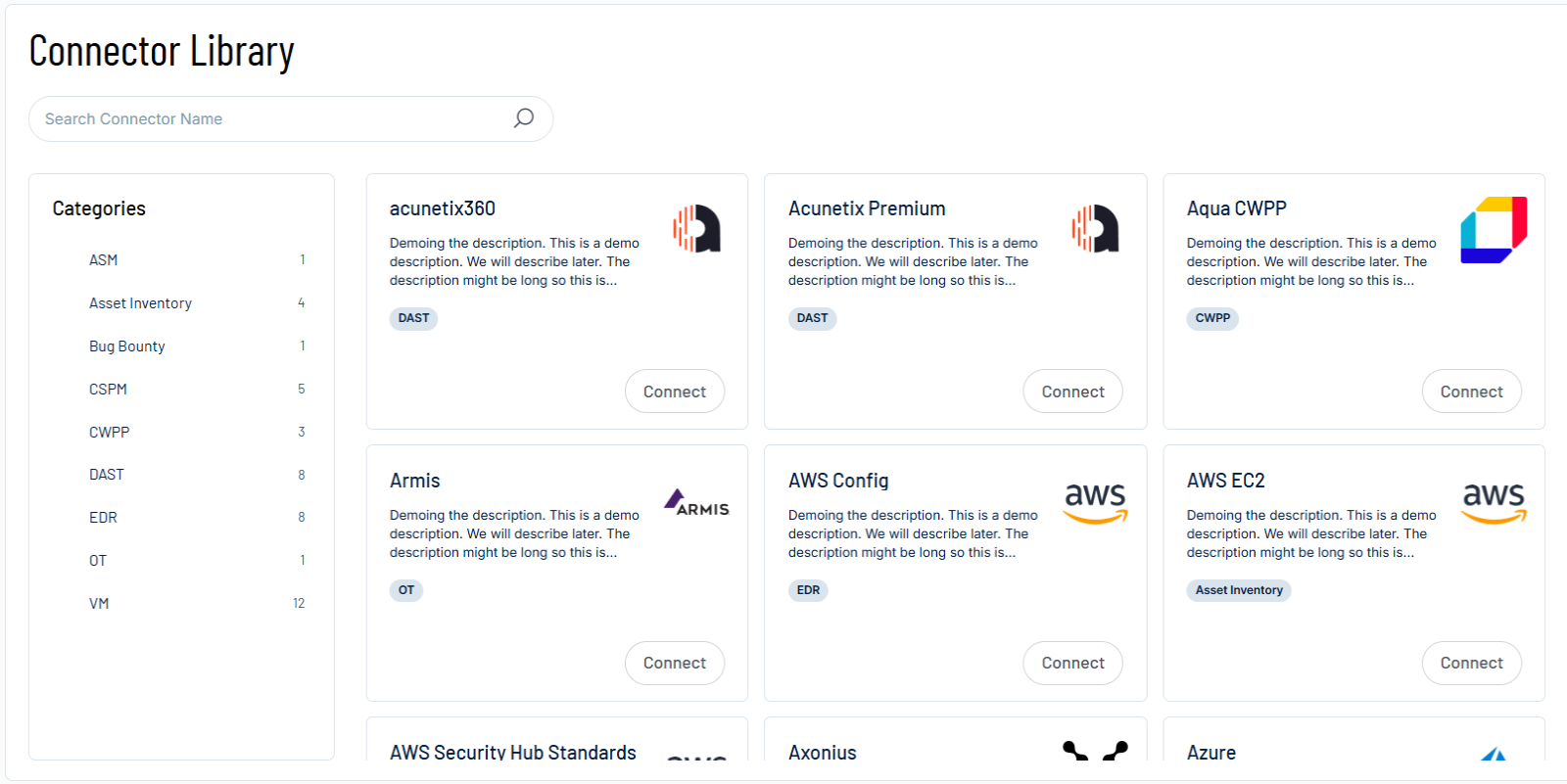
In the upper-right corner, click
 Add new connector.
The Connector Library page appears.
-
In the search box, type the name of the connector.
-
On the tile for the connector, click Connect.
The connector configuration options appear.
Configure the Connector
To configure the connector:
-
(Optional) In the Connector's Name text box, type a descriptive name for the connector.
-
From the Region drop-down, select the region of your Trend Vision One tenant:
-
United States
-
Germany
-
United Kingdom
-
Japan
-
Australia
-
India
-
Singapore
-
Canada
-
United Arab Emirates
-
South Africa
-
Indonesia
Note: Trend Vision One has no global API endpoint. If you select a region that does not match your tenant, the connector completes the sync without returning any data. -
-
In the API Key text box, type the API key you generated in Trend Vision One.
-
Data pulling configuration: This configuration has dynamic settings tailored to the specific connector and integration type. Below are the configurations relevant to this connector.
-
From the Finding severity drop-down, select one or more severities: Critical, High, Medium, or Low. Tenable Exposure Management ingests only the findings that match the selected severities. By default, all four are selected.
Note: This filter uses the severity that Tenable Exposure Management calculates from the CVSS score, not the Trend Vision One event risk level. Tenable Exposure Management retrieves all affected CVE records and applies the filter afterward, so selecting fewer severities does not shorten the sync. -
In the Asset Retention text box, type the number of days after which you want assets to be removed from Tenable Exposure Management. If an asset has not been detected or updated within the specified number of days, it is automatically removed from the application, ensuring your asset inventory is current and relevant.
Tip: For more information, see Asset Retention.
-
-
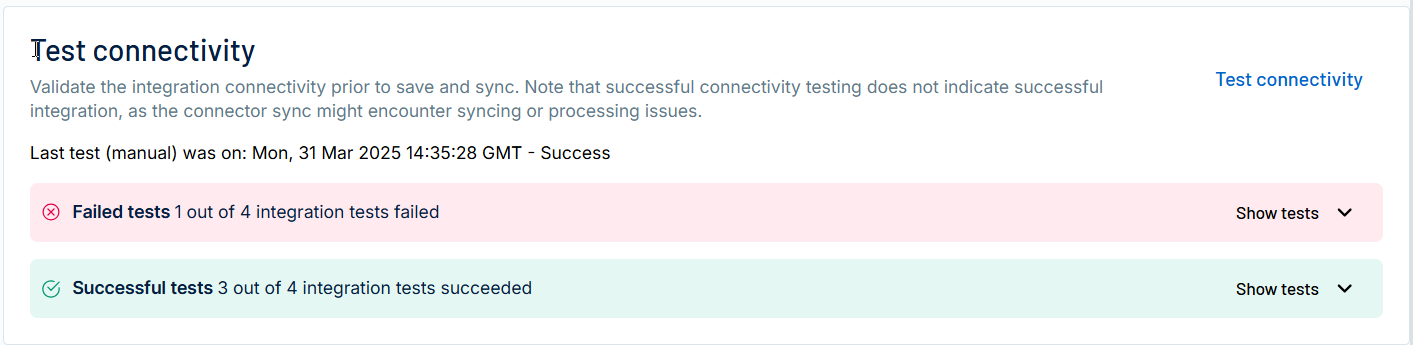
In the Test connectivity section, click the Test Connectivity button to verify that Tenable Exposure Management can connect to your connector instance.
-
A successful connectivity test confirms that the platform can connect to the connector instance. It does not, however, guarantee that the synchronization process will succeed, as additional syncing or processing issues may arise.
-
If the connectivity test fails, an error message with details about the issue appears. Click Show tests for more information about the exact error.
-
-
In the Connector scheduling section, configure the time and day(s) on which you want connector syncs to occur.
Tip: For more information, see Connector Scheduling. -
Click Create. Tenable Exposure Management begins syncing the connector. The sync can take some time to complete.
-
To confirm the sync is complete, do the following:
-
Navigate to the Connectors page and monitor the connector's status. Sync is complete once the connector status is Connected.
-
View the sync logs for the connector to monitor the logs for a successful connection.
-
Trend Micro EDR in Tenable Exposure Management
Locate Connector Assets in Tenable Exposure Management
As the connector discovers assets, Tenable Exposure Management ingests those devices for reporting.
To view assets by connector:
-
In Tenable Exposure Management, navigate to the Assets page.
-
In the Filters section, under 3rd Party Connectors, click the connector name for which you want to view assets.

The asset list updates to show only assets from the selected connector.
-
Click on any asset to view Asset Details.
Locate Connector Weaknesses in Tenable Exposure Management
As the connector discovers weaknesses, Tenable Exposure Management ingests those weaknesses for reporting.
To view weaknesses by connector:
-
In Tenable Exposure Management, navigate to the Weaknesses page.
-
In the Filters section, under 3rd Party Connectors, click the connector name for which you want to view weaknesses.
The weaknesses list updates to show only weaknesses from the selected connector.
-
Click on any weakness to view Weakness Details.
Locate Connector Findings in Tenable Exposure Management
As the connector discovers individual findings, Tenable Exposure Management ingests those findings for reporting.
To view findings by connector:
-
In Tenable Exposure Management, navigate to the Findings page.
-
In the Filters section, under 3rd Party Connectors, click the connector name for which you want to view findings.
The findings list updates to show only assets from the selected connector.
-
Click on any asset to view Finding Details.
Data Mapping
Data Mapping
Tenable Exposure Management integrates with the connector via API to retrieve relevant weakness and asset data, which is then mapped into the Tenable Exposure Management system. The following tables outline how fields and their values are mapped from the connector to Tenable Exposure Management.
Device Mapping
| Tenable Exposure Management UI Field |
Trend Micro EDR Field |
|---|---|
| Unique Identifier | agentGuid |
| Asset - Name | endpointName or agentGuid |
| Asset - Hostname | endpointName or agentGuid |
| Asset - System Type | type |
| Asset - Serial Number | serialNumber |
| Asset - CPU Architecture | osArchitecture |
| Asset - Status | eppAgent.virtualMachineDetails.powerState |
| Operating Systems | osPlatform |
| OS Versions | osVersion |
| Image Operating Systems | osName |
|
IPv4 Addresses IPv6 Addresses |
ipAddresses |
| Last Observed At |
eppAgent.lastScannedDateTime eppAgent.lastConnectedDateTime edrSensor.lastConnectedDateTime |
| External Tags | lastLoggedOnUser |
| Cloud Provider | eppAgent.virtualMachineDetails.cloudProvider |
| Cloud Instance Identifier | eppAgent.virtualMachineDetails.cloudInstanceId |
| Asset Custom Attributes |
External Identifier (agentGuid) OS kernel version OS name (osName) OS version (osVersion) OS platform (osPlatform) eppAgent.protectionManager eppAgent.endpointGroup edrSensor.endpointGroup Isolation status Agent version Agent version status Agent update status Agent update policy Version control policy Service gateway or proxy Security policy Security policy overridden status creditAllocatedLicenses EPP product names EPP policy name EPP status EPP version EPP component version EDR connectivity EDR status EDR version EDR advanced risk telemetry status Cloud account ID |
Weakness Mapping
| Tenable Exposure Management UI Field |
Trend Micro EDR Field |
|---|---|
| Unique Identifier | cveRecords.id |
| Weakness Name | cveRecords.id |
| CVEs | cveRecords.id |
| Advisories |
cveRecords.id securityAdvisoryId |
| Category | VULNERABILITY |
| Severity |
cvssScore eventRiskLevel |
| CVSS v3 Base Score | cvssScore |
| Threat Intensity | globalExploitActivityLevel |
| Published Date | publishedDateTime |
| Patch Published Date | releaseDate |
| Solution |
mitigationOption.windowsRemediations.minimalKbs.kbId linuxRemediations |
Finding Mapping
| Tenable Exposure Management UI Field |
Trend Micro EDR Field |
|---|---|
| Finding Class | VULNERABILITY |
|
Finding Name Vendor Identifier |
cveRecords.id |
| State | mitigationStatus |
| First Seen | firstSeenDateTime |
| Last Seen (Observed) | lastDetectedDateTime |
| Severity Driver |
cvssScore severity |
| Solution |
mitigationOption.windowsRemediations.minimalKbs.kbId linuxRemediations |
| Path | cveRecords.affectedComponentDetails.filePath |
| Finding Custom Attributes |
Affected component type affectedComponentDetails.name Exploit attempt count mitigationStatus protectionRules.name |
Finding Status Mapping
|
Tenable Exposure Management Status |
Trend Micro EDR Status |
|---|---|
|
Active |
Any mitigationStatus value other than those listed for Fixed. |
|
Fixed |
closed dismissed accepted mitigated |
Finding Severity Mapping
|
Tenable Exposure Management Severity |
Trend Micro EDR Score |
|---|---|
|
Critical |
CVSS: 9.0 - 10.0 Severity: Critical |
|
High |
CVSS: 7.0 - 8.9 Severity: High |
|
Medium |
CVSS: 4.0 - 6.9 Severity: Medium |
|
Low |
CVSS: 0.1 - 3.9 Severity: Low |
|
None |
CVSS: 0 Severity: Severity unspecified |
Note: For Trend Micro EDR, Tenable uses the cvssScore field to determine severity. If cvssScore is not available or returns 0, Tenable uses the eventRiskLevel field from the connector, if provided.
Status Update Mechanisms
Every day, Tenable Exposure Management syncs with the vendor's platform to receive updates on existing findings and assets and to retrieve new ones (if any were added).
The table below describes how the status update mechanism works in the connector for findings and assets ingested into Tenable Exposure Management.
|
Update Type in Tenable Exposure Management |
Mechanism (When?) |
|---|---|
|
Archiving Assets |
|
|
Change a Finding status from "Active" to "Fixed" |
|
|
Removing a Finding |
|
Uniqueness Criteria
Tenable Exposure Management uses defined uniqueness criteria to determine whether an ingested asset or finding should be recognized as a distinct record. These criteria help define how assets and findings are identified and counted from each connector.
Tip: To learn more about data deduplication and uniqueness criteria, See Third-Party Data Deduplication in Tenable Exposure Management.
The uniqueness criteria for this connector are as follows:
|
Data |
Uniqueness Criteria |
|---|---|
|
Asset |
agentGuid (uniquely identifies the endpoint) |
|
Vulnerability |
cveRecords.id (uniquely identifies the CVE record; the same CVE on several devices is a single vulnerability) |
|
Finding |
device_id and cveRecords.id (uniquely identifies one CVE on one device) |
Support and Expected Behavior
Support Limitations and Expected Behavior
This section outlines any irregularities, expected behaviors, or limitations related to integration of the connector and Tenable Exposure Management. It also highlights details about ingested and non-ingested data to clarify data handling and functionality within this integration.
 CREM license requirement
Vulnerability findings require a Trend Vision One Flex license with Cyber Risk Exposure Management (CREM) allocated. If your tenant does not have CREM allocated, the Trend Vision One vulnerability API returns an error and the connector sync fails. This behavior is intentional, so that a missing license is visible rather than reported as an empty sync.
Severity can differ from the Trend Vision One severity
Tenable Exposure Management derives finding severity from the cvssScore value, and uses the Trend Vision One event risk level only when no CVSS score is available. A finding can therefore show a different severity in Tenable Exposure Management than it does in Trend Vision One. Trend Vision One reports only low, medium, and high event risk levels, so a finding with a CVSS score of 9.0 or higher appears as Critical in Tenable Exposure Management.
The severity filter does not shorten the sync
Tenable Exposure Management retrieves every affected CVE record from Trend Vision One and then applies your Finding severity selection. Selecting fewer severities reduces the findings you see, but does not reduce the number of API requests or the time the sync takes.
Remediated findings are removed, not marked Fixed
The connector requests only CVE records with a detection status of affected. Trend Vision One does not return CVE records it considers fixed, and provides no resolved or fixed timestamp. When you remediate a CVE, Trend Vision One stops returning it and Tenable Exposure Management removes the finding on the next sync.
A finding changes to Fixed only when its mitigationStatus in Trend Vision One is closed, dismissed, accepted, or mitigated.
No endpoint group filtering
You cannot limit ingestion to specific Trend Vision One endpoint groups. The connector ingests all endpoints in the tenant.
Limited software information
Trend Vision One returns the affected component name and file path, but no installed software version. The connector stores the component name as a finding custom attribute and the file path as the finding path.
The two Trend Vision One endpoints in use return no process or activity data, so Tenable Exposure Management does not ingest process information.
IP address handling
Tenable Exposure Management ingests every IP address Trend Vision One reports for an endpoint, including loopback and link-local addresses. Addresses are not filtered.
Tenants with no endpoints
If Trend Vision One returns no endpoints, the connector sync fails. A tenant with no endpoints deployed produces the same result.
API rate limits
Trend Vision One limits API requests. When the limit is reached, the connector retries the request automatically until the limit resets.
API Endpoints in Use
Trend Vision One REST API v3.0
|
API |
Use in Tenable Exposure Management |
Permissions required |
|---|---|---|
|
|
Retrieves all endpoint assets from Trend Vision One Endpoint Security. |
Dashboards & Reports > Reports > Configure and download: View |
|
|
Retrieves devices and their affected CVE records from Attack Surface Risk Management. |
Dashboards & Reports > Reports > Configure and download: View, and a Flex license with CREM allocated |
Data Validation
This section shows how to validate and compare data between Tenable Exposure Management and the Trend Micro EDR platform.
Asset Data Validation
For each unique agentGuid in Trend Vision One, the connector creates an asset in Tenable Exposure Management.
Objective: Ensure the number of endpoints in Trend Vision One aligns with the number of devices displayed in Tenable Exposure Management.
In Trend Vision One:
-
Navigate to the Endpoint Inventory page.
Note the number of endpoints.
In Tenable Exposure Management:
-
Compare the total number of assets between Trend Vision One and Tenable Exposure Management.
Expected outcome: The total numbers returned in Trend Vision One and Tenable Exposure Management should match.
If an asset is not visible in Tenable Exposure Management, check the following conditions:
-
The Region you selected matches your Trend Vision One tenant.
-
The API key is valid and has not expired, and its role includes the Dashboards & Reports > Reports > Configure and download: View permission.
-
The connector sync completed successfully.
-
The asset was archived because it did not return in the connector's last sync.
Tip: To learn more on how assets are archived and findings change status, see Status Update Mechanisms.
Finding Data Validation
For each device and CVE pair in Trend Vision One, the connector creates a finding in Tenable Exposure Management.
Objective: Ensure the number of vulnerabilities in Trend Vision One aligns with the number of findings in Tenable Exposure Management.
In Trend Vision One:
-
Navigate to the Attack Surface Risk Management > Vulnerable Devices page.
Filter the list by a detection status of Affected.
Note the number of CVE records.
In Tenable Exposure Management:
-
Filter the findings by a state of Active.
-
Compare the total number of findings between Trend Vision One and Tenable Exposure Management.
Expected outcome: The total numbers returned in Trend Vision One and Tenable Exposure Management should match, after you account for the severities you selected in Finding severity.
If a finding is missing from Tenable Exposure Management or no longer active, check the following conditions:
-
The severity of the CVE in Tenable Exposure Management is included in the Finding severity values you selected when you configured the connector. This severity comes from the CVSS score, not from the Trend Vision One event risk level.
-
The CVE detection status in Trend Vision One is Affected.
-
The CVE was not remediated. Trend Vision One stops returning remediated CVE records, so Tenable Exposure Management removes the finding rather than changing its status to Fixed.
-
Your Trend Vision One tenant has a Flex license with CREM allocated.
-
The related device exists as an asset in Tenable Exposure Management.
-
The connector sync completed successfully.
-
The finding no longer appears because its related asset was archived.
Tip: To learn more on how assets are archived and findings change status, see Status Update Mechanisms.