PrismaCloud Connector
The following steps allow you to configure this connector for use with Tenable Exposure Management from start to finish.
Why Integrate PrismaCloud Compute into Tenable Exposure Management?
Tenable Exposure Management with the PrismaCloud platform to pull and ingest Host and Image assets and vulnerability data into Tenable Exposure Management. Once the integration is complete, Tenable Exposure Management scans the report's findings to correlate, consolidate, and contextualize the ingested data to impact risk and remediation priority.
Connector Details
| Details | Description |
|---|---|
|
Supported products |
|
|
Category |
Vulnerability Assessment |
|
Ingested asset type(s) |
Hosts Images |
|
Integration type |
UNI directional (data is transferred from the Connector to Tenable Exposure Management in one direction) |
|
Supported version and type |
SaaS (latest) |
Prerequisites and User Permissions
Before you begin configuring the connector, make sure to:
-
Server URL: The URL of your Prisma Cloud account, which can be found under Compute > Manage > System Utilities. For detailed steps, see the Prisma Cloud documentation.
-
Username: The Access Key ID of a valid user with the role configured as mentioned above.
-
Password: The Secret Key associated with the Access Key ID.
-
Ensure the role being used has sufficient access permissions. A System Administrator role can be used, but if a custom role is preferred, the following must be configured:
-
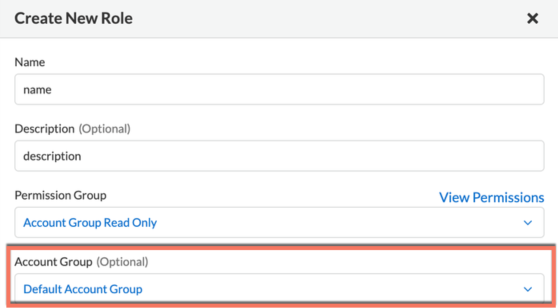
Assign the role to a specific Account Group. The Account Group should include the resources you want to sync (e.g., cloud accounts or on-prem Kubernetes clusters).
-
For on-premises Kubernetes clusters, enable the On-Prem / Other Cloud Providers checkbox in the Advanced Options of the role configuration.
-
Verify the Account Group is not empty and contains the necessary resources.
-
Add a Connector
To add a new connector:
-
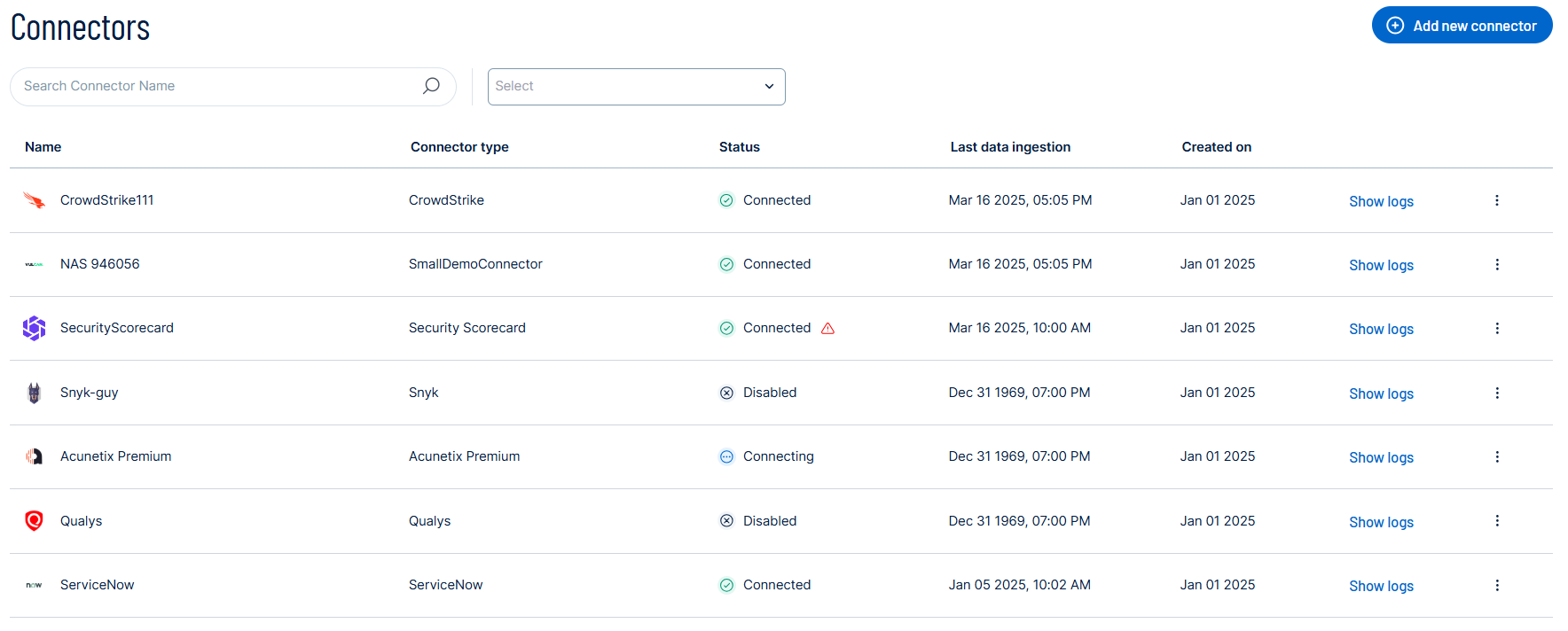
In the left navigation menu, click Connectors.
The Connectors page appears.
-
In the upper-right corner, click
 Add new connector.
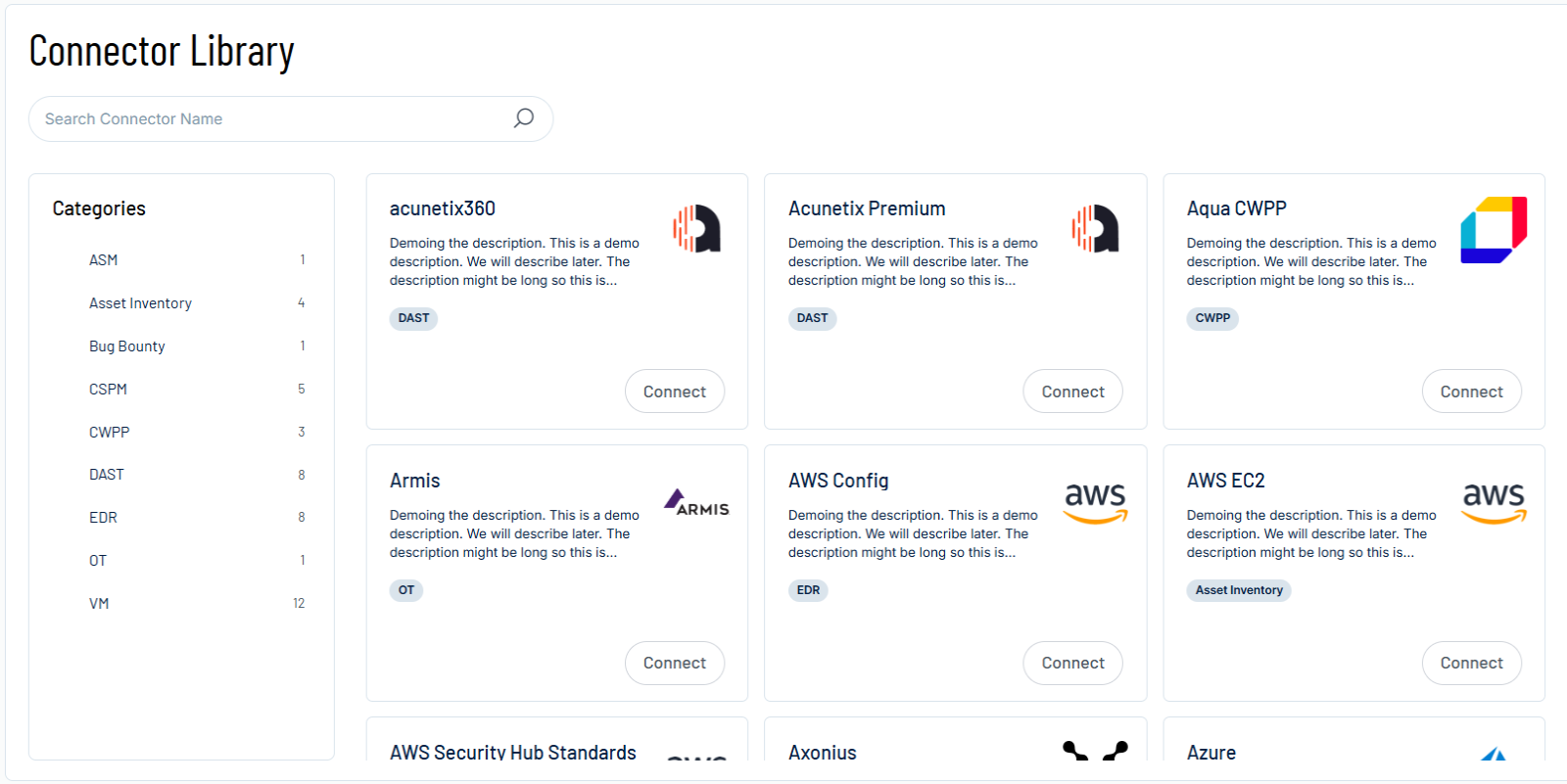
The Connector Library page appears.
-
In the search box, type the name of the connector.
-
On the tile for the connector, click Connect.
The connector configuration options appear.
Configure the Connector
To configure the connector:
-
(Optional) In the Connector's Name text box, type a descriptive name for the connector.
-
In the Server Url section, type the URL of your PrismaCloud server.
-
In the Access Key ID and Secret Access Key text boxes, paste the secret credentials you generated in PrismaCloud.
-
In the Data pulling configuration section, you can configure dynamic settings specific to the connector.
-
In the PrismaCloud assets section select the check box next to each asset type you want to ingest into Tenable Exposure Management.
-
(Optional) If you want to ingest vulnerability data from your PrismaCloud assets, select the Vulnerabilities check box.
-
In the Asset Retention text box, type the number of days after which you want assets to be removed from Tenable Exposure Management. If an asset has not been detected or updated within the specified number of days, it is automatically removed from the application, ensuring your asset inventory is current and relevant.
Tip: For more information, see Asset Retention.
-
-
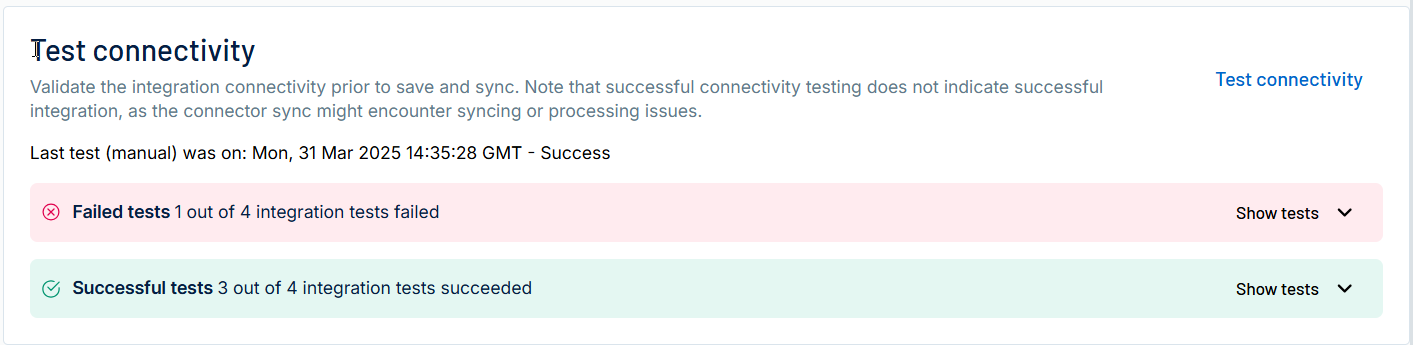
In the Test connectivity section, click the Test Connectivity button to verify that Tenable Exposure Management can connect to your connector instance.
-
A successful connectivity test confirms that the platform can connect to the connector instance. It does not, however, guarantee that the synchronization process will succeed, as additional syncing or processing issues may arise.
-
If the connectivity test fails, an error message with details about the issue appears. Click Show tests for more information about the exact error.
-
-
In the Connector scheduling section, configure the time and day(s) on which you want connector syncs to occur.
Tip: For more information, see Connector Scheduling. -
Click Create. Tenable Exposure Management begins syncing the connector. The sync can take some time to complete.
-
To confirm the sync is complete, do the following:
-
Navigate to the Connectors page and monitor the connector's status. Sync is complete once the connector status is Connected.
-
View the sync logs for the connector to monitor the logs for a successful connection.
-
PrismaCloud Compute in Tenable Exposure Management
Locate Connector Assets in Tenable Exposure Management
As the connector discovers assets, Tenable Exposure Management ingests those devices for reporting.
To view assets by connector:
-
In Tenable Exposure Management, navigate to the Assets page.
-
In the Filters section, under 3rd Party Connectors, click the connector name for which you want to view assets.

The asset list updates to show only assets from the selected connector.
-
Click on any asset to view Asset Details.
Locate Connector Weaknesses in Tenable Exposure Management
As the connector discovers weaknesses, Tenable Exposure Management ingests those weaknesses for reporting.
To view weaknesses by connector:
-
In Tenable Exposure Management, navigate to the Weaknesses page.
-
In the Filters section, under 3rd Party Connectors, click the connector name for which you want to view weaknesses.
The weaknesses list updates to show only weaknesses from the selected connector.
-
Click on any weakness to view Weakness Details.
Locate Connector Findings in Tenable Exposure Management
As the connector discovers individual findings, Tenable Exposure Management ingests those findings for reporting.
To view findings by connector:
-
In Tenable Exposure Management, navigate to the Findings page.
-
In the Filters section, under 3rd Party Connectors, click the connector name for which you want to view findings.
The findings list updates to show only assets from the selected connector.
-
Click on any asset to view Finding Details.
About Asset and Vulnerability Data Ingested into Tenable Exposure Management
Tenable Exposure Management provides the option to remediate vulnerabilities from 2 different angles:
Assets
There are two types of assets types pulled from Prisma Cloud Compute:
-
Hosts - The hosts in your PrismaCloud interface (Monitor > Vulnerabilities > Hosts > Running Hosts)
-
Images - The images in your PrismaCloud interface (Monitor > Vulnerabilities > Images)
Vulnerabilities
PrismaCloud only reports information on a vulnerability if it is actively present and vulnerable on a specific asset. Because of this, the remediation status of a vulnerability is determined by its presence in the sync data, meaning that Tenable Exposure Management recognizes a vulnerability as fixed only when the PrismaCloud connector syncs and the new data does not contain the specific asset vulnerability.
Filter Out Base Images
Users can also filter out base images on the vulnerabilities page to identify vulnerabilities that can help focus the remediation workflow.
The base image identifier is: "Exclude base images vulns"
Data Mapping from PrismaCloud to Tenable Exposure Management
Tenable Exposure Management integrates with PrismaCloud to pull relevant vulnerabilities and assets data and map it into Tenable Exposure Management pages and fields.
Host Mapping
|
PrismaCloud Compute Value |
Tenable Exposure Management Value |
|---|---|
|
host_id |
Uniqueness criteria |
|
hostname |
Asset Name |
|
Docker version (installedProducts.docker) host id (_id) host devices: templates (hostDevices), map type (list) |
Asset details |
|
Hosts |
Asset type |
|
hostDevices.ip |
IP |
|
osDistro |
OS |
|
distro |
OS Version |
|
firstscantime from prisma |
Created date |
|
scantime |
Last seen date |
|
packegaename, packageversion |
Packages |
|
tags |
Asset Tags - Vendor's tags |
|
collections |
Asset Tags - Additional |
|
cve, package name, packageversion |
Vulnerability instance uniqueness criteria |
|
first created on Tenable Exposure Management date |
Vulnerability instance first seen |
|
cvss score |
Vulnerability instance score |
|
all vulnerable |
Vulnerability instance status changes (including resurface) |
|
cve, package name, packageversion |
Unique Vulnerability uniqueness criteria |
|
title/ text/ cve & package name & package version |
Vulnerability title |
|
cvss score |
Vulnerability score |
|
description |
Vulnerability description |
|
severity |
Vulnerability details |
|
vulnerable when exists |
Vulnerability status |
|
cvss |
CVSS |
|
if contains ALAS - cve is fetched from description |
CVE/S |
|
technical score - fields and fallback: ____________ Threats: Tags impact - specify: |
Risk calculation |
|
fix for cve on packagename |
Fix title |
|
package name + status |
Fix description |
Image Mapping
|
PrismaCloud Compute Value |
Tenable Exposure Management Value |
|---|---|
|
for /api/v1/images?filterBaseImage=true |
Asset details |
|
instances.image |
Asset type |
|
account id |
Repository |
|
Images |
Repo type |
|
repository type |
OS version |
|
path |
Asset Tags - Additional |
|
Tags |
Last seen |
|
Collection |
Creation date |
|
scan time |
SLA settings |
|
first scan time |
Component - name |
|
package name |
Archive Mechanism |
|
packages |
Merging Mechanism and fallback fields Specify fields and mapping from vendor |
|
cve, package name, package details |
Vulnerability instance Last seen |
|
first created on Tenable Exposure Management date |
Vulnerability instance score |
|
discovered |
Vulnerability instance location path |
|
cvss score |
Vulnerability instance Fixed mechanism |
|
package path |
Vulnerability instance SLA settings |
|
cve, package name, package version |
Vulnerability score |
|
#{{ title or text or cve }} #{{ packageName }}-#{{ packageVersion }} |
Vulnerability description |
|
cvss score |
Vulnerability details |
|
description |
Vulnerability status |
|
severity cause vec str exploit risk factor link asset tyoe package name package version layer time twist lock published binary pkgs discovery date vulnerability type filtered by base image |
CVSS |
|
vulnerable when fetched |
CVE/S |
|
cvss |
CWE |
|
cve |
CVSS attack vector |
|
technical score - fields and fallback: ____________ Threats: Tags impact - specify: |
Fix descriptions |
|
fix for cve on package name |
Fix references |
|
#{{ packageName }} + #{{ status }} + os versions |
Asset - Vulnerability instance connection (info tooltip) |
|
package path, is filtered by base image - template ,map_type |
|
Vulnerability Status Mapping
|
PrismaCloud Status |
Tenable Exposure Management Status |
|---|---|
|
<always> |
Vulnerable |
|
<when not returned> |
Fixed |
Vulnerability Score Mapping
The following scores are CVSS-based.
|
PrismaCloud Score |
Tenable Exposure Management Score |
|---|---|
|
0-10 |
0-10 |
Status Update Mechanisms
Every day, Tenable Exposure Management syncs with the vendor's platform to receive updates on existing vulnerabilities and assets and to retrieve new ones (if any added).
The table below lists how the status update mechanism works in the X connector for the vulnerabilities and assets in Tenable Exposure Managementm.
|
Update type in Tenable Exposure Management |
Mechanism (When?) |
|---|---|
|
The asset is archived |
Asset not seen for X days according to Last Seen |
|
The vulnerability instance status changes to "Fixed" |
The vulnerability no longer appears in the scan findings. |
API Endpoints in Use
The connector uses the following API calls. For each API call, attached the requested role in Prisma Cloud Compute to perform it:
-
POST /authenticate - Anyone
-
GET /registry - vulnerabilityManager
-
GET /images - vulnerabilityManager
-
GET /hosts - vulnerabilityManager