Manage Asset Tags
Required Tenable Security Center User Role: Organizational user with appropriate permissions. For more information, see User Roles.
Add a Template-Based Asset Tag
For information, see Asset Tags.
To add an asset tag from a Tenable-provided template:
-
Log in to Tenable Security Center via the user interface.
-
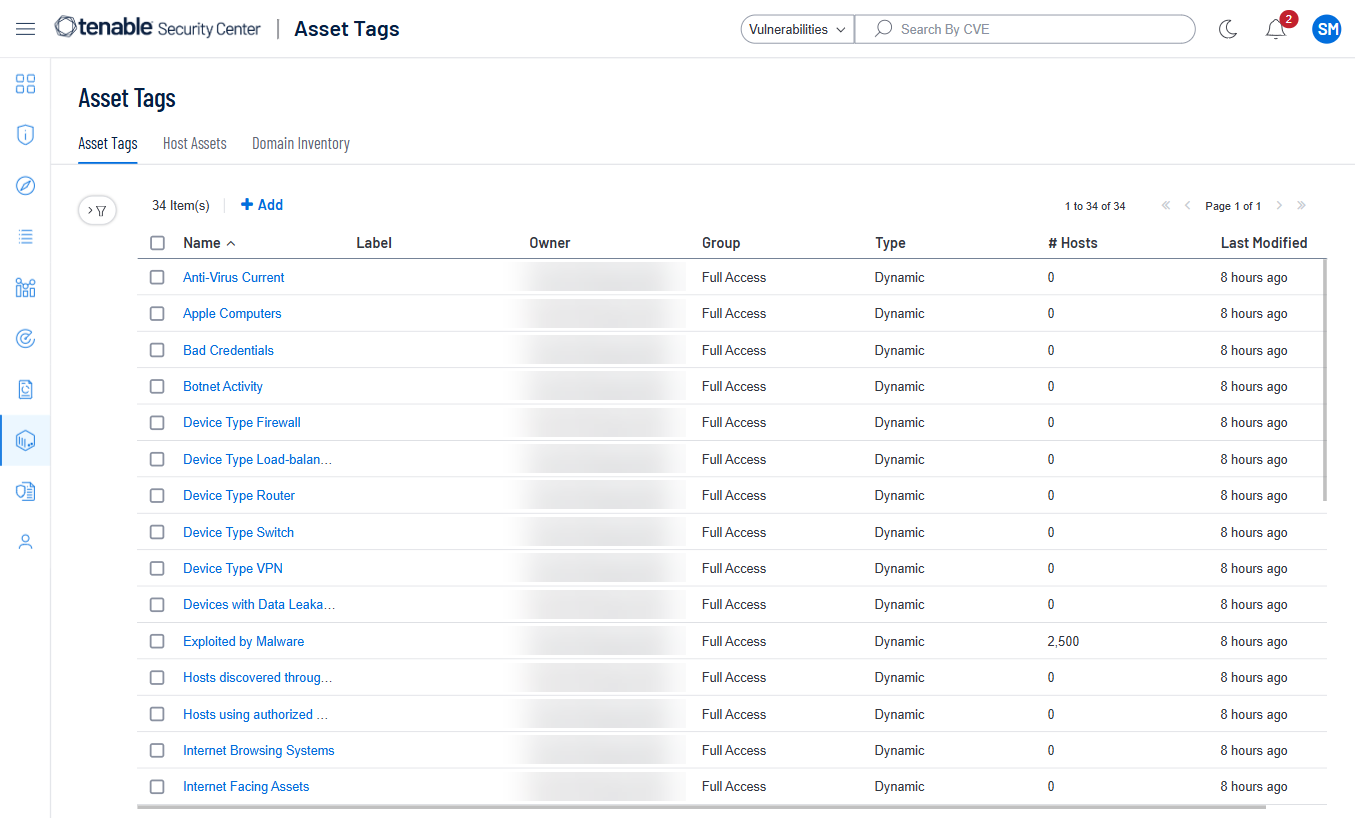
In the left navigation, click Assets > Asset Tags.
The Asset Tags page appears.
-
At the top of the table, click Add.
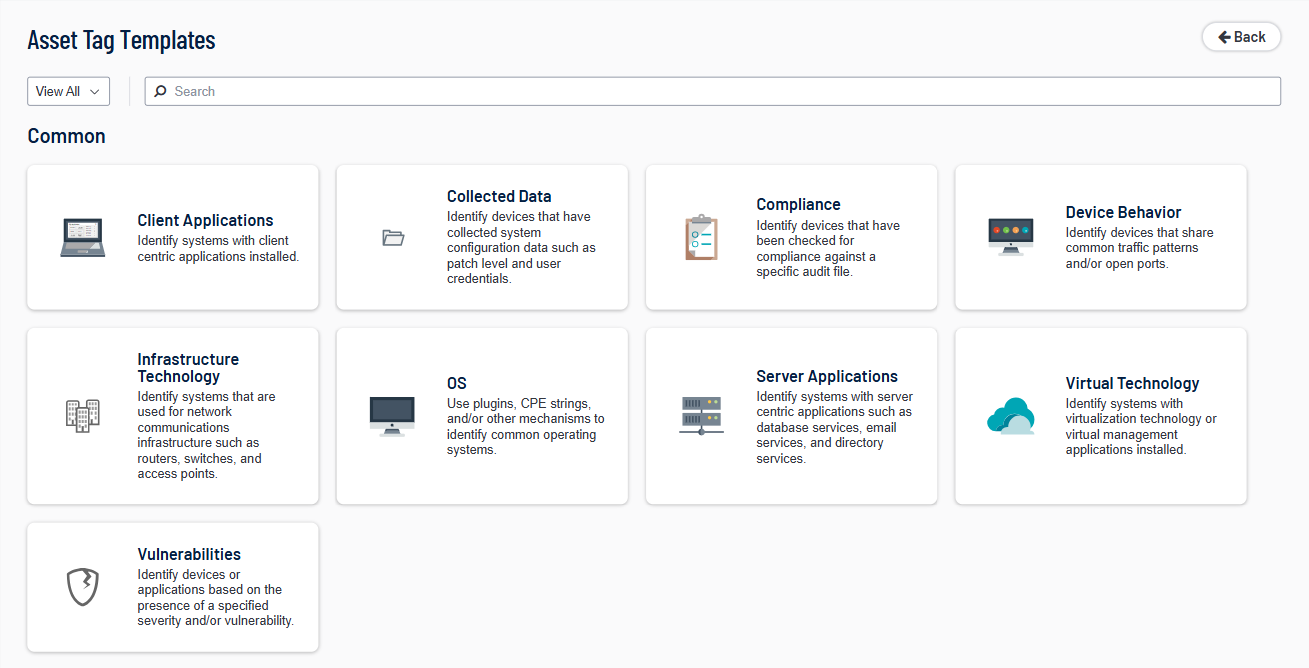
The Asset Tag Templates page appears.
-
(Optional) If you want to search for a specific asset tag template, type a search phrase in the Search box.
-
In the Common section, click a template type.
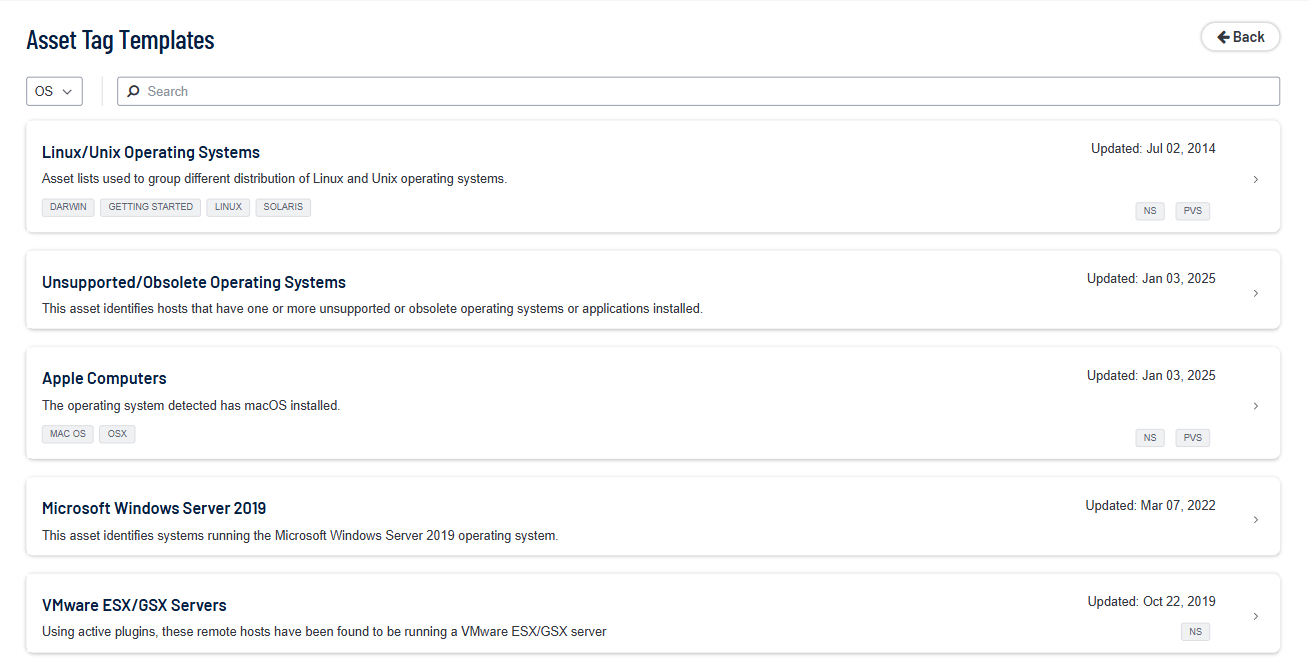
The Asset Tag Templates page for the template type appears.
-
View the available templates.
-
The four square icon (
 ) on the left side indicates a collection of several assets.
 -
The data icons (
 ) on the right side indicate the data required to build the asset. The Tenable Network Monitor (PVS) and NS icons indicate you must have Tenable Network Monitor or Tenable Nessus data. The key icon (
 ) indicates you must have credentials for the device. The notepad icon (
 ) indicates you must have compliance data.
-
-
(Optional) If you want to search for a specific asset tag template, type a search phrase in the Search box or select a category from the All drop-down box.
-
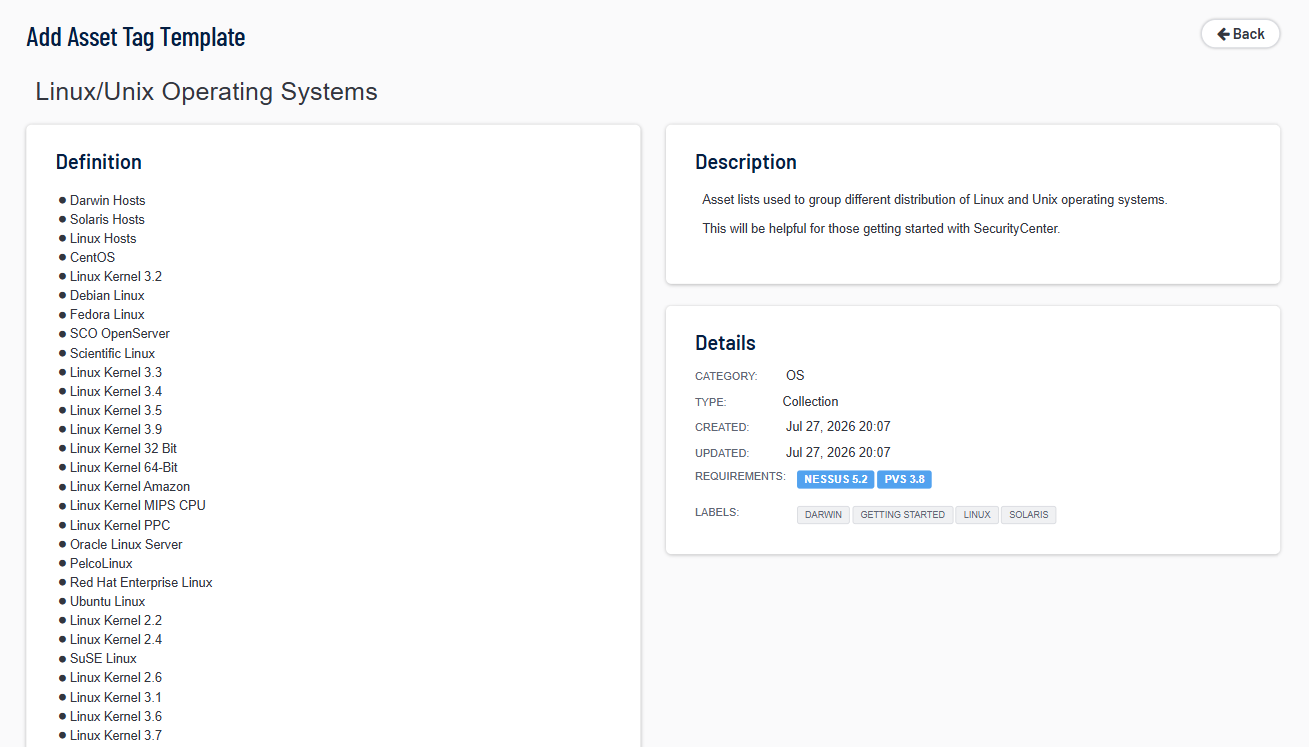
Click the row for the template you want to use.
The Add Asset Tag Template page for the template type appears, which displays details about the template.
-
Click Add.
The Asset Tags page appears.
-
Click the row for the asset tag you just added.
The Edit page appears.
-
View the details for the asset tag.
-
(Optional) If necessary, edit the asset tag to customize it for your environment. For more information about asset options, see Asset Tags.
-
Click Submit.
Tenable Security Center saves your configuration.
Add a Custom Asset Tag
For information, see Asset Tags.
To add a custom asset tag:
-
Log in to Tenable Security Center via the user interface.
-
In the left navigation, click Assets > Asset Tags.
The Asset Tags page appears.
-
At the top of the table, click Add.
The Asset Tag Templates page appears.
-
In the Other section, click an asset tag type:
-
Static Asset Tags — a list of specific IP addresses, CIDR ranges, or ranges.
-
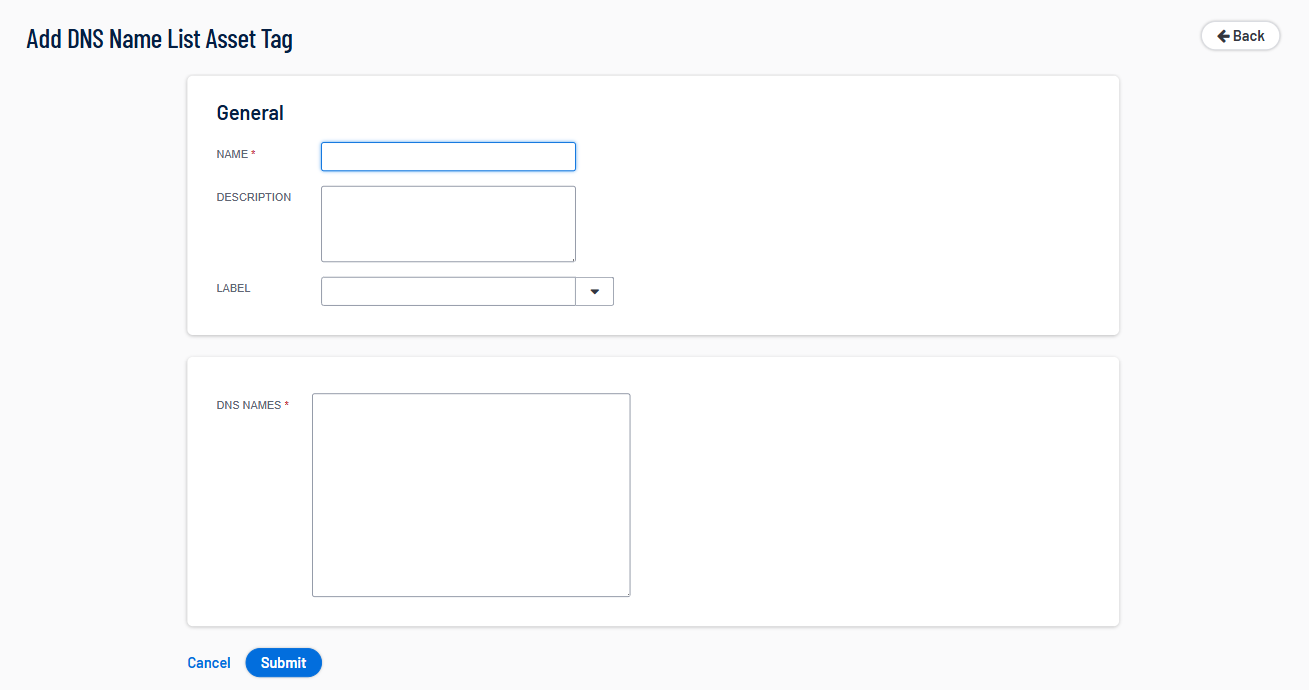
DNS Name List Asset Tags — a list of DNS hostnames.
-
LDAP Query Asset Tags — a dynamic list built from an LDAP query. Requires a configured LDAP server.
-
Combination Asset Tags — a list built from existing asset tags using AND, OR, and NOT operators.
-
Dynamic Asset Tags — a list built from rule-based conditions evaluated against scan results.
-
Watchlist Asset Tags — a list of IP addresses outside your managed range, used for event analysis.
-
Import Asset Tags — an asset tag imported from a previously exported file.
The Add Asset Tag page for the asset tag type appears.
-
-
Configure the options for the asset tag type. For descriptions of each option, see Asset Tags.
-
Click Submit.
Tenable Security Center saves your configuration.
View Asset Tag Details
You can view details for any asset tag. For more information, see Asset Tags.
To view asset tag details:
-
Log in to Tenable Security Center via the user interface.
-
In the left navigation, click Assets > Asset Tags.
The Asset Tags page appears.
-
Right-click the row for the asset tag you want to view.
The actions menu appears.
-or-
Select the check box for the asset tag you want to view.
The available actions appear at the top of the table.
-
Click View.
The View Asset Tag page appears.
Section
Action
General View general information for the asset tag.
- Name — The asset tag name.
- Description — The asset tag description.
- Label — The label applied to the asset tag. For more information, see Labels.
- IP Addresses (static asset tags only) — The IP addresses specified in the asset tag. For more information, see Asset Tags.
- Created — The date the asset tag was created.
- Last Modified — The date the asset tag was last modified.
- Owner — The username for the user who created the asset tag.
- Group — The group in which the asset tag belongs.
- ID — The asset tag ID.
TenableSynchronization Data View synchronization summary data:
- Status — The status of the asset tag in Tenable Lumin synchronization:
- Finished — The most recent synchronization that included this asset tag succeeded.
- Not Synced — The asset tag is not configured for Tenable Lumin synchronization.
- Error — An error occurred. For more information, see View Tenable One Data Synchronization Logs.
- First Synchronization — The date and time of the first synchronization of this asset tag.
- Last Success — The date and time of the most recent synchronization of this asset tag.
- Last Failure — The date and time of the most recent failed synchronization of this asset tag.
- Details — If the Status is Error, details about the error.
For more information about Tenable Lumin synchronization, see Tenable One Synchronization.