Manage Exclusions
Use the following procedures to manage exclusions. For general information about exclusions, see Exclusions.
Note: If a target has been moved to a different network, you must update any related exclusions. Otherwise, the target may be blocked from scanning.
Create an Exclusion
Required User Role: Scan Manager or Administrator
To create an exclusion:
-
In the left navigation, click
 Settings.
The Settings page appears.
-
Click the Exclusions tile.
The Exclusions page appears.
-
In the upper-right corner of the page, click the
 Create Exclusion button.
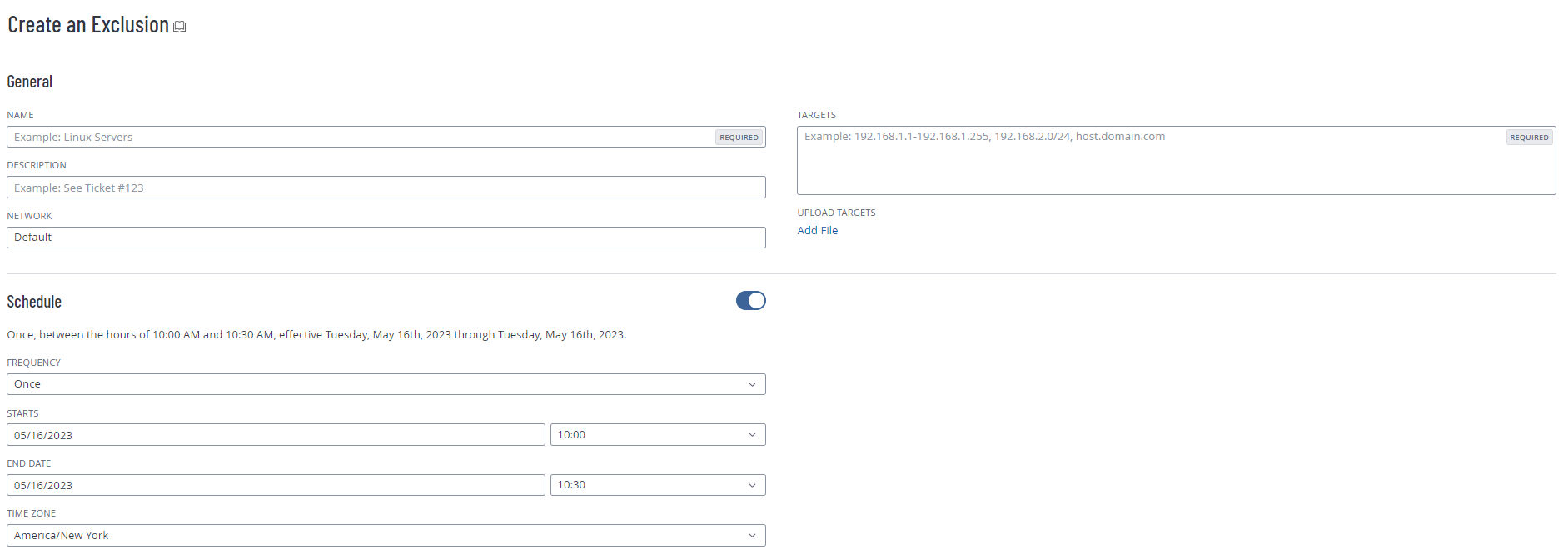
The Create an Exclusion page appears.
-
Configure the exclusion settings:
Setting
Description
Settings
Name
Specifies a name for the exclusion.
Description
Specifies a description for the exclusion.
Targets
Specifies targets that you want excluded from scans. You cannot use the Targets setting if you already specified targets with the Upload Targets setting.
Ways that you can list targets include, but are not limited to:
-
a single IP address
-
an IP:port
-
an IP range
-
a CIDR range
-
a list of IP addresses, separated by commas
For more information on how you can list targets, see Scan Targets.
Note: If a target has been moved to a different network, you must update any related exclusions. Otherwise, the target may be blocked from scanning.
Network
Specifies the network that the targets belong to: either Default or a custom network.
Note:Tenable One Web App Scanning scan targets always belong to the default network.Upload Targets
Uploads a text file with host names or IP ranges, separated by commas, that you want excluded from scans.
You cannot use the Upload Targets setting if you already specified targets with the Targets setting.
Schedule
Enabled
Enables or disables a schedule for when the exclusion is enabled. When disabled, the exclusion is set to Always On. When enabled, you can configure the following settings, which set a frequency and schedule for when the exclusion is enabled.
Summary
A summary of the selections for the Frequency, Starts, and Ends settings.
Frequency
A drop-down box that contains the following options: Once, Daily, Weekly, Monthly, and Yearly.
Starts
Two drop-down boxes in which you can select a date and time when the exclusion begins.
Tip: To select a more granular start time, manually type the desired time in the box, then click Create.
Note:Tenable One Vulnerability Management does not support an exclusion that starts and ends at 00:00 - 00:00.
Ends
Two drop-down boxes in which you can select a date and time when the exclusion ends.
Tip: To select a more granular end time, manually type the desired time in the box, then click Create.
Note:Tenable One Vulnerability Management does not support an exclusion that starts and ends at 00:00 - 00:00.
Time Zone
A drop-down box with a search bar in which you can select a time zone for the selected dates and times.
-
-
Click Save.
Tenable One Vulnerability Management saves the exclusion and applies the exclusion to the selected scan targets.
Edit an Exclusion
Required User Role: Scan Manager or Administrator
To edit an exclusion:
-
In the left navigation, click
Settings.The Settings page appears.
-
Click the Exclusions tile.
The Exclusions page appears.
-
In the exclusions table, click the exclusion you want to edit.
The Update an Exclusion page appears.
-
Edit the exclusion settings:
Setting
Description
Settings
Name
Specifies a name for the exclusion.
Description
Specifies a description for the exclusion.
Targets
Specifies targets that you want excluded from scans. You cannot use the Targets setting if you already specified targets with the Upload Targets setting.
Ways that you can list targets include, but are not limited to:
-
a single IP address
-
an IP:port
-
an IP range
-
a CIDR range
-
a list of IP addresses, separated by commas
For more information on how you can list targets, see Scan Targets.
Note: If a target has been moved to a different network, you must update any related exclusions. Otherwise, the target may be blocked from scanning.
Network
Specifies the network that the targets belong to: either Default or a custom network.
Note:Tenable One Web App Scanning scan targets always belong to the default network.Upload Targets
Uploads a text file with host names or IP ranges, separated by commas, that you want excluded from scans.
You cannot use the Upload Targets setting if you already specified targets with the Targets setting.
Schedule
Enabled
Enables or disables a schedule for when the exclusion is enabled. When disabled, the exclusion is set to Always On. When enabled, you can configure the following settings, which set a frequency and schedule for when the exclusion is enabled.
Summary
A summary of the selections for the Frequency, Starts, and Ends settings.
Frequency
A drop-down box that contains the following options: Once, Daily, Weekly, Monthly, and Yearly.
Starts
Two drop-down boxes in which you can select a date and time when the exclusion begins.
Tip: To select a more granular start time, manually type the desired time in the box, then click Create.
Note:Tenable One Vulnerability Management does not support an exclusion that starts and ends at 00:00 - 00:00.
Ends
Two drop-down boxes in which you can select a date and time when the exclusion ends.
Tip: To select a more granular end time, manually type the desired time in the box, then click Create.
Note:Tenable One Vulnerability Management does not support an exclusion that starts and ends at 00:00 - 00:00.
Time Zone
A drop-down box with a search bar in which you can select a time zone for the selected dates and times.
-
-
Click Save.
Tenable One Vulnerability Management saves the exclusion, and the Exclusions page appears.
Import an Exclusion
Required User Role: Scan Manager or Administrator
You can import an exclusion as a .csv file.
Note: When you import an exclusion, Tenable One Vulnerability Management automatically assigns it to the default network. After import, you can move the exclusion to a custom network.
Before you begin:
-
Create a .csv file in the specified format.
To import an exclusion:
-
In the left navigation, click
Settings.The Settings page appears.
-
Click the Exclusions tile.
The Exclusions page appears.
-
In the upper-right corner of the page, click the
 Import button.
Your operating system's file manager appears.
-
Select a .csv file to import.
Tenable One Vulnerability Management imports the file and adds the exclusions to the exclusions table.
Exclusion Import File
You can import one or more exclusions as a .csv file.
Note:Tenable does not recommend opening the .csv file in Microsoft Excel, as Excel can add additional characters to the file that Tenable One Vulnerability Management cannot recognize.
This file is composed of a header and at least one line of data. Separate each line in the file with a new line break.
Header (Required)
The header line is required and must be the first line in the file. The following header formats are supported:
Note: There are no spaces after the commas.
Data (Required)
Each data line in the file represents one exclusion configuration. Data lines must be separated from each other by a new line break. The file must include at least one data line.
Each data line is a comma-separated string of fields described in the following.
Note: Optional fields can be blank, but the associated comma separator must be present in the data line.
| Field | Description |
Required |
|---|---|---|
| id | An integer that uniquely identifies the exclusion. | No |
| name | The name of the exclusion. You can use any combination of alphanumeric characters or symbols. | Yes |
| description | A description for the exclusion. | Yes |
| members |
The target or targets where you want the scan exclusion to apply. This value can have the following formats:
|
Yes |
| creation_date | The Unix timestamp that Tenable One Vulnerability Management uses as the creation date for the imported exclusion. | No |
| last_modification_date | The Unix timestamp that Tenable One Vulnerability Management uses as the last modification date for the exclusion. | No |
Example
id,name,description,members,creation_date,last_modification_date
1,Exclusion Rule 1,routers,"192.0.2.57,192.0.2.177,192.0.2.8",1561643735,1561643785
2,Exclusion Rule 2,workstations,192.0.2.57-192.0.2.67,1561643735,1561643785
Export an Exclusion
Required User Role: Administrator
On the Exclusions page, you can export one or more scanning exclusions.
To export an exclusion:
-
In the left navigation, click
Settings.The Settings page appears.
-
Click the Exclusions tile.
The Exclusions page appears. This page displays a list of exclusions configured on your Tenable One Vulnerability Management account.
-
(Optional) Refine the table data. See Filterable Workbench Tables.
-
Select the exclusions that you want to export:
Export Scope Action Selected exclusions To export selected exclusions:
-
In the exclusions table, select the check box for each exclusion you want to export.
The action bar appears at the top of the table.
-
In the action bar, click
 Export.
Note: The
Export link is available for up to 200 selections. If you want to export more than 200 exclusions, select all the exclusions in the list and then click Export.
A single exclusion To export a single exclusion:
-
In the exclusions table, right-click the row for the exclusion you want to export.
The action options appear next to your cursor.
-or-
In the exclusions table, in the Actions column, click the
 button in the row for the exclusion you want to export.
The action buttons appear in the row.
- Click Export.
The Export plane appears. This plane contains:
- A text box to configure the export file name.
- A list of available export formats.
- A table of configuration options for fields to include in the exported file.
- A text box to set the number of days before the export expires.
- A toggle to configure the export schedule.
- A toggle to configure the email notification.
Note: By default, all fields are selected.
-
- In the Name box, type a name for the export file.
-
Click the export format you want to use:
Format Description CSV A CSV text file that contains a list of exclusions.
Note: If your .csv export file includes a cell that begins with any of the following characters (=, +, -, @), Tenable One Vulnerability Management automatically inputs a single quote (') at the beginning of the cell. For more information, see the related knowledge base article.JSON A JSON file that contains a nested list of exclusions.
Empty fields are not included in the JSON file.
-
(Optional) Deselect any fields you do not want to appear in the export file.
-
In the Expiration box, type the number of days before the export file expires.
Note: Tenable One Vulnerability Management allows you to set a maximum of 30 calendar days for export expiration.
-
(Optional) To set a schedule for your export to repeat:
- Click the Schedule toggle.
- In the Start Date and Time section, select the date and time on which you want the export schedule to start.
- In the Time Zone drop-down box, select the time zone to which you want the schedule to adhere.
- In the Repeat drop-down box, select how often you want the export to repeat.
- In the Repeat Ends drop-down, select the date on which you want the schedule to end.
Note: If you select never, the schedule repeats until you modify or delete the export schedule.
The Schedule section appears.
-
(Optional) To send email notifications on completion of the export:
Note: You can enable email notifications with or without scheduling exports.-
Click the Email Notification toggle.
The Email Notification section appears.
-
In the Add Recipients box, type the email addresses to which you want to send the export notification.
-
(Required) In the Password box, type a password for the export file. You must share this password with the recipients to allow them to download the file.
Note: Tenable One Vulnerability Management sends an email to the recipients and from the link in the email, the recipients can download the file by providing the correct password.
-
-
Click Export.
Tenable One Vulnerability Management begins processing the export. Depending on the size of the exported data, Tenable One Vulnerability Management may take several minutes to process the export.
When processing completes, Tenable One Vulnerability Management downloads the export file to your computer. Depending on your browser settings, your browser may notify you that the download is complete.
-
Access the export file via your browser's downloads directory. If you close the export plane before the download finishes, then you can access your export file from the Exports page.
Delete an Exclusion
Required User Role: Scan Manager or Administrator
To delete an exclusion:
-
In the left navigation, click
Settings.The Settings page appears.
-
Click the Exclusions tile.
The Exclusions page appears.
-
Select the exclusion or exclusions you want to delete:
-
Select a single exclusion:
-
In the exclusions table, roll over the exclusion you want to delete.
The action buttons appear
-
In the row, click the
 button.
A confirmation window appears.
-
-
Select multiple exclusions:
- In the exclusions table, select the check box for each exclusion you want to delete.
The action bar appears at the
- In the action bar, click the button.
A confirmation window appears.
- In the exclusions table, select the check box for each exclusion you want to delete.
-
-
In the confirmation window, click Delete.
Tenable One Vulnerability Management deletes the selected exclusion or exclusions.