Datadog
Integrate with Datadog to send Tenable One AI Exposure findings to your Datadog organization/s.
What to do next:
-
To start sending data for findings, you need to also configure automation rules or manually trigger an action after you add the integration. Successfully completing all integration steps doesn't trigger the sending of any data on its own.
Add a Datadog Organization
FedRAMP: If you use Tenable One AI Exposure in a FedRAMP environment, make sure to connect integrations only to FedRAMP authorized services and endpoints. You are responsible for confirming that each service you connect meets your FedRAMP requirements. Sending data to a service outside your authorization boundary can put your organization out of compliance with FedRAMP requirements.
To add a Datadog organization:
- In the AI Exposure Console, navigate to Settings > Integrations.
- (Options) Select a scope in the Organization dropdown.
- Click Add Integration.
- In the Integrations Library, click Datadog. The Datadog wizard opens.
- Enter the Organization Name of your Datadog organization.
- Select your Datadog Site from the dropdown. You can identify which site you're on by matching your Datadog website URL to the site URL listed in the Datadog documentation.
-
Enter a Datadog API Key. To add a new API key in the Datadog user interface:
- Log in to the Datadog user interface, navigate to Organization settings (next to your user name), and then click the API keys tab.
- Click the New Key button.
- Enter a name for your key or token.
- Click Create API key.
- Click SAVE.
Important: To start sending notifications for findings, you need to configure automation rules after you integrate with Datadog. Successfully completing all integration steps doesn't trigger the sending of any data on its own.
View Tenable Findings in Datadog
To view findings in Datadog:
- Log into your Datadog organization.
-
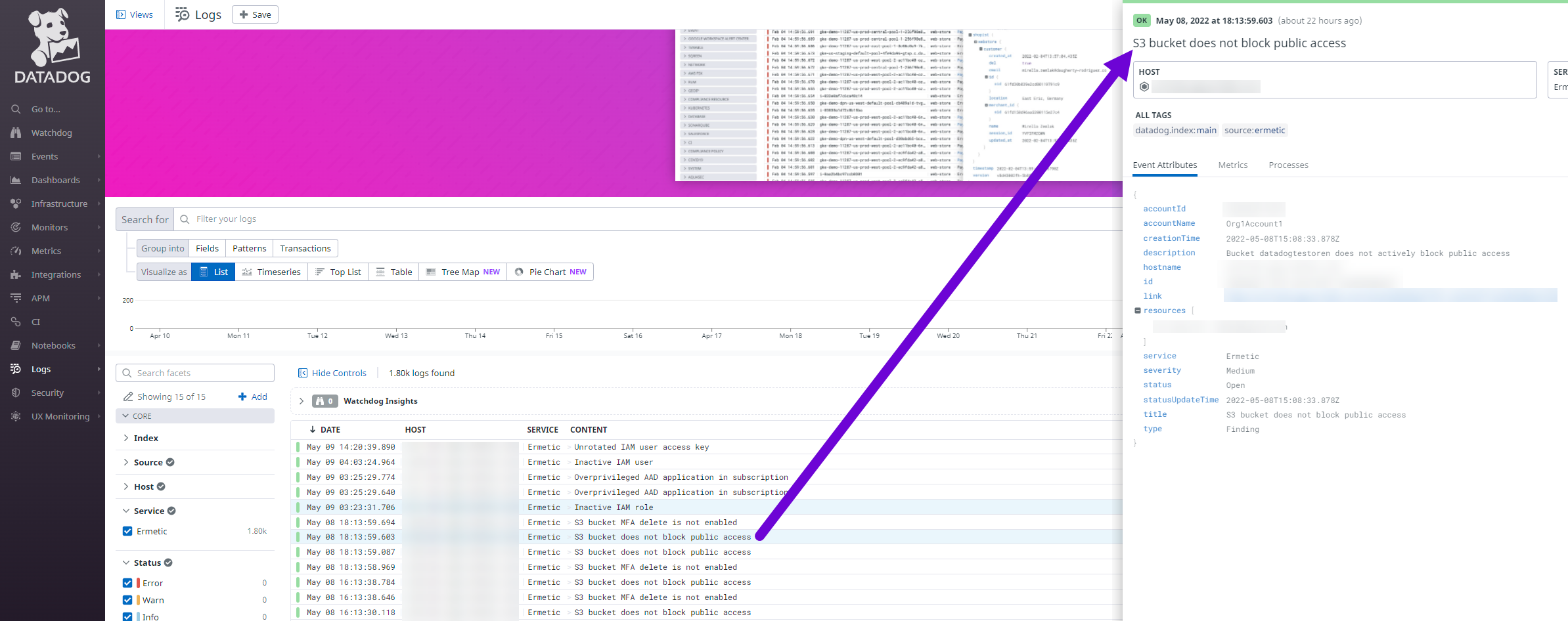
Navigate to Logs and search for logs with Ermetic listed as the Service.
Sample JSON
Copy
JSON
{
    "id": "***",
    "content": {
        "timestamp": "2022-05-08T12:31:25.909Z",
        "tags": [
            "source:ermetic"
        ],
        "host": "***",
        "service": "Ermetic",
        "attributes": {
            "status": "Open",
            "hostname": "***",
            "description": "***",
            "service": "Ermetic",
            "labels": [
                "Admin"
            ],
            "creationTime": "2022-05-08T12:15:16.164Z",
            "accountName": "Org1Subscription1",
            "link": "***",
            "statusUpdateTime": "2022-05-08T12:15:16.164Z",
            "accountId": "***",
            "type": "Finding",
            "id": "***",
            "resource": [
                "azure-cli-2021-01-19-07-49-00"
            ],
            "severity": "Critical",
            "policyName": "Inactive AAD application in subscription",
            "ticketLinks": [
                "https://tenablecustomer1.atlassian.net/browse/DAV-24140",
                "https://tenablecustomer1.atlassian.net/browse/DAV-24144",
                "https://tenablecustomer1.atlassian.net/browse/DAV-24148",
                "https://tenablecustomer1.atlassian.net/browse/DAV-24152"
            ],
            "comments": [
                {
                    "message": "created a ServiceNow incident for this threat story",
                    "time": "2026-07-29T09:00:13.124307Z",
                    "userName": "Tenable"
                },
                {
                    "message": "created a Jira ticket for this threat story",
                    "time": "2026-07-29T09:00:05.609867Z",
                    "userName": "Tenable"
                }
            ]
        }
    }
}