Environment Sizing Guide
This guide provides instructions for running sizing scripts to detect billable resources across multi-cloud environments, including AWS, Azure, GCP, OCI, and Snowflake. These scripts capture a "live" point-in-time snapshot of your environment rather than historical averages. When reviewing your results, ensure the resource counts match your expectations, account for potential organic growth, and then share the final output files with your Tenable representative for a pricing review.
Note that the sizing script cannot detect certain resources. Ensure these are accounted for manually as they will result in additional costs.
Billable Resources
Tenable One Cloud Exposure scales based on the resources detected within your environment. There are different types of billable resources:
- Compute resources — Core workloads such as VMs, container hosts, and serverless functions.
- Scan-based resources (opt-in) — Additional resources like container repositories, VM images, and data protection (buckets/databases) that are only billed if active scanning is enabled.
The scripts provide raw resource counts (e.g., the total number of Lambda functions or S3 buckets). These totals are then converted into billable units based on specific ratios (such as 10:1 for serverless functions).
For a complete breakdown of these ratios and how they impact your final license count, refer to the Billable Resources and Ratios section.
If your license count increases unexpectedly or exceeds your purchased limit, see Address License Count Increases or Overages.
| Resource Type / Billable Licenses¹ | Category | AWS | Azure | GCP | Alibaba Cloud | OCI | On-Premises/Other |
|---|---|---|---|---|---|---|---|
| Compute
Foundation, Advanced, CNAPP Complete, Cloud VM, CIEM, Standard, Enterprise |
Virtual machines | EC2 Instances | Virtual machines, VM scale set instances | Virtual machine instances | ECS Instances running ACK | Compute instances | - |
| Container hosts² | EC2 instances running EKS/ECS | VM scale set instances running AKS | Virtual machine instances running GKE | ECS Instances running ACK | Compute instances running OKE | Kubernetes nodes | |
| Serverless functions³ | Lambda Functions | App Services | Cloud Functions | - | Functions | - | |
| Serverless containers³ | ECS Services | Container Instances | Cloud Run, GKE Autopilot | - | - | - | |
| Scan-Based Workload Protection Foundation, Advanced, CNAPP Complete, Cloud VM, Standard, Enterprise |
Container repositories⁴, ⁵ | ECR Repositories | Container Repositories | Artifact Container Image Repositories | Container Registry Repository | - | CI/CD³, 3rd Party Registries |
| Virtual machine images | EC2 Images | - | - | ECS Images running ACK | - | - | |
| Data disks | EC2 Instances data volumes |
|
VM Instances data disks | ECS disks | Compute Instances data volumes | ||
| Scan-Based Data Protection CNAPP Complete, Standard, Enterprise |
Buckets³ | S3 Buckets | Storage Account Blob Containers | Storage Buckets | OSS Buckets | Object Storage Buckets | - |
| Managed databases³ |
|
Azure SQL Server |
|
- | - | - | |
| Data platform databases³ | - | - | - | - | - | Snowflake databases Local, Shared, Marketplace | |
| JIT Requester JIT, CIEM, Standard, CNAPP Complete, Enterprise |
Users | AWS SSO User | Azure AD User | GCP User | - | - |
|
¹ The resources in the listed licenses are accounted in your billing usage. Resources in the licenses that are not listed are still covered but are not billable.
² This includes virtual machine (1:1) as a billable unit.
³ These resources are not relevant for the Cloud Vulnerability Management license.
⁴ These resource types are based on the container repository itself, not the images within. For example, a container repository is considered one billable resource whether it contains 15 or 150 images of the same container.
⁵ When the same container repository is monitored via both CI/CD pipelines and registry scanning, it is treated as two distinct billable resources.
AWS
This section provides the necessary prerequisites and execution steps to run the sizing script within your AWS environment.
Prerequisites
Recommended setup:
The sizing script assumes the following architecture for scanning multiple accounts in a single AWS Organization{target=_blank}.
 See diagram of AWS Organizations sizing setup
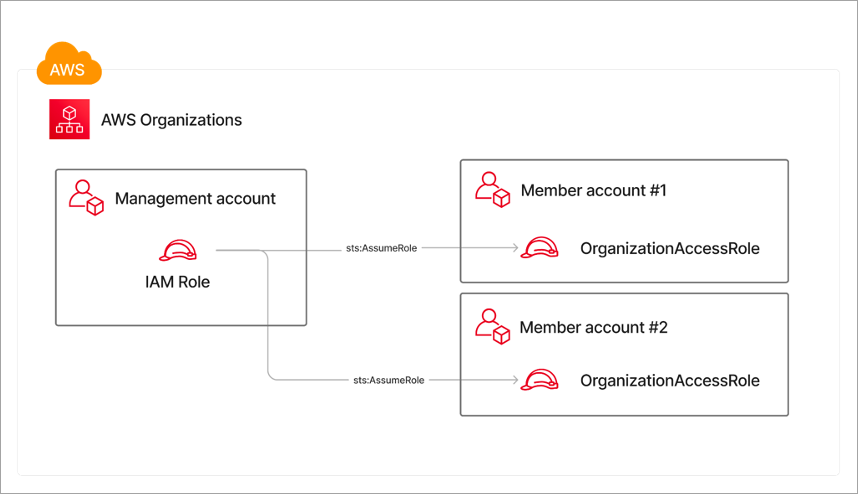
In the above diagram:
- The IAM Role used to run the sizing script belongs to the management account.
- That IAM Role needs permissions to sts:AssumeRole in all member accounts, as well as permissions to query resources in the management account (ECS / EKS / EC2 / Lambda / Organizations).
In the example architecture, we use an IAM Role to query resources and assume roles in member accounts. However, the sizing script also supports using an IAM User that assumes roles in member accounts. That is achieved by using the --user-access-key-id and --user-secret-access-key, or the --profile-name flags.
In addition, you can use a different role name than OrganizationAccountAccessRole in the member accounts. That can be achieved by using the --organization-account-access-role-name flag.
- CLI — To run the sizing script, install the following tools:
- Python 3: Installation instructions{target=_blank}
- pip: Installation instructions{target=_blank}
-
Permissions:
-
Running the script requires an identity (IAM User or IAM Role) with the following permissions:
- sts:assumeRole{target=_blank} permissions to an OrganizationAccountAccessRole{target=_blank} IAM Role (or similar).
- Permission to read all resources listed in the Billable Resources table.
Assuming you don’t have an IAM Role accessible by a centralized account, you can run the script on individual accounts instead.
-
Running the script requires an identity (IAM User or IAM Role) with the following permissions:
Download
Download the AWS sizing script from the following URL and extract the .zip contents: https://tenable-utilities.s3.amazonaws.com/Sizing/AWS.zip
Instructions
To collect the number of billable resources for your AWS environment, perform the following steps:
- Install required packages using pip:
- To install the required packages with pip, run the following command:
pip3 install -r requirements.txt Optional execution flags:
Category Flag Description Data Protection --exclude-data-resources Optional. Exclude data resources. Regions --use-optional-public-regions Optional. Scan optional regions. Gov Accounts --us-gov Optional. Scan US Gov accounts.
- To install the required packages with pip, run the following command:
-
Run the sizing script with one of the following options:
- Using default credentials — To run the script with the default AWS CLI credentials, run the following command: python3 sizing.py -o <outputDir>
- Using IAM User access key and secret — Run the following command: python3 sizing.py -i <keyId> -k <keySecret> -o <outputDir>
-
Parameters:
- keyId is the AWS Access Key ID{target=_blank} for an IAM User in the management account of the AWS Organization{target=_blank}.
- keySecret is the secret for the same Access Key.
-
Parameters:
- Using a named profile — If you are using named profiles to execute AWS CLI scripts, run the following command, using the --profile-name (or -p) parameter:python3 sizing.py -p <profileName> -o <outputDir>
- Review output: Review the script output for errors and warnings. Make sure the number of accounts matches your expectations. Some resources may be inaccessible due to permission errors or other issues.
Alibaba Cloud
This section provides the necessary prerequisites and execution steps to run the sizing script within your Alibaba Cloud environment.
Prerequisites
Recommended setup:
The sizing script assumes the following architecture for scanning multiple accounts in a single Alibaba Cloud Resource Directory{target=_blank}.
- The RAM User used to run the sizing script belongs to the management account.
- That RAM User needs permissions to sts:AssumeRole into all member accounts, as well as permissions to query resources in the management account (ECS / Resource Manager).
- In each member account, a RAM Role named ResourceDirectoryAccountAccessRole (created by default when accounts are added to the Resource Directory) is used for cross-account access.
You can use a different role name than ResourceDirectoryAccountAccessRole in the member accounts by using the --organization-account-access-role-name flag.
- The script must be run from the management account of the Resource Directory. Do not use the root user or Alibaba Cloud account credentials directly — the root user does not have permission to assume roles. Instead, create a RAM User with the appropriate permissions.
- You can still run the sizing script on each individual Alibaba Cloud account and share the results if you are not using Resource Directory or do not have the organization role set up in all member accounts.
- CLI — To run the sizing script, install the following tools:
- Python 3: Installation instructions{target=_blank}
- pip: Installation instructions{target=_blank}
- Permissions:
-
Running the script requires a RAM User in the management account with the following permissions:
- ecs:DescribeInstances — To list ECS instances in the management account
- sts:AssumeRole — To assume ResourceDirectoryAccountAccessRole in member accounts
- resourcemanager:GetResourceDirectory — To detect organization membership
- resourcemanager:ListAccounts — To list all accounts in the Resource Directory
-
Running the script requires a RAM User in the management account with the following permissions:
Download
Download the Alibaba Cloud sizing script from the following URL and extract the .zip contents: https://tenable-utilities.s3.amazonaws.com/Sizing/Alibaba.zip
Instructions
To collect the number of billable resources for your Alibaba Cloud environment, perform the following steps:
- Install required packages using pip:
- To install the required packages with pip, run the following command:
pip3 install -r requirements.txt Optional execution flags:
Category Flag Description Organization --organization-account-access-role-name Optional. Custom role name to assume in member accounts (default: ResourceDirectoryAccountAccessRole).
- To install the required packages with pip, run the following command:
-
Run the sizing script with one of the following options:
Using environment variables — Set the following environment variables and run the script:
Copyexport ALIBABA_CLOUD_ACCESS_KEY_ID=<accessKeyId>
export ALIBABA_CLOUD_ACCESS_KEY_SECRET=<accessKeySecret>
python3 sizing.py -o <outputDir>- Using CLI arguments — Run the following command:
python3 sizing.py -i <accessKeyId> -k <accessKeySecret> -o <outputDir>-
Parameters:
- accessKeyId is the Access Key ID for a RAM User in the management account.
- accessKeySecret is the Access Key Secret for the same RAM User.
- outputDir is the directory where the script will write its output files.
-
Parameters:
- Review output: Review the script output for errors and warnings. Make sure the number of accounts matches your expectations. Some resources may be inaccessible due to permission errors or other issues.
Azure
This section provides the necessary prerequisites and execution steps to run the sizing script within your Azure environment.
Prerequisites
- CLI — To run the sizing script, install the following tools:
- Python 3: Installation instructions{target=_blank}
- pip: Installation instructions{target=_blank}
- Permissions:
- The identity used to run the sizing script is required to have the Reader{target=_blank} and Storage Blob Data Reader built-in roles
- The roles must be assigned to the root management group (to collect data from all subscriptions). Alternatively, you may execute the script multiple times for every subset of the organization for which you would like to get sizing information.
Download
Download the Azure sizing script from the following URL and extract the .zip contents: https://tenable-utilities.s3.amazonaws.com/Sizing/Azure.zip
Instructions
To collect the number of billable resources for your Azure environment, perform the following steps:
- Install required packages using pip:
- To install the required packages with pip, run the following command:
pip3 install -r requirements.txt Optional execution flags:
Category Flag Description Data Protection --exclude-data-resources Optional. Exclude data resources. Cloud Environment --cloud-environment Optional. Defaults to scanning the public partition. Possible values: public, china, us_gov.
- To install the required packages with pip, run the following command:
- Run the sizing script: To execute the sizing script, run the following command:
python3 sizing.py -t %TenantId% -o %OutputDir%-
Parameters:
- %OutputDir% is the output path for the script.
- %TenantId% is the required Azure AD Tenant ID{target=_blank} for sizing.
-
Parameters:
- Review output: Review the script output for errors and warnings. Make sure the number of subscriptions matches your expectations. Some resources may be inaccessible due to permission errors or other issues.
GCP
This section provides the necessary prerequisites and execution steps to run the sizing script within your GCP environment.
Prerequisites
- CLI — To run the sizing script, install the following tools:
- Python 3: Installation instructions{target=_blank}
- pip: Installation instructions{target=_blank}
- gcloud: Installation instructions{target=_blank}
- Permissions:
- To perform the steps below, you need to be a user with Viewer permissions to all projects within the organization.
- The identity you use to run the sizing script should have the following role bindings on the organization scope{target=_blank}:
- You should enable Cloud Asset API in the quota project used for running the script
Download
Download the GCP sizing script from the following URL and extract the .zip contents: https://tenable-utilities.s3.amazonaws.com/Sizing/GCP.zip
Instructions
To collect the number of billable resources for your GCP environment, perform the following steps:
- Install required packages using pip:
- To install the required packages with pip, run the following command:
pip3 install -r requirements.txt Optional execution flag:
Category Flag Description Data Protection --exclude-data-resources Optional. Exclude data resources.
- To install the required packages with pip, run the following command:
- Run the sizing script: To execute the sizing script, run the following command:
python3 sizing.py -oid <organization_id> -qpid <project_id> -o <output_dir>-
Parameters:
- <organization_id> is the required GCP organization ID for sizing.
- <project_id> is the quota project ID (API quota will be consumed by this project).
- <output_dir> is the output path for the script.
-
Optional parameters:
- -pid <project_id> is the individual project ID you would like to size.
- -fid <folder_id> is the ID of the folder you would like to size (cannot be used with -pid).
-
Parameters:
- Review output: Review the script output for errors and warnings. Make sure the number of projects matches your expectations. Some resources may be inaccessible due to permission errors or other issues.
OCI
This section provides the necessary prerequisites and execution steps to run the sizing script within your OCI environment.
Prerequisites
Running the script requires an identity with the following permissions: read all-resources
Download
Download the OCI sizing script from the following URL and extract the .zip contents: https://tenable-utilities.s3.amazonaws.com/Sizing/OCI.zip
Instructions
You can run the script either in OCI CloudShell or locally on your machine using the required credentials, as outlined below. Follow these steps to determine the number of billable resources in your OCI environment.
Optional execution flags:
| Category | Flag | Description |
|---|---|---|
| Data Protection | --exclude-data-resources | Optional. Exclude data resources |
To collect the number of billable resources for your OCI environment, perform the following steps from these options:
- Run the sizing script on OCI Cloud Shell:
- Log in to the OCI console and open the OCI Cloud Shell.
- Upload the sizing and utilities scripts by clicking the settings icon, and click Upload.
- Run the following command: python3 sizing.py --out-dir
- To download the output file, click the settings icon, select Download, and specify the output path. For example: oci_sizing_2024-05-02-19-20-32/summary.csv. Alternatively, access the home directory.
- Review the script output for errors and warnings. Make sure the number of tenancies or compartments matches your expectations. Some resources may be inaccessible due to permission errors or other issues.
- Run the sizing script on your local machine — In order to execute the sizing script on your local machine you’ll need to obtain the relevant credentials first.
See OCI documentation{target=_blank} on how to create a configuration file.-
Ensure that you have installed the following tools before executing the sizing script:
- Python 3: Installation instructions{target=_blank}.
- pip: Installation instructions{target=_blank}.
- Install the required packages via pip with the following command: pip3 install -r requirements.txt.
- To execute the sizing script, run the following command:
python3 sizing.py --user-ocid <UserOCID> --fingerprint <Fingerprint> --tenancy-ocid <TenancyOCID> --private-key-file-path <PrivateKeyFilePath> --region <Region> -o %OutputDir%. - Review output: Review the script output for errors and warnings. Make sure the number of compartments matches your expectations. Some resources may be inaccessible due to permission errors or other issues.
-
Ensure that you have installed the following tools before executing the sizing script:
Snowflake
This section provides the necessary prerequisites and execution steps to run the sizing script within your Snowflake environment.
Prerequisites
Running the script requires an identity with the AccountAdmin permission.
Download
Download the Snowflake sizing script from the following URL and extract the .zip contents: https://tenable-utilities.s3.amazonaws.com/Sizing/Snowflake.zip
Instructions
To collect the number of billable resources:
- Open the Snowflake portal and create a new Python Worksheet.
- Copy and run the sizing script code in the worksheet.
- Review the script output for errors and warnings. Make sure the number of resources matches your expectations. Some resources may be inaccessible due to permission errors or other issues.
Additional Resources
The following billable resources are outside the scope of this sizing script. Provide an manual estimate for these resources or wait until your environment is fully onboarded for a final calculation.
| Category | Resource |
|---|---|
| VMs¹ | Kubernetes Nodes |
| VMs running containers¹ | Kubernetes Nodes |
| VMs running containers¹ | Self-managed Kubernetes Nodes (on AWS/Azure/GCP) |
| Container Repositories² | Container Repositories |
| Container Repositories³ | Container Repositories detected via CI/CD |
¹ Only applies to scanned resources.
² Please note that only scanned repositories are being considered for billing.
³ When the same container repository is monitored via both CI/CD pipelines and registry scanning, it is treated as two distinct billable resources.