Apply Windows Feature Updates
Windows feature updates are provided by Microsoft as significant upgrades to the Windows operating system. They provide major versions, such as Windows 11 24H2, that roll up security updates and bug fixes along with feature updates and performance enhancements.
Feature updates also include Windows 10 to Windows 11 update options. Many companies still have Windows 10 in the environment. Microsoft is removing support for security updates to Windows 10 on October 15, 2025. Windows 11 is the current major release of Microsoft's workstation operating system. Companies need help getting their Windows 11-capable devices upgraded. This upgrade can have a significant impact on the corporate environment, especially when content has to be delivered across Virtual Private Networks (VPNs). Tenable Patch Management provides a solution to upgrade old Windows to either the June release of Windows 11 24H2 (10.26100.4349) or the September release of Windows 11 24H2 (10.26100.6725). Additional versions may be added as Microsoft releases them. The oldest operating system that can be upgraded is Windows 10 2004 (10.0.19041).
All systems to be upgraded must meet the minimum requirements of Windows 11 24H2. For more information review the requirements here: Windows 11 Specs and System Requirements | Microsoft Windows.
Note: You need a license that includes Windows Operating System patching. Contact your Tenable Patch Management representative for more information.
Overview
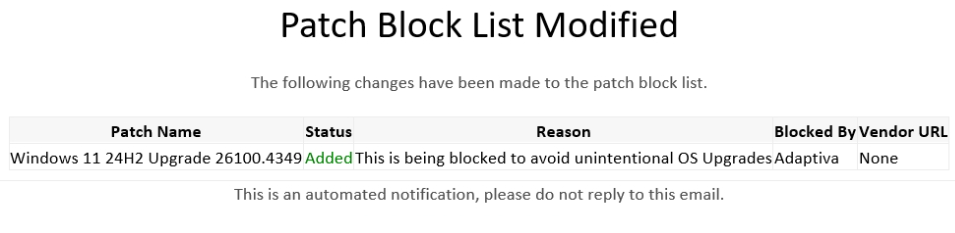
The Tenable Patch Management metadata team automatically blocks all Windows 11 feature updates to ensure customers have a choice of what devices and when those devices receive the update.
Tip: You can enable blocklist notifications to receive automatic notifications when Tenable Patch Management adds blocked patches.
(Optional) Create a target Business Unit
This step is optional since patches are only installed on applicable devices. You may wish to create business units in order to split up the deployment into multiple waves. The additional benefit of creating a business unit is it can be used to easily track which devices may need manual intervention.
A sensor can be used to filter by the current operating system.
| Sensor | Field |
|---|---|
|
Operating System (WMI) |
Build |
|
OperatingSystemCrossPlatform (static) |
Version |
For example,
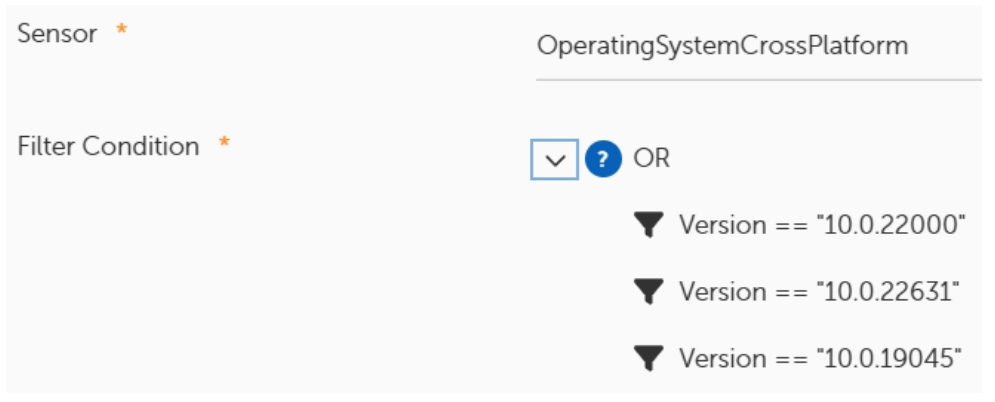
You can use additional scopes to limit the devices. For example, add a location or a base scope to reduce the target device list to a specific office or business group. For more information on creating a business unit, see Business Units and Rollout Processes.
Create a Deployment Wave
-
In the left pane, select Deployment Waves.
-
Click +New.
-
Enter a Name for the Deployment Wave, for example "Windows 11 Upgrade Deployment Wave."
-
Click Add Wave.
-
Click +Create Wave Entry.
-
Next to Business Unit, click Browse and select the business unit created above.
-
Click Create Wave Entry.
-
Create any additional waves and/or wave entries for additional business units as you require.
-
Click Save.
For more information about deployment waves, see Deployment Waves.
Unblock the Blocked Patch
Before you unblock the blocked patch you should review all strategies. If any strategy has Include All Products enabled, you should add the Windows 11 OS Upgrade to the list of excluded products to ensure it does not get deployed by that strategy.
-
Select Flex Controls > Blocklisting > Blocked Patches.
-
Search for Windows 11 24H2 Upgrade.
Each year Microsoft releases an update. Update the year as needed.
-
Hover over this patch, select the ellipses (...) on the right and select Unblock.
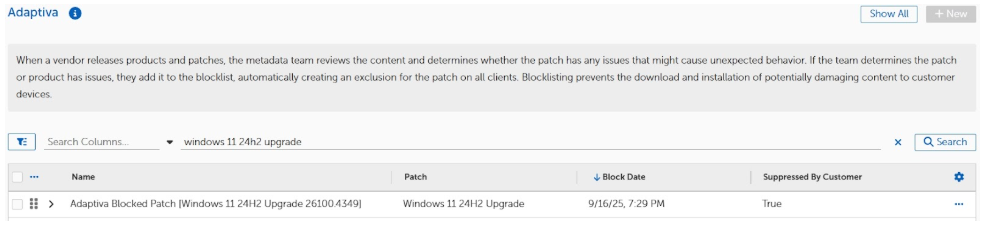
Unblock patch
Note: Only unblock one patch.
For more information about blocklisting, see Flex Controls - Blocklisting.
Create a Strategy to Deploy this patch
-
Select Strategy | Patching Strategies.
-
Create a copy of a built-in strategy that includes the deployment wave and approvals or open an existing strategy.
-
Give the strategy a name, for example "Windows 11 Upgrade."
-
In the Products section, next to Included Products, select +Browse.
-
Search for Windows 11 OS Upgrade, select it and click OK.
-
In the Deployment Settings section, next to Deployment Wave, click Browse.
-
Select the Windows 11 upgrade deployment wave you created earlier and click OK.
-
Edit or create a Deployment Bot Runtime.
-
Select a Patch Deployment Bot.
-
Select a Patching Process.
-
Select a Deployment Channel.
-
Select the appropriate Business Units. To select individual Business Units, the individual Business Units must be included in the Deployment Wave.
-
Click OK.
-
-
Edit or create a Process Setting.
-
Select a Patching Process.
-
Select an Execution Schedule.
-
Click OK.
-
-
If the Patching Process chosen includes Approvals, scroll down and add at least one Approval Chain.
-
Update the other sections as required.
-
Scroll to the top and ensure the strategy is Enabled.
-
Click Save.
-
A slide out shows the patch Windows 11 24H2 Upgrade.
-
Click OK.
For more information about strategies, see Strategies and Advanced Patching Strategies.
Approve the Patching Cycle
If you have enabled approvals in the patch strategy, approve the patch deployment when the patching cycle starts.
Monitor Deployment and Installation
In the left-hand pane, click Patching Analytics | Strategy Operations and select your Windows 11 OS upgrade strategy to monitor the patching cycle.
In the dashboard,
-
Product Compliance shows product compliance on the targeted devices.
-
Patch Status shows the installation status of the patch on the targeted devices.
-
Device Compliance by OS shows how many devices have a compliant product installed.
-
History shows each step in the execution of the strategy.
In the History dashboard, click the + to get additional information.
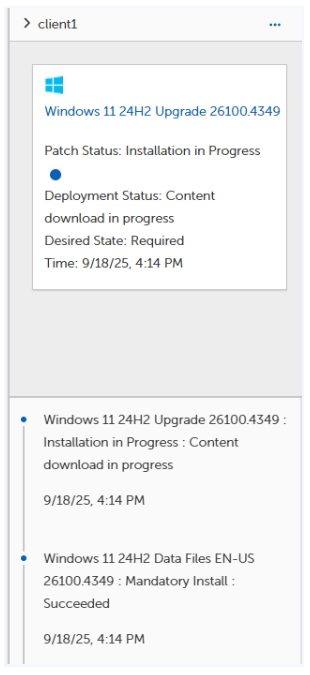
In the top right, the details pane displays a device name and the history of patch installations for that device.
If the device is currently performing an action, it shows in a box above the list of actions.
Look for entries like:
Use the < and > buttons at the bottom to change pages. Click the computer icon at the top to select a different device or click on the ellipses and select Next Device.
Note: Soon after the device is upgraded, the Windows 11 OS Upgrade product is no longer applicable, and the device will be removed from the Patch Status dashboard.
After the installation is completed on the device, the Tenable Patch Management client captures the restart requirement and display a toast notification based on the user interaction settings applied to the device. We recommend that users restart as soon as possible. If you normally allow a long delay before restart, you should apply a shorter user interaction setting to the business unit(s) that were created.
Troubleshooting
Issue: The device does not show Windows 11 OS Upgrade in its list of Installed Products.
In %programfiles%\Tenable\PatchClient\logs\componentlogs, review the PatchingAdmin.log and look or a line like the following:
INFO - Products :: Scanned status [NOT INSTALLED] for [1000006900]
Solution:
-
Check for the existence of the following registry key: HKEY_LOCAL_MACHINE\SOFTWARE\Microsoft\Windows NT\CurrentVersion\AppCompatFlags\CompatMarkers\
-
Review the subkey: GE24H2.
-
If there are any items starting with Blocked with a value of 1, the device cannot be upgraded.
-
Remediate any issues and re-scan.
Note: You may need to select Reset Data which requires the scanning of All Software.
If the registry key does not exist, open a Command Prompt as Administrator and manually run the following command. This evaluates the device and create the registry key.
%windir%\System32\CompatTelRunner.exe -m:appraiser.dll -f:DoScheduledTelemetryRun
This command should be scheduled to run automatically. Review the following if changes have been made to the default Task Scheduler Library.
-
Open Task Scheduler.
-
Expand the Task Scheduler Library | Microsoft | Windows and select Application Experience.
-
In the details pane, select the Microsoft Compatibility Appraiser task.
-
Review the Last Run Time and Last Run Result.
If you need help executing this across your estate, contact Tenable Patch Support.
Issue: The device is targeted but did not upgrade.
One possible issue is the lack of disk space. The feature update process does not run unless there is 50 GB of free disk space.
In %programfiles%\Tenable\PatchClient\logs\componentlogs, review the ContentCache.log and look for a line like the following:
INFO - Drive [C] is having actualFreeSpace Including Progress [###]
The ### needs to be larger than 52428800000 bytes.