Connect Google Gemini
Use this procedure to integrate Google Gemini with Tenable One AI Exposure to monitor your environment and surface posture findings, detect activity, and identify related security risks.
Prerequisites
-
Ensure you have the following:
Google Vault add-on license.
Note: AI Exposure supports any Google Workspace tier that includes Google Vault, whether it is built into the plan (Business Plus or Enterprise) or purchased as an individual user add-on (Business Starter or Standard). For more information, see the Google Vault license documentation.- Google Gemini features enabled.
To integrate with Google Gemini:
- In AI Exposure, navigate to Settings > Integrations and click Add Integration.
- In the Integrations Library, select Google Gemini. The Add Integration wizard opens.
- Enter a Name for your integration. The Console displays this name.
-
In the Deployment section, select one of the following deployment options to create a service account for Tenable:
If you already onboarded a project from this GCP organization, the service account has already been created, and this step appears as completed.
While not mandatory, Tenable recommends creating a dedicated project for the service account for the following reasons:
- GCP calculates API rate limits per project. Creating the service account in the same project as other service accounts increases the risk of GCP blocking your requests due to rate limits.
- Using an existing project makes it difficult to isolate usage and track costs generated by the Tenable service account.
- Use existing — From the drop-down list, select an existing Google Workspace integration to use its service account.
- Cloud Shell:
- In the Google Cloud Console, create a new project for Tenable.
- In the top right corner of the console, click the Activate Cloud Shell
 icon for the newly created project.
- Copy the script displayed in the AI Exposure wizard and run it in your Cloud Shell.
- Wait until the script finishes running, and then copy the Service Account Email from the output.
- In the AI Exposure wizard, go to the Post Deployment GCP Settings section and enter the service account email in the Service Account Email field.
- In the Google Cloud Console, navigate to IAM & Admin > Labels, click + Add label, and add the key/value pair that appears in the AI Exposure wizard.
- Manual:
- In the Google Cloud Console, create a new project for Tenable.
- In the newly created project, navigate to IAM & Admin > Roles and then click +Create Role.
- Enter a Title, Description, and ID.
Click + Add Permissions, enter the following permissions in the Filter and click Add:
- resourcemanager.projects.get
- serviceusage.services.enable
- serviceusage.services.list
For more information about why these permissions are needed, see Google Required Permissions.
- Click Create to finish creating the role.
- Click the Service Accounts tab and then click + Create service account.
- Enter a Service account name, ID, and Description, then click Create and continue.
- Select the custom role you created, click Continue, and then click Done.
Select the newly created service account, click the Principals with access tab, and then click + Grant access.
Important: If you are unable to grant access, an organization policy with a domain restriction constraint that may prevent you from selecting Tenable as a principal in IAM policies. This prevents Tenable from impersonating the created service account. If this is the case, follow the procedure described in Add Tenable as an Allowed Domain.- In the New principals field, enter [email protected] and select the Service Account Token Creator role.
- Click Save.
- In the AI Exposure wizard, in the Post Deployment GCP Settings section, enter the service account email in the Service Account Email field. You can get this email ID from the Email field visible under IAM & Admin > Service Accounts.
- Go to IAM & Admin > Labels, click + Add label, and add the key-value pair that appears in the AI Exposure wizard.
- Click Save to finish.
- Navigate to APIs & Services > Enabled APIs & services, select Service Usage API and click ENABLE.
- Grant permissions to the Google Workspace via domain-wide delegation : Perform these steps to generate the customer ID and admin user email.
- In the Google Cloud console, navigate to the service account that you created in the AI Exposure wizard.
- On the Details tab, click to expand the Advanced settings section.
- Copy the Client ID, and then click View Google Workspace Admin Console.
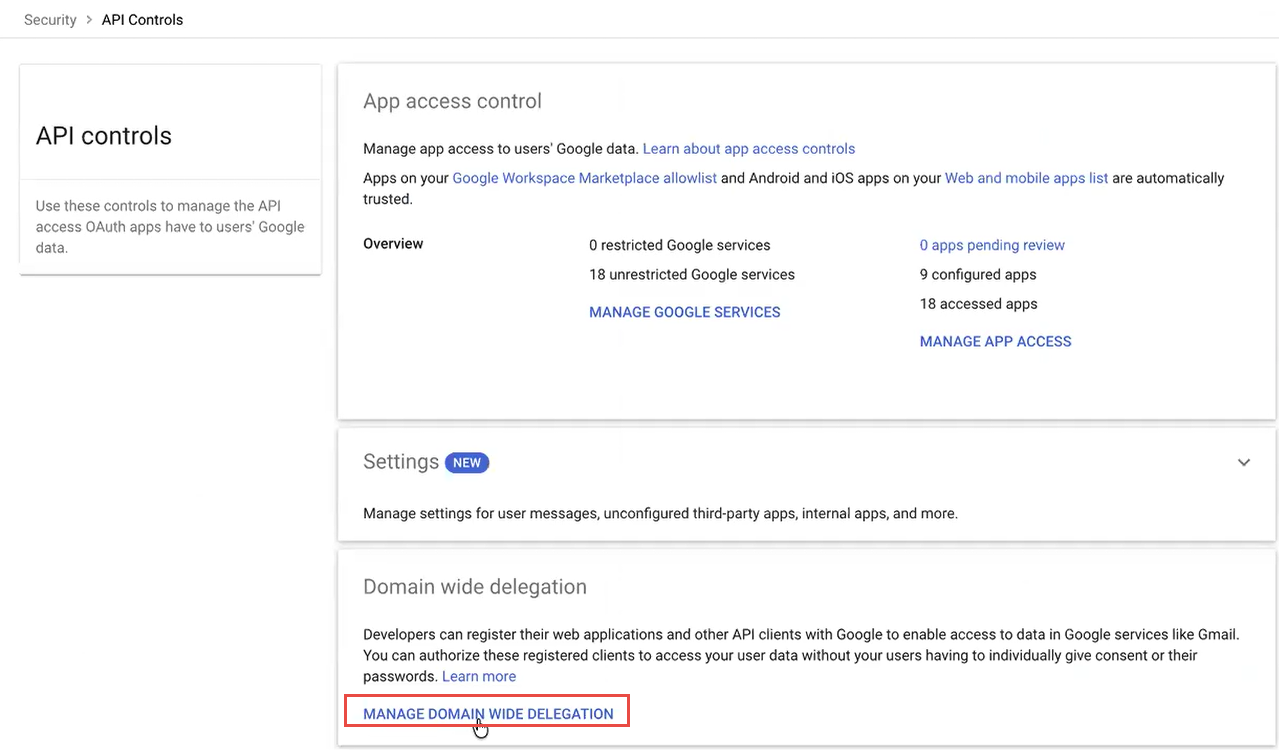
- In the Google Workspace Admin console, navigate to Security > Access and data control > API controls.
Click Manage Domain Wide Delegation and then click Add new.
- Paste the Client ID that you copied earlier in Step 5(3).
Copy and paste the following OAuth scopes:
Copyhttps://www.googleapis.com/auth/apps.licensing
https://www.googleapis.com/auth/devstorage.read_only
https://www.googleapis.com/auth/drive.metadata.readonly
https://www.googleapis.com/auth/ediscovery- Click Authorize.
Navigate to Account > Account settings and copy the Customer ID from the Profile section.

- In the AI Exposure wizard, in the Post Deployment Google Workspace Settings section, paste the Customer ID.
-
In the AI Exposure wizard, enter the primary administrator email address in the Admin user email field.
- The user must have the Super Admin role
- To assign or view users with this role, navigate to Account > Admin roles, hover over Super Admin, and click Assign admin or View admins.
- AI Exposure's actual permissions are limited to the OAuth scopes you granted earlier.
- Click Finish.
Next steps
After you complete the steps, the Google Gemini integration appears in the Settings > Integrations table. From this table, you can manage your integration and view the integration status.
Data Synchronization Limitations
AI Exposure synchronizes Google Gemini data through Google Vault exports rather than a Gemini API. As a result, some Gemini content does not appear in the AI Exposure console.
Gems
- AI Exposure synchronizes a Gem only after you save it to Google Drive and share it. Gems that are not saved and shared do not appear.
- Knowledge files attached to a Gem appear in the Gem's profile only if you add them from Google Drive. AI Exposure does not synchronize files uploaded directly from a local computer or files not saved in Google Drive.
Conversations
- AI Exposure does not synchronize files uploaded during a Gemini conversation. Google Vault excludes these files from exports, including file names and indicators that a file was attached.
- If your prompt contains only an uploaded file, the message appears without content. AI Exposure still synchronizes the full response from Gemini.
- AI Exposure does not scan conversation file attachments for sensitive data. However, if Gemini copies text from an uploaded file into its response, AI Exposure analyzes that text, which can trigger security detections.