Connect OpenAI ChatGPT
Use this procedure to integrate OpenAI ChatGPT with Tenable One AI Exposure to identify posture findings, activity detections, and other AI-related exposures within your organization.
Prerequisites
Ensure that you have:
- An Enterprise license.
- An Owner role in your ChatGPT workspace.
Create an Admin Key
Required AI Exposure User Role: You must have the Owner role in your ChatGPT workspace to create an admin key.
- Access ChatGPT Enterprise
- Navigate to the relevant ChatGPT workspace.
-
In the left navigation bar, click Credentials.
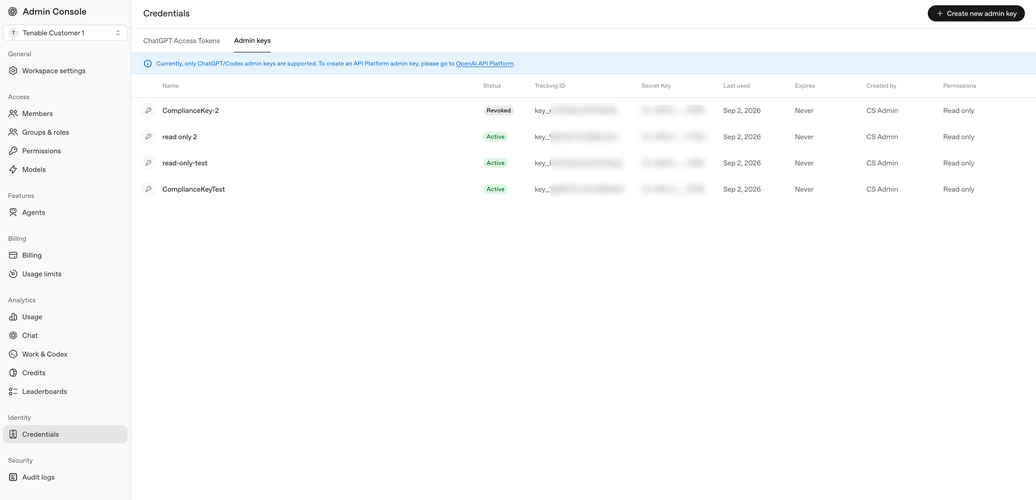
- Click the Admin keys tab.
- Click Create new admin key and enter a name for the admin key.
- Select the permission as Read only.
- Click Submit.
-
Copy and save the API key.
Note: You can view or copy the API key only once. Make sure you store it securely.
Locate Your Organization ID and Workspace ID
- Access ChatGPT Enterprise.
- Navigate to the relevant ChatGPT workspace.
- In the left navigation bar, click Workspace settings.
-
From the Workspace details section, copy the Organization ID and Workspace ID.
Note: The Organization ID and Workspace ID are required during the integration steps in AI Exposure. See Connect ChatGPT Enterprise.
Connect ChatGPT Enterprise
To integrate ChatGPT:
- In AI Exposure, navigate to Settings > Integrations and click Add Integration.
- In the Integrations Library, select OpenAI ChatGPT. The Add Integration wizard opens.
- Enter a Name for your integration. The Console displays this name.
- Enter your OpenAI Organization ID.
- Enter the OpenAI Workspace ID.
- Enter the Admin key you saved earlier.
- Click Finish.
Next steps:
After you integrate ChatGPT, it appears in the table in Settings > Integrations. From here, you can manage your integration and view integration status.