Connect an Amazon EKS Cluster
Connect an Amazon EKS Cluster in Tenable One Cloud Exposure to get full visibility and risk assessment for all cloud identities and resources associated with the cluster, including information about permissions, subscription usage, and security configurations.
Until you complete the integration, objects and configurations associated with the cluster will not be analyzed or available for investigation in Tenable. A sync status is displayed for each Kubernetes cluster in the relevant inventory view, indicating whether Tenable can connect to the Kubernetes API, and helping you troubleshoot potential connection issues.
Requirements
For each cluster you want to monitor, perform both of the following steps. In situations where it's not possible or practical to perform one or both of these steps, Tenable offers an alternative connection path using Helm charts.
- Grant Tenable Role Cluster Permissions by adding the Tenable IAM role to your cluster.
- If the Tenable role doesn't have permissions to access the cluster, connect the cluster using Helm charts instead. AWS requires identity-based configuration, and in some cases this configuration isn't supported by the traditional cloud-based integration.
- Allow Network Access to Tenable.
- If the cluster control plane is not publicly accessible, connect the cluster using Helm charts instead. For example, in the case of a private cluster.
Grant Tenable Role Cluster Permissions
Grant Tenable role cluster permissions by using one of the following methods:
Grant Cluster Permissions Using the AWS Console (Recommended)
Provide Tenable access to your cluster by granting the Tenable IAM role the necessary permissions. This is done by setting the authentication mode to EKS API and ConfigMap, configuring an IAM access entry, and assigning an appropriate access policy.
To grant cluster permissions via AWS console:
- Log in to the AWS Management console.
- Navigate to Elastic Kubernetes Service.
- In the left-hand menu, click Clusters.
- Select the relevant cluster.
- Click on Access tab.
-
Select EKS API or EKS API and ConfigMap as the access configuration authentication mode.
Note: Amazon will deprecate ConfigMap in a future release. For more information, see the official AWS documentation. -
To configure the IAM access entry:
- Click Create access entry.
- IAM principal: Select the IAM Role ARN created during the integration process.
- Click Next.
-
To add an access policy:
- Policy name: Select AmazonEKSAdminViewPolicy from the drop-down list.
- Access scope: Select Cluster.
- Click Next.
- Click Create.
Grant Cluster Permissions via CLI
Provide Tenable access to your cluster by granting the Tenable IAM role permissions to the cluster. This is done by adding the Tenable IAM role to your EKS Cluster ConfigMap, by creating a cluster role and cluster role-binding. The following procedure shows how to do this using the kubectl command, but you can also use eksctl, or some other method. For more information, follow the guidelines outlined in the Amazon EKS documentation.
Prerequisites:
- Ensure that you have the necessary permissions to perform this action.
-
Verify that the following tools are installed:
- AWS CLI
- kubectl
To connect an EKS Cluster:
-
Run the following command via the AWS CLI:
aws eks --region {your_region} update-kubeconfig --name {your_cluster_name}
Where {your_region} represents your AWS region, and {your_cluster_name} is the name of your EKS cluster.
-
Run the following command:
cd ~/.kube
-
Create a cluster role YAML file:
Run the following command to edit the file:
vim {clusterRole}.yaml
Where {clusterRole} is the name that you choose to give the file.
Add the following clusterRole:
CopyYAML
apiVersion: rbac.authorization.k8s.io/v1
kind: ClusterRole
metadata:
  name: ermetic-kube-connector-cluster-role
rules:
  - apiGroups: ["*"]
    resources: ["*"]
    verbs: ["get", "list", "watch"]
-
Create a cluster role binding YAML file:
Run the following command to edit the file:
vim {clusterRoleBinding}.yaml
Where {clusterRoleBinding} is the name that you choose to give the file.
Add the following clusterRoleBinding:
CopyYAML
apiVersion: rbac.authorization.k8s.io/v1
kind: ClusterRoleBinding
metadata:
  name: ermetic-kube-connector-cluster-role-binding
roleRef:
  apiGroup: rbac.authorization.k8s.io
  kind: ClusterRole
  name: ermetic-kube-connector-cluster-role
subjects:
- apiGroup: rbac.authorization.k8s.io
  kind: Group
  name: ermetic-kube-connector
-
Run the following commands to apply the clusterRole/clusterRoleBinding that you created to the cluster:
kubectl apply -f ./{clusterRole}.yaml
kubectl apply -f ./{clusterRoleBinding}.yamlWhere {clusterRole}and {clusterRoleBinding} are the names that you gave the YAML files.
-
(Optional) Verify that the clusterRole/clusterRoleBinding were applied by running the following commands:
kubectl get clusterroles
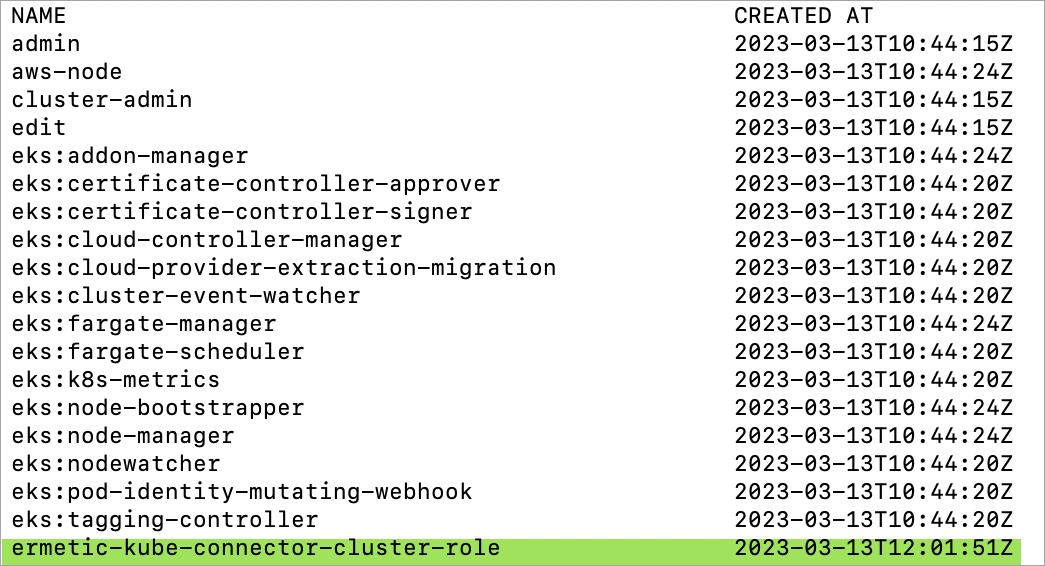
kubectl get clusterrolebindingsConfirm that the relevant values are present. For example, the following image shows the Tenable clusterRole value.
-
Run the following command to edit the aws-auth ConfigMap:
kubectl edit configmap/aws-auth --namespace kube-system
-
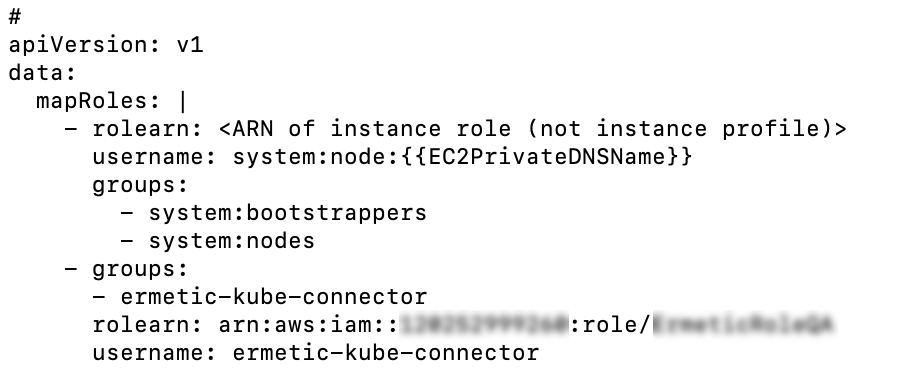
Add the Tenable IAM role details to the mapRoles section, as follows:
Important: Ensure that the new groups element that you add is properly aligned on the same level as any existing groups, formatting-wise.CopyYAML
mapRoles: |
            ...
      <existing groups>
            ...
    - groups:
      - ermetic-kube-connector
      rolearn: arn:aws:iam::{111122223333}:role/{tenable-role-name}
      username: ermetic-kube-connector
Where {111122223333} and {tenable-role-name} are the relevant values for the Tenable role ARN.
The following is an example that shows the Tenable IAM role details in the context of the mapRoles section:
Allow Network Access to Tenable
For Cloud Exposure to access the cluster, the cluster endpoint needs to be publicly accessible, and the relevant Tenable IP addresses need to be allowed.
To allow network access:
- In the AWS Management Console, navigate to EKS > Clusters.
- Click on the relevant Cluster name.
-
Navigate to the Networking tab, and then click Manage networking. Depending on how access to your cluster endpoint is configured, you may need to edit the settings, as follows:
- Public. Although Tenable can access the cluster when access is set to public, it does not follow security best practice to do so. Instead, access should be set to public and private, and the authorized network should be restricted to specific IP addresses, including those associated with Tenable.
- Public and private. If selected, click on Advanced settings, and then, under CIDR block, add all Tenable IP addresses associated with your Tenable region.
- Private. If you want Tenable to monitor such a cluster, you need to make it publicly accessible by switching it to either Public or, ideally, Public and private.
- When finished, click Save changes.