Orca Connector
The following is not supported in Tenable FedRAMP Moderate environments. For more information, see the Tenable FedRAMP Product Offering.
The following steps allow you to configure this connector for use with Tenable Exposure Management from start to finish.
Connector Details
| Details | Description |
|---|---|
|
Supported products |
|
|
Category |
CSPM CWPP |
|
Ingested data |
Assets and Findings |
|
Ingested Asset Classes |
Device Container Resource |
|
Integration type |
UNI directional (data is transferred from the Connector to Tenable Exposure Management in one direction) |
|
Supported version and type |
SaaS (latest) |
Prerequisites and User Permissions
Before you begin configuring the connector, make sure to:
Create an Orca Security Business Unit
-
Log in to the Orca Security platform.
-
Navigate to Select Unit > Configure Business Units.
-
Click Create Business Unit.
-
In the Unit Name box, type a descriptive name for the business unit.
-
Select the data source from which you want to fetch data: Provider (AWS, Azure, GCP, etc.) or Accounts.
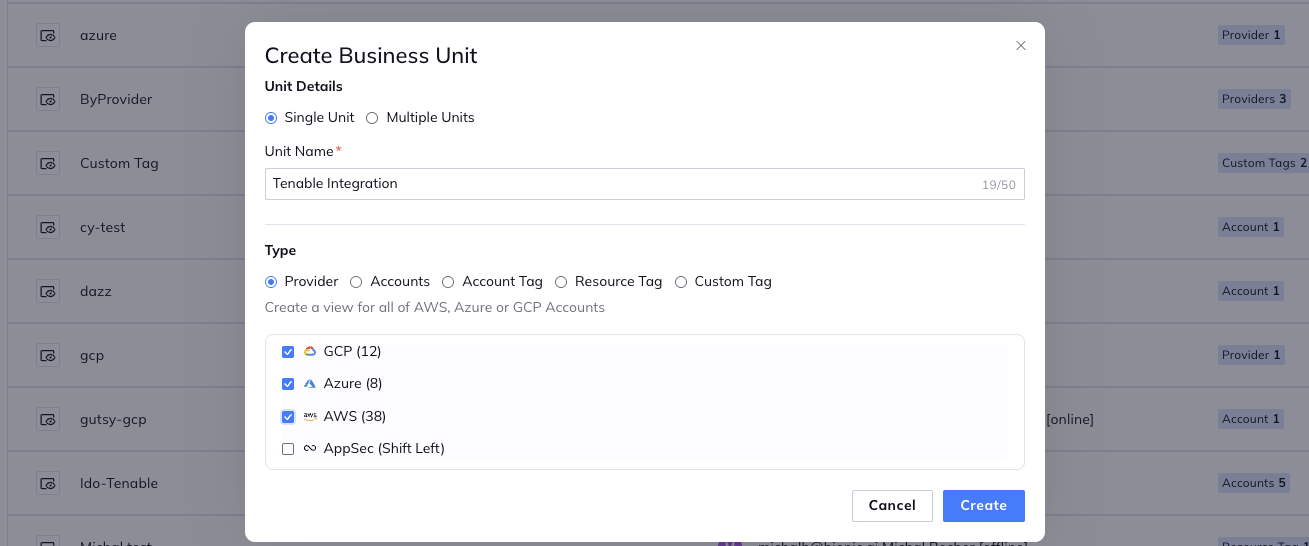

Note: Tenable Exposure Management does not currently support AppSec data from Cloud Providers.
-
Click Create.
Generate an Orca Security API Token
-
Log in to the Orca Security platform.
-
Navigate to Settings > Users & Permissions > API.
-
Click Add API Token.
-
In the Name box, type a descriptive name for the token.
-
In the Expiration Date section, select an expiration date or select the Never Expire checkbox.
-
Select the Service Token checkbox.
-
From the Roles list, select Viewer.
-
Select the Scope access to specific resources checkbox.
-
Select Business units, and then select the business unit you created.
-
Click Add.
-
Copy the API Token to a safe location. You need it to configure the connector.
Add a Connector
To add a new connector:
-
In the left navigation menu, click Connectors.
The Connectors page appears.

-
In the upper-right corner, click
 Add new connector.
The Connector Library page appears.

-
In the search box, type the name of the connector.
-
On the tile for the connector, click Connect.
The connector configuration options appear.
Configure the Connector
To configure the connector:
-
(Optional) In the Connector's Name text box, type a descriptive name for the connector.
-
In the Server URL drop down, select the region of your Orca server.
-
In the API Key / Tokentext box, paste the API key you generated earlier.
-
In the Data pulling configuration section, you can configure dynamic settings specific to the connector.
-
In the Inventory Resources drop-down box, select the resources you want to ingest into Tenable Exposure Management.
-
In the Asset Retention text box, type the number of days after which you want assets to be removed from Tenable Exposure Management. If an asset has not been detected or updated within the specified number of days, it is automatically removed from the application, ensuring your asset inventory is current and relevant.
Tip: For more information, see Asset Retention. -
(Optional) In the "Immediately remove assets when their status is:" section, select more statuses when detected the asset should be archived.

-
-
In the Test connectivity section, click the Test Connectivity button to verify that Tenable Exposure Management can connect to your connector instance.
-
A successful connectivity test confirms that the platform can connect to the connector instance. It does not, however, guarantee that the synchronization process will succeed, as additional syncing or processing issues may arise.
-
If the connectivity test fails, an error message with details about the issue appears. Click Show tests for more information about the exact error.

-
-
In the Connector scheduling section, configure the time and day(s) on which you want connector syncs to occur.
Tip: For more information, see Connector Scheduling. -
Click Create. Tenable Exposure Management begins syncing the connector. The sync can take some time to complete.
-
To confirm the sync is complete, do the following:
-
Navigate to the Connectors page and monitor the connector's status. Sync is complete once the connector status is Connected.
-
View the sync logs for the connector to monitor the logs for a successful connection.
-
Orca in Tenable Exposure Management
Locate Connector Assets in Tenable Exposure Management
As the connector discovers assets, Tenable Exposure Management ingests those devices for reporting.
To view assets by connector:
-
In Tenable Exposure Management, navigate to the Assets page.
-
In the Filters section, under 3rd Party Connectors, click the connector name for which you want to view assets.

The asset list updates to show only assets from the selected connector.
-
Click on any asset to view Asset Details.
Locate Connector Weaknesses in Tenable Exposure Management
As the connector discovers weaknesses, Tenable Exposure Management ingests those weaknesses for reporting.
To view weaknesses by connector:
-
In Tenable Exposure Management, navigate to the Weaknesses page.
-
In the Filters section, under 3rd Party Connectors, click the connector name for which you want to view weaknesses.
The weaknesses list updates to show only weaknesses from the selected connector.
-
Click on any weakness to view Weakness Details.
Locate Connector Findings in Tenable Exposure Management
As the connector discovers individual findings, Tenable Exposure Management ingests those findings for reporting.
To view findings by connector:
-
In Tenable Exposure Management, navigate to the Findings page.
-
In the Filters section, under 3rd Party Connectors, click the connector name for which you want to view findings.
The findings list updates to show only assets from the selected connector.
-
Click on any asset to view Finding Details.
Data Mapping
Tenable Exposure Management integrates with the connector via API to retrieve relevant weakness and asset data, which is then mapped into the Tenable Exposure Management system. The following tables outline how fields and their values are mapped from the connector to Tenable Exposure Management.
Device Mapping
| Tenable Exposure Management UI Field |
Orca Field |
|---|---|
| Asset Name | data[].name |
|
Asset Provider ID External Identifier |
data[].data.InstanceId/Arn/ VmId / AzureId/ asset_unique_id |
| Cloud Provider | data[].data.CloudAccount.data.CloudProvider.value |
| Cloud Resource Type | data[].data.NewSubCategory |
| Cloud Resource > Service | data[].data.type |
| Cloud Resource > Billing ID | data[].data.CloudAccount.name |
| Host Fully Qualified DNS | data[].data.PublicDnss.value[0] |
| Last Observed At | data[].data.LastSeen.value |
| First Observation Date | data[].data.FirstSeen.value |
| External Tags | data[].data.Tags.value |
| Operating Systems | data[].data.DistributionName.value |
| OS Version | data[].data.DistributionVersion.value |
| IPv4 Addresses | data[].data.PrivateIps.value |
| Device System Type | data[].data.Type.value |
Container Mapping
| Tenable Exposure Management UI Field |
Orca Field |
|---|---|
| Asset Name | data[].name |
|
Asset Provider ID External Identifier |
data[].data.InstanceId/Arn/ VmId / AzureId/ asset_unique_id |
| Cloud Provider | data[].data.CloudAccount.data.CloudProvider.value |
| Cloud Resource Type | data[].data.NewSubCategory |
| Cloud Resource > Service | data[].data.type |
| Cloud Resource > Billing ID | data[].data.CloudAccount.name |
| Host Fully Qualified DNS | data[].data.PublicDnss.value[0] |
| Last Observed At | data[].data.LastSeen.value |
| First Observation Date | data[].data.FirstSeen.value |
| External Tags | data[].data.Tags.value |
| Operating Systems | DistributionName |
| OS Version | DistributionVersion |
| Container Image Tags | ImageTags.value (single value) |
| Image Digest | ImageLayersDigest.value (single value) |
Resource Mapping
| Tenable Exposure Management UI Field |
Orca Field |
|---|---|
| Asset Name | data[].name |
|
Asset Provider ID External Identifier |
data[].data.InstanceId/Arn/ VmId / AzureId/ asset_unique_id |
| Cloud Provider | data[].data.CloudAccount.data.CloudProvider.value |
| Cloud Resource Type | data[].data.NewSubCategory |
| Cloud Resource > Service | data[].data.type |
| Cloud Resource > Billing ID | data[].data.CloudAccount.name |
| Region | data[].data.Region.value |
| Host Fully Qualified DNS | data[].data.PublicDnss.value[0] |
| Last Observed At | data[].data.LastSeen.value |
| First Observation Date | data[].data.FirstSeen.value |
| External Tags | data[].data.Tags.value |
Finding Mapping
| Tenable Exposure Management UI Field |
Orca Field |
|---|---|
| Finding Name | vulnerability_name |
| CVEs | data[].data.CveIds.value |
| CVSSv3 Base Score | MaxCvssScore |
| Severity | data[].data.RiskLevel.value Severity |
| State | data[].data.Status.value |
| MITRE Category | data[].data.MitreCategory.value |
| Description | data.description |
| Solution | Recommendation |
| Finding Custom Attributes |
port protocol package Package Version |
| First Seen | device_vulnerability_detection_date |
| Last seen (Observed) | vulnerability_last_updated |
Finding Status Mapping
|
Tenable Exposure Management Status |
Orca Status |
|---|---|
|
Active |
Open or In Progress |
|
Fixed |
Closed, Dismissed, Snoozed |
Note:For Orca, Tenable Exposure Management bases the findings status on the Status field.
Finding Severity Mapping
|
Tenable Exposure Management Severity |
Orca Score |
|---|---|
|
Critical |
CVSS: 9.0 - 10.0 Severity: Critical |
|
High |
CVSS: 7.0 - 8.9 Severity: High |
|
Medium |
CVSS: 4.0 - 6.9 Severity: Medium |
|
Low |
CVSS: 1-3.9 Severity: Low |
|
None |
CVSS: 0 Severtity: empty |
Note:For Orca data, Tenable uses the Severity field to determine severity.
Status Update Mechanisms
Every day, Tenable Exposure Management syncs with the vendor's platform to receive updates on existing findings and assets and to retrieve new ones (if any were added).
The table below describes how the status update mechanism works in the connector for findings and assets ingested into Tenable Exposure Management.
|
Update Type in Tenable Exposure Management |
Mechanism (When?) |
|---|---|
|
Archiving Assets |
|
|
Change a Finding status from "Active" to "Fixed" |
|
Uniqueness Criteria
Tenable Exposure Management uses defined uniqueness criteria to determine whether an ingested asset or finding should be recognized as a distinct record. These criteria help define how assets and findings are identified and counted from each connector.
Tip: For more information, see Asset Deduplication in Tenable Exposure Management
The uniqueness criteria for this connector are as follows:
|
Data |
Uniqueness Criteria |
|---|---|
|
Asset |
id |
|
Finding |
Alert id |
| Detection | title |
API Endpoints in Use
API version: 1.0
|
API |
Use in Tenable Exposure Management |
Required Permissions |
|---|---|---|
|
POST {{base_url}}/serving-layer/query
|
Assets |
Dedicated Business Unit (Contributor) |
|
POST {{base_url}}/serving-layer/query |
Findings |
Dedicated Business Unit (Contributor) |
Data Validation
This section shows how to validate and compare data between Tenable Exposure Management and the Orca platform.
Asset Data Validation
Objective: Ensure the number of assets in Orca aligns with the number of assets in Tenable Exposure Management.
In Orca:
-
Navigate to the Inventory page.
-
Click + Add Filter.
-
Search for and select SubCategory.
-
Select the following filters:
-
Virtual Instances
-
Image
-
Containers
-
Serverless
-
Services
-
Groups
-
Kubernetes Clusters

-
-
Click Apply.
-
Hover over the Assets count to view the total number of filtered assets.

In Tenable Exposure Management:
-
Compare the total number of assets between Orca and Tenable Exposure Management.
Expected outcome: The total numbers returned in Orca and Tenable Exposure Management should match.
Note: The counts may differ slightly if Orca Security is actively scanning and discovering new assets during the comparison.
If an asset is not visible in Tenable Exposure Management, check the following conditions:
-
Asset not seen for X days according to "Last Seen". See Asset Retention
-
Asset status changes to one of the selected statuses defined in the Asset Retention configuration
Tip: To learn more on how assets are archived and findings change status, see Orca Connector.
Finding Data Validation
Objective: Ensure the number of findings in Orca aligns with the number of findings in Tenable Exposure Management.
In Orca:
-
Navigate to the Alertspage.
-
Clear all filters and ungroup any Group By fields.
-
Click + Add Filter.
-
Search for and select Asset Sub Category.
-
Select the following filters:
-
Virtual Instances
-
Image
-
Containers
-
Serverless
-
Services
-
Groups
-
Kubernetes Clusters
-
-
Click Apply.
-
Note the total number of Alerts.

In Tenable Exposure Management:
-
Compare the total number of findings between Orca and Tenable Exposure Management.
Expected outcome: The total numbers returned in Orca and Tenable Exposure Management should match.
If a finding is missing from Tenable Exposure Management or no longer active, check the following conditions:
-
The finding is marked as Fixed and appears under the Fixed state on the Findings screen.
-
The finding no longer appears because its related asset was archived.
Tip: To learn more on how assets are archived and findings change status, see Orca Connector.