Configure the Tool Port
Steps
-
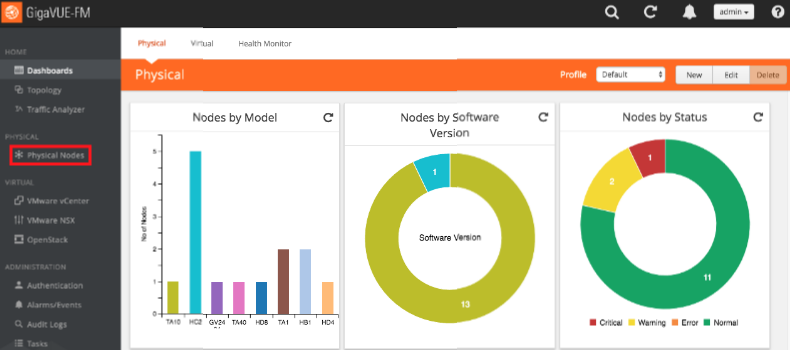
In the GigaVUE-OS interface, on the left side bar, select Physical Nodes. The Physical Nodes screen appears.
-
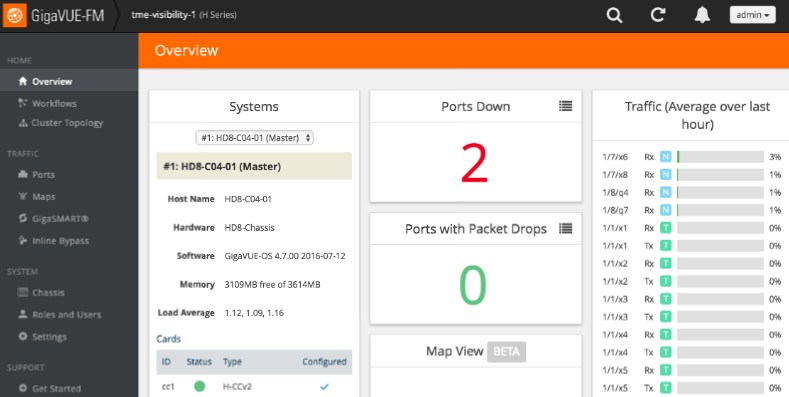
Select the Physical Node you wish to configure. The Overview screen appears.
-
On the left side bar, select Ports. The Ports tab appears.
-
On the Ports tab, in the list, select the port that is connected to Tenable Network Monitor. The Ports window for the selected port appears.
-
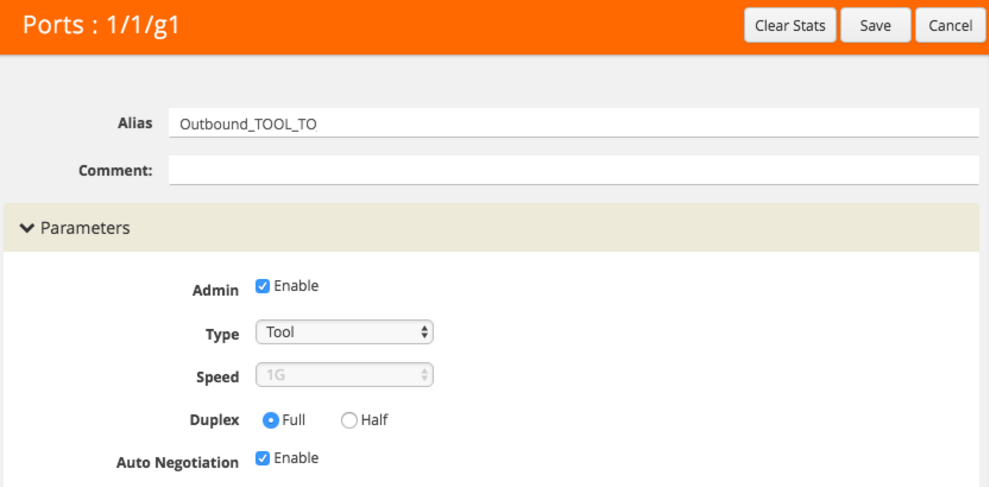
In the upper right corner, click the Edit button. The Ports page for the selected port appears.
-
In the Alias box, enter a name for the port (e.g., Outbound_TOOL_TO_PVS).
-
In the Admin row, select the Enable check box.
-
In the Type drop-down box, select Tool.
-
In the Duplex row, select Full.
-
In the Auto Negotiation row, select the Enable check box.
-
In the upper right corner of the page, click Save.