Create a Map
Steps
-
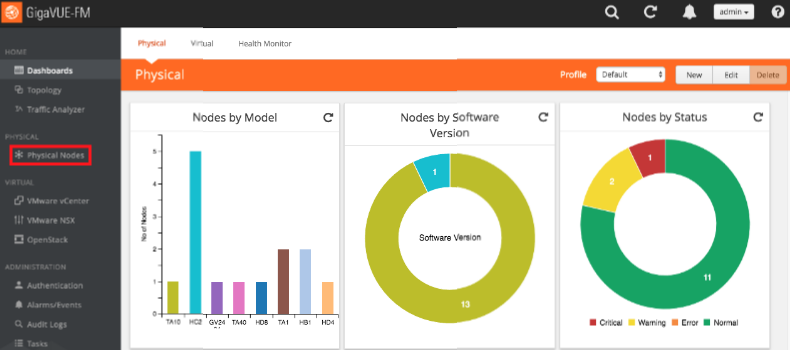
In the GigaVUE-OS interface, on the left side bar, select Physical Nodes. The Physical Nodes screen appears.
-
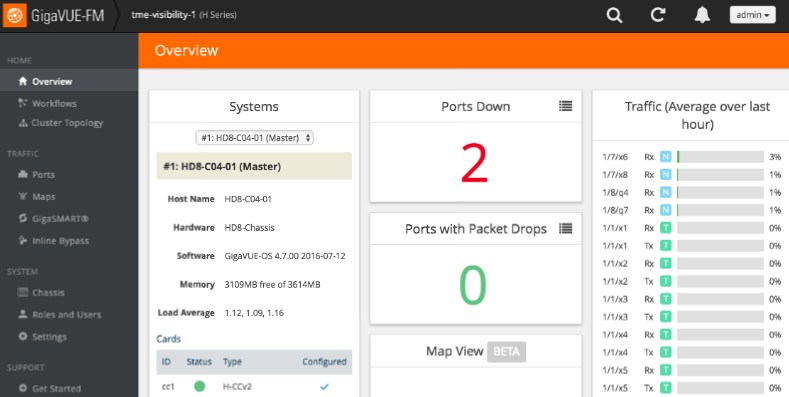
Select the Physical Node you wish to configure. The Overview screen appears.
-
In the GigaVUE-OS interface, on the left bar, select Maps. The Maps tab appears.
-
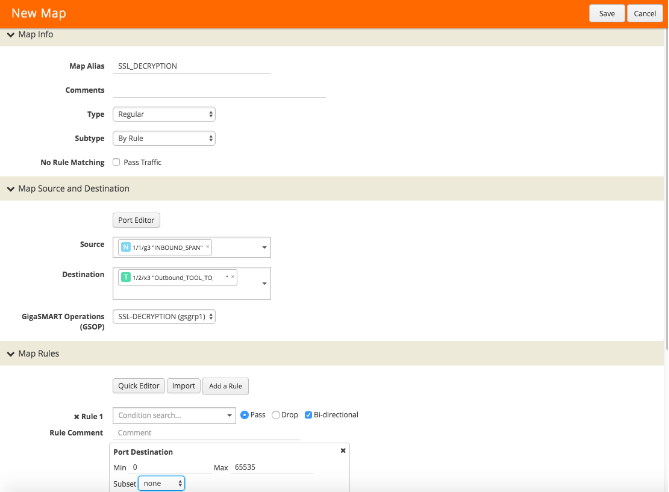
In the upper right corner, click New. The New Map page appears.
-
In the Map Info section, in the Map Alias box, enter a name for the map.
-
In the Type drop-down box, select Regular.
-
In the Sub Type drop-down box, select By Rule.
-
In the Map Source and Destination section, in the Source drop-down box, select one or more source ports.
-
In the Destination drop-down box, select the tool port you created in Configure the Tool Port.
-
In the GSOP drop-down box, select the operation you created in Configure the GS Operation.
-
In the Map Rules section, click the Add a Rule button.
-
In the x Rule 1 row, select the Pass option and the Bi Directional check box.
-
In the x Rule 1 drop-down box, select Port Destination. The Port Destination sub-section appears.
-
In the Min box, enter 0.
-
In the Max box, enter 66535.
-
In the upper right corner of the page, click Save.