Common JIT Use Cases
This section outlines common use cases that Tenable One Cloud Exposure JIT Access can help you solve for.
Request Access to AWS Accounts
You can leverage JIT for AWS to grant users access to your organization. For example, you can create two, separate eligibilities that dynamically grant your engineering team one of the following permissions to access S3 buckets in your organization:
- Read access. Automatic approval, for up to 24 hours.
- Full access. Manual approval by SRE team, for up to 6 hours.
Prerequisites:
- You must have the Administrator or JIT Administrator role in Cloud Exposure to add eligibilities.
- Onboard AWS for JIT.
To configure eligibilities for AWS accounts:
- Create an eligibility, customizing it as needed for your specific use case.
-
For example, you can:
-
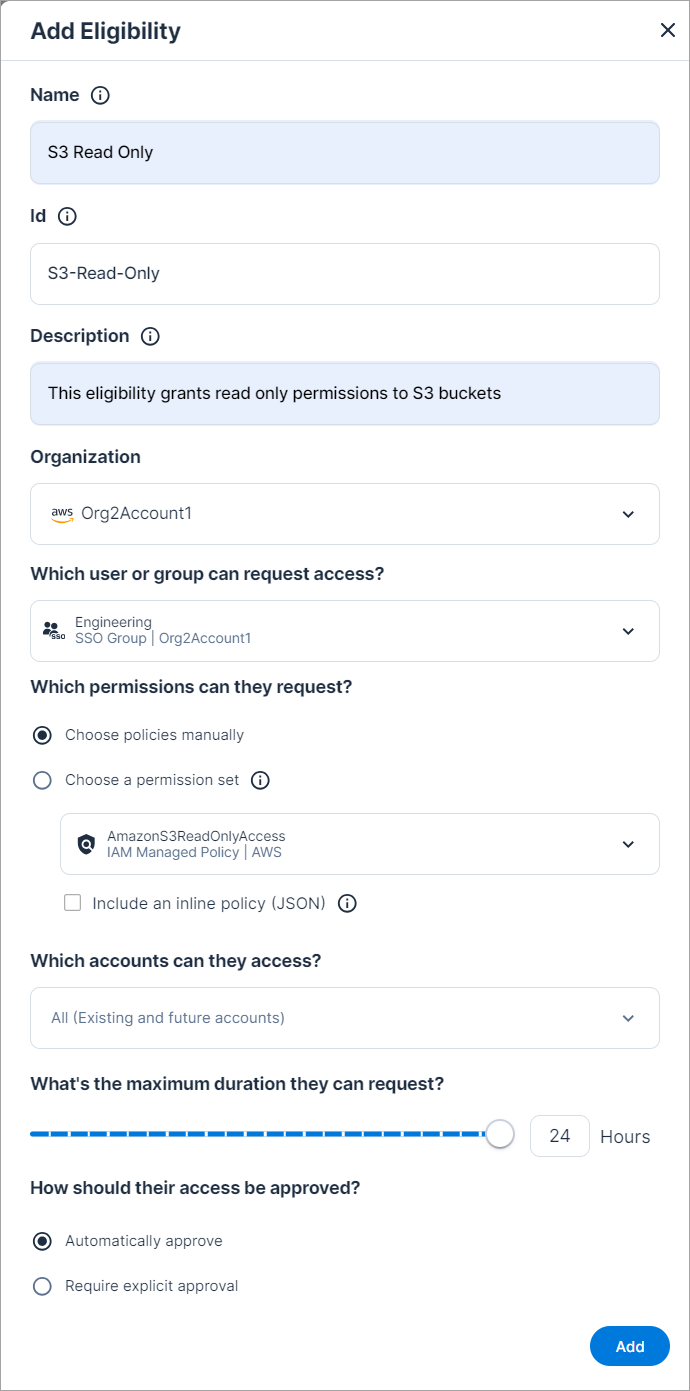
Create an eligibility for S3 read-only access, using the following sample values as guidelines:
- Name: S3 Read Only
- Description: This eligibility grants read only permissions to S3 buckets
- Which user or group can request access?: Your organization's Engineering SSO group.
- Which permissions can they request?: AmazonS3ReadOnlyAccess, an AWS managed policy that provides read only access to all buckets via the AWS Management Console.
- What's the maximum duration they can request?: 24 hours
- How should their access be approved?: Automatically approve
-
Create an eligibility for S3 full access, using the following sample values as guidelines:
- Name: S3 Full Access.
- Description: This eligibility grants full access permissions to S3 buckets
- Which user or group can request access?: Your organization's Engineering SSO group.
- Which permissions can they request?: AmazonS3FullAccess, an AWS managed policy that provides full access to all buckets via the AWS Management Console.
- What's the maximum duration they can request?: 6 hours
- How should their access be approved?: Require explicit approval
- Approvers — Your organization's SRE SSO group.
-
Create an eligibility for S3 read-only access, using the following sample values as guidelines:
Request Access to Azure Accounts
You can leverage JIT for Azure to grant users access to your organization. For example, you can create two, separate eligibilities that dynamically grant your engineering team one of the following permissions to access blob data in your organization:
- Read access. Automatic approval, for up to24 hours.
- Full access. Manual approval by SRE team, for up to6 hours.
Prerequisites:
- You must have the Administrator or JIT Administrator role in Cloud Exposure to add eligibilities.
- Onboard Azure for JIT.
To configure eligibilities for Azure accounts:
- Create an eligibility, customizing it as needed for your specific use case.
-
For example, you can:
-
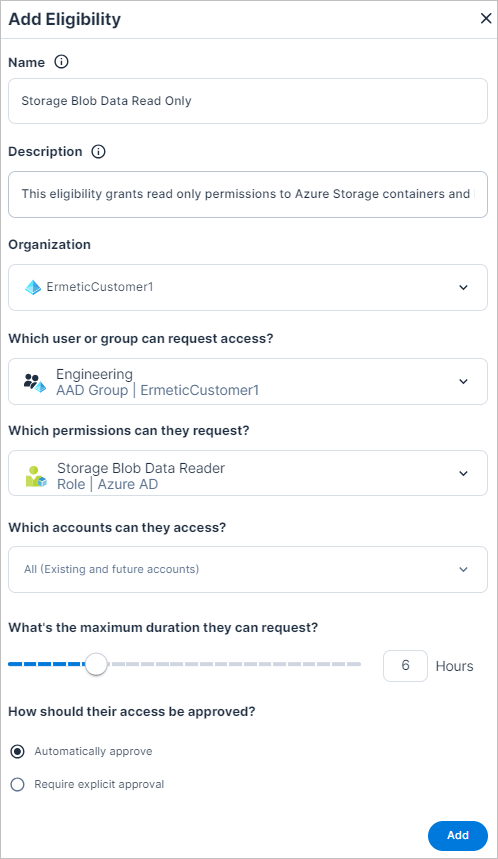
Create an eligibility for blob data read-only access, using the following sample values as guidelines:
- Name: Storage Blob Data Read Only
- Description: This eligibility grants read only permissions to Azure Storage containers and blobs
- Which user or group can request access?: Your organization's Engineering SSO group.
- Which permissions can they request?: Storage Blob Data Reader, an Azure built-in role that allows users to read and list Azure Storage containers and blobs.
- What's the maximum duration they can request?: 24 hours
- How should their access be approved?: Automatically approve
-
Create an eligibility for blob data full access, using the following sample values as guidelines:
- Name: Storage Blob Data Full Access.
- Description: This eligibility grants full access permissions to Azure Storage containers and blobs
- Which user or group can request access?: Your organization's Engineering SSO group.
- Which permissions can they request?: Storage Blob Data Owner, an Azure built-in role that provides full access to Azure Storage blob containers and data.
- What's the maximum duration they can request?: 6 hours
- How should their access be approved?: Require explicit approval
- Approvers — Your organization's SRE SSO group.
-
Create an eligibility for blob data read-only access, using the following sample values as guidelines:
Request Access to GCP Accounts
You can leverage JIT for GCP to grant users access to your organization. For example, you can create two, separate eligibilities that dynamically grant your engineering team one of the following permissions to access blob data in your organization:
- Read access. Automatic approval, for up to24 hours.
- Full access. Manual approval by SRE team, for up to6 hours.
Prerequisites:
- You must have the Administrator or JIT Administrator role in Cloud Exposure to add eligibilities.
- Onboard GCP for JIT.
To configure eligibilities for GCP accounts:
- Create an eligibility, customizing it as needed for your specific use case.
-
For example, you can:
-
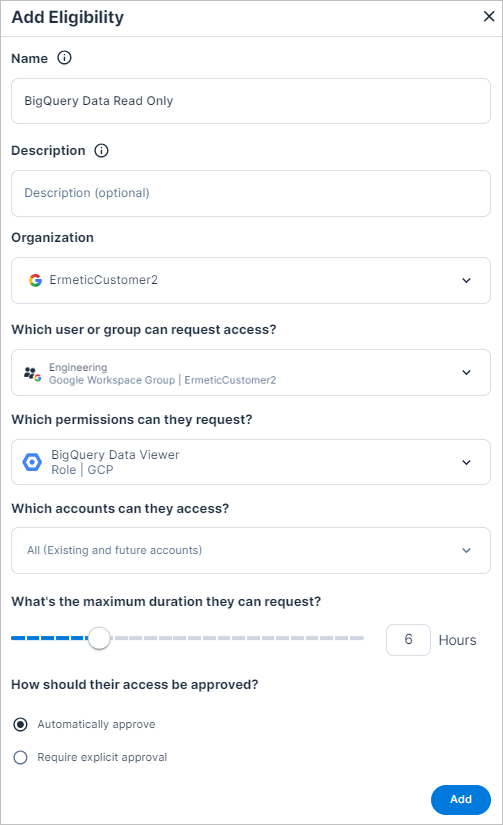
Create an eligibility for BigQuery data read-only access, using the following sample values as guidelines:
- Name: BigQuery Data Read Only
- Description: This eligibility grants read only permissions to BigQuery data
- Which user or group can request access?: Your organization's Engineering SSO group.
- Which permissions can they request?: BigQuery Data Viewer, a GCP predefined role that allows users to read data and metadata from BigQuery tables/views.
- What's the maximum duration they can request?: 24 hours
- How should their access be approved?: Automatically approve
-
Create an eligibility for BigQuery data full access, using the following sample values as guidelines:
- Name: BigQuery Data Owner.
- Description: This eligibility grants full access permissions to BigQuery data.
- Which user or group can request access?: Your organization's Engineering SSO group.
- Which permissions can they request?: BigQuery Data Owner, a GCP predefined role that allows users to read data and metadata, share, and delete BigQuery tables/views.
- What's the maximum duration they can request?: 6 hours
- How should their access be approved?: Require explicit approval
- Approvers — Your organization's SRE SSO group.
-
Create an eligibility for BigQuery data read-only access, using the following sample values as guidelines:
Request Access to SaaS Applications
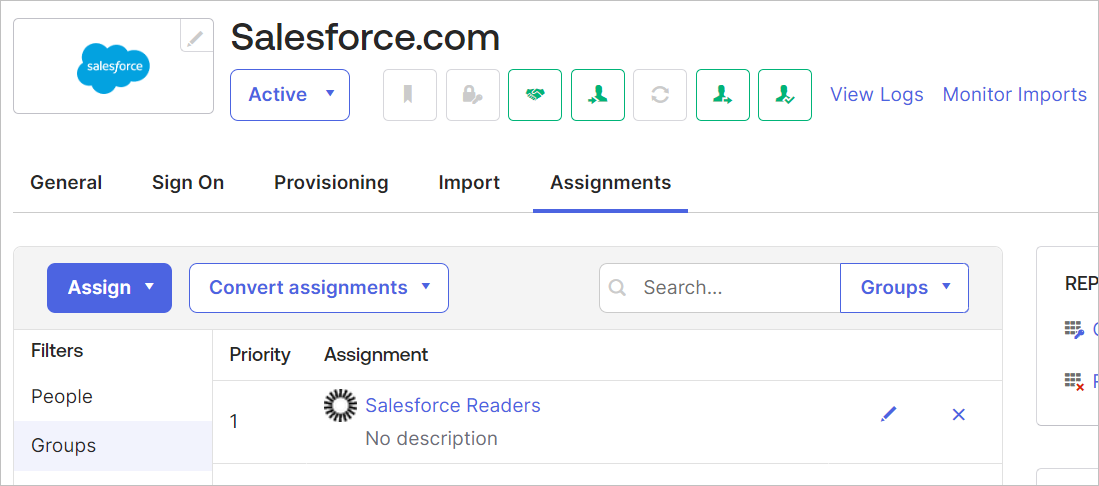
You can leverage JIT to grant users access to your SaaS applications via IdP groups. For example, you can use Okta groups to grant access to Salesforce, by assigning a group to the Salesforce.com app. Users who need access to Salesforce can then request to join the Okta group, which in turn grants them access to Salesforce.
Prerequisites:
- You must have the Administrator or JIT Administrator role in Cloud Exposure to add eligibilities.
- Onboard Okta for JIT.
To configure eligibilities for SaaS accounts:
-
In the Okta Admin console, assign a group access to the Salesforce.com application.
-
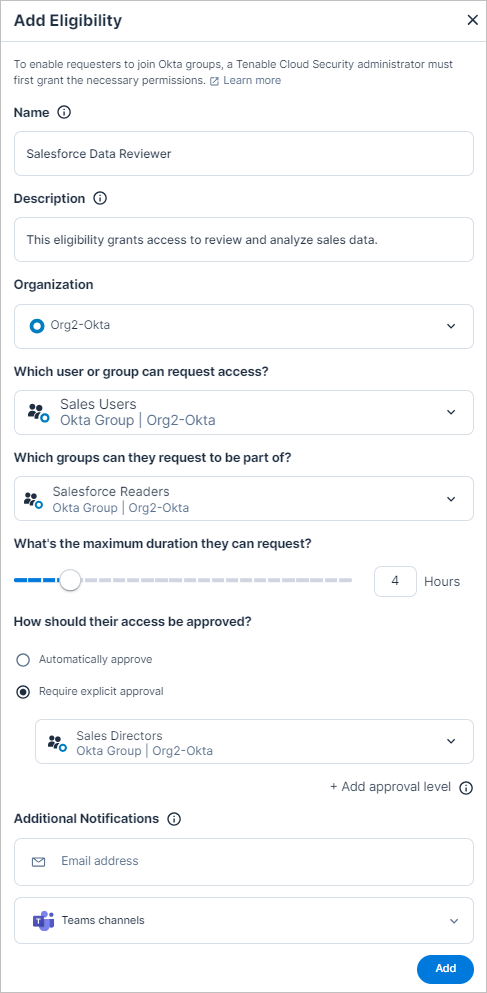
Create an eligibility, customizing it as needed for your specific use case. For example, you can create an eligibility for access to an Okta group (which is assigned to the Salesforce.com app), using the following sample values as guidelines:
- Name: Salesforce Data Reviewer
- Description: This eligibility grants access to review and analyze sales data.
- Which user or group can request access?: Your organization's Sales Users SSO group.
- Which groups can they request to be part of?: Salesforce Readers
- What's the maximum duration they can request?: 4 hours
- How should their access be approved?: Require explicit approval by members of the Sales Directors Okta group.
Request Access to EKS Clusters
You can leverage AWS access entries and IdP groups to grant IAM users JIT access to your EKS clusters, overcoming common challenges that exist in granting users access to such clusters. Creating an access entry allows you to manage the Kubernetes permissions of IAM users from outside the cluster. Refer to relevant AWS documentation for more information about access entries.
To allow users to request access:
- (AWS) Configure AWS IAM to Allow EKS Cluster Access via a designated IdP group (one-time setup per cluster).
-
(JIT) Add a JIT eligibility (Must have Administrator or JIT Administrator role):
- Add the eligibility within the scope of the IdP account containing the IdP group used during configuration.
- Configure the IdP group as the requester.
- (JIT) Request Access to the IdP group. Once approved, the requestor has Kubernetes permissions in the relevant EKS cluster.
Configure AWS IAM to Allow EKS Cluster Access
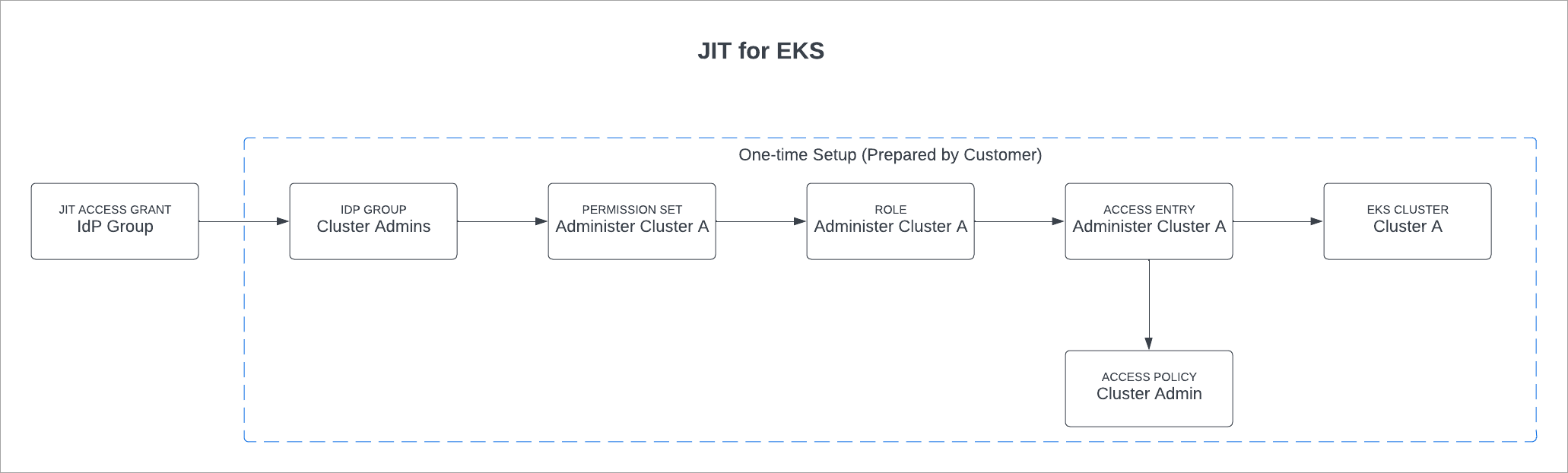
Broadly speaking, granting EKS cluster access for JIT users involves the following steps (detailed steps in the procedure):
- Create an empty permission set in IAM Identity Center.
- Assign an IdP group and the new permission set to your cluster's account.
- Create an access entry in Elastic Kubernetes Service, allowing you to map identities to access policies (pre-defined AWS-managed Kubernetes permissions)
Prerequisites:
- Identity provider (IdP).
- An IdP that has been integrated with Cloud Exposure and onboarded for JIT.
- An IdP group, whose users will be granted the selected permissions in the relevant EKS cluster. The group must be available in IAM Identity Center.
-
EKS cluster:
- Kubernetes version 1.23 or above.
- The latest EKS platform version (depending on your Kubernetes version).
See relevant AWS documentation for more information about cluster prerequisites, including a full list of supported versions.
To configure AWS IAM to allow EKS cluster access:
- Create an empty permission set:
- Log in to the AWS Console.
- Navigate to IAM Identity Center.
- Click on Permission sets, and then click Create permission set.
- For the type, choose Custom permission set, and then click Next.
-
On the Specify policies and permissions boundary page, click Next.
Note: The permission set should be empty. There's no need to select any policies. - Under Permission set details, enter a Permission set name.
- Click Next, and then review the permission set and click Create.
-
Assign the IdP group and permission set to the cluster's account:
- Navigate to Multi-account permissions > AWS accounts.
- Select the account(s) that contains the cluster you want to grant permissions to, and then click Assign users or groups.
- Under Groups, select the relevant IdP group, and then click Next. See the Prerequisites, above, for more information.
- Under Permission sets, select the permission set that you created earlier, and then click Next.
Review the assignment and click Submit.
Note: Creating this assignment automatically creates a new role with the following preface: AWSReservedSSO_. You need to use this role in an upcoming step in this procedure.
- Create an access entry for the cluster:
- In the AWS Console, navigate to Elastic Kubernetes Service (EKS).
- Click on the relevant cluster.
- Click on the Access tab, and then under IAM access entries, click Create access entry.
- Under IAM principal, select the role that was automatically created earlier. The role starts with the following preface: AWSReservedSSO_
-
Under Access policies:
- Select the policy name containing the required Kubernetes permissions that you want to grant in the selected cluster.
- Choose whether the access scope of these permissions is on the entire cluster, or at the namespace level.
- Click Add policy to add any additional policies, as needed.
- Click Next, and then review the access entry and click Create.