Administer JIT Access
Tenable One Cloud Exposure users (with the Administrator or JIT Administrator role) can manage eligibilities to define the parameters of valid access requests, and view an audit trail of historic JIT activity.
Add Eligibilities
Add an eligibility to define the parameters of valid access requests. See Common JIT Use Cases for examples of how to leverage JIT to grant access for specific cloud providers.
When the selected The Eligibility page has two tabs:
- Account Eligibilities: Displays eligibilities that grant access to accounts.
- AWS SSO Application Eligibilities: Displays eligibilities that grant access to applications managed by AWS Identity Center. This tab is available only for th AWS
Prerequisites:
- You must have the Administrator or JIT Administrator role in Cloud Exposure to add eligibilities.
- Grant Tenable JIT Permissions on the relevant organization of the cloud service provider.
To add an eligibility:
- Select a scope (account folder) for the eligibility in the Organization tree on the left. This defines which accounts are available for a Requester to ask for.
- In the Cloud Exposure JIT Portal, navigate to Eligibilities.
-
If the selected scope is on AWS accounts, select the relevant tab:
- Account Eligibilities — Eligibilities that grant access to accounts.
- AWS SSO Application Eligibilities — Eligibilities that grant access to applications managed by AWS Identity Center.
- Click Add Eligibility.
- Enter a Name for the eligibility/permission, which will be displayed to users when they request access.
- (AWS Account Permissions) Enter an ID for the eligibility/permission, which acts as a unique identifier, and will be displayed in the cloud provider console. Use the auto-generated ID, or create your own. The ID must be lowercase, and is limited to 18 characters.
- (Optional) Enter a meaningful Description to help the requester understand the nature of the permission. The description will be displayed to the requester as a tooltip next to the permission when they Request Access via the JIT Portal.
- Select the Organization that the requester belongs to (if more than one has been configured for JIT).
- Select which Users and groups can request access (the requester). You can select more than one user/group.
-
(AWS/Azure/GCP) Select one or more Permissions that the user or group can request:
AWS Account Permissions — Choose managed policies manually, or choose an existing IAM Identity Center permission set, excluding those with customer managed policies or permissions boundaries.
If using managed policies, Add an inline policy (custom JSON), to allow users to request access using organization-specific permissions, in addition to any permissions selected above. The JSON policy must follow standard AWS IAM policy language, with relevant size limitations.Note: The inline policy of the permission set cannot exceed 7,680 characters.Azure — All built-in and custom roles are available here. If you select more than one role, the requester will be able to select which of the defined roles to request access to when submitting their request.
Note: Keep in mind, if there's only a single active access request that grants the Owner role for a subscription, it won't expire and it can't be revoked.- GCP — All built-in and custom roles are available here. If you select more than one role, the requester will be able to select which of the defined roles to request access to when submitting their request.
-
(Identity providers) Select which Groups the selected users and groups can request to be a part of. This then allows users/groups to use any necessary permissions granted via such groups.
Note: OneLogin: Roles (instead of groups). Microsoft Entra ID: Role assignable and dynamic groups are not listed. - Select the Accounts (or Applications) the users can request access to.
You can also enable Limit account selection per request. This allows you to restrict how many accounts a requester can select when submitting an access request. For example, if you select five accounts in the eligibility, you can limit users to select up to three per request. -
(Azure) Select whether to limit the eligibility to Resource groups:
- Check Resource groups only to restrict access to specific resource groups rather than the entire subscription.
- Once selected, the Resource groups dropdown becomes active. Choose one or more Azure resource groups that users can access when they request this eligibility. You can also enable Limit account and resource group selection per request. This restricts how many accounts and resource groups the requester can select in a single request.
-
Keep in mind, if Resource groups only is not selected:
- The dropdown is disabled but remembers the previously selected groups.
- Requesters can still request access to resource groups, but are not limited to them.
- Select the Maximum duration, in hours (1-24), that the user or group can request. The duration is calculated from the time that access is granted.
-
For the Approval workflow, select whether:
- No approval required — Grant access immediately after the request is made.
- Approval required.
-
If you choose to require approval, you will be prompted to:
-
Select one or more Approvers to review the request. Approval requests will be sent via email to all approvers.
- If you enabled Slack for JIT, requests will also be sent via private Slack message to all approvers who exist in the workspaces you defined.
- If you enabled Team for JIT, requests will also be sent within relevant Teams channels.
- (Optional) Add approval level to create a multi-level approval workflow, requiring another user to approve the request before granting access.
- (Optional) Send Additional notifications. To increase collaboration, you can also notify other users via email or Slack/Teams channels (if configured) by adding them here. Only approvers can approve/deny requests. Any Slack channel that you added to Cloud Exposure and that is in the workspace/s that you selected when you enabled Slack for JIT will be available here.
-
Select one or more Approvers to review the request. Approval requests will be sent via email to all approvers.
- Configure whether or not to require users to enter a Justification when they request access.
- Choose whether to enable Recurring access, which allows requesters to request access that is automatically regranted at scheduled intervals.
If enabled, you can also configure Maximum recurring days to limit how far into the future a requester can schedule access. This defines the maximum number of days between the start and end dates of a recurring access request. For example, if the limit is 30 days and the start date of the access request is January 1, the requester can schedule recurring access only until January 31. Keep in mind, the maximum number of days cannot exceed 364.
By default, all eligibilities have Recurring access enabled and the Maximum recurring days set to 364, allowing requesters to benefit from recurring access without needing additional configuration. - Click Add.
Azure Owner Eligibilities
You can add an eligibility that allows users to request the Owner role in Azure. However, Azure requires that every subscription always has at least one active Owner role assignment. Because of this, if a JIT request is the only active Owner assignment on a subscription, the assignment will not expire or be revoked, even after the scheduled duration ends. It will remain in place until another Owner is assigned.
 See example
For example, three users (A, B, and C) are eligible to be assigned to the Owner role for three hours. No approval is required. Here's a breakdown of when each user is assigned to the Owner role and when the permission expires:
| Time | Action | Owners |
|---|---|---|
| 8:00 | User A is assigned to the Owner role. | A |
| 9:00 | User B is assigned to the Owner role. | A, B |
| 11:00 | User A's permission expires. | B |
| 12:00 | User B's permission doesn't expire. No other Owner. | B |
| 13:00 | User C is assigned to the Owner role. User B's permission expires. | C |
To ensure Owner role permissions granted via JIT expire as expected, it's recommended having at least one permanent Owner assignment (outside of JIT) per subscription.
Manage Eligibilities
You can review and manage all eligibilities on the Eligibilities page.
- Filter the table to quickly find what you need. For example, use the Accounts filter to display eligibilities for specific accounts, folders, or account IDs. Filtering by account name, account ID, or folder name helps you narrow down large lists and find relevant eligibilities faster.
- Table columns change based on the provider or IdP integration within the selected scope.
- Customize the table using the Column picker to show or hide columns as needed.
Eligibilities table columns:
| Column | Description |
|---|---|
| Name | The name of the eligibility. |
| Scope | The full organizational path of the eligibility, for easier identification of where it is defined. |
| Organization | The organization linked to the eligibility. |
| Principals | The users or groups that can request access. |
| Permissions | The permissions granted by the eligibility. (Cloud providers only) |
| Inline Policy | Any inline policy associated with the eligibility. (AWS only) |
| Accounts | The scope of the eligibility, for example an account or folder. (Cloud providers only) |
| Resource groups | Azure resource groups included in the eligibility. (Azure only) |
| Groups | The IdP group(s) included in the eligibility. (IdPs only) |
| Maximum duration | The maximum time access can be granted for a single request. |
| Approval required | Whether the eligibility requires explicit approval. (Hidden by default) |
| Approvers | The users assigned to approve access requests. |
| Second/third level approvers | Additional approvers for multi-level approval workflows, if configured. (Cloud providers only) |
| Status | The current status of the eligibility (e.g., active, inactive). |
| Justification | The explanation provided by the requester when submitting the request. |
| Recurring Access Limit (days) | The maximum number of days access can be automatically granted through recurring access. If recurring access is disabled, this field shows a dash (–). |
| Accounts/resource groups limit | The maximum number of accounts (or in Azure, combined accounts and resource groups) that can be selected per request, if defined in the eligibility. (Cloud providers only) |
To manage eligibilities:
- In the Cloud Exposure JIT Portal, navigate to Eligibilities.
-
Navigate to the relevant eligibility, click the three dots icon, and then choose whether to:
- Edit — Update one or more of the eligibility parameters.
- Delete — Remove the eligibility from the system.
- Duplicate — Create a new eligibility by duplicating an existing one, allowing you to reuse or modify its parameters.
Multi-Level Approval Workflow
You can create a multi-level approval workflow, requiring an additional stage of approval before granting access.
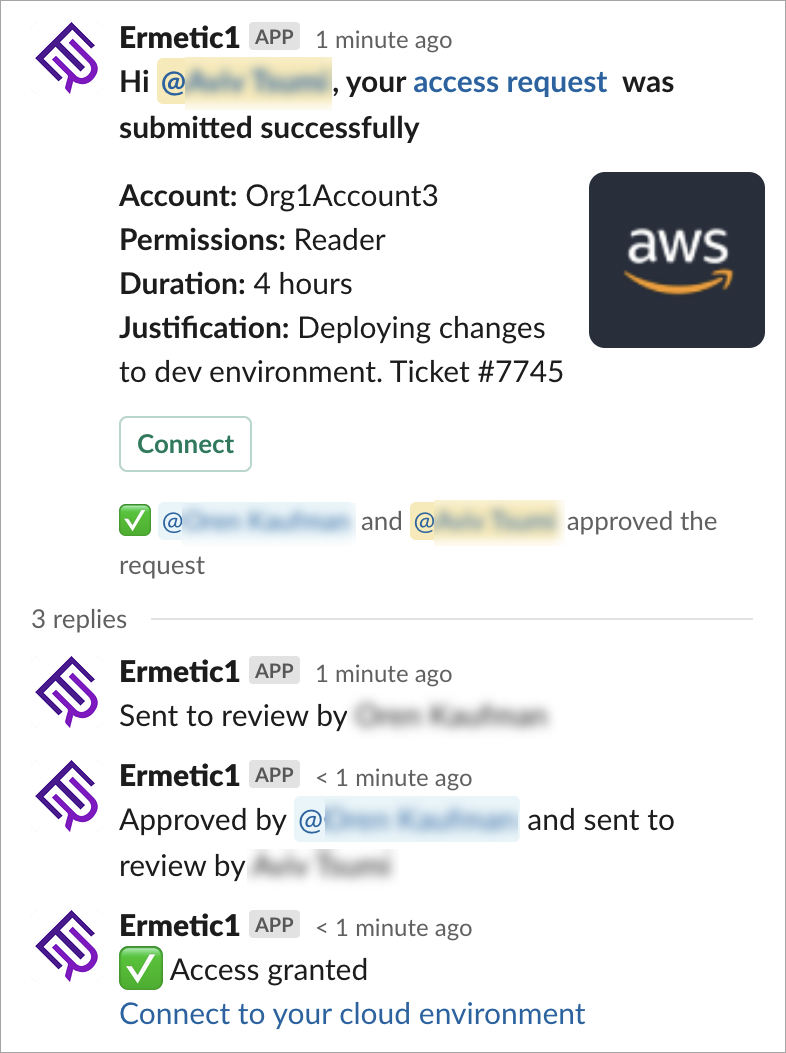
When you add an eligibility, if you choose to require explicit approval for access requests, you can also add a second- or third-level Approver. If the initial Approver (first-level) approves the request, a notification is then sent to the second-level Approver, who can then review the request, and either approve/deny. Access is only granted to the Requester after the final Approver defined in the eligibility approves the request.
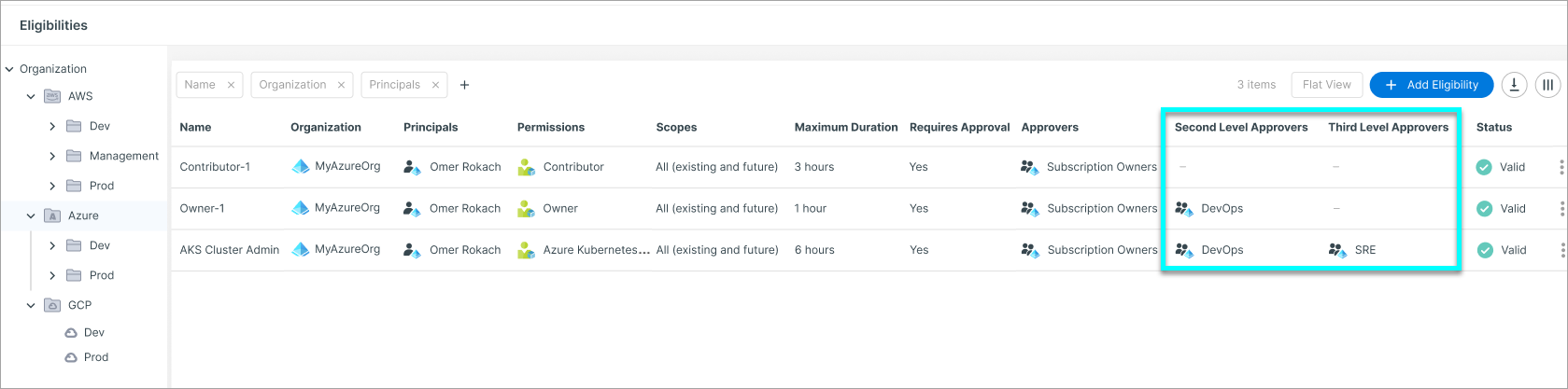
- You can add a maximum of three approval levels.
- Within any given approval level, you can select one or more users/group members to act as Approvers. If there are multiple approvers for a given level, only one of them needs to grant approval for the request to progress to the next approval level.
- A request expires if it isn't reviewed by an Approver within 12 hours of when the request was made. If you configure a multi-level workflow, a request that was approved by the first-level Approver will expire if it isn't reviewed by the second-level Approver within 12 hours. The same logic applies if a third-level Approver is configured.
Multi-Level Approval in Slack
If Slack is enabled for JIT, requests and approvals for multi-level workflows can be performed within Slack, in addition to via the JIT Portal.
Audit JIT Activity
View audit trail information about JIT-related activity in a dedicated audit view. This view contains information about eligibilities, access requests, and the activities users performed in the cloud with JIT permissions. In addition, eligibility activity is also sent to the general Cloud Exposure audit trail.
You can export the currently filtered results of the audit trail to a CSV file. Both the Permission Eligibility Audit Events and Permission Request Audit Events tables support customizable column visibility via a column selector. Your column preferences are saved across sessions.
Permission Eligibility Audit Events Table
| Column | Description |
|---|---|
| Time | When the action was performed. |
| User | The user who performed the action (e.g., who requested access or approved a request). |
| Action | The action performed (e.g., request access, approved a request). |
| Requester | The user who submitted the access request. |
| Eligibility | The name of the eligibility used. |
| Accounts | The accounts associated with each eligibility event, including display reference and path. |
| Azure Resource Groups | The Azure resource groups associated with the event. (Azure accounts only) |
| Resource groups | The Azure resource groups selected in the request. |
| Accounts limit | The maximum number of accounts (or in Azure, combined accounts and resource groups) that can be selected per request, if defined in the eligibility. |
| Permissions (Cloud providers) | The permission granted in the eligibility or requested by the requester. |
| [NEW] | Groups (IdPs, hidden by default) |
| Duration | The length of time access was granted for. |
| Recurring Access Limit (days) (hidden by default) | The maximum number of days access can be automatically granted through recurring access. If recurring access is disabled, this field shows a dash (–). |
| Justification | The explanation provided by the requester when submitting the request. |
| Approval Required (hidden by default) | Whether the eligibility requires explicit approval, or is automatically approved immediately after the request is made. |
| Approvers | The list of users assigned to approve the request. |
| Schedule time | The scheduled activation time for the permission request. |
Permission Request Audit Events Table
| Column | Description |
|---|---|
| Time | When the action was performed. |
| User | The user who performed the action (e.g., who requested access or approved a request). |
| Action | The action performed (e.g., request access, approved a request). |
| Requester | The user who submitted the access request. |
| Eligibility | The name of the eligibility used. |
| Accounts | The accounts associated with each request audit event. |
| Resource groups | The Azure resource groups selected in the request. |
| Accounts limit | The maximum number of accounts (or in Azure, combined accounts and resource groups) that can be selected per request, if defined in the eligibility. |
| Permissions (Cloud providers) | The permission granted in the eligibility or requested by the requester. |
| Groups (IdPs, hidden by default) | The IdP group granted in the eligibility or requested by the requester. |
| Duration | The length of time access was granted for. |
| Recurring Access Limit (days) | The maximum number of days access can be automatically granted through recurring access. If recurring access is disabled, this field shows a dash (–). |
| Justification | The explanation provided by the requester when submitting the request. |
| Approval Required | Whether the eligibility requires explicit approval, or is automatically approved immediately after the request is made. |
| Approvers | The list of users assigned to approve the request. |
| Schedule time | The scheduled activation time for the permission request. |
To audit JIT activity:
- In the Cloud Exposure JIT Portal, navigate to Audit.
-
Navigate to one of the following tabs, depending on the audit data you’re interested in:
- Access Requests
- Eligibilities
- Filter the table according to relevant parameters.
Audit JIT Video
In this video, you can learn how to use the Audit page in JIT Access, including viewing the audit trail for JIT activity.
Eligibility Management JIT Video
In this video, you can learn how to add and manage eligibilities in JIT Access.