Review Access
When a Tenable One Cloud Exposure administrator adds an eligibility, they can designate approvers to manually review any access requests associated with the eligibility. After a request is made, the approvers are notified via email and Slack (if enabled) that there is a pending request.
You can review and approve access via:
- the JIT Portal
- Slack (if enabled)
- Microsoft Teams (if enabled)
Review Access via the JIT Portal
To review access requests:
-
Log in to the Cloud Exposure JIT Portal using one of the following URLs:
- Global (All regions): app.tenable.com/user
- United States Gov Cloud: app.tenable.us/user
- Navigate to Access Reviews from the left-hand navigation menu.
-
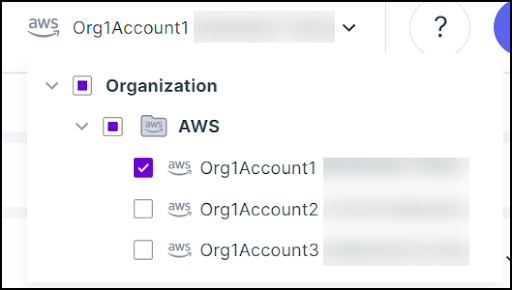
If you want to review access requests for a specific account/s, select the account/s from the dropdown on the top right of the page.
-
Navigate to the Pending section, and review requests.
Note: Use the filters at the top to narrow down the results.
-
Either Approve or Deny the request.
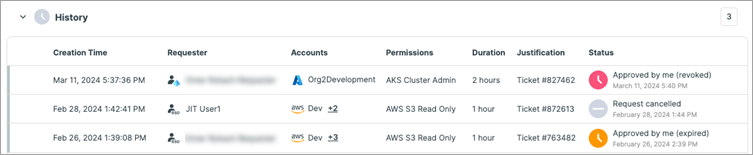
After you review the request, you can view the request details in the History section, along with its status:
- Request canceled - The request was canceled by the Requester.
- Denied by- The request was denied by an Approver.
- Approved by- The request was approved by an Approver and its duration is either still active, or has expired.
- Request expired - The request wasn’t reviewed by an Approver within 12 hours.
-
(Optional) If needed, you can Revoke user access to an active session for requests that you were designated as an approver. This will immediately remove the user's permissions for the relevant request. When revoking recurring access, you can choose to revoke all future instances, or just the current instance (if active) or upcoming instance (if pending).
 Note: To revoke a request that is automatically approved (and doesn't require explicit approval), an administrator must delete the eligibility.
Review Access via Slack
You can use Slack to review and manage access requests without logging in to the Cloud Exposure JIT Portal.
Prerequisites:
- Integrate your Slack workspace with Cloud Exposure
- Enable Slack for JIT access
- You must be eligible to review or approve access. If you can't review access via Slack, check with your Cloud Exposure administrator.
The Cloud Exposure Slack app includes two tabs: Home and Messages.
Home Tab in Slack
The Home tab provides an overview of your access requests and actions:
- Pending requests — Review details and choose Approve or Decline.
- Active accesses you approved — Review and revoke access as needed.
Messages Tab in Slack
The Messages tab lists all JIT access notifications and allows you to take action directly from Slack:
- Pending requests — Review request details and select Approve or Decline.
- Active accesses approved by you — Revoke access if needed.
- Closed requests — View the history of revoked and expired requests.
Review Access via Teams
You can review access requests directly in Teams, via an embedded version of the Cloud Exposure JIT Portal.
Prerequisites
To review access requests:
- Navigate to Microsoft Teams.
- Navigate to the Access Reviews page.
-
Navigate to the Pending section, and review requests.
Note: Use the filters at the top to narrow down the results.
-
Either Approve or Deny the request.
After you review the request, you can view the request details in the History section, along with its status:
- Request canceled - The request was canceled by the Requester.
- Denied by- The request was denied by an Approver.
- Approved by- The request was approved by an Approver and its duration is either still active, or has expired.
- Request expired - The request wasn’t reviewed by an Approver within 12 hours.
-
(Optional) If needed, you can Revoke user access to an active session for requests that you were designated as an approver. This will immediately remove the user's permissions for the relevant request.
Note: To revoke a request that is automatically approved (and doesn't require explicit approval), an administrator must delete the eligibility.
Review Access Video
In this video, you can learn how to review and take action on JIT access requests.