Create an Advanced Patching Strategy
A patching strategy template contains specific fields that you can configure to make a unique patching strategy for your environment. Tenable recommends opening an existing strategy that contains most of the configuration items you want, and then saving it with a new name and description. The configuration options are the same whether you create a new strategy or modify an existing strategy.
Note: Creating a custom advanced patching strategy is an advanced task. Tenable recommends using the v2 Strategy template or reaching out to our Tenable Customer Support team for assistance.
For more information regarding templates and and a full list of settings:
Create Advanced Patching Strategy From a Template
-
Select Strategies in the left navigation menu.
-
Select Initial Patch Manager Approval folder.
-
Select Initial Approval - Immediate Mandatory Deployment in the name column.
-
Select More in the upper left corner of the template, and then select Save As:
-
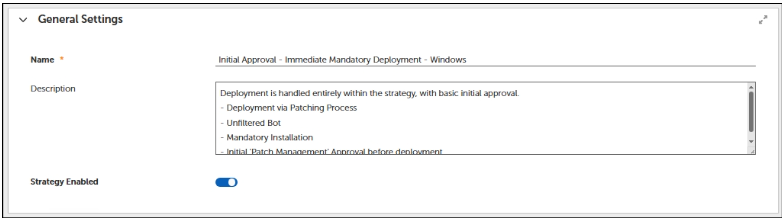
Enter a unique name that reflects what the strategy does conceptually. For example, Initial Approval - Immediate Mandatory Deployment - Windows.
-
Select Save as.
-
General settings
-
Enter a detailed Description of your new template or keep the existing detail.
-
Toggle ON Strategy Enabled.
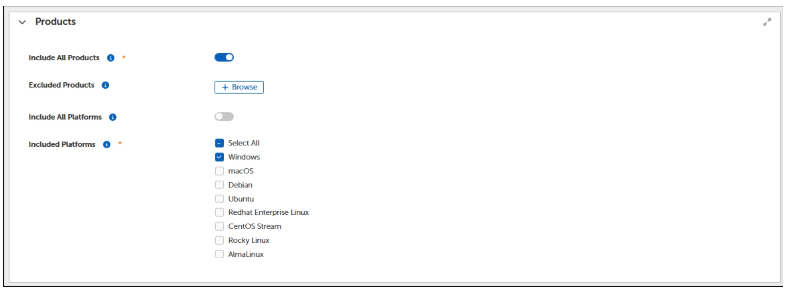
Products settings
-
Toggle ON Include All Products.
-
Toggle OFF Included Platforms.
-
Check Windows.
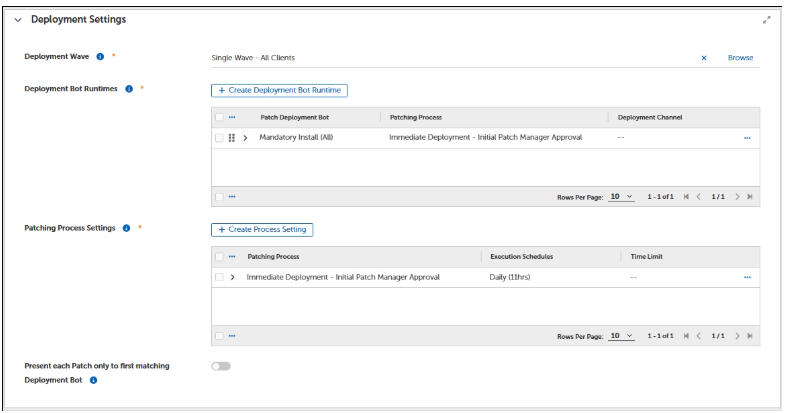
Deployment Settings
-
Click Browse next to Deployment Wave.
-
Select Single Wave - All Clients from the table.
-
Click OK.
-
-
Use the default Deployment Bot Runtimes and Patching Process Settings.
-
Click Save.
Run Strategy
Once you have completed the step above and successfully created a new patching strategy, you can then run your strategy to test if any applicable patches can be deployed.
-
Select Run Strategy from the More dropdown.
-
This runs your strategy without waiting for the specified schedule.
Note: You may get receive a prompt that saying No applicable patches for <patchingstrategy>. If this is the case you may not see this patching strategy appear in Approval Requests until there are applicable patches available.

Flex Controls and Approval Requests
-
Select Advanced Settings > Flex Controls > Cycle Operations > Patching Cycles from the side navigation.
-
In the Running Patch Processes table your patching strategy has the in-progress status.
-
Select the Approval Requests in the left navigation menu.
-
Select your strategy from the table.
-
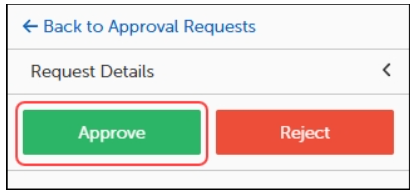
Select Approve.
You can wait until the patch scheduled time for deployment, or you can start the deployment manually.
Deploy your patching strategy manually
-
Select Flex Controls > Patching Cycles, and then select the name of the patching strategy to open the Cycle Information.
-
Select Play under Cycle Information, and then select Close.
-
Select your patching strategy from the table to view details about the patching process.