Manage OTD Scans
Edit an OTD Scan
To edit an OTD scan using the configuration wizard:
-
Go to Data Collection > Active Queries.
The Active Queries Management page appears.
-
Click the Agent Scans tab.
The OTD Scans page appears.
-
In the row of the scan you want to edit, click the
 button.
A menu appears.
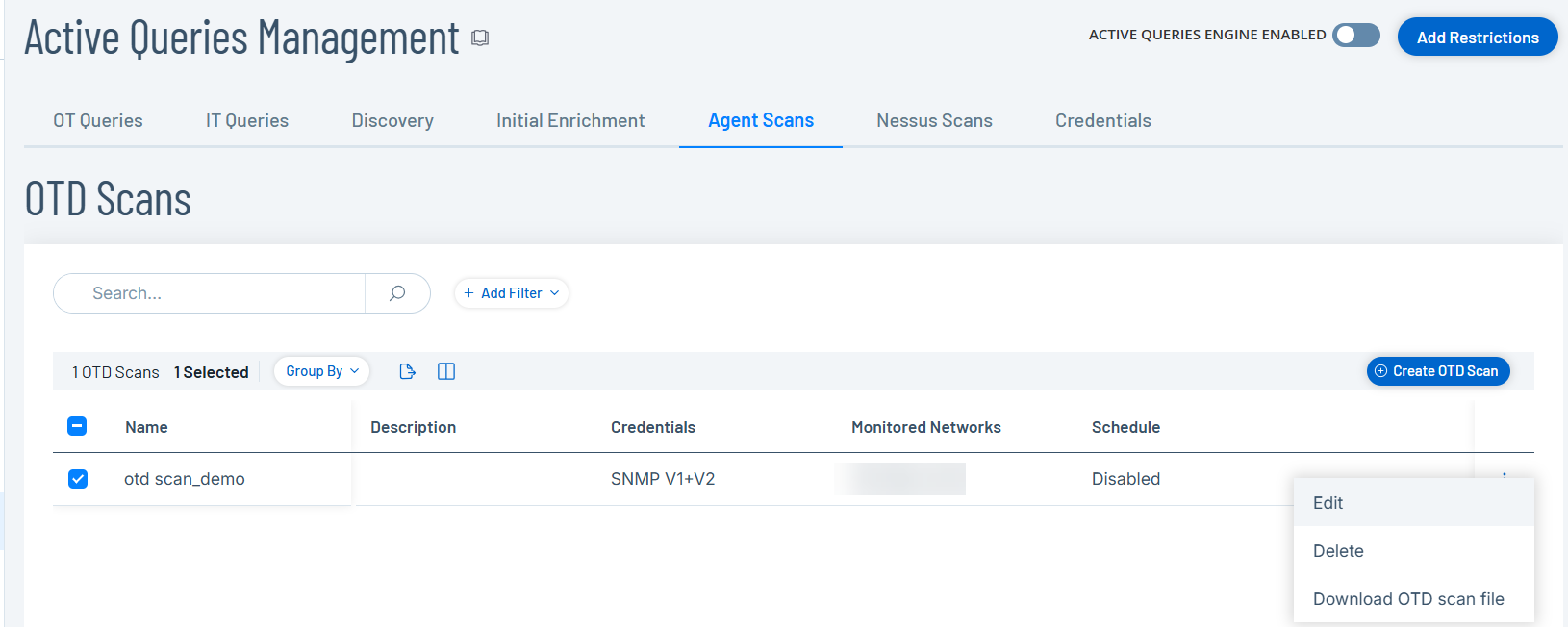
-
Select Edit.
The Edit OTD Scan panel appears.
-
Modify the details as required.
-
Click Save.
Tenable One OT Exposure saves the OTD scan configuration.
Delete an OTD Scan
You can delete OTD scans you no longer require.
To delete an OTD scan using the configuration wizard:
-
Go to Data Collection > Active Queries.
The Active Queries Management page appears.
-
Click the Agent Scans tab.
The OTD Scans page appears.
-
In the row of the scan you want to edit, click the
button.A menu appears.
-
Select Delete.
Tenable One OT Exposure prompts you to confirm the action.
-
Click Delete.
Tenable One OT Exposure deletes the OTD scan configuration.
Download OTD Scan File
Download the OTD scan file configuration to upload it to your OT Agent.
To download the OTD scan file:
-
Go to Data Collection > Active Queries.
The Active Queries Management page appears.
-
Click the Agent Scans tab.
The OTD Scans page appears.
-
In the row of the scan you want to edit, click the
button.A menu appears.
-
Select Download OTD scan file.
Tenable One OT Exposure downloads the OTD scan file to your system.