Generate Least Privilege Policies and Roles
Generate least-privilege policies to enforce security best practices by creating fine-grained, on-demand policies for cloud identities and resources. These policies grant only the permissions needed to perform required tasks, reducing the risk of overprivileged access. Whether you are working with AWS, Azure, or GCP, this feature allows you to generate tailored AWS policies or Azure or GCP custom roles based on resource activity and configurations. By refining permissions, organizations can align with security standards while maintaining operational efficiency.
You can generate least-privilege policies for these supported resources.
AWS: Generate Least Privilege Policies
Generate on-demand, fine-grained policies for identities/resources that grant the minimum privileges needed to perform required tasks.
Developers working in development environments generally start with broader permissions, and then, as workloads settle, begin to refine permissions to only those services, resources, and actions that are actually used. This ensures that, as workloads are migrated from development to production environments, policies follow security best practices.
Required Tenable One Cloud Exposure User Role: On-demand policy generation becomes available 24 hours after user/role creation. You must have either the Collaborator or Administrator role to use this feature.
You can also generate least-privilege policies in the Identity Intelligence page (Explore > IAM > Identity Intelligence).
To generate a least privilege policy:
- View Your Asset Inventory:
- In the Cloud Exposure Console, click on Inventory.
- From the Inventory view, select one of the AWS supported resource types (for example, IAM Roles or EC2 Instances).
- Click on the relevant resource to drill down into it.
-
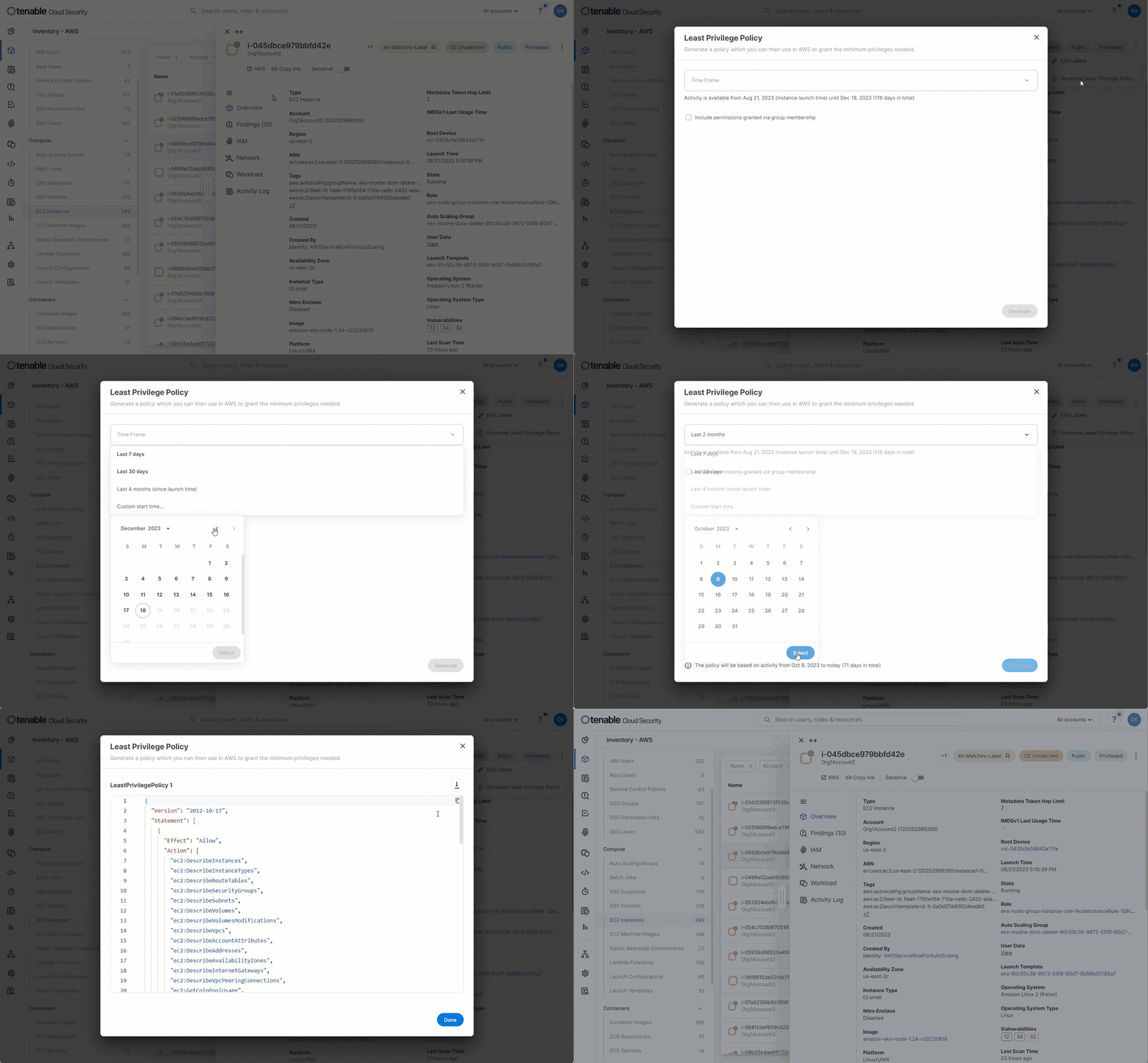
Click on the three dots icon and then click Generate Least Privilege Policy.

-
Specify a date range for the learning period. The available date ranges depend on when the user/role was created, or the launch time of the EC2 instance. You can also choose a Custom start time, which will create a policy based on data from the defined start date until the current date. An indicator displays how up-to-date the activity log is for the resource.
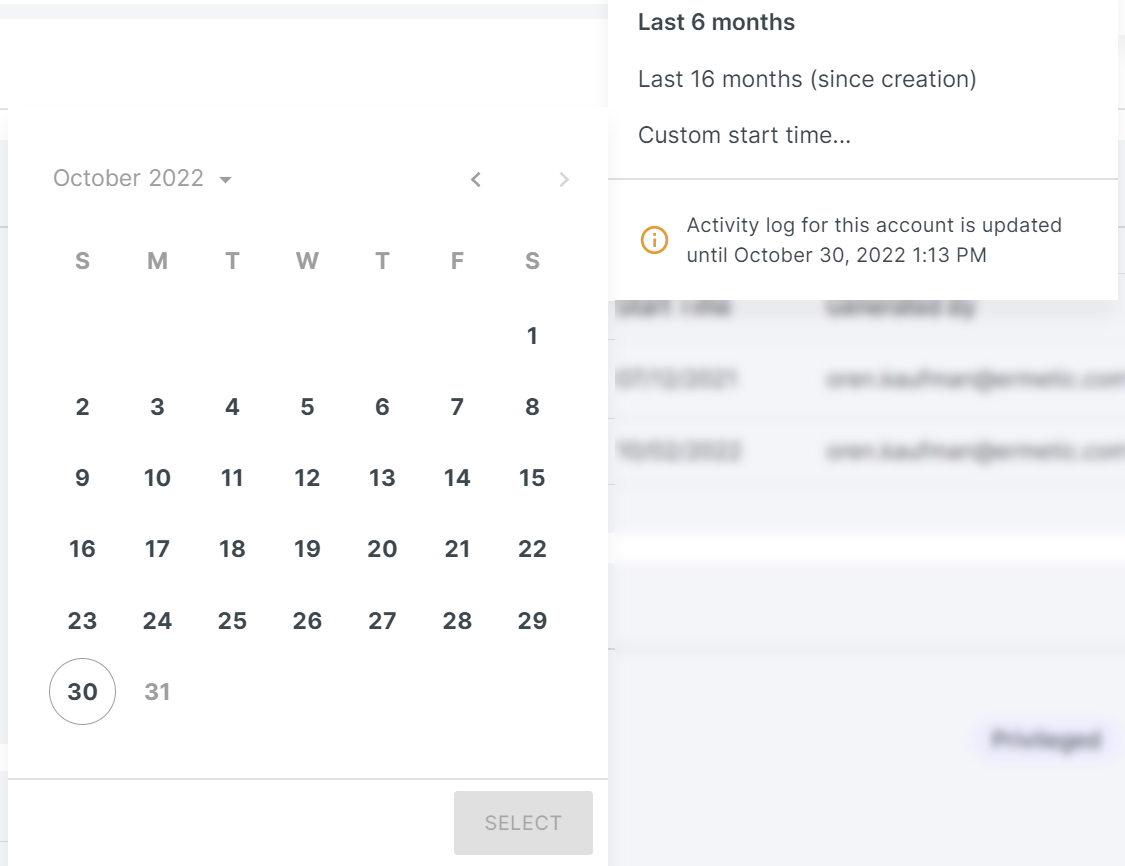
After you choose a date, Cloud Exposure generates a least-privilege policy based on the activity in the selected date range.
- Choose whether to Include permissions granted via group membership, or whether to ignore them (default).
- Choose whether to Use specific resources instead of wildcards. See AWS Resource Granularity for more information.
- Copy or download the policy, as needed.
AWS Resource Granularity
In AWS, you can generate policies that include specific resources instead of using a wildcard in all cases for all the supported services.
When generating an AWS least-privilege policy, you can select the Use specific resources instead of wildcards option. This uses resource granularity to include the specific resources from the policy. The generated policy can include resources from the supported resource list.
Keep in mind, resource granularity might create a policy that exceeds the AWS character limit. Attaching this policy would not allow access to new resources. If allowing access to new resources is required, it's recommended to use the wildcards and not select this option.
Supported Resources for Resource Granularity
Tenable supports the most important and common resources for these AWS services:
- CloudFormation
- CloudTrail
- DynamoDB
- ECR
- IAM
- KMS
- S3
- Secrets Manager
- SNS
- SSM
- SSO
- STS
Generate Least Privilege Custom Roles for Users or Service Identities
Generate on-demand, custom policies for users or service identities, which you can then use in Azure and GCP to grant the minimum privileges needed for users to perform tasks.
You can also generate least-privilege policies in the Identity Intelligence page (Explore > IAM > Identity Intelligence).
To generate a custom role for users or service identities:
- View Your Asset Inventory. In the Cloud Exposure Console, select the relevant resource:
- Azure: Click on Inventory > IAM, and select Azure Managed Identity.
- Microsoft Entra ID: Click on Inventory, and select one of the supported resource types.
- GCP: Click on Inventory > IAM, and select GCP Service Account.
- Google Workspace: Click on Inventory, and select Google Workspace User.
- Click on the relevant resource to drill down into it.
- Click the three dots menu
 and then Generate Custom Role.
-
Choose a Scope Level to determine which resources are included in the analysis, and at what level to assign the role to the identity. You can select:
- Azure and Microsoft Entra ID:
- Management Group
- Subscriptions
- Resource Groups
- GCP and Google Workspace:
- Organization
- Folders
- Projects
For the chosen scope, Cloud Exposure takes into account any permissions already granted at that scope or above. Permissions granted at a lower scope are ignored.
- Azure and Microsoft Entra ID:
- Choose a Time Frame for the role learning period. The earliest available start time is either the date the identity was created or the date of the earliest logged event for the indentity, depending on which is later.
- Choose whether to Include permissions granted via group membership, or whether to ignore them (default).
- For GCP and Google Workspace resources only: Choose whether to Include permissions granted via basic roles assigned at the project level (e.g. Project Owner) (default) or whether to ignore them.
- Click Generate. The custom role is displayed. Copy the role, and use it.
Generate Least Privilege Custom Roles for GCP and Microsoft Entra ID Groups
You can generate on-demand, custom policy groups to grant the minimum privileges required for groups to perform tasks in GCP and Microsoft Entra ID.
You can also generate least-privilege policies in the Identity Intelligence page (Explore > IAM > Identity Intelligence).
To generate a custom role for groups:
- In the Cloud Exposure Console, navigate to Risks > Cloud Findings.
-
Filter the table by one of the following:
- GCP: Overprivileged Google Workspace Group in project policy.
- Microsoft Entra ID: Overprivileged Microsoft Entra ID Group in subscription policy.
- In the results table, click the finding for which you want to create a least-privilege custom role. The finding details side pane opens.
-
Under Remediation, click the Via New Roles tab.
Note: The Via New Roles tab appears only when you must replace a role. If a role does not require replacement, only the remediation steps appear. - In the remediation steps, click on the custom role link.
- Select a Scope Level.
- Choose whether to Include permissions granted via group membership, or ignore them.
- Choose whether to Include permissions granted via basic roles assigned at the project level (e.g. Project Owner) (default), or ignore them.
- Click Generate. The custom role is displayed. Copy the role, and use it.
Supported Resources
The following resource types are supported:
-
AWS:
- IAM users
- IAM roles
- EC2 instances
- Lambda functions
- DynamoDB
-
Azure:
- Managed identities
-
Microsoft Entra ID:
- Users
- Applications
-
GCP:
- Service accounts
- Google Workspace Group
- Google Workspace Group (external)
-
Google Workspace:
- Users