Routines
The following is not supported in Tenable FedRAMP Moderate environments. For more information, see the Tenable FedRAMP Product Offering.
Required User Role: Scan Operator, Standard User, Scan Manager, Administrator, or Custom Role
A routine is an agentic workflow that Tenable One Vulnerability Management runs on a defined schedule to carry out exposure management work across your environment. Tenable Hexa AI carries out the work as an agent - reasoning at runtime rather than following fixed steps - so your team spends less time on repetitive work and more on reducing risk.
On the Routines page and on the Routines tab in the Tenable Hexa AI panel, you can view, create, and manage the routines in your Tenable One Vulnerability Management instance.
Routines Page
The Routines page provides a full-page view of all routines in your Tenable One Vulnerability Management instance. You can use this page to monitor routine activity, review run history, and perform management actions on your routines.
To access the Routines page:
-
Access the Agent Center. By default, the Routines page appears.
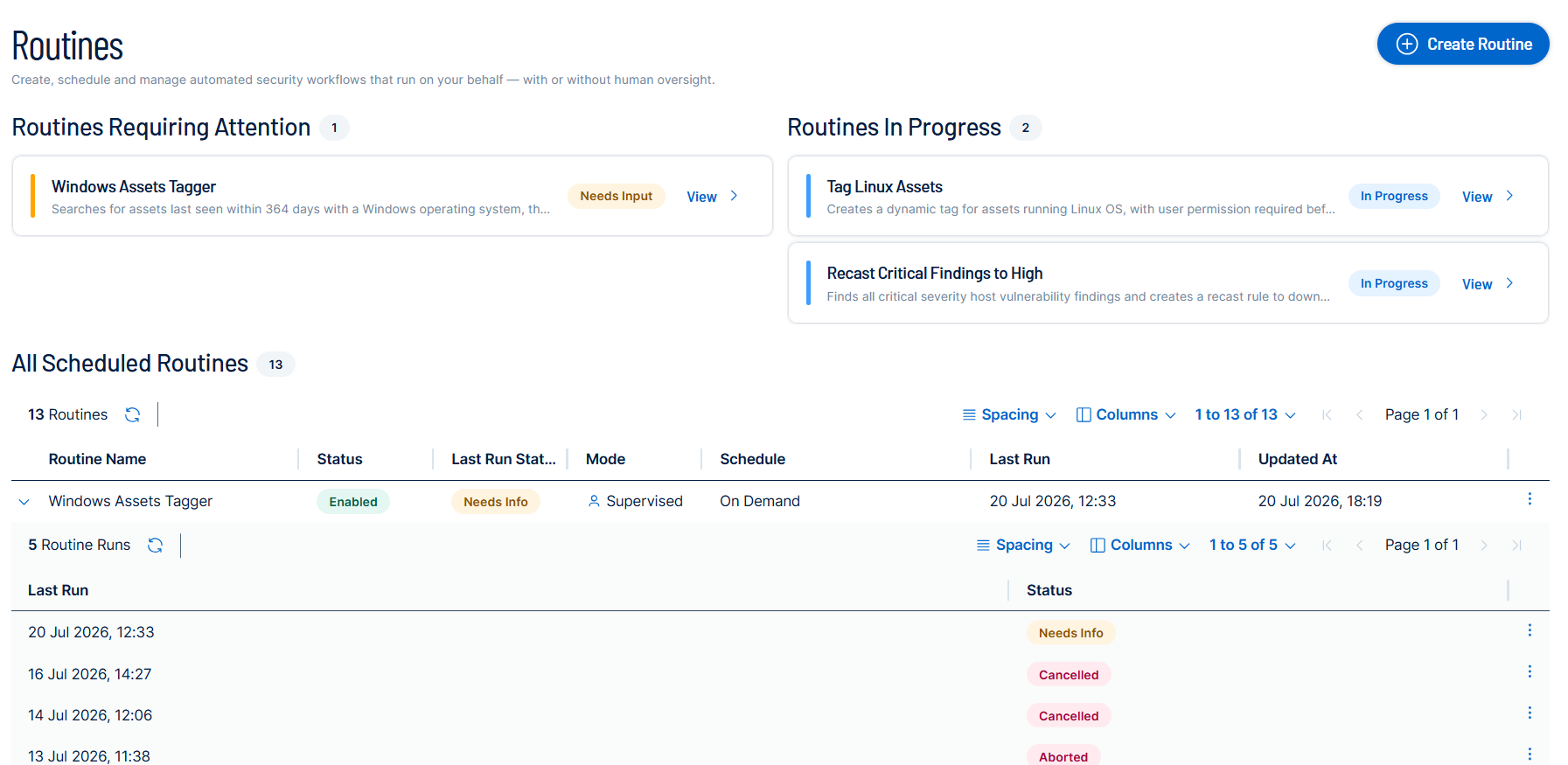 Tip: Above the routines table, click Create Routine to create a new routine. For more information, see Create a Routine.
The Routines page includes the following sections:
Routine Summary
At the top of the page, three summary cards provide a high-level view of your routine activity:
| Card | Description |
|---|---|
| Needs your Input | The number of routines that are paused because Tenable Hexa AI needs your approval. |
| Running Today | The number of routines scheduled to run today, and how many of those routines are currently in progress. |
| Routine Success | The percentage of routines that completed successfully, along with the number of routines that completed and the number that failed. |
Routines Requiring Attention and Routines In Progress
Below the summary cards, the Routines Requiring Attention and Routines In Progress sections list the routines in each state. Each section includes a count of its routines. Each routine appears on a card that shows the routine name, a brief description, its current status, and a View link that opens the routine's chat. For more information, see View a Routine Chat.
If no routines are in a state, the section displays a message such as No routines are currently requiring attention. To collapse or expand the Routines Requiring Attention section, click the  arrow next to its title.
All Scheduled Routines
The All Scheduled Routines section lists all routines in your Tenable One Vulnerability Management instance. A count of your routines appears next to the section title.
Above the table, you can do the following:
- In the Enter filter query box, type or select a filter to filter the routines list. For more information, see Filter the Routines List.
- View the total number of routines, and click the
 button to refresh the list.
 - Click Create Routine to create a new routine. For more information, see Create a Routine.
- Click Spacing to change the row spacing, or click Columns to choose the columns that appear in the table.
- Use the pagination controls to move between pages of routines.
Each row represents a single routine and includes the following information:
| Column | Description |
|---|---|
| Routine Name | The name of the routine. |
| Status | The current status of the routine. For a description of each status, see Routine Statuses. |
| Last Run Status | The outcome of the routine's most recent run. For a description of each status, see Routine Statuses. |
| Mode | The mode in which the routine operates. |
| Schedule | The frequency or schedule on which the routine runs automatically. |
| Last Run | The date and time at which the routine most recently ran. |
| Created At | The date and time at which the routine was created. |
| Updated At | The date and time at which the routine was most recently modified. |
Filter the Routines List
You can filter the routines list to find specific routines.
To filter the routines list:
-
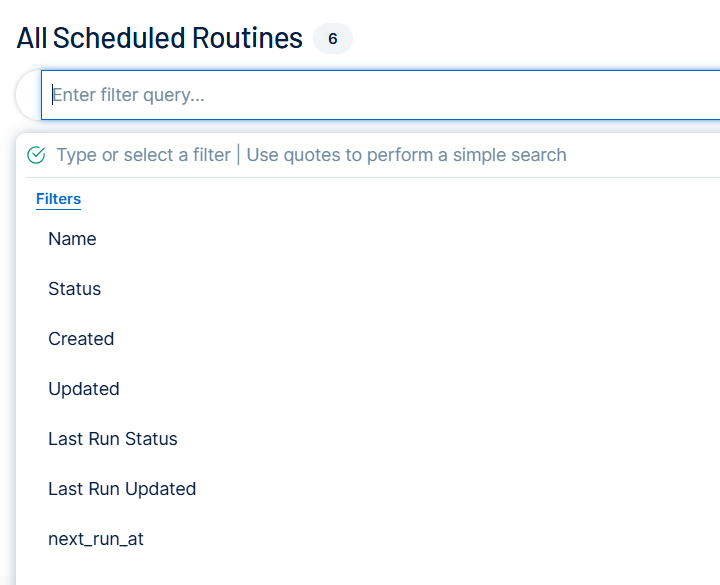
Click the Enter filter query box above the routines table.
A list of filters appears.
-
Type or select a filter. You can filter by the following:
- Name
- Status
- Created
- Updated
- Last Run Status
- Last Run Updated
- next_run_at
Tip: To perform a simple search, enter your search term in quotation marks. -
Click the
 button or press Enter on your keyboard.
Tenable One Vulnerability Management updates the routines list to show only the routines that match your filter.
Run History
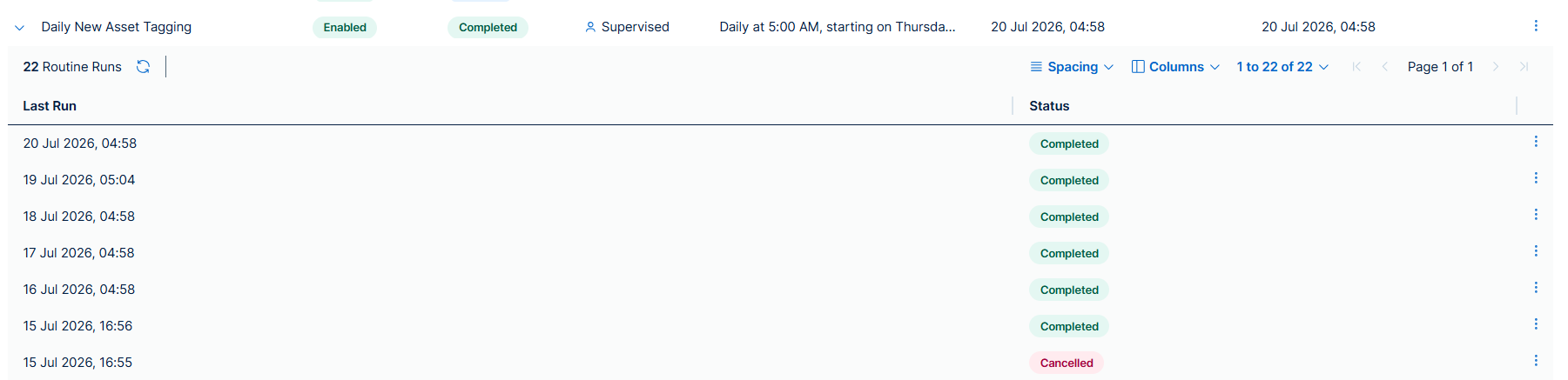
To view the run history for a routine, click the expand arrow  to the left of the routine row. The run history sub-table appears below the routine and lists each individual run, including its start time and status.
Routines Tab in the Hexa AI Panel
In the Tenable Hexa AI panel, click the Routines tab to view and manage your routines without leaving your current page. Routines are grouped by their current status, so you can quickly identify which routines need attention.
To access the Routines tab:
- In the upper-right corner of the page, click
 Hexa AI.
The Hexa AI panel appears.
-
Click the Routines tab.
The Routines Hexa AI tab appears.
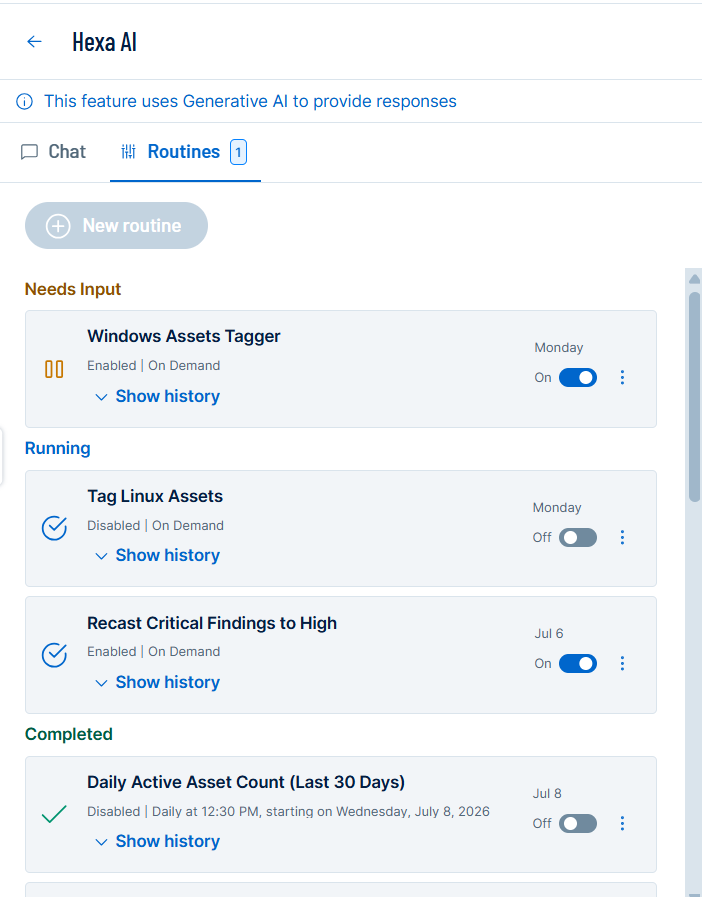
Routines are organized into the following status groups:
| Group | Description |
|---|---|
| Needs Input | Routines that are paused and waiting for you to provide additional information before they can continue. For more information, see Respond to a Routine Input Request. |
| Running | Routines that are currently active and executing their workflow. |
| Completed | Routines that have successfully finished their most recent run. |
| Aborted | Routines whose most recent run ended unexpectedly before completing. |
| Cancelled | Routines whose most recent run was manually stopped before it could complete. |
| Idle | Routines that are enabled and waiting for their next scheduled run. |
For a description of all available statuses, see Routine Statuses.
This tab includes the following:
Routine Cards
Each routine appears as a card within its status group. A routine card includes the following:
| Element | Description |
|---|---|
| Status icon | An icon on the left side of the card that indicates the routine's current status. |
| Routine name | The name of the routine. |
| Enabled/Disabled | Mode | Indicates whether the routine is enabled or disabled, and the mode in which it operates (for example, On Demand). |
| Schedule | The day or date on which the routine is scheduled to run (for example, Monday or a specific date). |
| Enable toggle | A toggle switch that allows you to enable or disable the routine directly from the card. For more information, see Enable or Disable a Routine. |
 button button |
Opens a menu with additional actions for the routine, including Launch, View, Enable/Disable, and Delete. For more information, see Manage Routines. |
| Show history | Expands the card to display the run history for the routine. Click Hide history to collapse the run history. For more information, see View Routine Run History. |
Routine Statuses
Each routine displays a status that indicates its current state. The following statuses are available:
| Status | Description |
|---|---|
| Needs Input | The routine requires additional input before it can continue or complete its current run. Tenable One Vulnerability Management is waiting for you to provide the requested information. |
| Running | The routine is currently active and executing its workflow. |
| Completed | The routine successfully finished its most recent run. |
| Aborted | The routine's most recent run ended unexpectedly before completing. This status may indicate an error or an internal interruption. |
| Cancelled | The routine's most recent run was manually stopped before it could complete. |
| Idle | The routine is enabled and waiting for its next scheduled run. No run is currently in progress. |
Manage Routines
For more information about how to view, create, and manage your routines, see Manage Routines.