Cycle Operations
Cycle operations give you access to patching, deployment, and rollout cycle details and the ability to manually manage active operations. Details include a graphical representation of any cycles in progress and a table that lists details for each cycle in progress. Also includes a graphical representation of previously completed cycles and a table that lists each completed cycle. Select each completed cycle to review details. Details available for each cycle type include the following:
Cycle Information
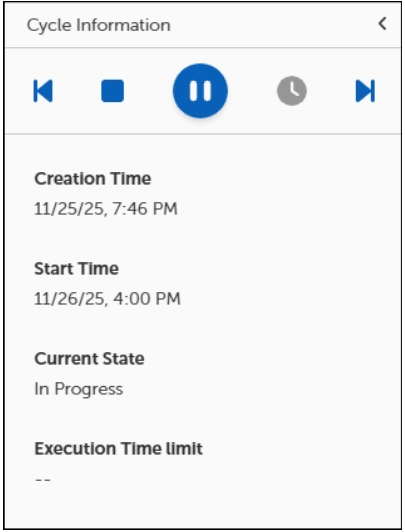
Provides general information about the patch process, such as the current state, the creation date and time, and the patch process schedule. This section also contains controls to manually start, stop, or delay a patch process.
Overall Metrics
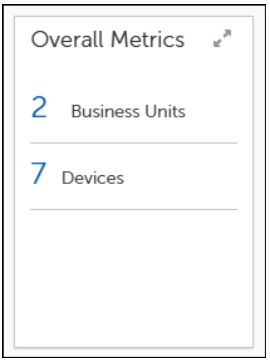
This section contains information about the scope of the running process. This screen shows the number of business units and devices affected by this patch process, along with urgency information.
Cycle History
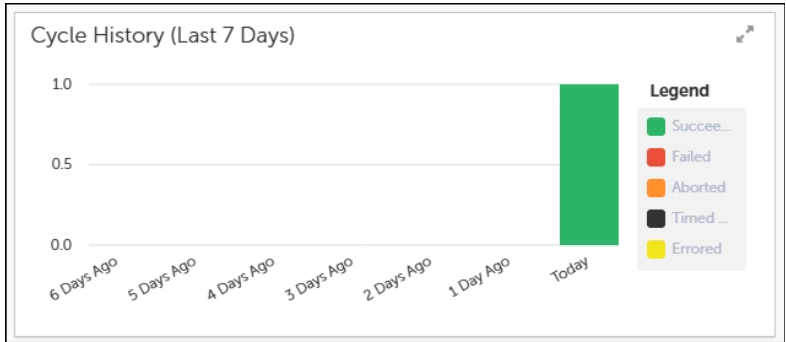
This section gives a historical perspective of the results of past runs. This view will show the number of devices that previously were successful, failed, aborted, timed out, or errored.
Patch Approvals
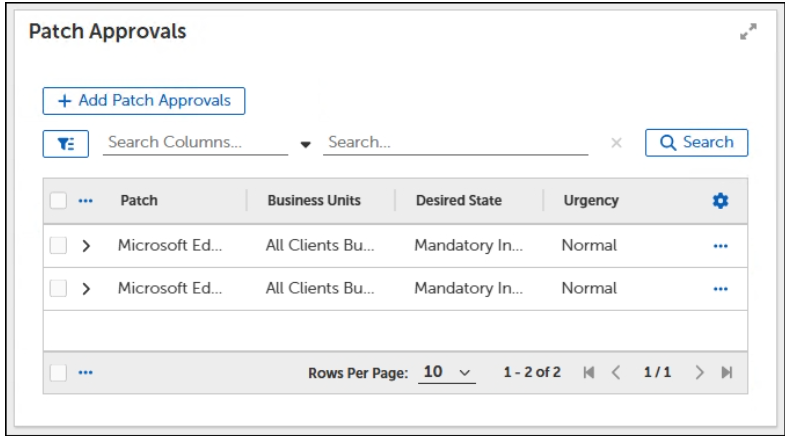
One of the key functions of a patch process is to execute approval chains as defined in the patching strategy or business unit. This section displays pending approvals. You cannot grant approvals from this view.
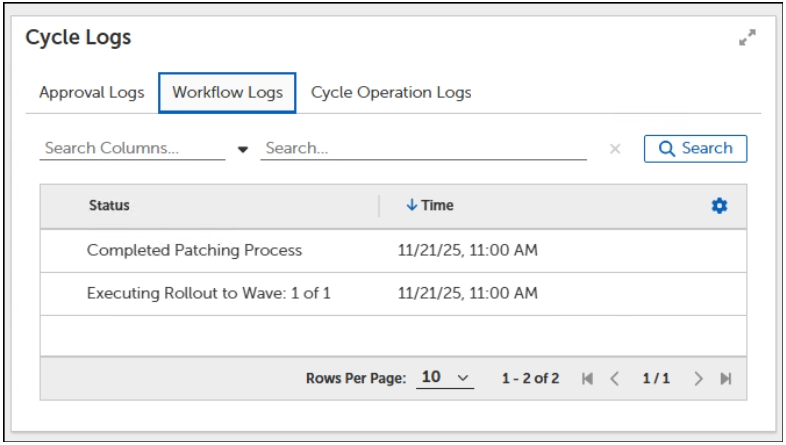
Cycle Logs
Display events relating to the patch process. For instance, the cycle operation logs can show the administrator who manually started a patch cycle and at what time.
Patching Cycles
This dashboard shows information about the active patch processes in the environment. Patch processes represent the workflow that models and performs the defined patching routine. As part of the overall patching strategy, patch deployment bots use configured criteria to identify patches that apply to endpoints. Once approved, the bot submits those patches to the patch process, which creates a patch cycle. The patch cycle executes at either a scheduled time or you can start it manually.
View running patch cycles
-
Select Advanced Settings > Flex Controls > Cycle Operations > Patching Cycles.
-
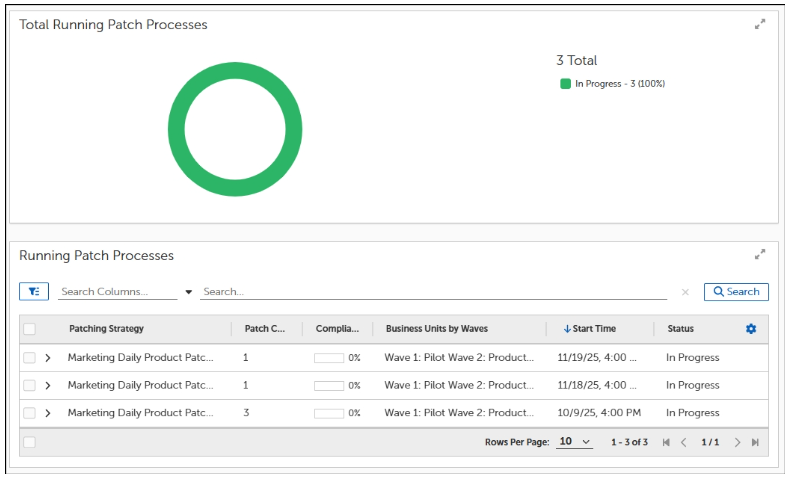
The Total Running Patch Processes widget shows an aggregate summary of all patch processes and their corresponding states (Waiting, In Progress, or Paused).
-
The Running Patch Processes table lists the running patching strategies by name.
-
-
Select the Patching Strategy name in the Running Patch Processes table to see specific details about that process.
View patch cycle history
-
Select History on the upper left to change to the History tab:
-
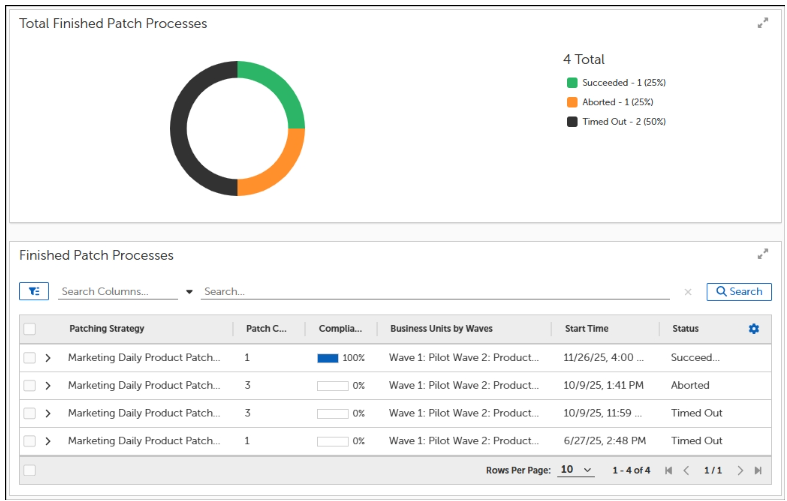
The Total Finished Patch Processes widget on top shows an aggregate summary of all completed patch processes and their corresponding states (In Progress, Succeeded, Failed, Aborted, Timed Out, Error Occurred).
-
The Running Patch Processes table lists the completed patch processes by patching strategy name.
-
-
Select the Patching Strategy name in the Running Patch Processes table to see specific details about that process.
Deployment Cycles
This dashboard shows information about currently running patch deployment channel processes and the history of completed patch processes. These details show the status of all active deployment processes.
Note: Deployment channels are recommended for more granular control of a deployment, but are not necessary. If a deployment channel was not added to the strategy, this dashboard will not be populated and continue to rollout cycle.
View running deployment cycles
-
Select Advanced Settings > Flex Controls > Cycle Operations > Deployment Cycles.
-
The Total Running Deployments widget shows an aggregate summary of all patch processes and their corresponding states (Waiting, In Progress, or Paused).
-
The Running Deployments widget table lists the running deployment strategies by name.
-
-
Select the Deployment Strategy name in the Running Patch Processes table to see specific details about that process.
View deployment cycle history
-
Select the History tab:
-
The Total Running Deployments widget displays deployment processes and their corresponding states (Waiting, In Progress, or Paused).
-
The Running Deployments widget table lists the completed deployment strategies by name.
-
-
Select the Deployment Cycle name in the Finished Deployments table to see specific details about that process.
Rollout Cycles
Rollout processes represent the installation of patches per business unit. Each business unit involved in the patch deployment includes a rollout cycle.
View running rollout cycles
-
Select Advanced Settings > Flex Controls > Cycle Operations > Rollout Cycles.
-
The Total Running Rollout Cycles widget on top shows an aggregate summary of all running rollout processes and their corresponding states (Waiting, In Progress, Paused).
-
The Running Rollout Cycles table lists the completed patch processes by rollout name.
-
-
Select the Rollout Cycle name in the Running Rollout Processes table to see specific details about that process.
-
Enter a Rollout Cycle name in the search bar above the Running Rollout Processes table, and then select Search.
View rollout cycle history
-
Select History on the upper left to change to the History tab:
-
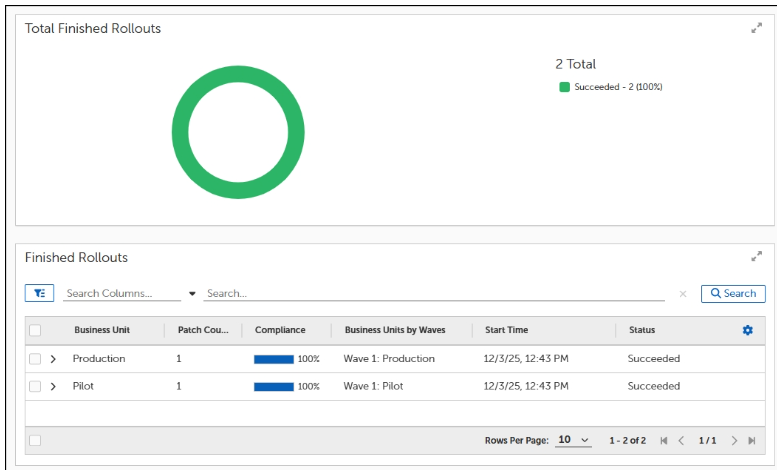
The Total Running Deployments widget displays an aggregate summary of all deployment processes and their corresponding states (Waiting, In Progress, or Paused).
-
The Running Deployments widget table lists the completed deployment strategies by name.
-
-
Select the Rollout Cycle name in the Finished Cycles table to see specific details about that process.