Rollbacks
The rollbacks feature of Tenable Patch Management allows you to rollback one or more patches or releases to a previous version, or you may rollback one or more patches or releases to an earlier, non-sequential version. In either case, you may configure rollback activities across your entire estate or limit a rollback to one or more business units.
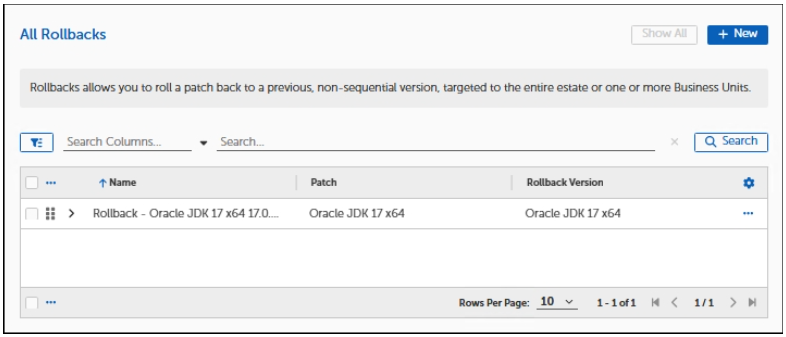
Create a Rollback
-
Select the Advanced Settings > Flex Controls > Rollbacks from the side navigation
-
Click +New.
-
Enter a unique Name and Description.
-
Select Browse to select the product you'd like to rollback.
-
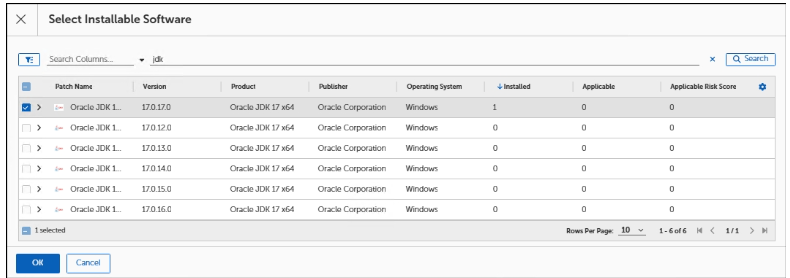
(Optional) Click Browse to select the Rollback Target then select the version you want to rollback to.
If you do not select a specific version and leave Rollback Target blank, it defaults to the last accepted version.
-
Select the desired version from the Installable Software table.
-
Click OK.
-
Select Browse to choose which business units you would like to apply to this rollback.
-
Click OK.
-
Click Save.
You have now created a rollback that applies to a client device during the next scan.