Use Tenable Hexa AI via User Interface
The following is not supported in Tenable FedRAMP Moderate environments. For more information, see the Tenable FedRAMP Product Offering.
Required User Role: Scan Operator, Standard User, Scan Manager, Administrator, or Custom Role with appropriate privileges
In today's complex security landscape, analysts are often overwhelmed by data and manual tasks. Tenable Hexa AI in Tenable One Vulnerability Management supercharges your ability to use the product in a meaningful, needle-moving way and empowers you to achieve security goals faster and with greater confidence. It provides a new and interactive way to get started with key features, helping you learn how to better utilize your investment in the Tenable platform. Tenable Hexa AI is your personal copilot that leverages our world-class data (e.g., extensive vulnerability intelligence, comprehensive scan data, and rich asset context) to:
-
Guide you through workflows to assist you in meeting your goals.
-
Help you understand high-order trains of thought (“Help me track KPIs that describe my security risk”) as well as comprehend detailed instructions (“Tag my critical network infrastructure devices to establish organizational ownership”).
-
Collapse tasks that took significant time, like finding the right dashboard or tagging assets, from days to minutes.
-
Allow you to create artifacts, such as: dashboards, tags, reports, campaigns, etc., and,
-
Proactively recommend and/or execute remediation actions by leveraging in-product capabilities.
-
Troubleshoot scan issues, such as explaining why a scan failed or why a specific plugin did not fire on an asset.
To use Tenable Hexa AI:
-
In the upper-right corner of any page, click
 Hexa AI.
The Hexa AI panel appears.
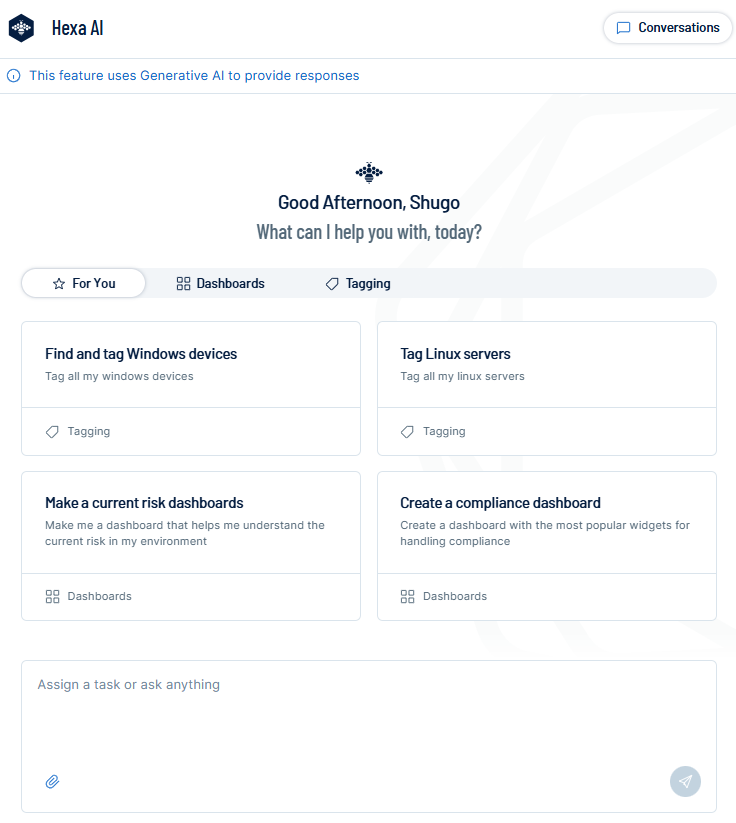
Here, you can do the following:
For more information, see Use Adversary View in Tenable Hexa AI.
Select a Prompt
You can click on a prompt to automatically send a pre-defined request to the AI.
Prompts can include, but are not limited to:
-
 For You — Click this tab to view AI prompts related to common Tenable use cases, such as summarizing your overall risk posture or identifying your most critical exposures.
 -
 Dashboards — Click this tab to view AI prompts related to dashboards, such as creating a dashboard from a template or adding widgets to an existing dashboard.
 -
 Tagging — Click this tab to view AI prompts related to tags, such as creating a tag or applying a tag to a group of assets that match specific criteria.
 -
 Scans — Click this tab to view AI prompts related to scans, such as creating and launching a scan or troubleshooting why a scan failed or why a specific plugin did not fire on an asset.
To use a prompt:
-
Click the tab that contains the prompt you want to use.
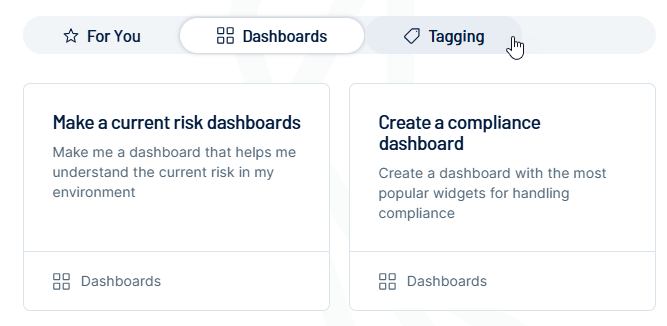
-
Click the tile for the prompt you want to use.
Tenable One Vulnerability Management sends the prompt query to Hexa.
Start a Chat
You can start a chat directly in the text box at the bottom of the Hexa AI panel.
To start a chat in the Hexa AI panel:
-
Type your question or task in the text box at the bottom of the panel.
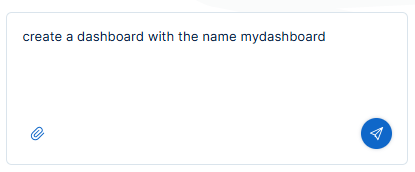
-
Click the
 button or press Enter on your keyboard.
Tenable sends the message to the AI. You can then continue the conversation based on your business needs and current task.
Tenable Hexa AI continues to process your request if you leave the conversation. For more information, see Work While Hexa Processes Your Chat.
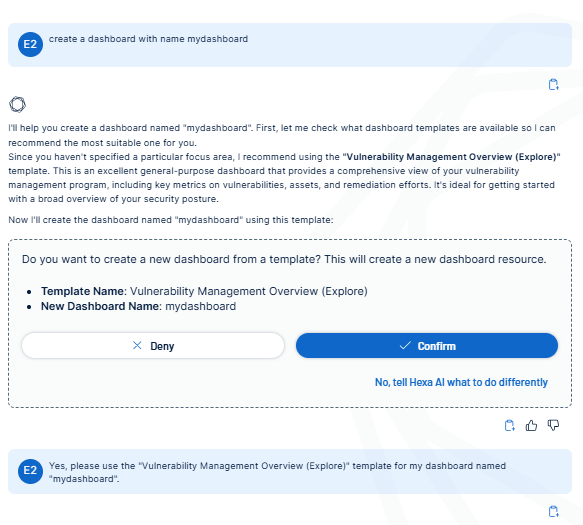
Once you've started a conversation, in the chat window, you can do the following:
Add to Favorites
At any point in your chat, you can add the conversation to your Favorites. You can view your favorites in the conversation history section of the Hexa AI panel.
To add your conversation to favorites:
-
At the top of the panel, expand the [Conversation Title]
 drop-down.
A menu appears.

-
Click
Add to Favorites.A notification appears, and Tenable One Vulnerability Management adds the conversation to the Favorites section of your conversation history.
Rename the Conversation
You can rename your conversation to better identify it later in your conversation history or favorites.
To rename the conversation:
-
At the top of the panel, expand the [Conversation Title]
drop-down.A menu appears.
-
Click
 Rename.
The Conversation Title becomes editable.
-
In the text box, type a name for the conversation.
-
Click the
 button or press Enter on your keyboard.
Tenable One Vulnerability Management renames the conversation.
Delete the Conversation
When you delete a conversation from the chat window, it automatically gets removed from the Recent section of your conversation history.
To delete the conversation:
-
At the top of the panel, expand the [Conversation Title]
drop-down.A menu appears.
-
Click
 Delete.
A confirmation message appears.
-
Click Delete.
Tenable One Vulnerability Management removes the conversation from the Hexa AI panel.
Work While Hexa Processes Your Chat
Tenable Hexa AI processes your chats asynchronously. After you send a message, Tenable Hexa AI continues to work on your request while you do other things. You can do any of the following without interrupting a chat:
-
Close the Hexa AI panel.
-
Go to a different page in Tenable One Vulnerability Management.
-
Switch to a different workspace.
-
Refresh the page or click the Back button in your browser.
-
Close your browser tab or log out.
When you return to the conversation, you can see everything Tenable Hexa AI did while you were away, and the conversation continues to update if Tenable Hexa AI is still working.
You can also run multiple chats at the same time. There is no limit on the number of chats that can run at once. Each chat processes one message at a time, so wait for Tenable Hexa AI to finish before you send another message in the same chat. To ask something else in the meantime, start a new chat.
Conversations
Your conversation history includes a list of recent conversations with Tenable Hexa AI, as well as any conversations that you've favorited.
To view your conversation history:
-
In the upper-right corner of the panel, click
 Conversations.
The conversation history panel appears.
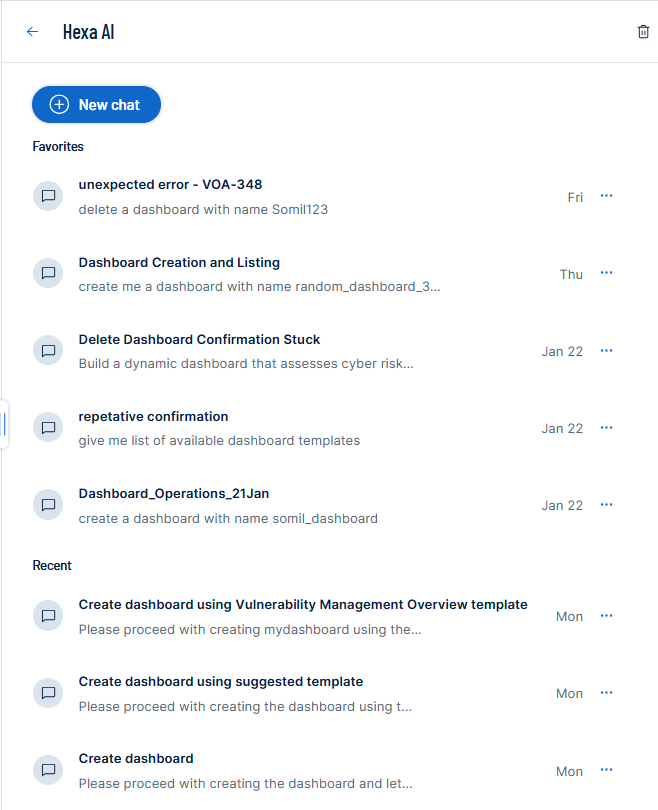
Here, you can view your Favorites as well as your Recent conversations with Tenable Hexa AI.
Tip: To favorite a conversation, see Favorite a Conversation. -
Click one of the conversations to automatically continue that conversation with the AI.
You can manage your conversations in the following ways:
Return to a Running Conversation
If Tenable Hexa AI is still processing a conversation, you can return to it from your conversation history. For more information, see Work While Hexa Processes Your Chat.
To return to a conversation that is still running:
-
In the upper-right corner of the panel, click
Conversations.The conversation history panel appears.
-
In the Recent section, click the conversation.
The conversation opens. If Tenable Hexa AI is still working, a progress message appears below the response until Tenable Hexa AI finishes.
Start a New Chat
You can start a new chat at any time from the conversation history panel.
To start a new chat via the conversation history panel:
-
In the upper-left corner of the panel, click
 New Chat.
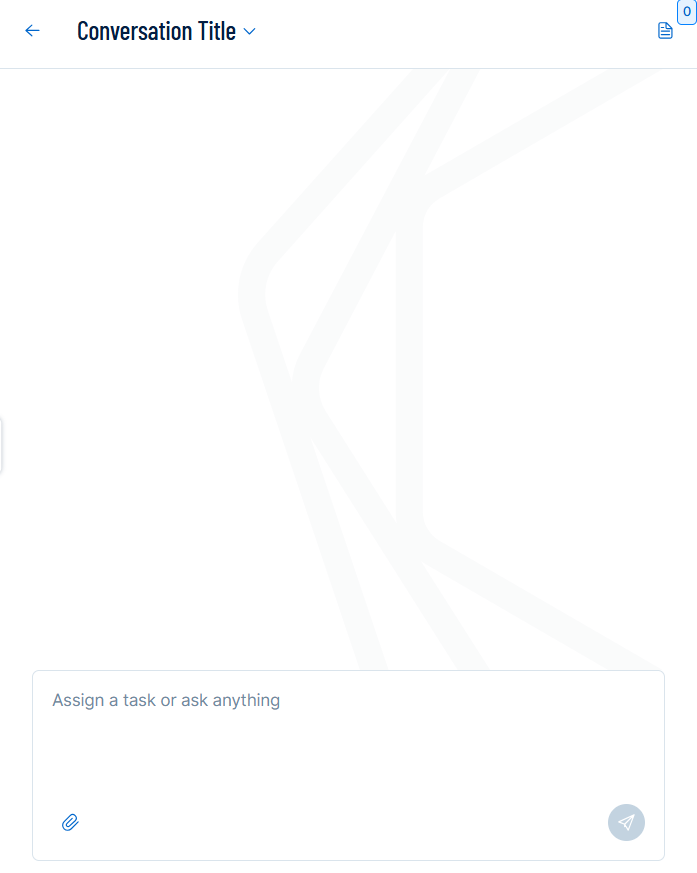
The new chat panel appears.
-
Start the conversation as described in Start a Chat.
Favorite a Conversation
You can favorite any conversation from the Recent section of the conversation history panel.
To favorite a recent conversation:
-
In the Recent section, click the
 button.
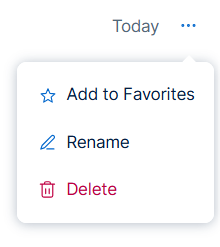
A menu appears.
-
Click
Add to Favorites.A notification appears, and Tenable One Vulnerability Management adds the conversation to the Favorites section of your conversation history.
Remove a Conversation from Favorites
Once you have added a conversation to your favorites, you can remove it at any time.
To remove a conversation from favorites:
-
In the Favorites section, click the
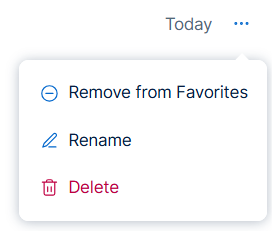
button.A menu appears.
-
Click
 Remove from Favorites.
A notification appears, and Tenable One Vulnerability Management removes the conversation from the Favorites section of your conversation history.
Rename a Conversation
In the conversation history panel, you can rename both recent conversations as well as favorited conversations.
To rename a conversation via the conversation history panel:
-
Next to the conversation you want to rename, click the
button.A menu appears.
-
Click
Rename.The Conversation Title becomes editable.
-
In the text box, type a name for the conversation.
-
Click the
button or press Enter on your keyboard.Tenable One Vulnerability Management renames the conversation.
Delete a Conversation
In the conversation history panel, you can delete both recent conversation history as well as favorited conversations.
To delete a conversation via the conversation history panel:
-
Next to the conversation you want to delete, click the
button.A menu appears.
-
Click
Delete.A confirmation message appears.
-
Click Delete.
Tenable One Vulnerability Management removes the conversation from the Hexa AI panel.
Utilize a Third-Party Integration
If you have connected a third-party integration to Tenable Hexa AI, you can ask Tenable Hexa AI to look up data from that integration and, with your approval, take action on your behalf. The specific requests you can make, and the actions Tenable Hexa AI can take, depend on which integration you connect.
For information specific to your connected integration, see the following:
Trust, Safety, and Governance
The following answers common questions about how data is used, stored, and transmitted when you use Tenable Hexa AI.
Data Sources
Tenable Hexa AI operates on your organization's own Tenable Exposure Data Fabric — the vulnerability, asset, identity, configuration, and AI-system data your Tenable products have already collected — plus whatever you provide directly in your prompts. No customer data is used to train the underlying models.
Data Transmission
Tenable Hexa AI's orchestration and platform layer run inside Tenable's SaaS environment. The LLM reasoning step calls Amazon Bedrock, which hosts Anthropic's Claude models, over an encrypted enterprise API — so inference is not fully contained within Tenable's own infrastructure.
Data Residency
Platform data stays within your existing regional container. For customers in the EU, US, Japan, and Australia, Hexa AI's LLM inference is now confined to AWS regions within that same geography and does not route outside it.
File Uploads
File upload support is currently limited to CSV files for creating asset tags. Other file types and upload workflows are not yet supported.