Tenable Hexa AI Settings
The following is not supported in Tenable FedRAMP Moderate environments. For more information, see the Tenable FedRAMP Product Offering.
Required User Role: Scan Operator, Standard User, Scan Manager, Administrator, or Custom Role with appropriate privileges
In Tenable One Vulnerability Management, the Hexa AI settings page provides a centralized view for managing AI resource distribution and monitoring user activity. By reviewing token usage and setting individual allocation limits, you can ensure equitable access to generative AI features across your organization while proactively controlling operational costs.
To access the Hexa AI settings page:
-
In the left navigation, click
 Settings.
The Settings page appears.
-
Click the Hexa AI tile.
The Hexa AI settings page appears.
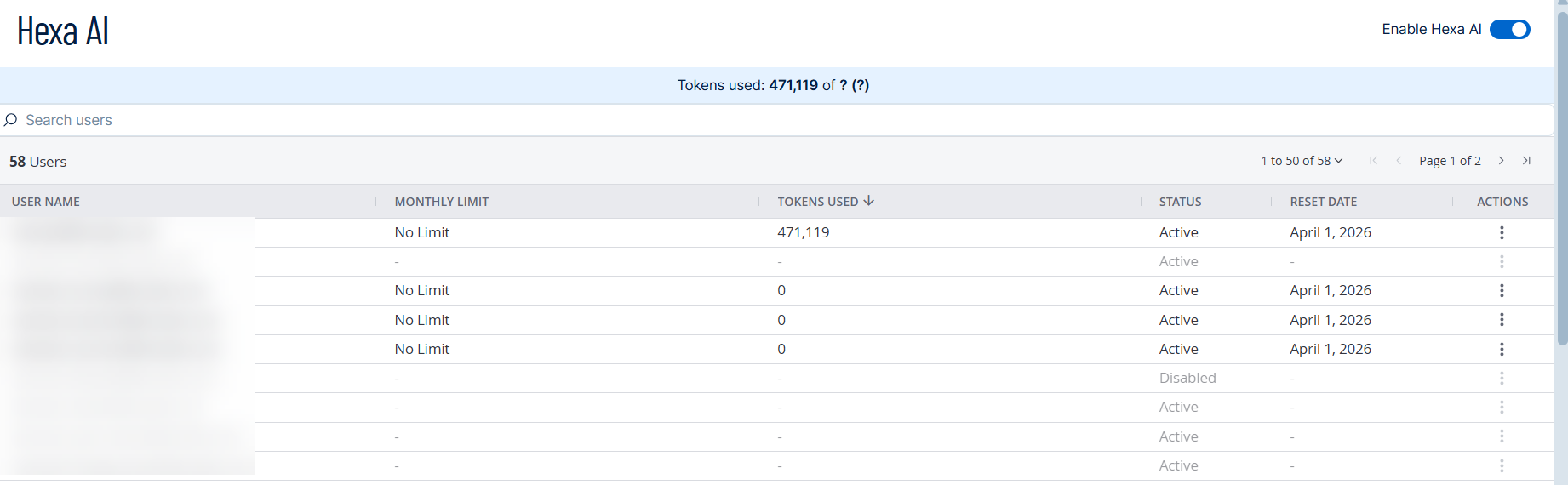
Here, you can:
-
In the upper-right corner of the page, enable or disable the following toggles to enable or disable Tenable Hexa AI access for your entire organization:
-
Enable Hexa AI — Controls the use of Tenable Hexa AI via the User Interface
-
Enable Hexa AI MCP — Controls the use of Tenable Hexa AI via the MCP Server
Important! This controls the ability to use Tenable Hexa AI for all user accounts within your container. This setting overrides any custom role that has the Hexa AI > Use privilege enabled. For more information, see Custom Role Privilege Application. -
-
Use the Search users search box to search the list for a specific user.
-
View the following information about your Tenable Hexa AI users:
-
User Name — The name of the user that can use Tenable Hexa AI.
-
Monthly Limit — The number of tokens allocated to the user per month. If there is no limit, the value shows No Limit.
Tip: To change the number of allocated tokens, see Edit User Token Allocation. -
Tokens Used — The number of tokens used this month.
-
Status — The status of the user, for example Active or Disabled.
Tip: For more information about enabling or disabling a user, see Manage User Accounts. -
Reset Date — The date on which the user's Tenable Hexa AI usage and token count resets.
-
You can also manage your Tenable Hexa AI users in the following ways:
Edit User Token Allocation
By setting token allocation limits for your Tenable Hexa AI users, you can proactively manage your organization’s resource consumption and prevent unexpected overages. This feature allows administrators to distribute AI credits equitably across teams, ensuring high-priority projects have the necessary bandwidth while maintaining strict oversight of operational costs.
To edit user token allocation:
-
In the row for the user for which you want to edit token allocation, click the
 button.
A menu appears.
-
Click
 Edit.
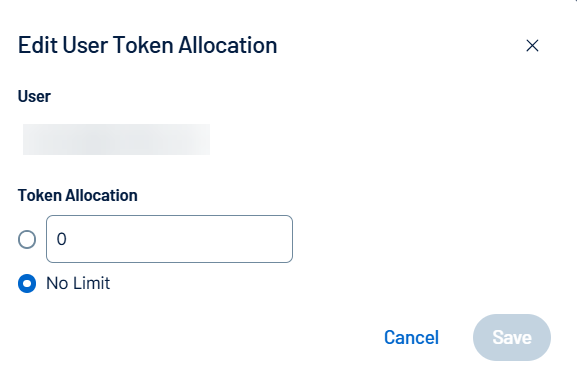
Edit.The Edit User Token Allocation window appears.
-
Do one of the following:
-
To set a limit on the number of tokens allocated to the user, select the first radio button.
-
In the text box, type the number of tokens, per month, you want to allocate to the user.
-
-
To allocate unlimited tokens to the user, select the No Limit radio button.
-
-
Click Save.
Third-Party Integrations
Use the Connections tab to connect a third-party integration to Tenable Hexa AI. Once connected, Tenable Hexa AI can look up data from that integration and, with your approval, take action on your behalf.
For information about connecting and managing a specific integration, see the following: